

Historical balances do not include inflight balances.
View historical balance
Historical balance does not open a separate page. You stay on the balance details page:Actions opens a dialog, then the summary amounts on that same page update to show the past point in time.
To view a balance at a specific date and time:
1
Open the balance details page
From 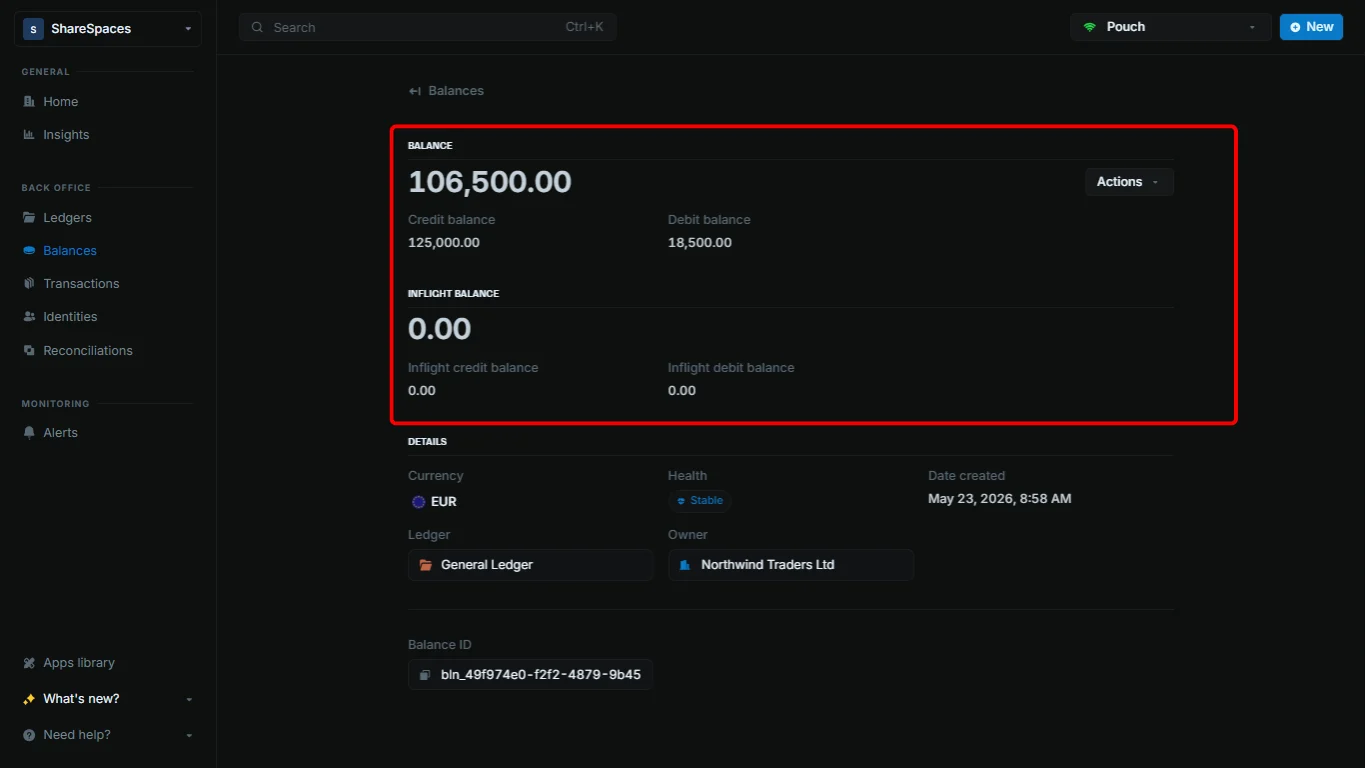
Balances, open the balance you want to inspect. You should be on the balance details page (summary, transactions, and metadata).2
Open the Actions menu
In the top-right corner of the balance details page, click 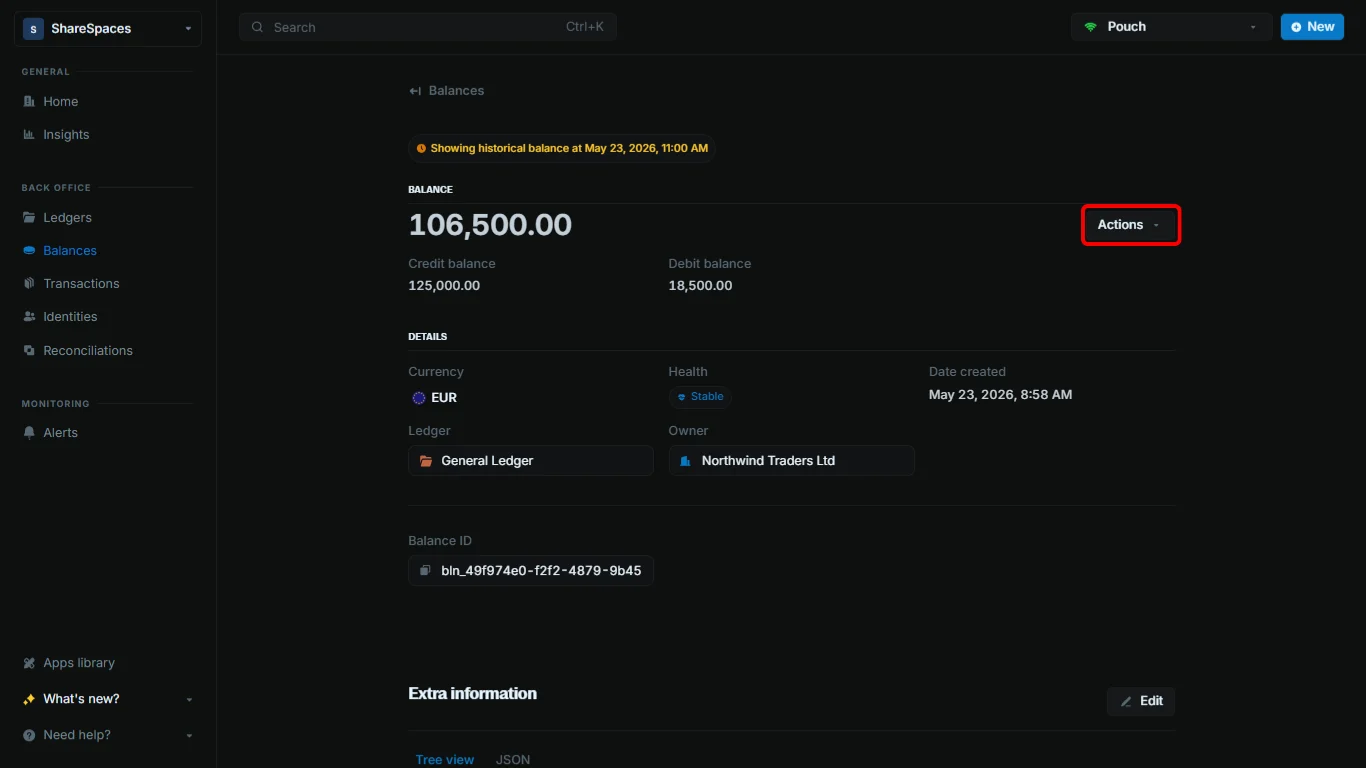
Actions.3
Choose View historical balance
In the dropdown, select 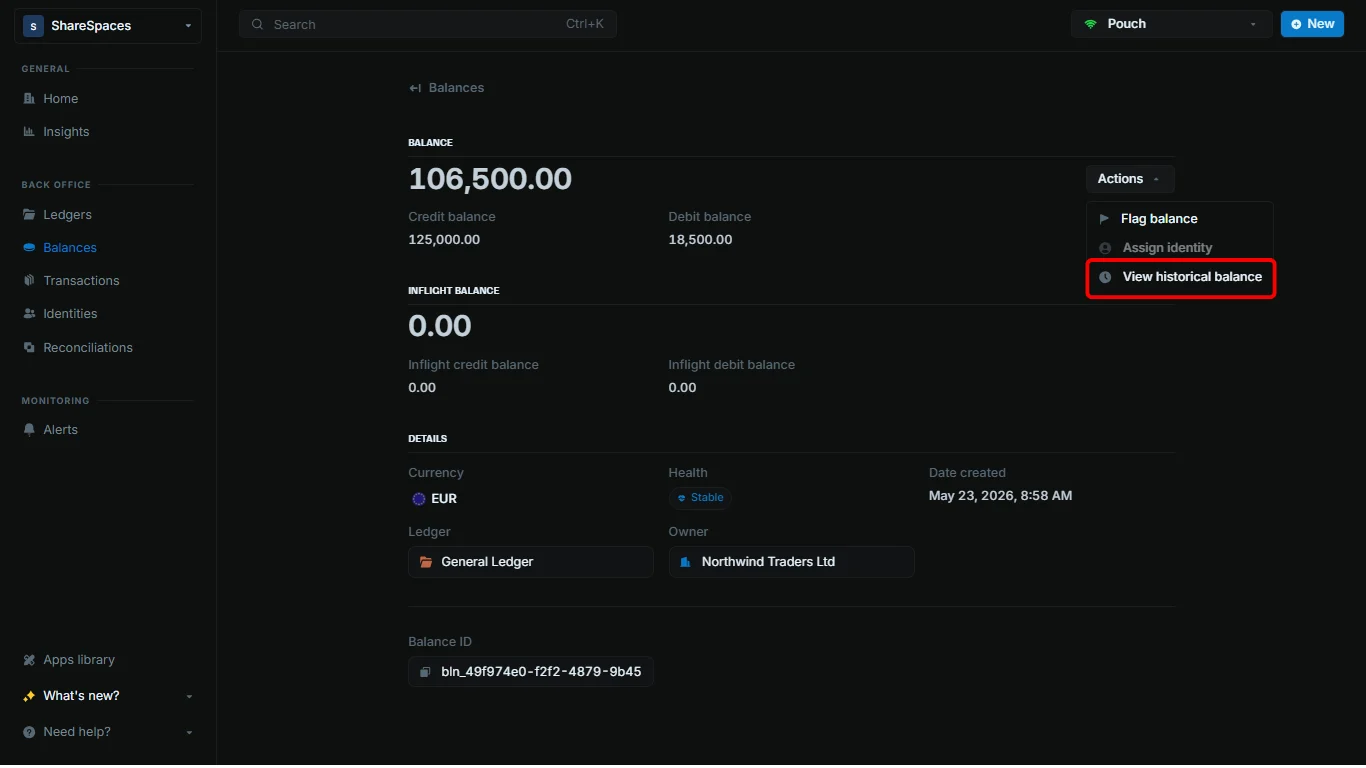
View historical balance. A dialog titled View historical balance? opens on top of the balance details page.4
Pick a date and time in the dialog
In the dialog, choose the date and time you want to view the balance at, then click 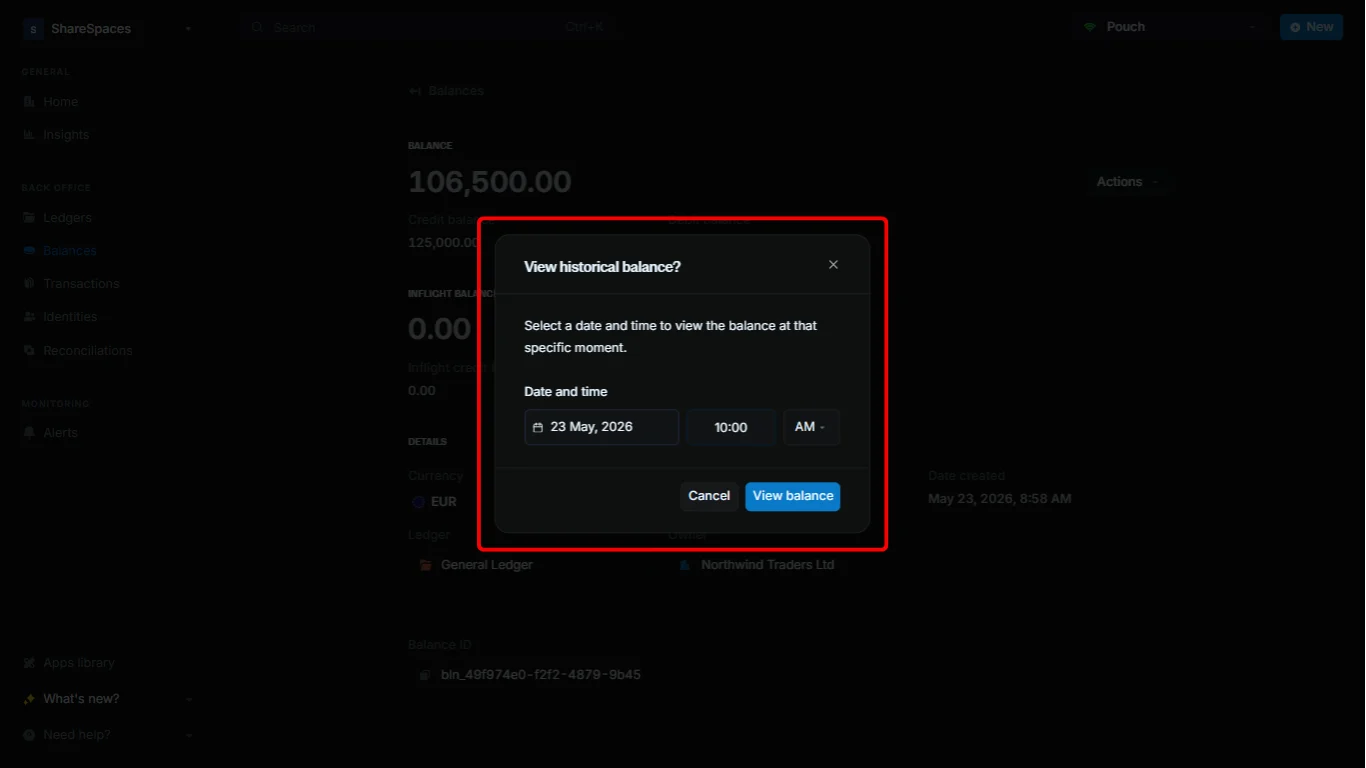
View balance.5
Review amounts at that moment
The dialog closes. On the same balance details page, 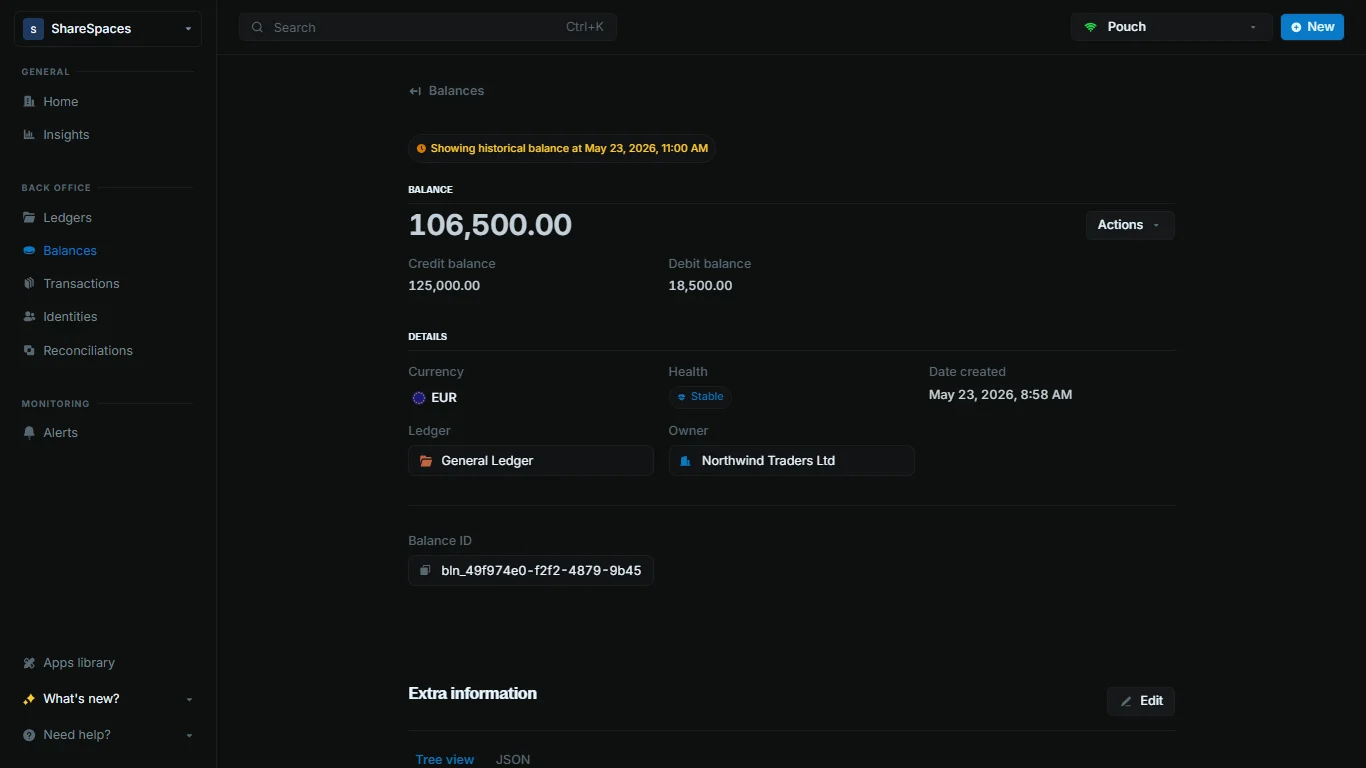
Balance, Credit balance, and Debit balance update to reflect that point in time.Share historical balance
You can copy the link and share it with other teammates so they can also view the balance at that same point in time. This is helpful for collaborative analysis or when you need to show specific balance states to colleagues.Return to current balance
After you view a historical balance, you are still on the balance details page (with past amounts shown). To switch back to live amounts:1
Open Actions again
On the same balance details page, click
Actions in the top-right corner. While you are viewing a historical balance, the menu shows View current balance instead of View historical balance.2
Select View current balance
Choose 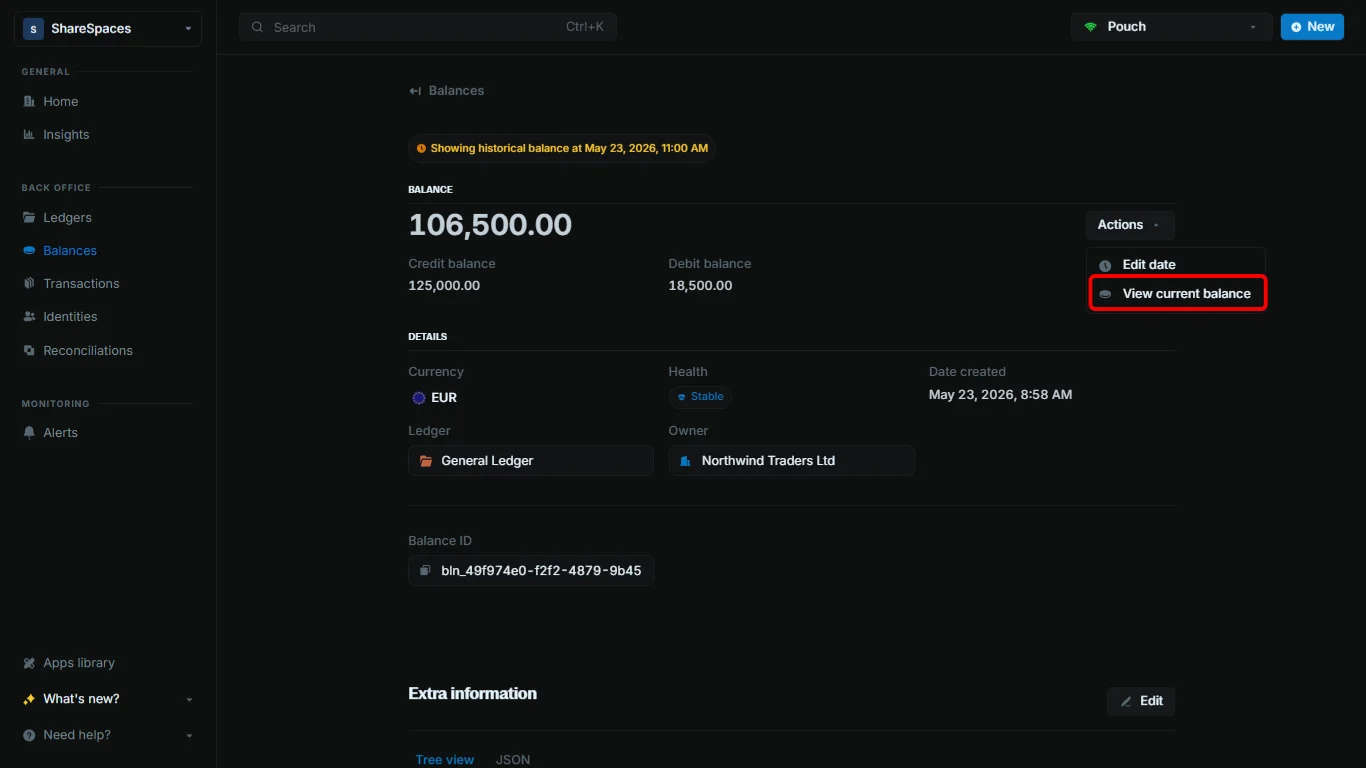
View current balance from the menu. The page shows live amounts again.