

Start here
Getting Started with Blnk
Set up and install Blnk for your product.
Blnk is an open source, double-entry ledger for building financial products.
It is very simple to set up, and it takes less than 5 minutes to start using for your product.
Install Blnk
Instead of self-hosting, start with a sandbox on Blnk Cloud.
Deploy a Core
Sign up at cloud.blnkfinance.com, then click Deploy new Core on the homepage.
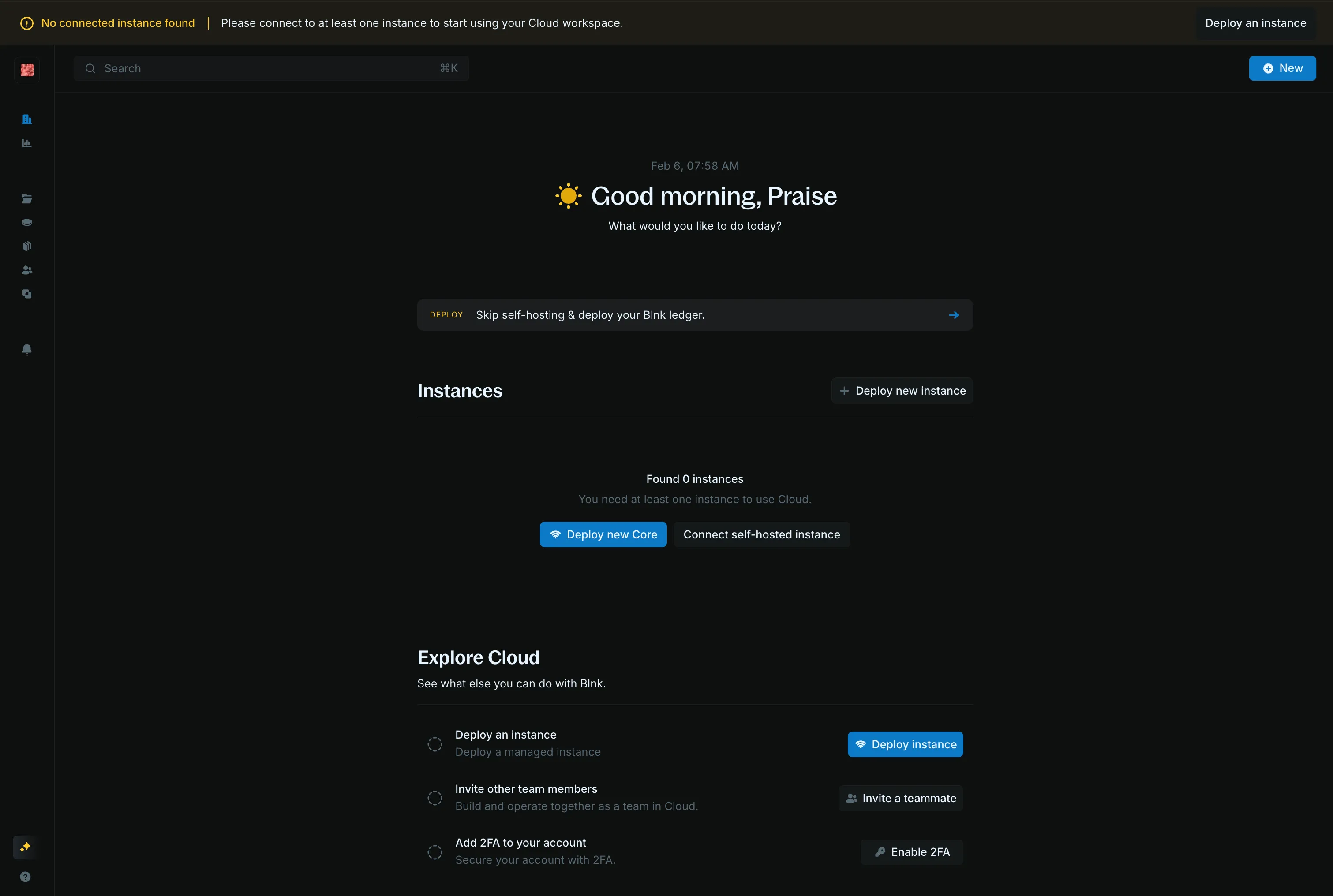
Name the instance
Choose a name, then click Deploy managed Core.
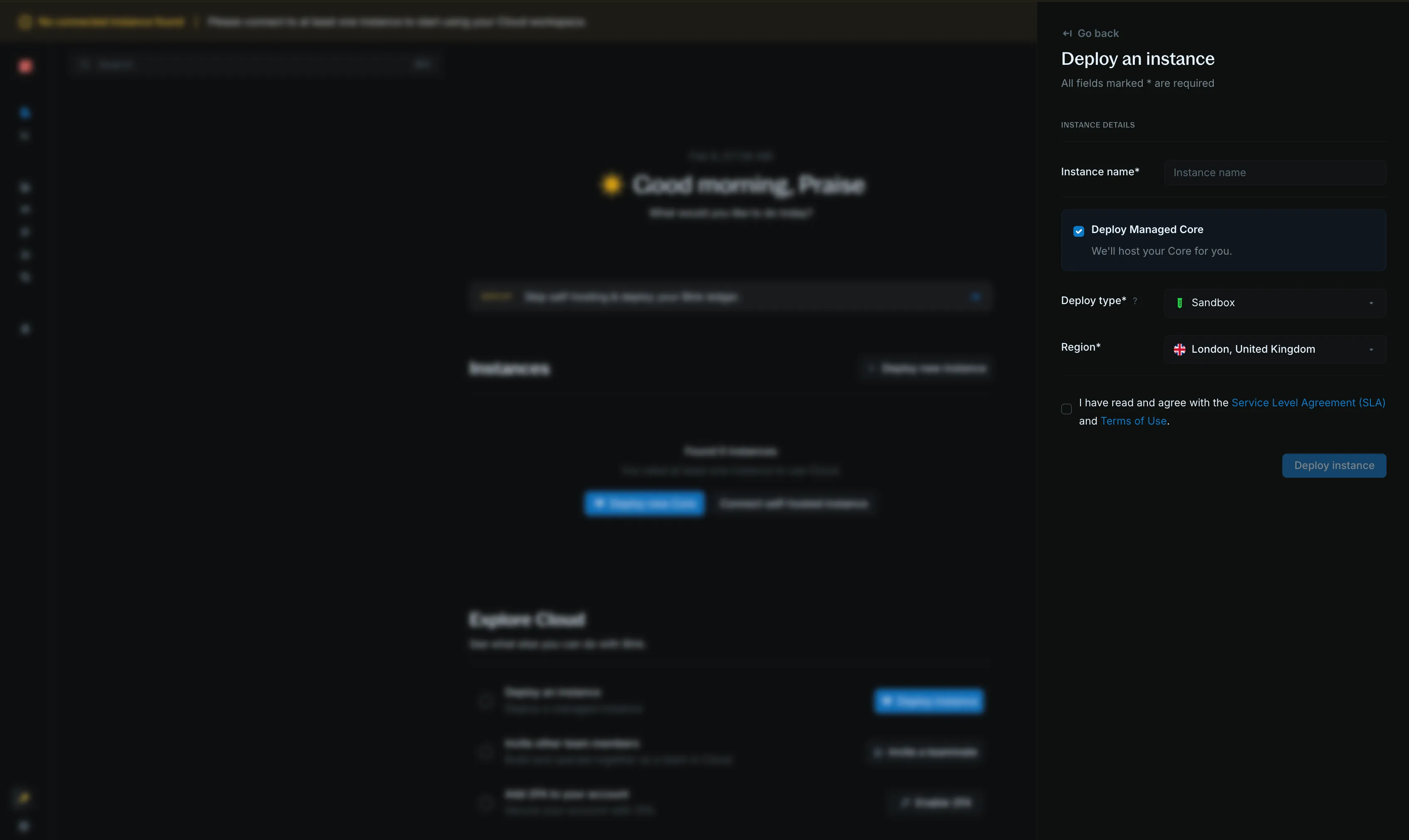
Wait until it is connected
Deployment takes about 7–10 minutes. When the status is Connected, open the instance to copy the Core URL and secret key.
Record your first transaction
Let’s record a $1,000.00 transaction between two balances.
We’ll use internal balances so that the balances are auto-created when we record the transaction.
Post the transaction
Send this request to http://localhost:5001 on your machine.
If using Blnk Cloud, use the Core URL from your instance and send your secret key as X-blnk-key.
curl -X POST 'http://localhost:5001/transactions' \
  -H 'X-blnk-key: <api-key>' \
  -H 'Content-Type: application/json' \
  -d '{
    "precise_amount": 100000,
    "reference": "first_transaction_001",
    "currency": "USD",
    "precision": 100,
    "source": "@FundingPool",
    "destination": "@MyBalance",
    "description": "My first Blnk transaction",
    "allow_overdraft": true,
    "skip_queue": true,
    "meta_data": {}
  }'
const response = await blnk.Transactions.create({
precise_amount: 100000,
reference: 'first_transaction_001',
currency: 'USD',
precision: 100,
source: '@FundingPool',
destination: '@MyBalance',
description: 'My first Blnk transaction',
allow_overdraft: true,
skip_queue: true,
meta_data: {},
});transaction, _, _ := client.Transaction.Create(blnkgo.CreateTransactionRequest{
ParentTransaction: blnkgo.ParentTransaction{
PreciseAmount: big.NewInt(100000),
Reference: "first_transaction_001",
Currency: "USD",
Precision: 100,
Source: "@FundingPool",
Destination: "@MyBalance",
Description: "My first Blnk transaction",
SkipQueue: true,
},
AllowOverdraft: true,
})response = blnk.transactions.create({
"precise_amount": 100000,
"reference": "first_transaction_001",
"currency": "USD",
"precision": 100,
"source": "@FundingPool",
"destination": "@MyBalance",
"description": "My first Blnk transaction",
"allow_overdraft": True,
"skip_queue": True,
"meta_data": {},
})ApiResponse<JsonNode> response = blnk.transactions().create(
CreateTransactions.create()
.preciseAmount(100000)
.reference("first_transaction_001")
.currency("USD")
.precision(100)
.source("@FundingPool")
.destination("@MyBalance")
.description("My first Blnk transaction")
.allowOverdraft(true)
.skipQueue(true)
.metaData(Map.of()));Read the response
{
  "id": "txn_6164573b-6cc8-45a4-ad2e-7b4ba6a60f7d",
  "source": "@FundingPool",
  "destination": "@MyBalance",
  "reference": "first_transaction_001",
  "amount": 1000,
  "precision": 100,
  "precise_amount": 100000,
  "currency": "USD",
  "description": "My first Blnk transaction",
  "allow_overdraft": true,
  "status": "APPLIED",
  "created_at": "2024-12-21T01:36:46.997063436Z",
  "meta_data": {}
}
precise_amount is 100000 and precision is 100, so the amount is 1,000.00 USD.
The transaction is recorded. status is APPLIED, and the balances should have been updated with their correct amounts.
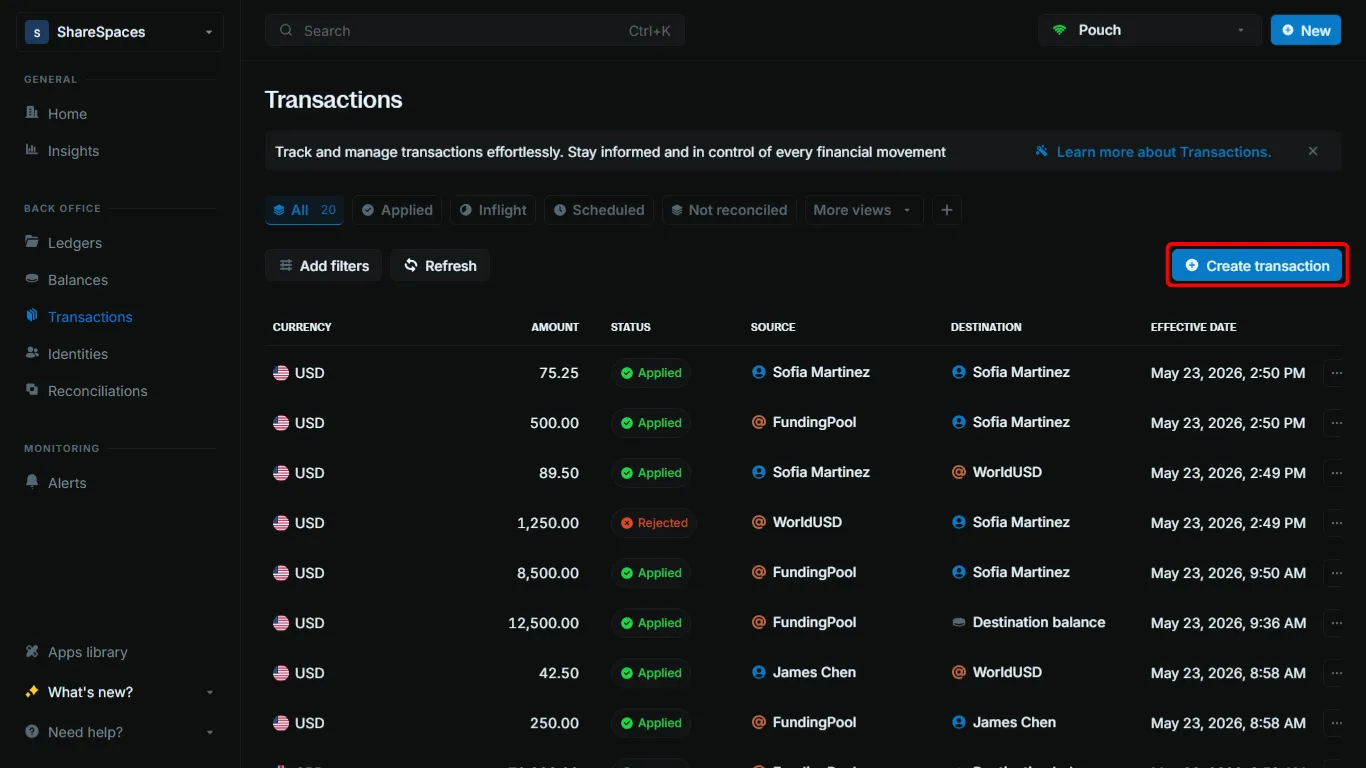
In your Blnk Cloud workspace, open Transactions.
Open Create transaction
Click Create transaction in the top right. You can also press ⌥ T (Alt+T on Windows).
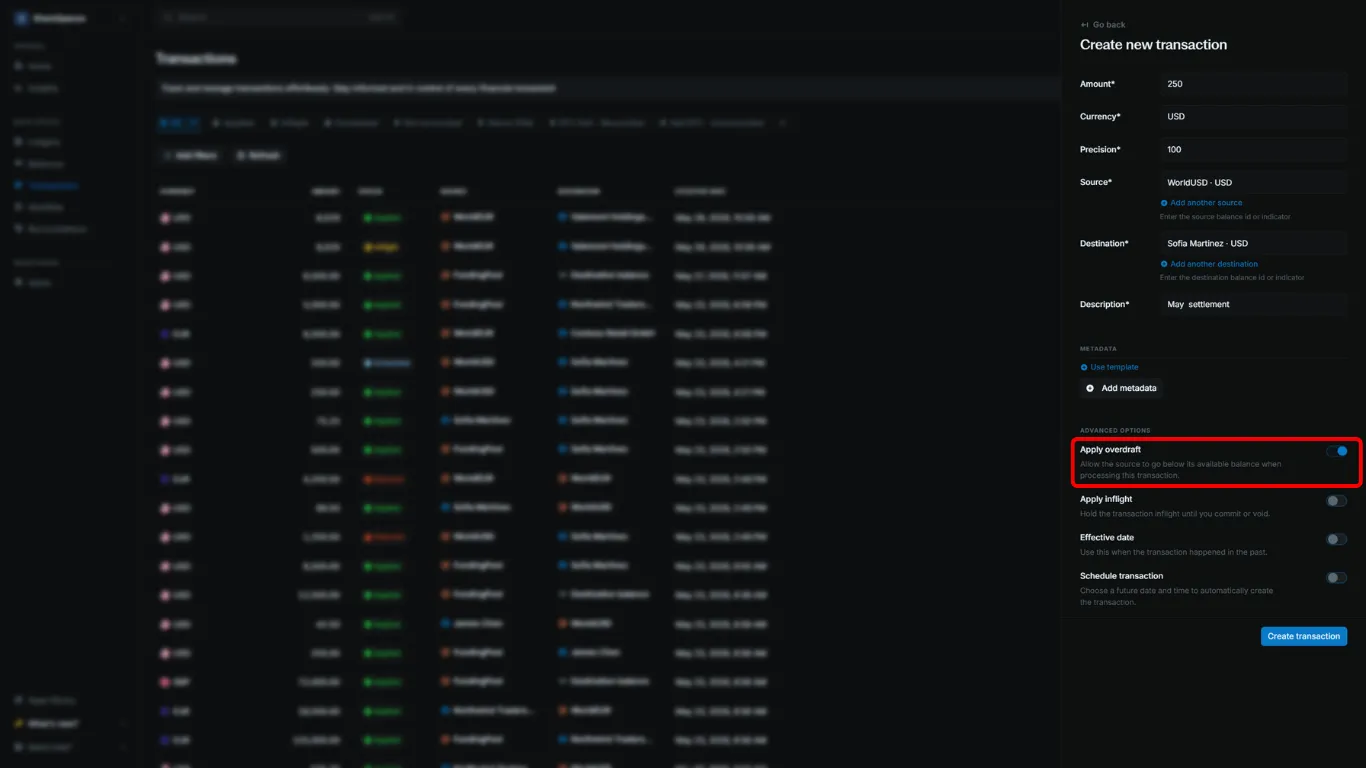
Enter the transaction
Fill in the form:
- Amount:
1000 - Currency:
USD - Precision:
100 - Source:
@FundingPool - Destination:
@MyBalance - Description:
My first Blnk transaction
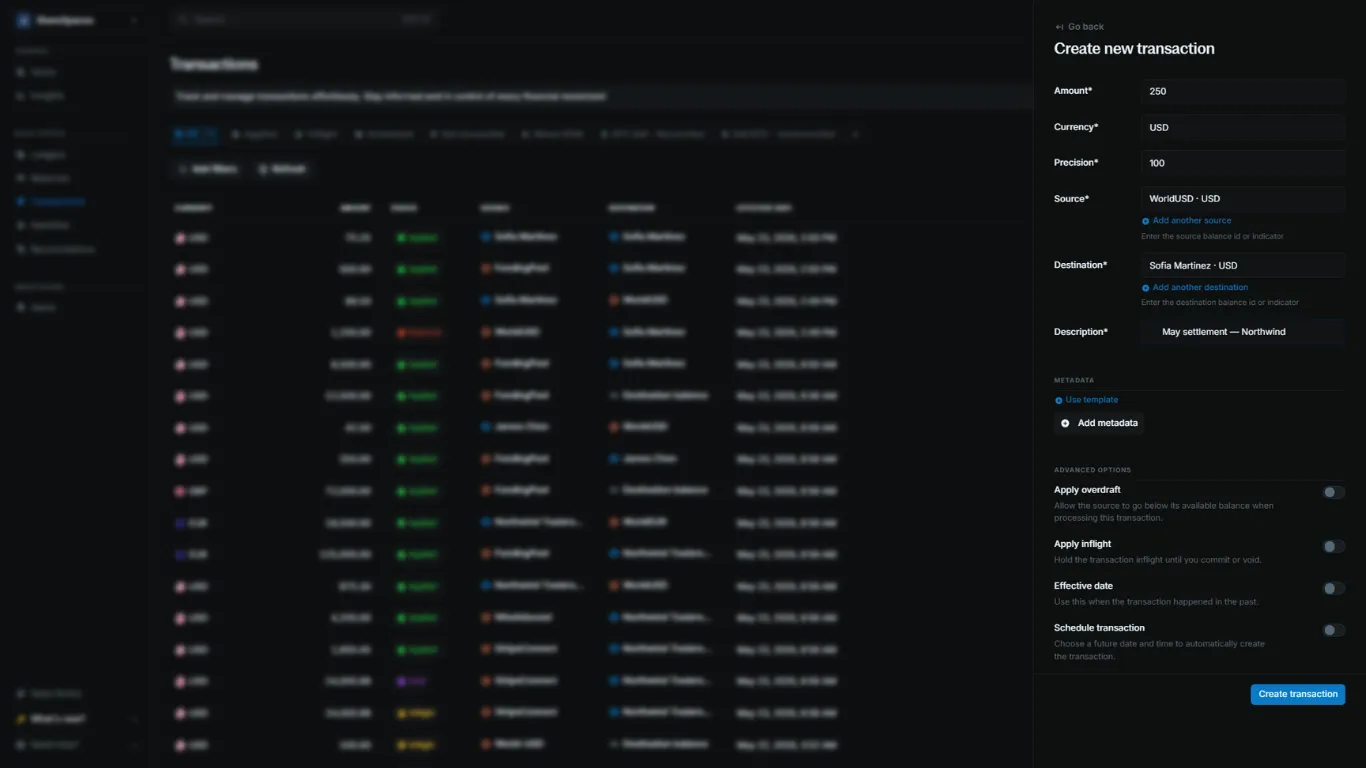
Allow the funding pool to go negative
Under Advanced options, turn on Apply overdraft. @FundingPool has no funds yet, so the transaction needs this.
Create the transaction
Click Create transaction. The new row shows in the Transactions table.
The transaction is recorded. Source is @FundingPool and destination is @MyBalance.