A mental model for how Custom Apps fit with Blnk Cloud - components, lifecycle, permissions, security, and auditability.
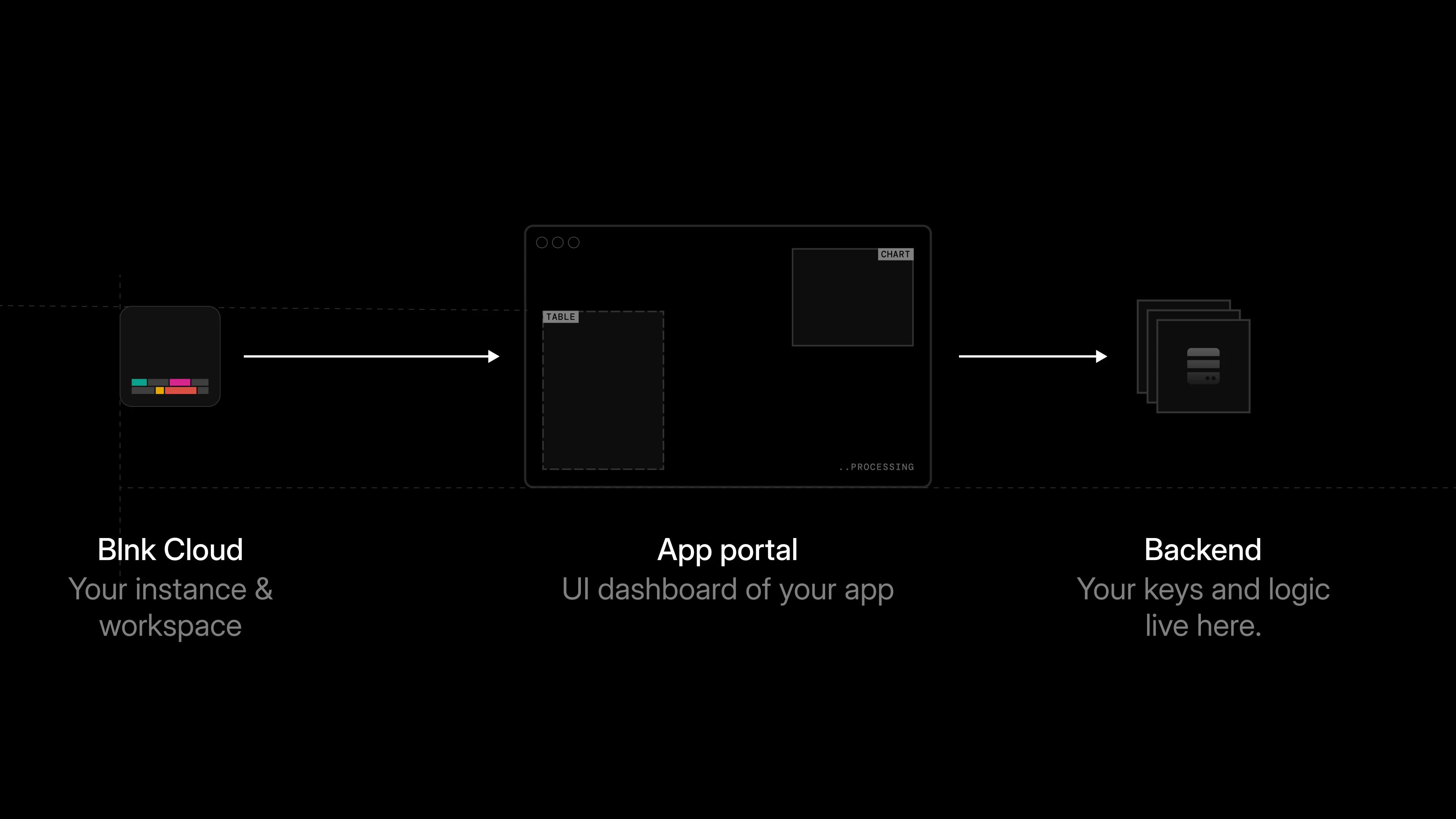
A Custom App is a third-party app that runs inside Blnk Cloud, scoped to a single organization and Cloud instance.It can read ledger data, perform Core actions, talk to external systems, and surface a custom UI inside the Cloud dashboard.
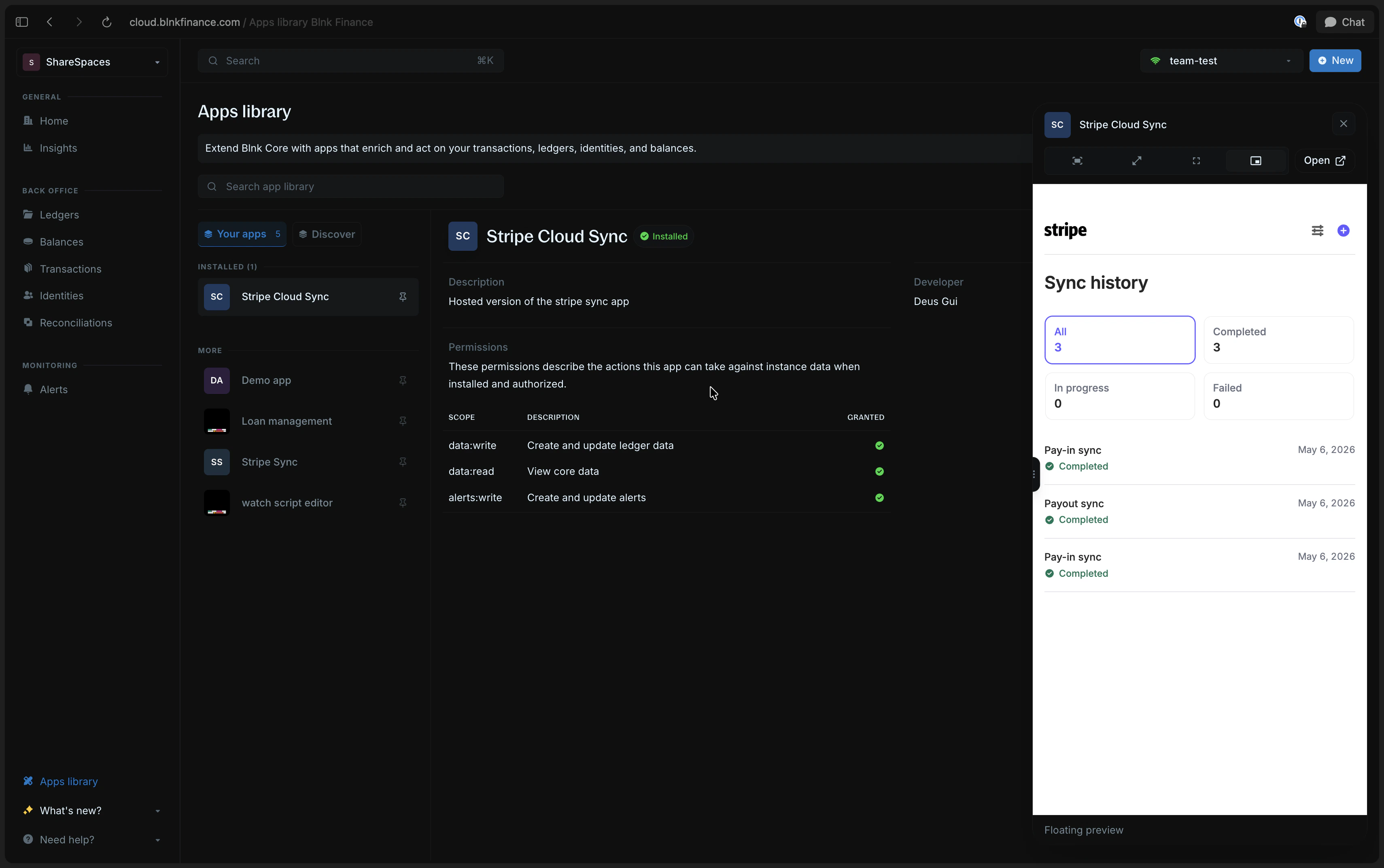
A Stripe Sync app for importing pay-ins and payouts into Blnk.
This page explains how a Custom App works with Blnk: the components it has, the lifecycle it goes through, and the security and auditability guarantees you get for free by building on Cloud.Use it as the mental model before you install an app or build your own. When you are ready to ship, review Best practices.
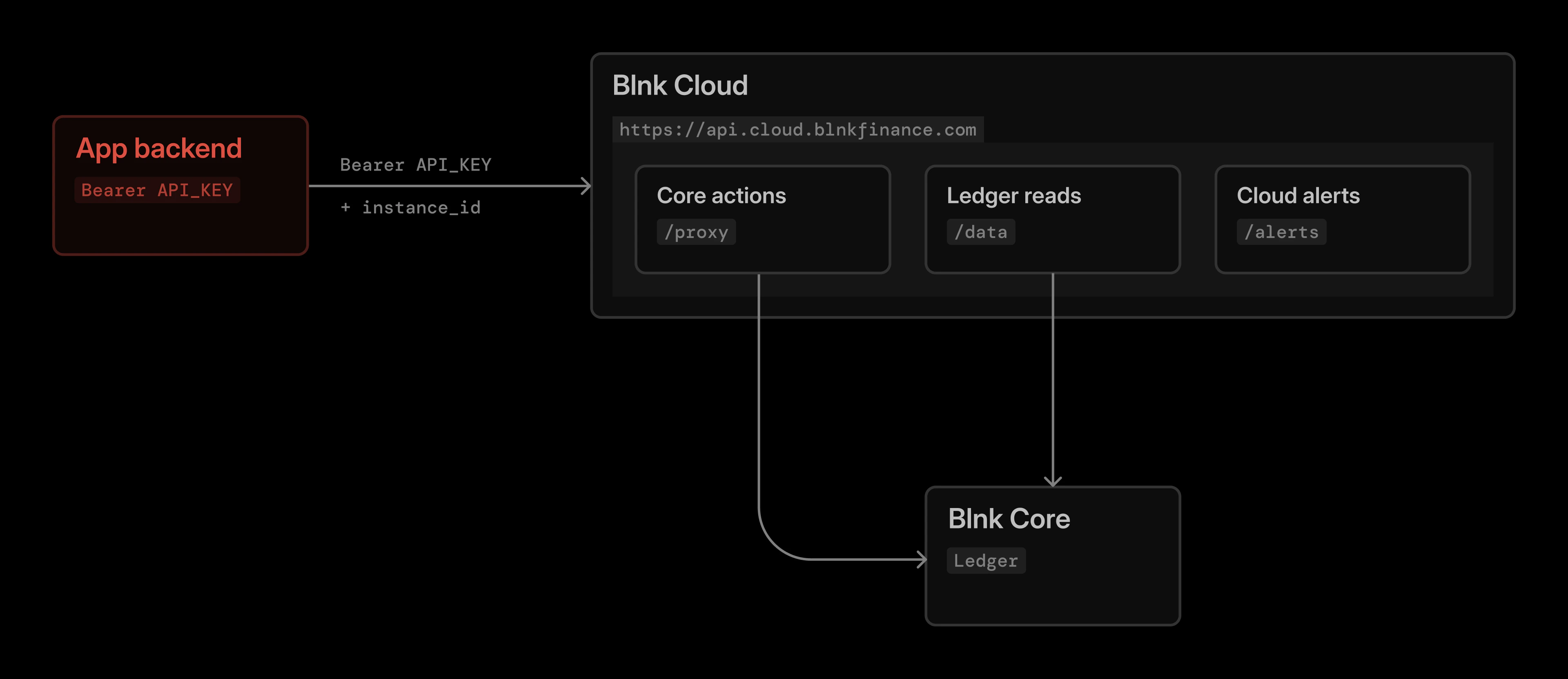
Apps do not hold direct Core credentials; plus a custom app should not call Core directly. Instead, they receive an install-specific key scoped to one organization, one instance, and approved permissions. Cloud mediates every request.Every request flows through Blnk Cloud at https://api.cloud.blnkfinance.com, authenticated with the scoped API key issued at install time.Cloud exposes these families of endpoints to your app:
Surface
URL path
Purpose
Proxy API
/proxy/...
Call any Core endpoint through Cloud (GET, POST, PUT, DELETE).
Data Lake API
/data/lake/...
Query historical ledger data with SQL.
Cloud-native APIs
/alerts/...
Use features that belong to Cloud itself, like alerts.
This gateway pattern is what makes Cloud the trust boundary: your app gets a scoped key for one organization and one instance, and Cloud is responsible for routing the call, enforcing permissions and rate limits, and recording what happened.
Every Custom App request goes through Blnk Cloud, never directly to Core.
Custom Apps have two layers of permissions that work together:
What your app can access. Your manifest declares the scopes the app needs. Cloud enforces these at the API gateway, regardless of what the signed-in user can do.
What the user approved. Workspace members choose a subset of the requested scopes during installation. Those granted scopes cannot be changed after install.
The supported scopes are:
Scope
What it allows
data:read
Allows apps to retrieve ledger data through Cloud.
data:write
Allows apps to perform write operations through Cloud APIs.
alerts:read
Read alerts available to the installed organization and instance.
alerts:write
Create and update alerts through Cloud APIs.
Apps do not bypass Cloud or connect directly to Blnk Core. Even with write permissions, app actions are scoped to the installed organization and instance, routed through Cloud, and recorded in the audit trail.
For access to granular permission scopes, please contact us for a production license.
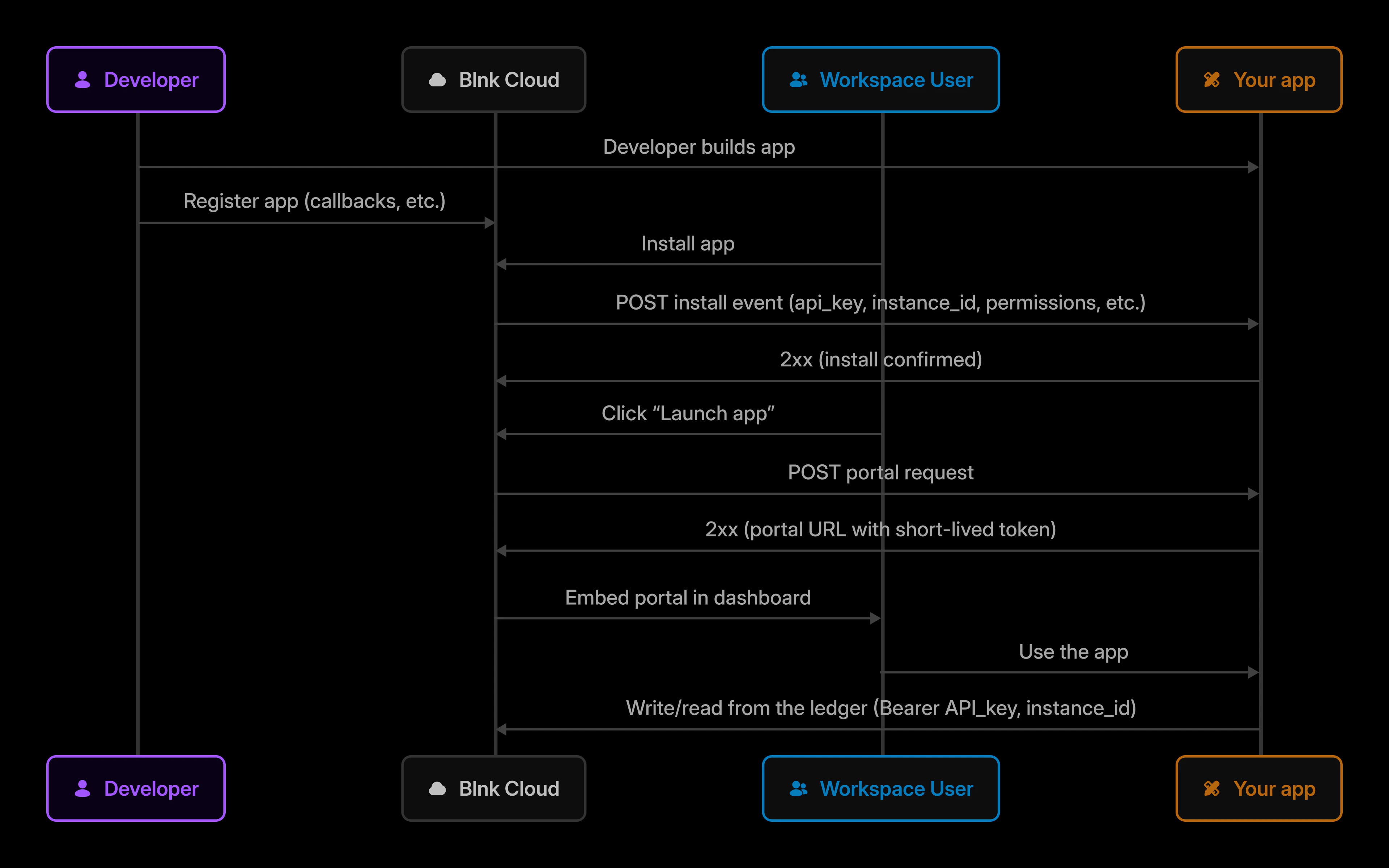
At runtime, granted_permissions from the install payload is the source of truth. Always check it before performing an action ” even if your manifest requested more, the user may have granted less.Apps never inherit a user’s permissions. If your manifest does not request a scope, the app cannot use it, even if the user installing it has full access.
Because Cloud is the gateway for every app action, you get a clear audit trail without building your own:
Every Core action is mediated. Calls flow through /proxy and /data, so Cloud captures who acted, on what instance, with which key.
Actions are attributable to a specific install. Each install has its own installed_app_id and api_key_prefix, so activity can be traced back to a specific app installation, not a generic key.
Permission grants are recorded at install time. What the user approved is captured in granted_permissions and visible to the workspace.
Install and uninstall events are idempotent. Each event carries an idempotency_key. Your handler should treat duplicate keys as already processed.
Uninstall is a clean break. When a user uninstalls, Cloud sends an uninstall event to your callback URL. If your app returns 2xx, Cloud marks the install uninstalled and revokes the API key.
You can review app activity alongside other workspace activity in the audit logs.
A few things to keep in mind as you plan your app:
Apps are private by default. Apps you register appear in your organization’s Apps library. Installing an app is separate: each Cloud instance has its own install state.
One install per organization + instance. Installing an app in one instance does not make it available in another. Each install has its own scoped key.
Self-hosted Core needs to be reachable. If your instance is connected and self-hosted, set the Core URL and key, and whitelist Cloud IPs so Cloud can reach it.
Apps cannot exceed requested permissions. Even if the signed-in user has broader access, the app is bounded by the scopes in its manifest and what the user granted.
Portal sessions are short-lived by design. If a session expires, the user re-launches the app from Cloud.