When to use metadata templates
Use metadata templates when your team needs consistent metadata across similar records. For example:- A loan app can use the same keys for loan ID, repayment schedule, risk tier, and loan officer.
- A wallet product can use the same keys for customer segment, wallet type, provider, and region.
- A treasury team can use the same keys for account type, bank partner, settlement cycle, and currency corridor.
Create metadata template
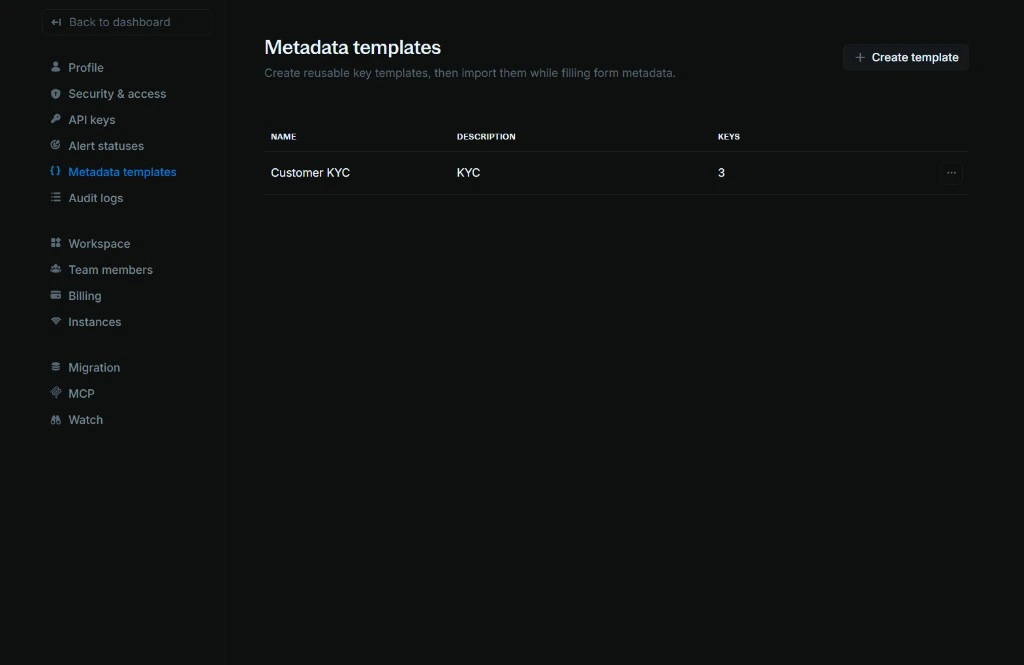
To create a new metadata template:-
Go to
[Settings > Metadata templates](https://cloud.blnkfinance.com/cloud/settings/metadata-templates). -
Click
Create templateto add a new template with a name, description, and keys.- Name: A clear name for the template, such as
Loan metadata,Customer wallet, orProvider settlement. - Description: A short note explaining when the template should be used.
Keys:The metadata keys you want users to add to records. You can add multiple keys to the template.
- Name: A clear name for the template, such as
Note: You can also edit or delete the template after it’s created. Simply click the Actions menu (three dots) on the template row and select Edit or Delete.Use a metadata template
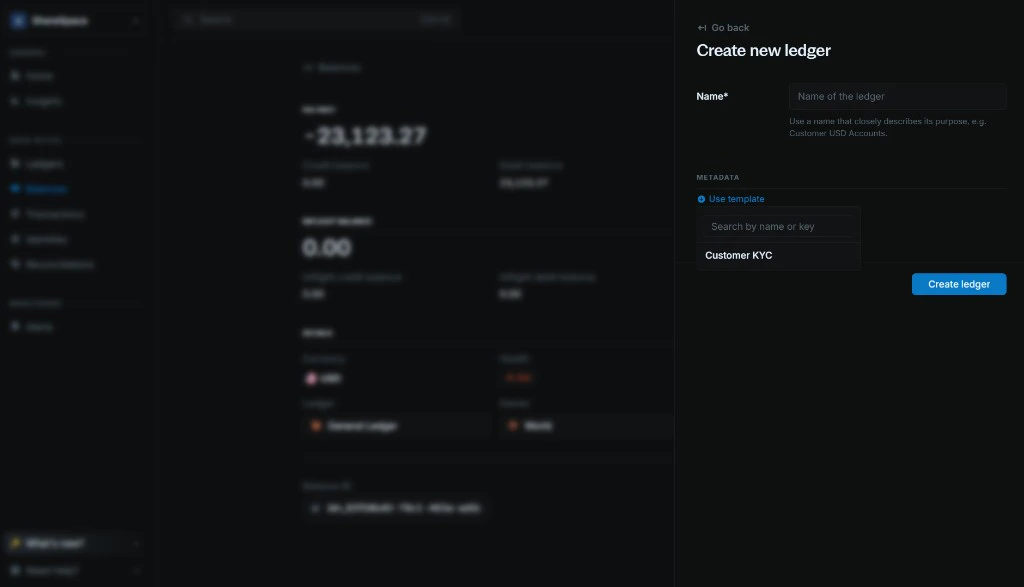
You can use metadata templates on any form that has a metadata section. To use a template:-
Click
Use templateto open the template dropdown. - Search by template name or key.
- Select the template you want to use.
- The template keys are added to the form. Fill in the values for that record.
-
To add another template, click
Use templateagain and select another template.