

Create transactions
To create a new transaction:1
Create transaction
Click 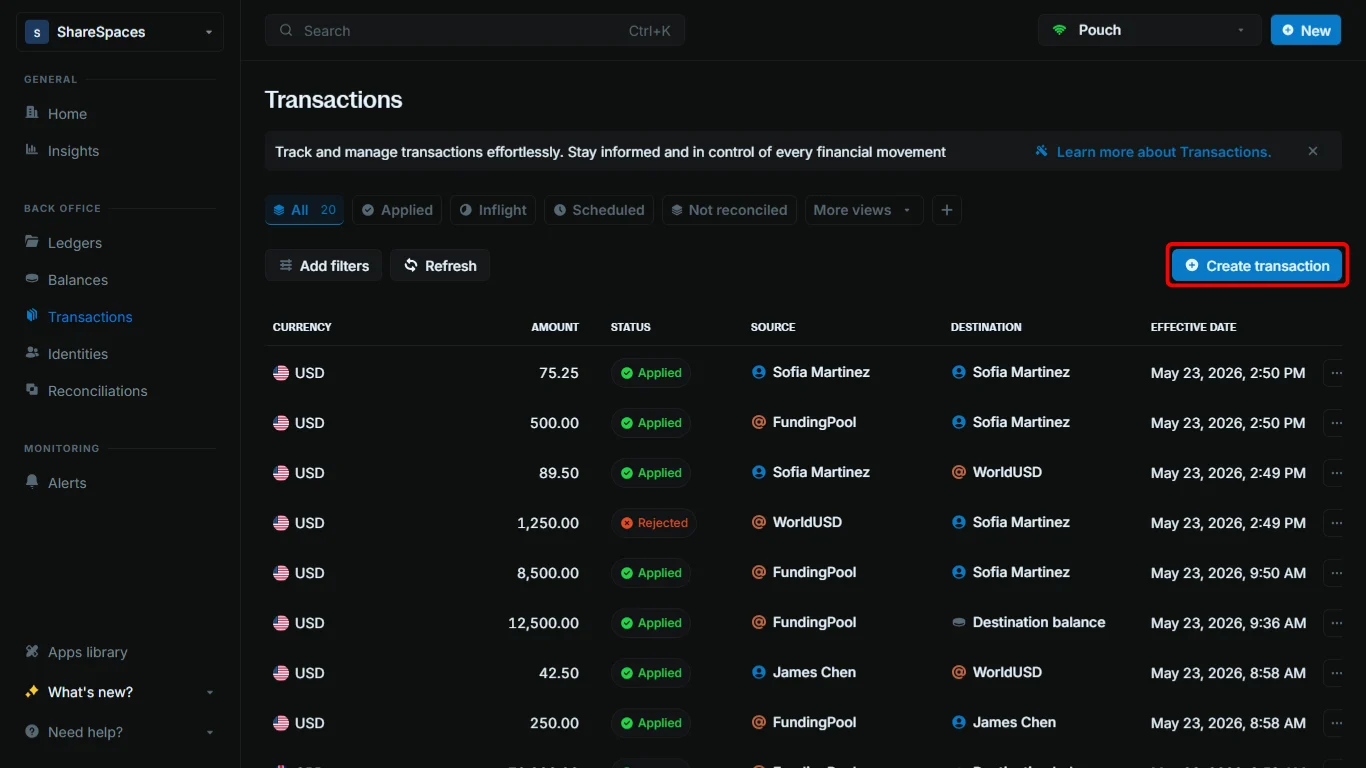
Create transaction in the top-right corner of the Transactions table or press ⌥ + T (Alt + T for Windows).2
Enter the required details
- Amount: The amount of the transaction.
- Currency: The currency the transaction will use.
- Precision: The multiplier that converts the amount into the currency’s smallest unit.
- Source: The balance from which funds will be debited.
Destination:The balance to which funds will be credited.- Description: A short note describing the purpose of the transaction.
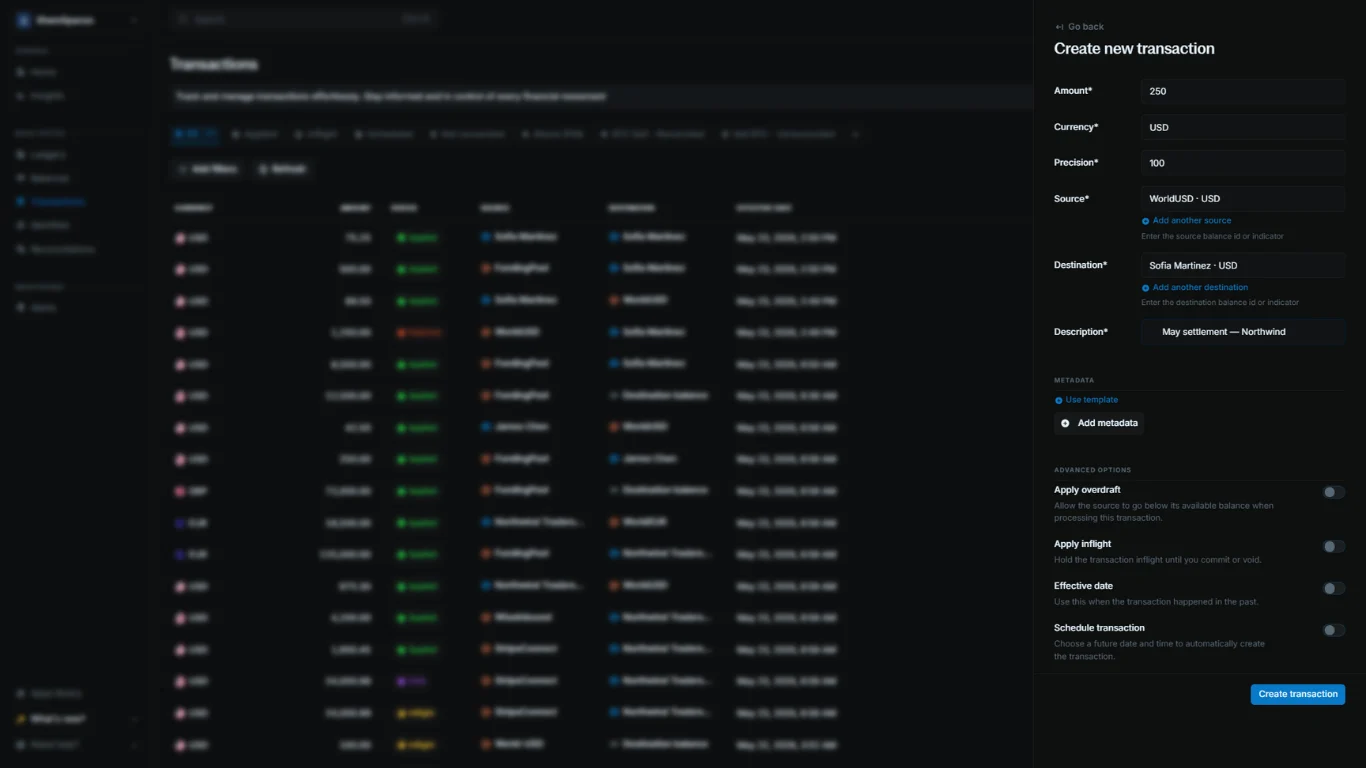
3
Reference number
Blnk Cloud automatically generates a reference number for the transaction.
4
Complete
Click 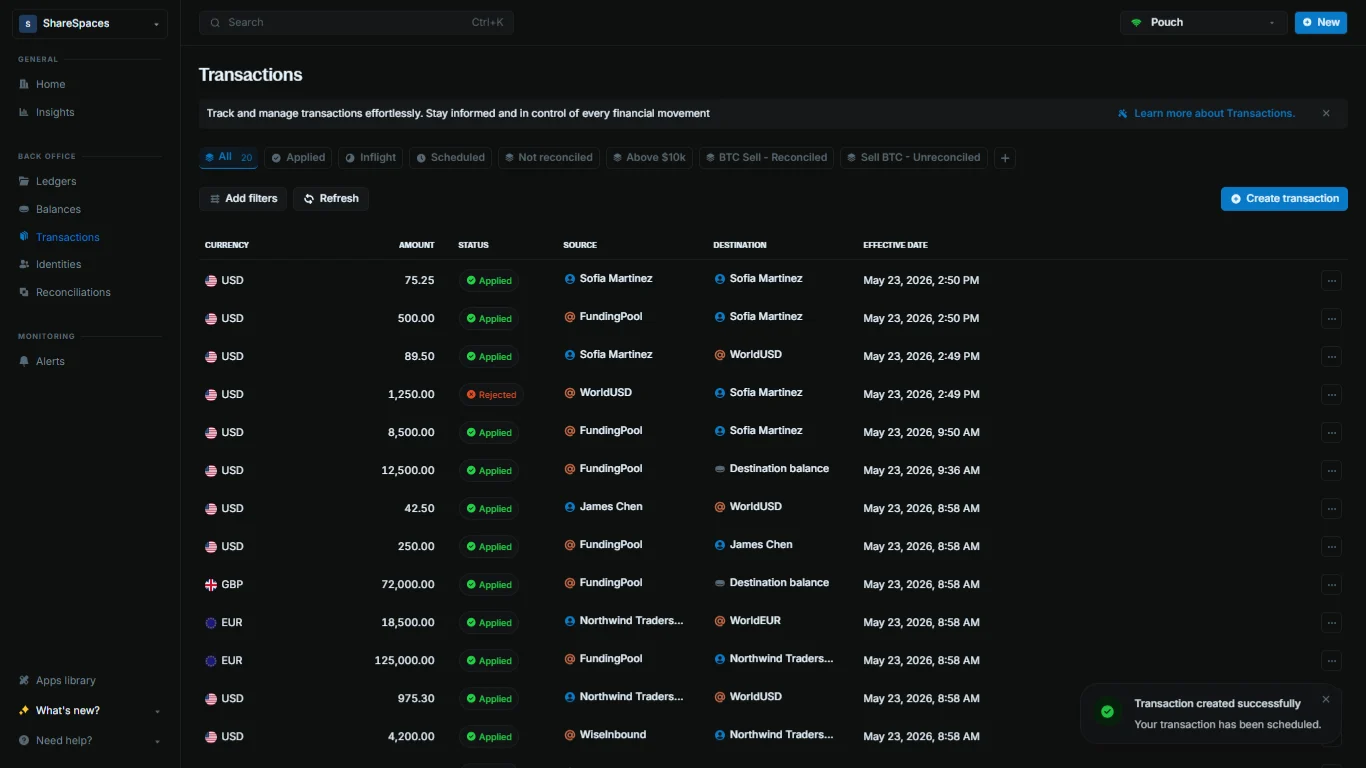
Create transaction to complete.Understanding precision
Balances are stored and calculated as integers to maintain accuracy. For example, a balance of $1,000.00 is stored as 100000 in Core. When creating transactions, apply precision by converting the amount into the currency’s smallest unit. For most fiat currencies this value is 100, while for cryptocurrencies like BTC it is 10^8.Applying overdrafts
Overdrafts let you create transactions even when the source balance does not have sufficient funds. This is commonly used in funding workflows, where one balance needs to act as the counterparty for the balance being funded.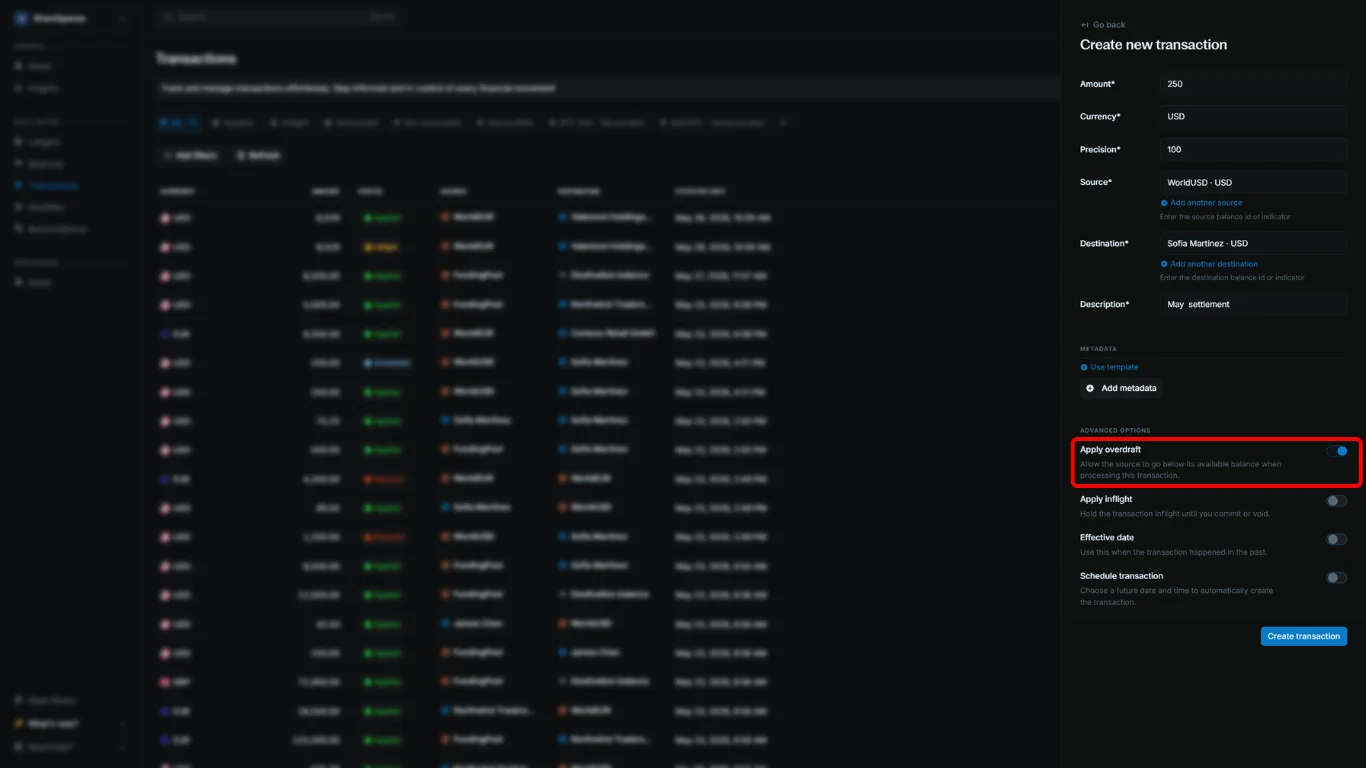
To apply an overdraft, enable Apply overdraft before creating the transaction.
Applying inflight
Inflight lets you create and hold transactions until certain conditions are met. This is commonly used in workflows that require a delay, such as payment processing, escrow releases, or order fulfillment.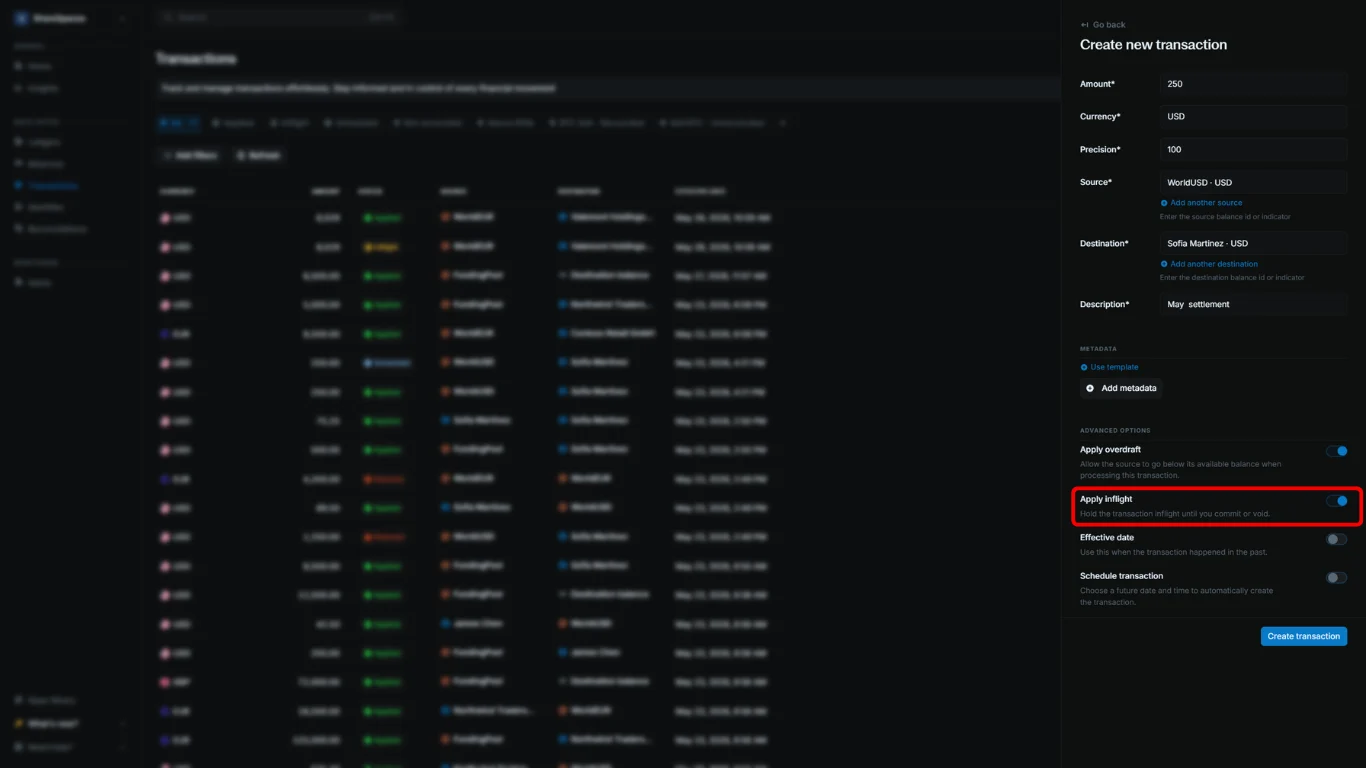
To apply inflight, enable Apply inflight before creating the transaction.
Applying effective date
Effective date lets you record a transaction with a financial date in the past, separate from when it was entered in Blnk. If you do not set one, it defaults to the same value as the date created.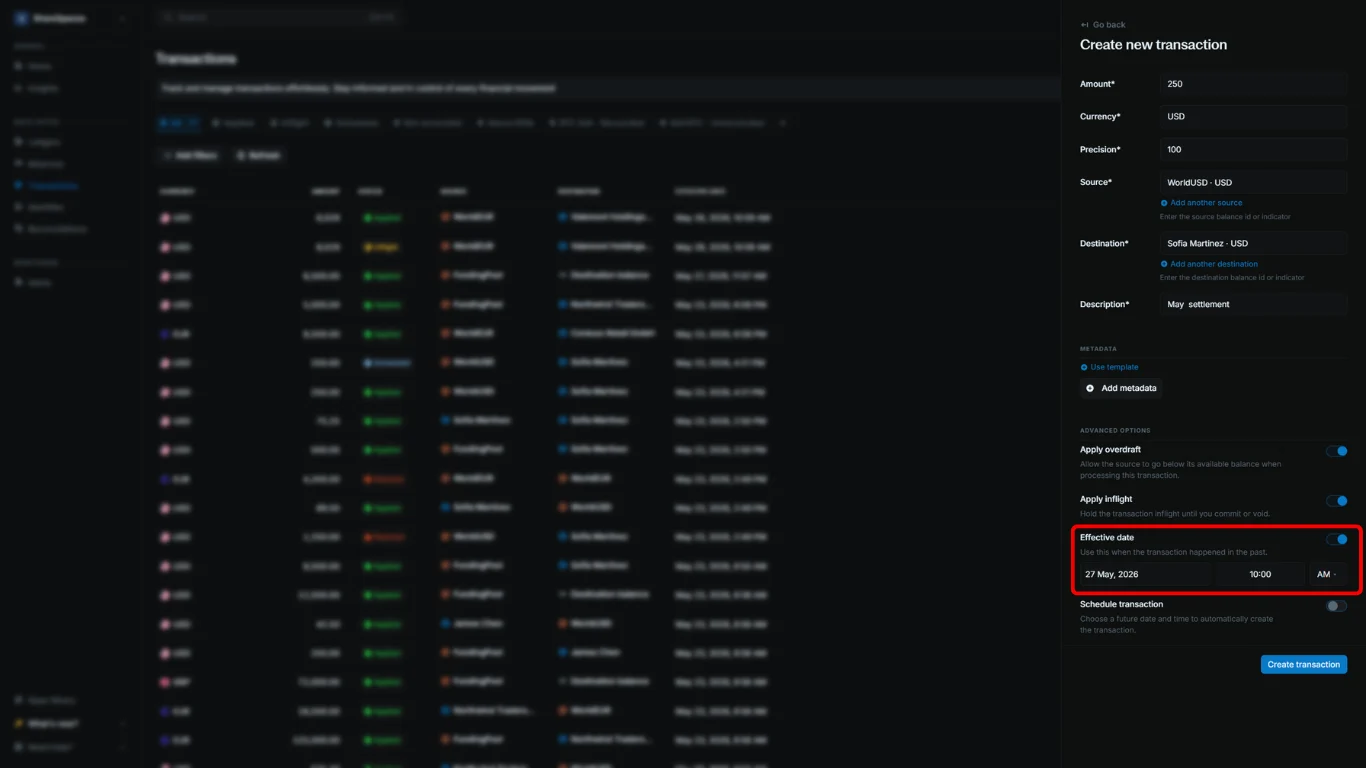
To apply an effective date, enable Effective date before creating the transaction, then provide the date and time when the transaction happened.
Effective date cannot be in the future. Use
Schedule transaction instead.Applying multiple sources
Multiple sources let you debit more than one balance and credit a single destination in one transaction. This is useful when several accounts fund one payout, wallet, or settlement balance.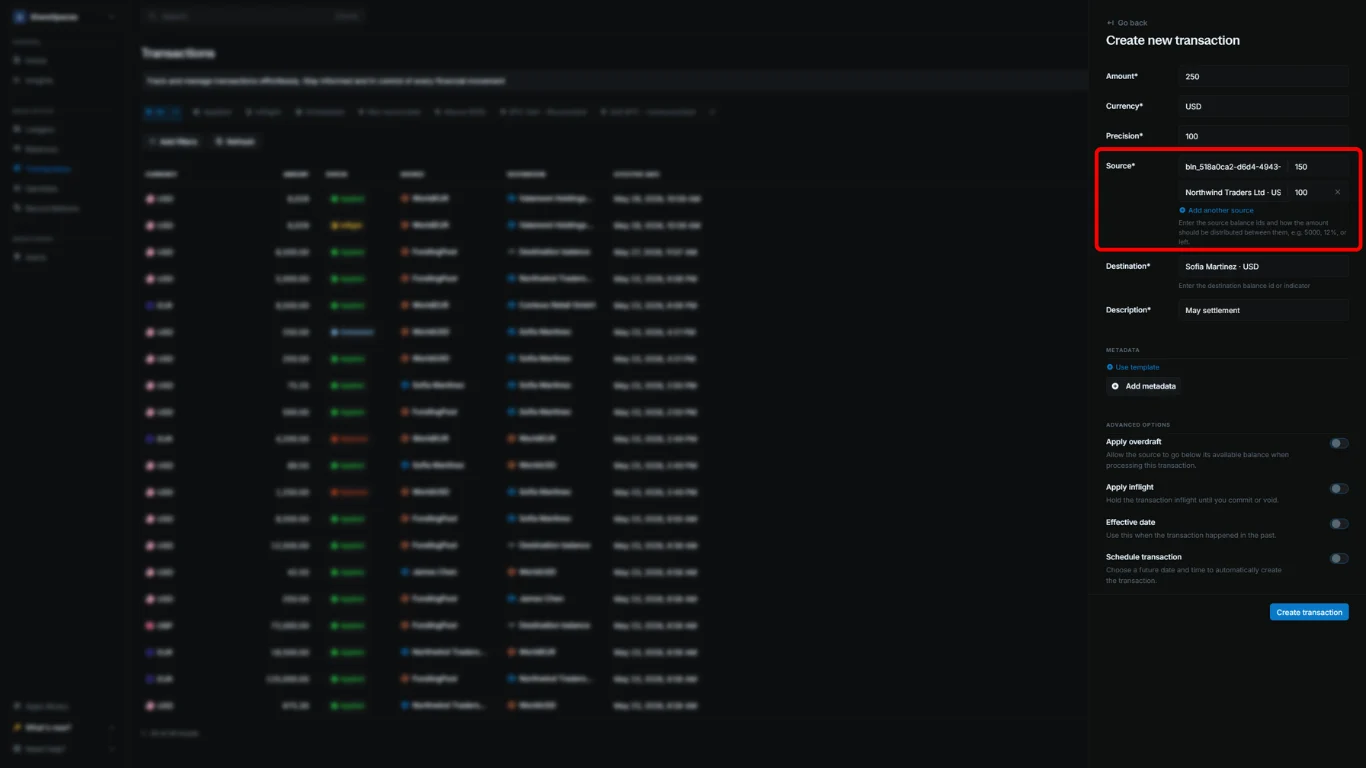
To apply multiple sources, underSourceclickAdd another sourceand set the balance and amount for each leg.
Applying multiple destinations
Multiple destinations let you debit one balance and credit more than one destination in one transaction. This is useful when one balance pays out or distributes to several recipients.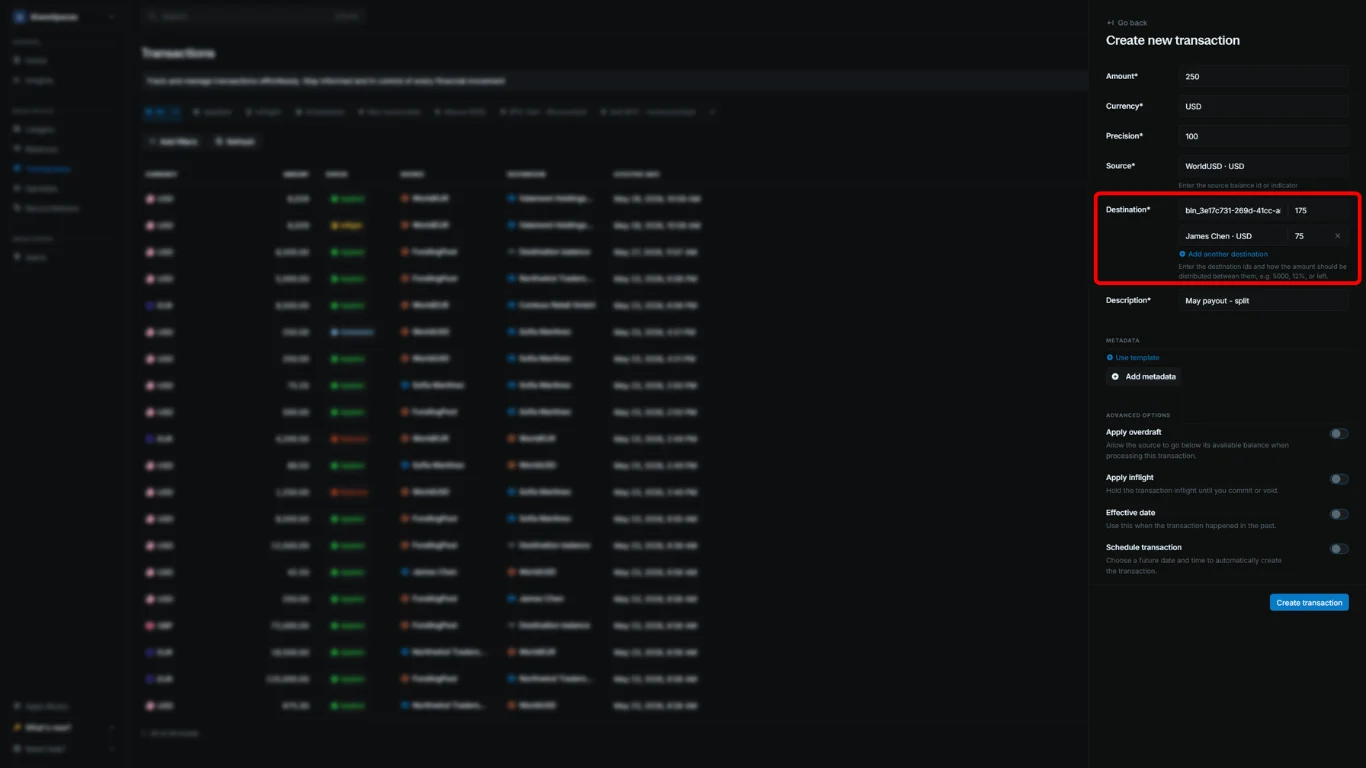
To apply multiple destinations, underDestinationclickAdd another destinationand set the balance and amount (or distribution) for each leg.
You can use multiple sources or multiple destinations in one transaction, not both.
Multiple sources
Multiple sources, one destination.
Multiple destinations
One source, multiple destinations.
Scheduling transactions
Scheduling lets you create transactions to be processed at a specific time in the future.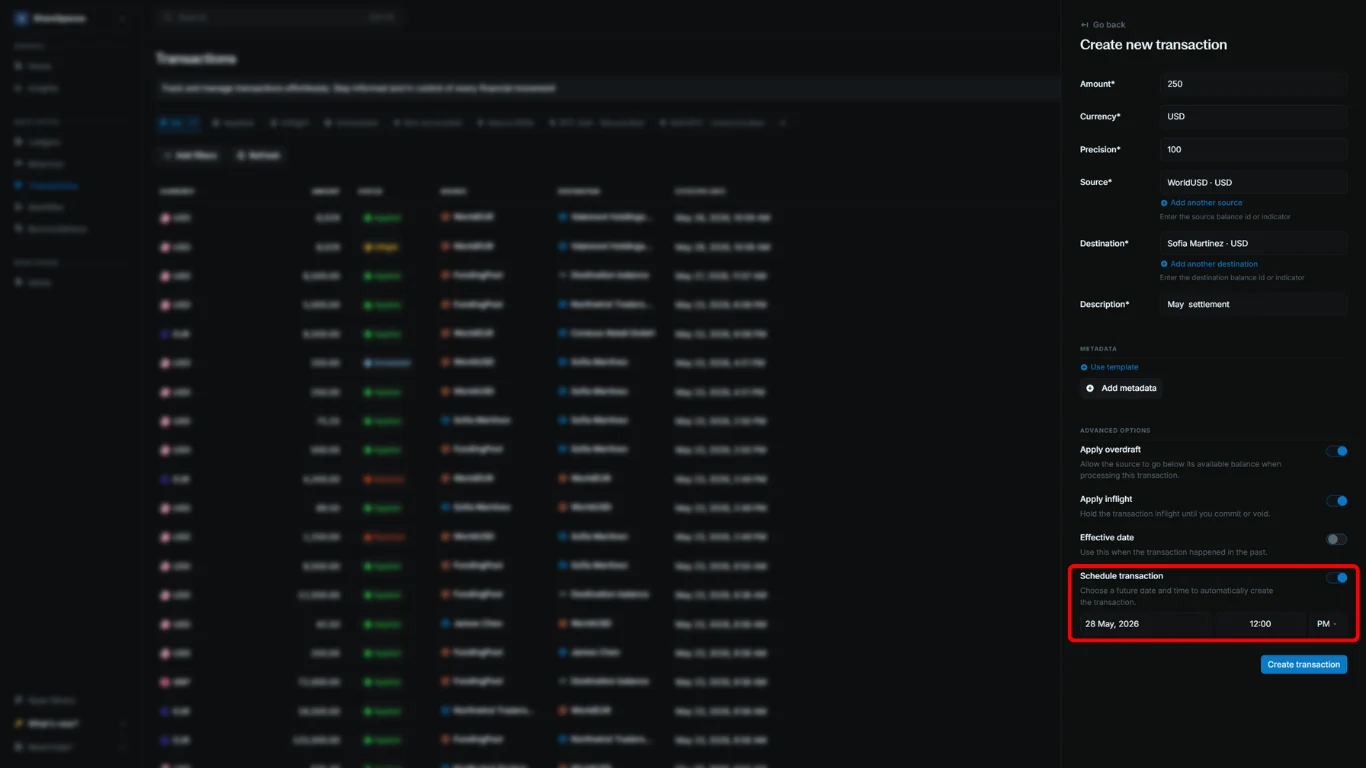
To schedule a transaction:
- Enable
Schedule transactionbefore creating the transaction.- Provide the date and time for the transaction to be scheduled.
- Click
Create transactionto complete.
Scheduled transactions are shown with
@SCHEDULED status in your Transactions table. On the specified date, transactions with this status will be processed automatically and added to the Core ledger.Working with transactions
All records in Blnk are immutable. Once a transaction is created, it cannot be deleted or altered. Any status change is captured as a new transaction entry, which references the original transaction through theparent_transaction field.
Transactions table
The Transactions table shows a list of all transactions in your workspace. For each transaction, you can see: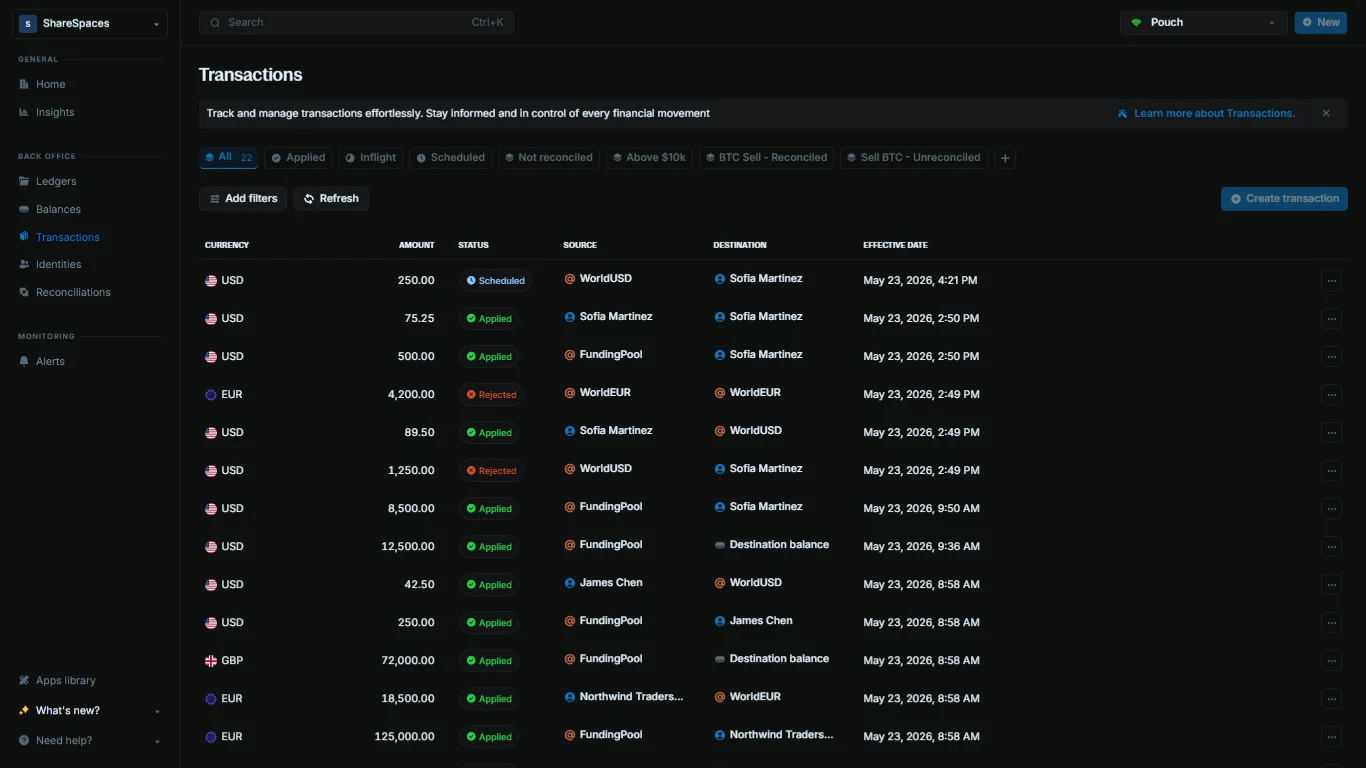
- Currency: The currency the transaction is in.
- Amount: The amount of the transaction.
- Status: The status of the transaction.
- Source: The balance from which funds were debited.
Destination:The balance to which funds were credited.Effective date:When the transaction actually happened. If not specified, it is the same as the date created.
Transaction statuses
Transactions can exist in different states throughout their lifecycle: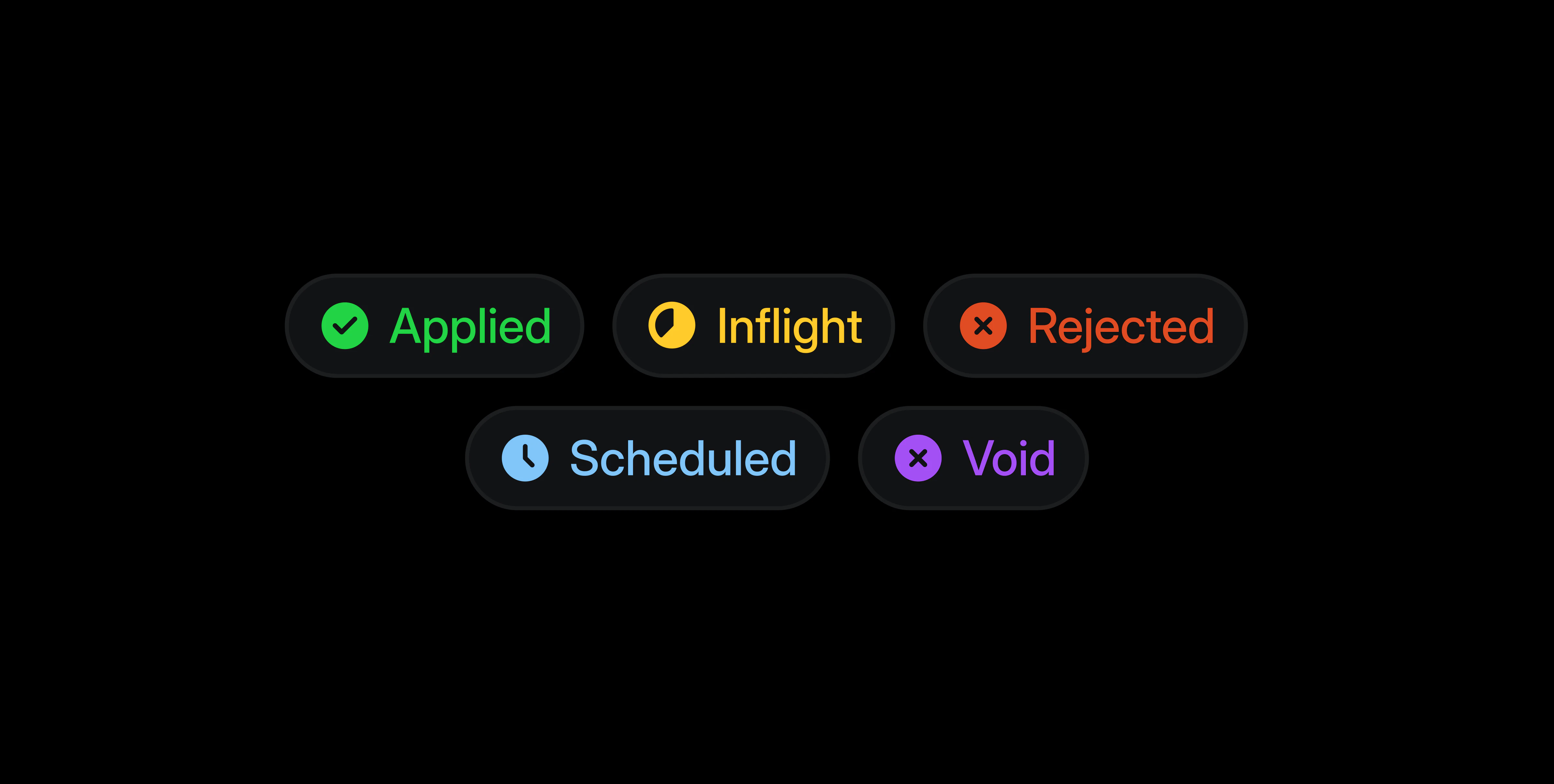
- APPLIED: The transaction has been completed and the balances updated.
- INFLIGHT: The transaction is pending and held in-flight until you commit or void it.
- VOIDED: The inflight transaction was canceled and rolled back.
- REJECTED: The transaction was not processed, typically due to issues like insufficient funds.
- SCHEDULED: The transaction is queued for processing at a future time.
View transaction details
Click a transaction to see its summary details, including the amount, currency, status, source, destination, and effective date.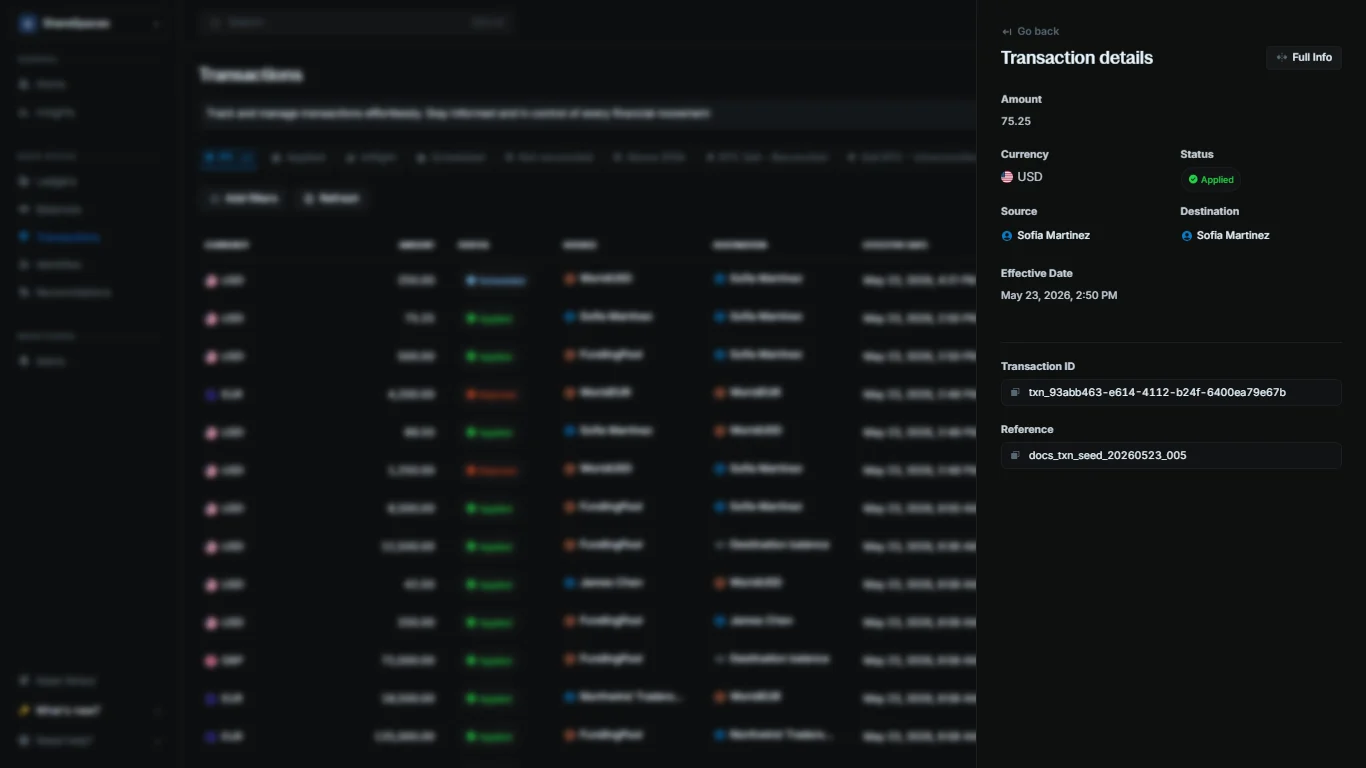
Full info in the top-right corner of the summary or press E to expand the details.
To view all transactions performed on the balance, go to the Quick Actions section at the bottom of the summary and click View transactions.