

Balance activity
From theBalances table, you can scan recent movement without opening the full details page.
1
Open the side modal
Hover a balance row and press
Enter, or click the row to open the side modal.2
Review the last 7 days
The modal shows balance activity for the last 7 days, including recent credits and debits.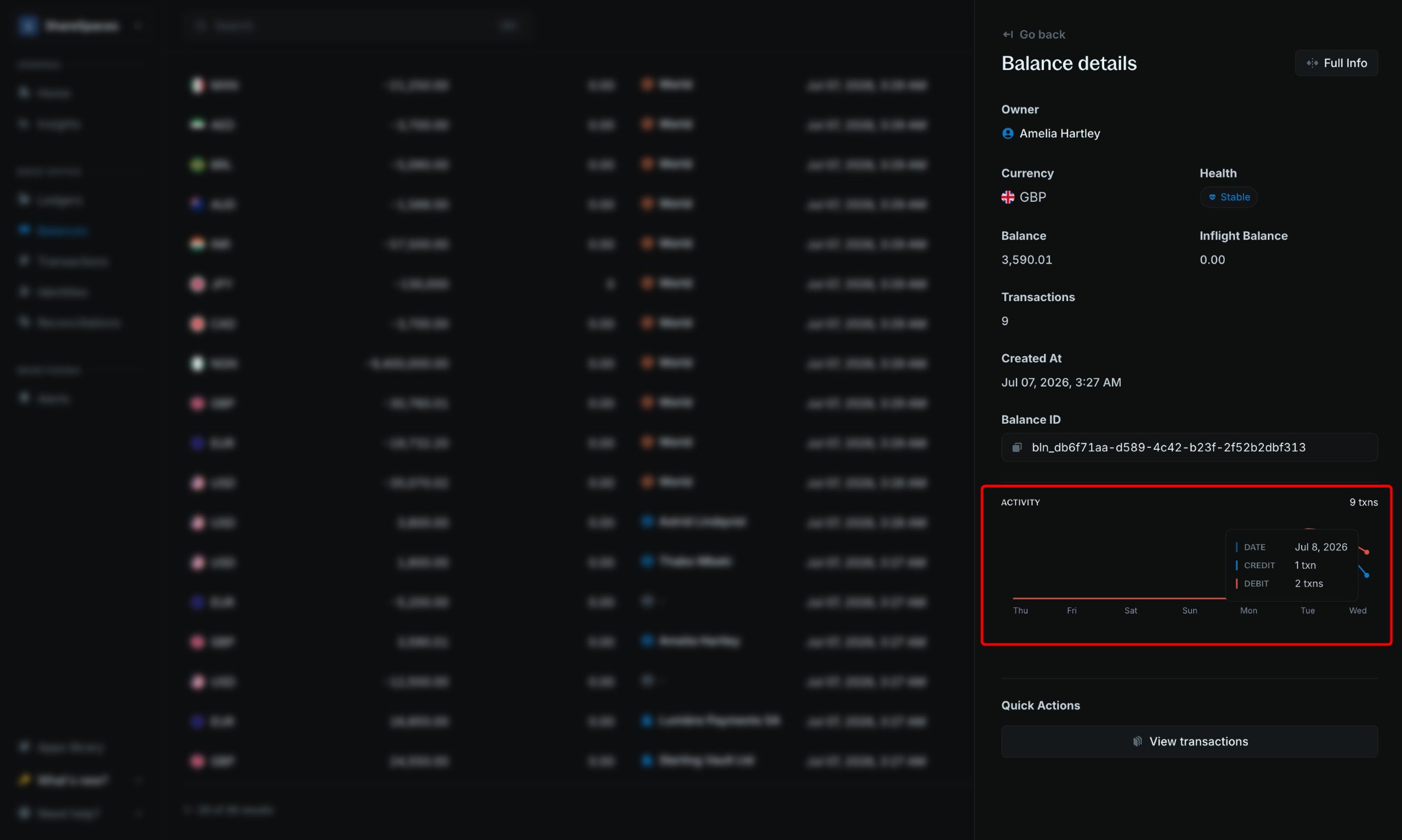
3
Open full details (optional)
Press
E or click through to the balance details page when you need the full summary, flow graph, or metadata.Summary section
At the top, you’ll see your balances: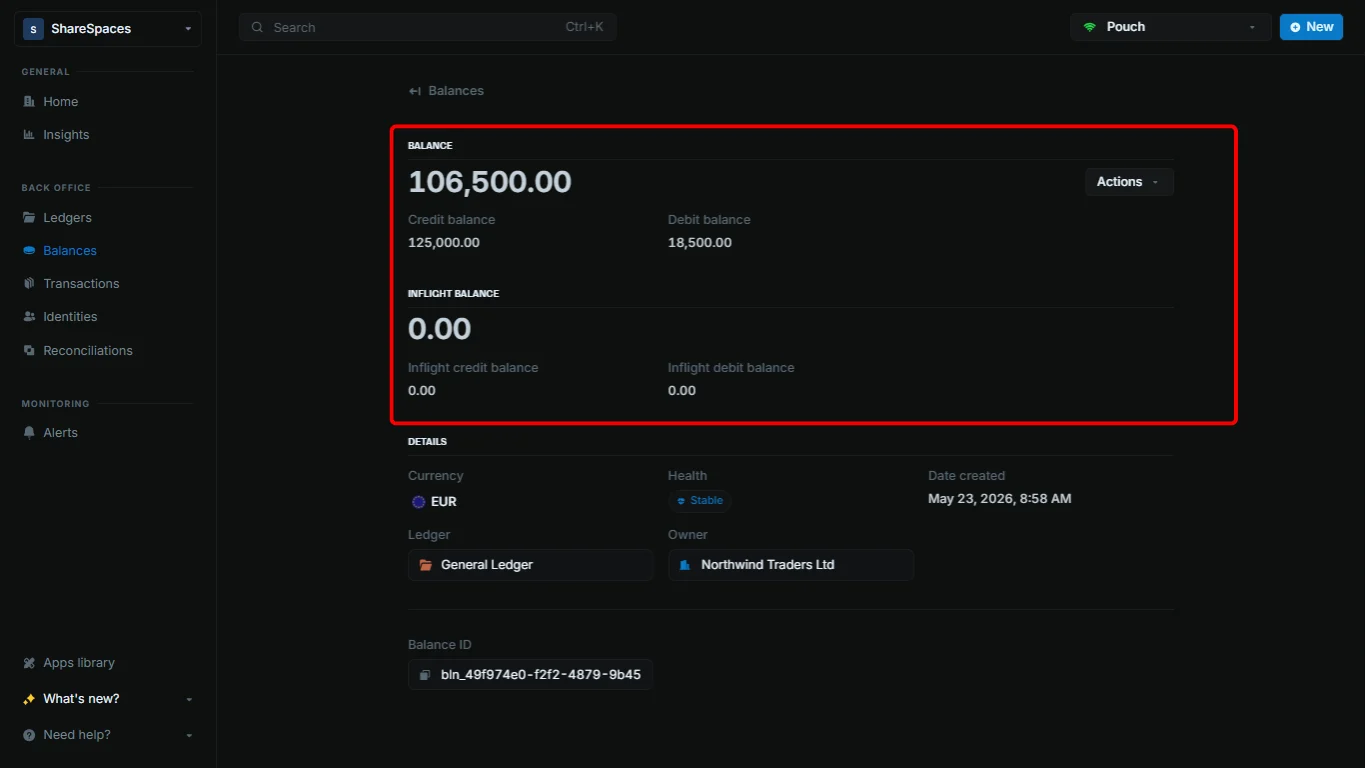
Next, you can view other key details like:
Transaction section
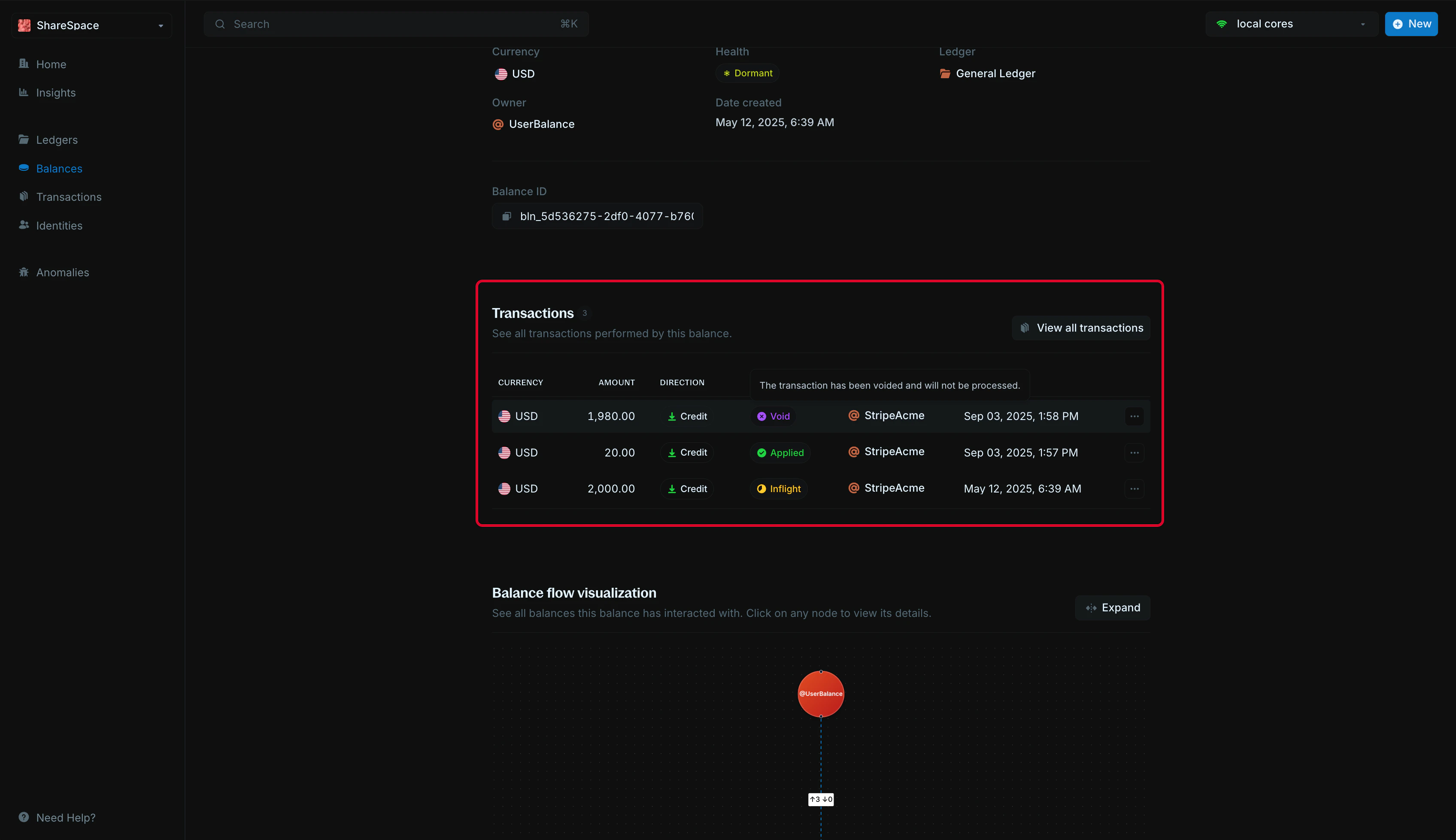
You can view all transactions performed on the balance. We display the last 10 transactions by default. To view more, clickView all transactions to open the full table.
Balance flow visualization
This graph helps you understand how money moves in and out of the balance. Each node represents another balance it has interacted with.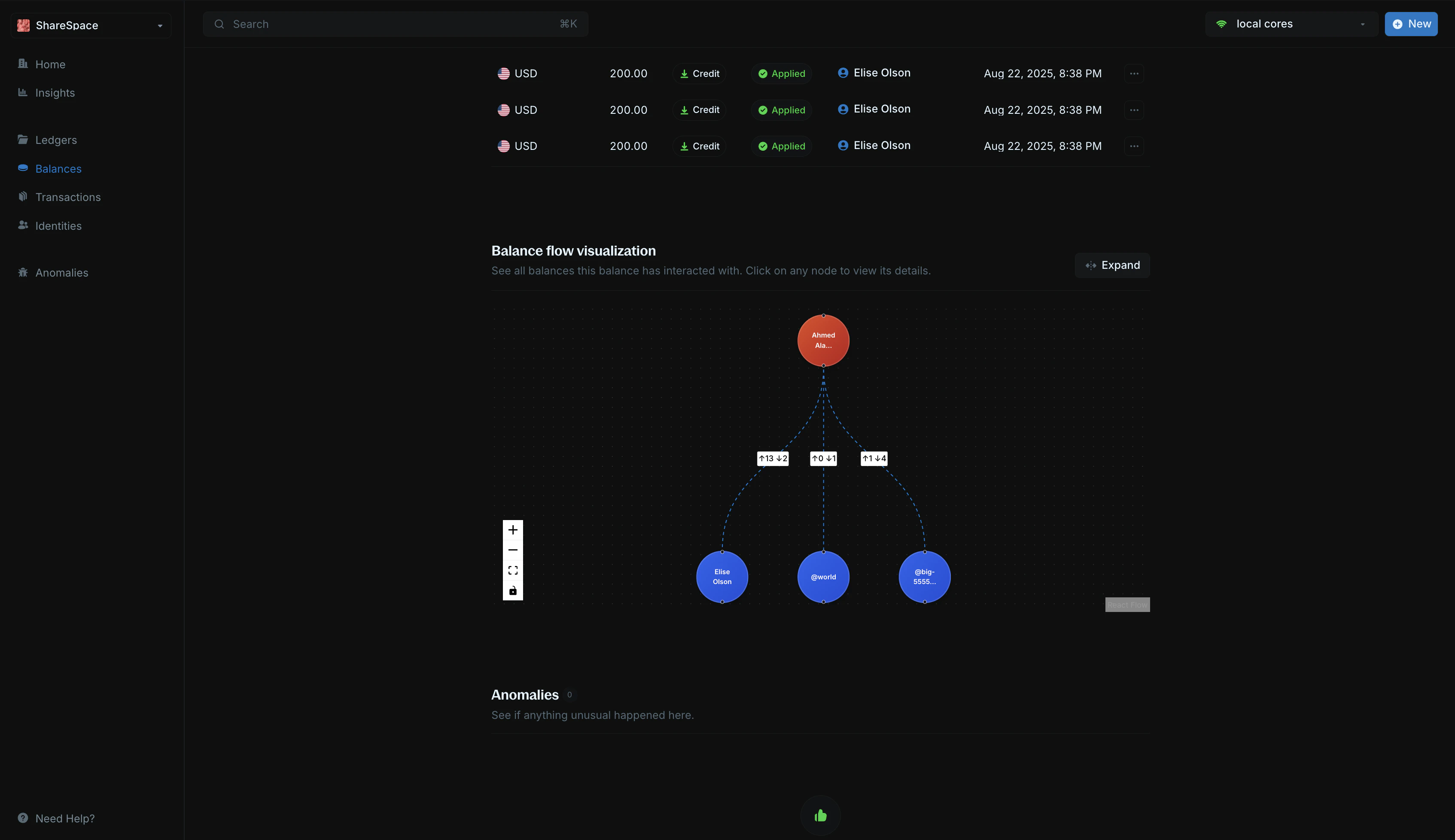
Metadata
The metadata section allows you to add custom information to your balance. You can store additional details, tags, or any other data that helps you organize and manage your balances.Edit metadata
To edit metadata: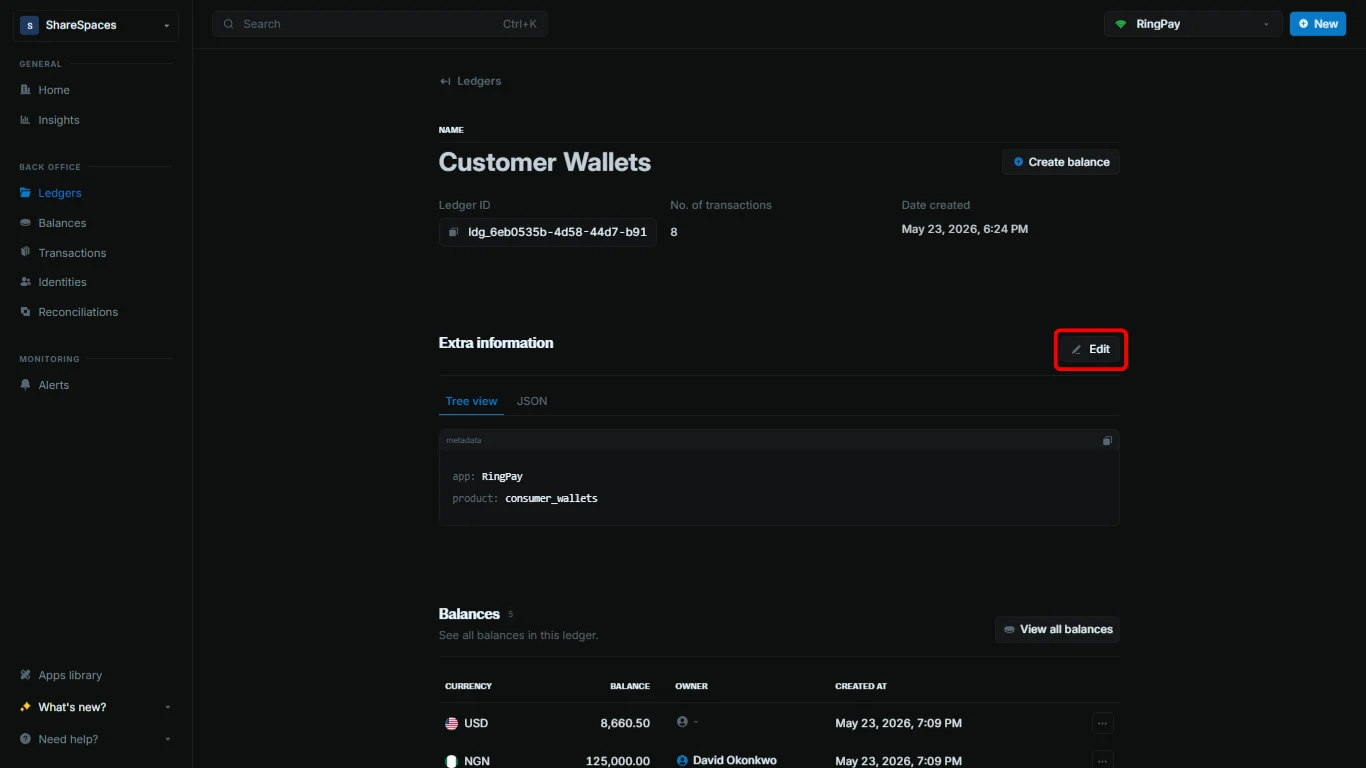
- Navigate to the
Additional informationsection. - Click the
AddorEditbutton at the top right of the section. - Use the code editor to add new metadata or update existing metadata.
- Click
Updateto apply your changes.
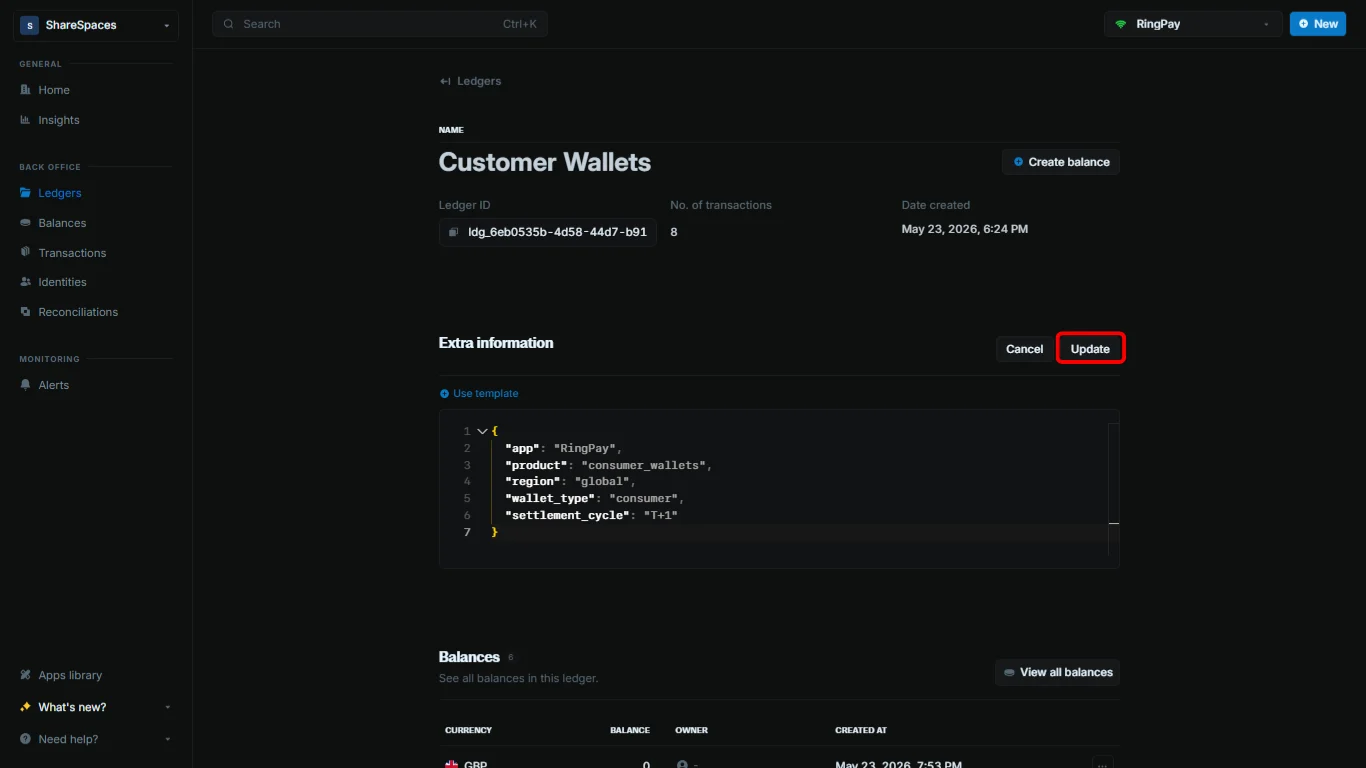
When updating metadata, any fields you don’t include in your update will remain unchanged. Blnk adds your new values to the existing metadata instead of deleting them. To remove a value, set it to an empty string.