

- Inbound whitelisting (managed instances): Control which IP addresses can connect into your deployed Core instance on Blnk Cloud.
- Outbound whitelisting (self-hosted instances): Allow Blnk Cloud’s IP addresses to reach your self-hosted Core or database that sits behind a private network or firewall.
- Access control: Prevent unauthorized access from unknown sources.
- Compliance: Meet security requirements for sensitive financial applications.
- Network isolation: Ensure only your applications and services can connect to your Core.
Managed instances: control inbound access
For Core instances deployed on Blnk Cloud, you can restrict which IP addresses are allowed to make requests to your instance. When IP whitelisting is enabled, only the IPs you specify can reach your Core. By default, Blnk Cloud allows connections from any IP address until you configure the whitelist. To set up whitelisting for your managed instance, follow these steps:1
Open IP settings panel
- In your Blnk Cloud workspace, go to Settings → Instances;
- Find the managed instance you want to configure;
- Click the actions menu (three dots) next to the instance;
- Click Manage allowed IPs.
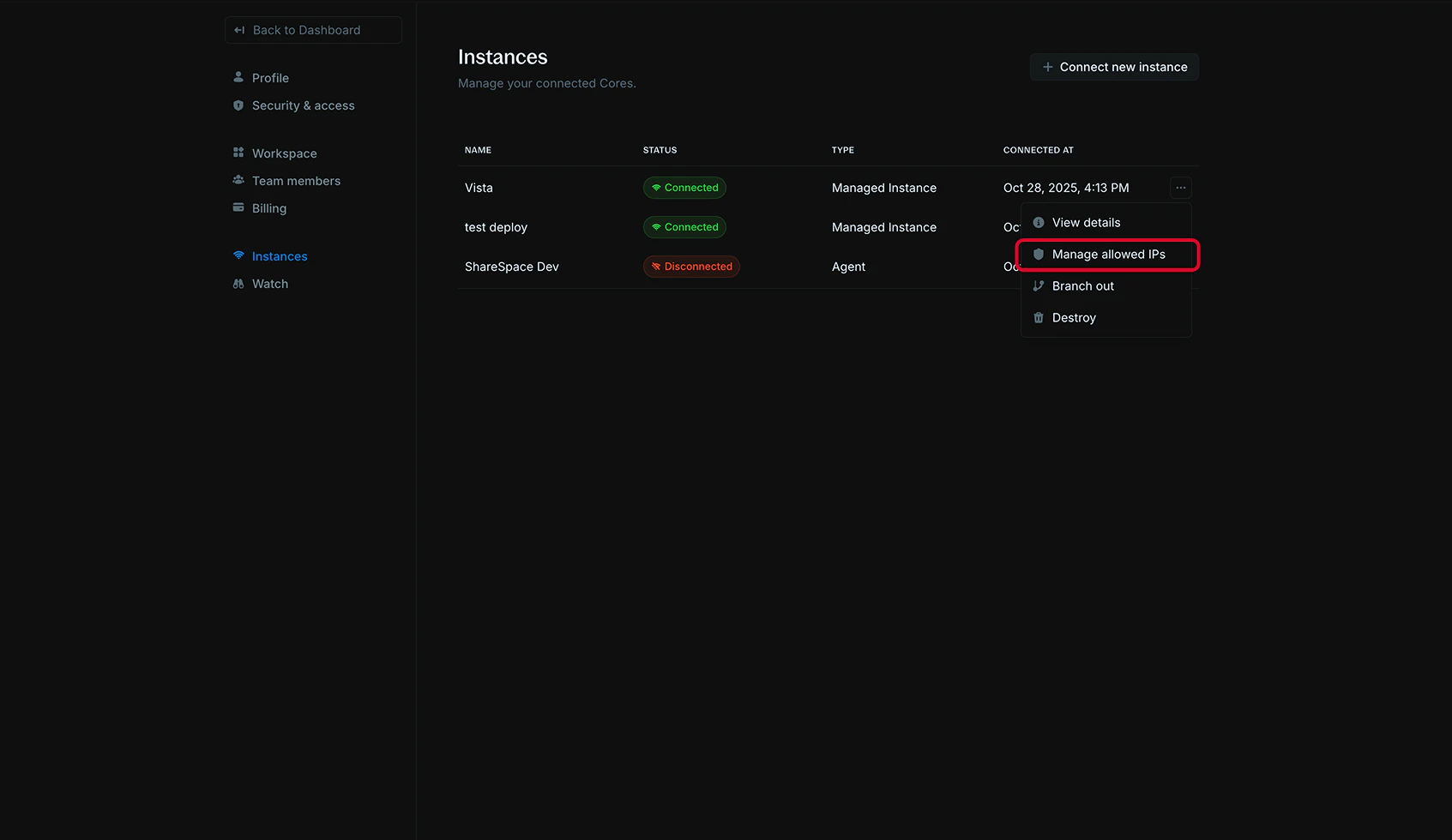
2
Add IP addresses
- In the Add IP address field, enter an IP address:
- IPv4 address:
192.168.1.100 - IPv6 address:
2001:db8::1
- IPv4 address:
- Click + Add to add the IP to your whitelist.
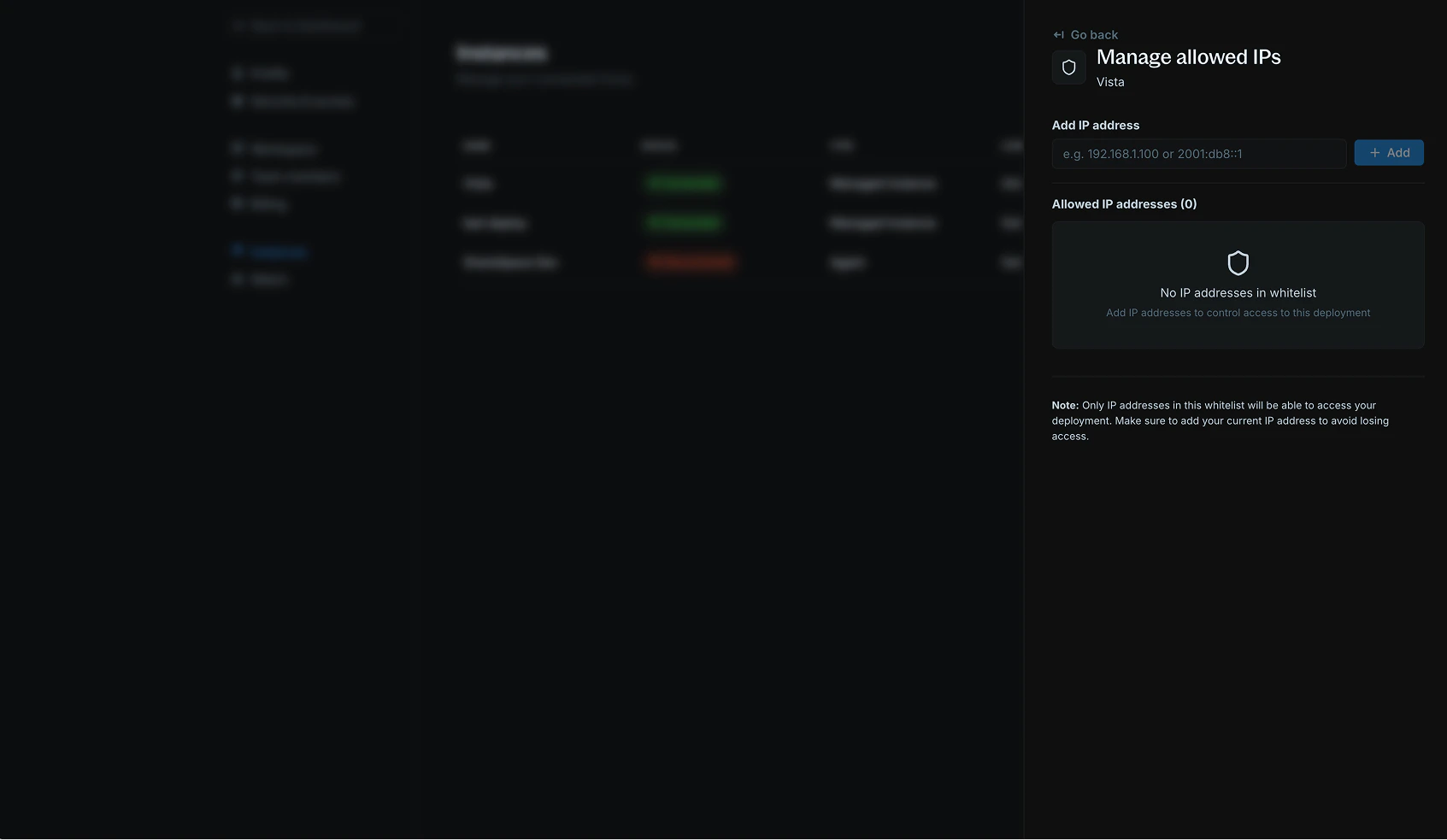
3
View and manage whitelist
Your whitelisted IP addresses appear in the Allowed IP addresses section. You can: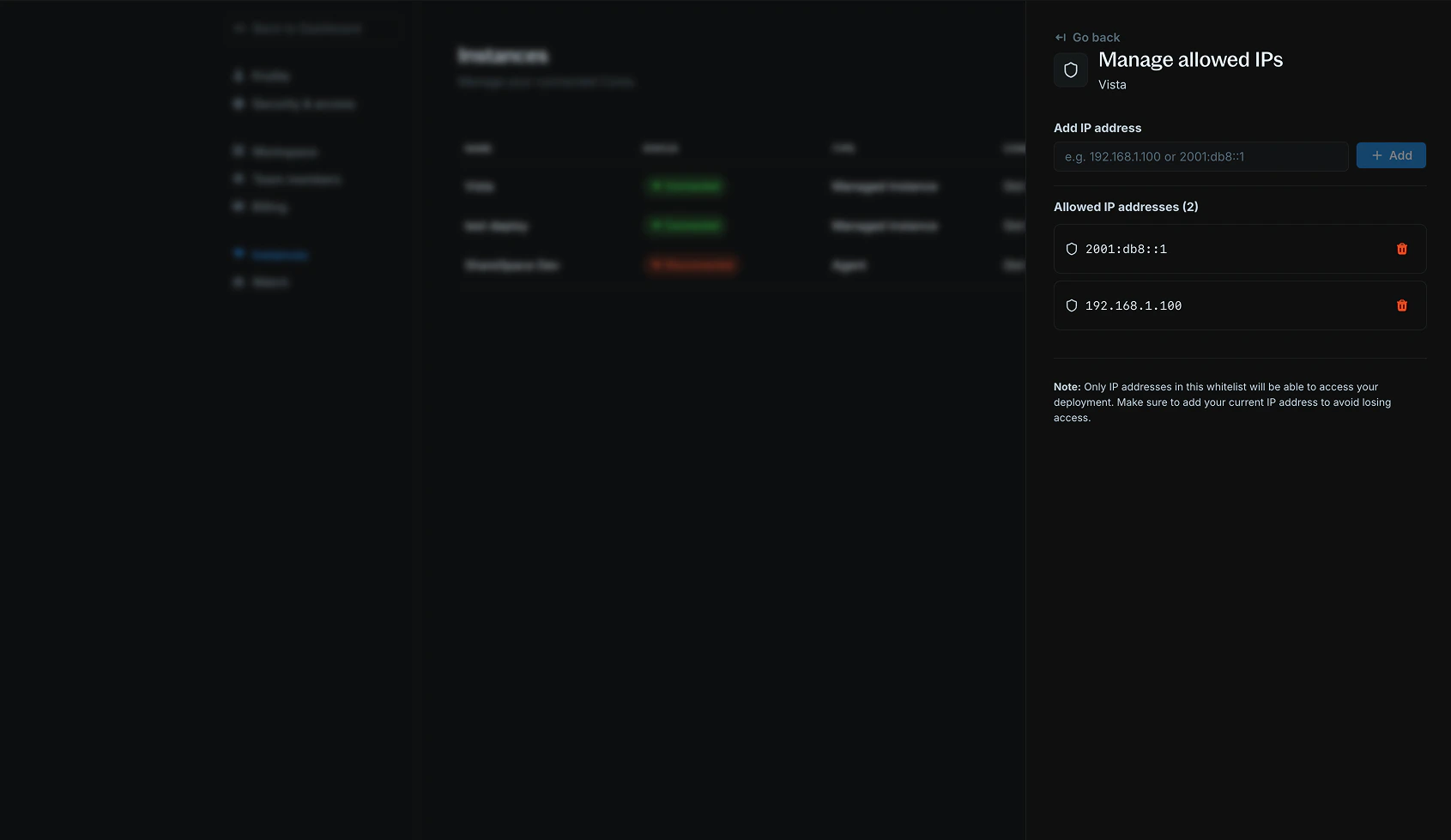
- View all currently whitelisted IPs;
- Remove IPs by clicking the trash icon next to any address;
- Add additional IPs as needed.
Self-hosted instances: allow Blnk Cloud to reach your Core
If you are connecting a self-hosted Core to Blnk Cloud, or pointing Cloud at a database that sits behind a private network or firewall, you must whitelist Blnk Cloud’s outbound IP addresses so Cloud can reach your infrastructure. Add the following IPs to your firewall, security group, or VPC ingress rules:
You should whitelist our IPs when:
- Self-hosted Core URL on a private network: When the Core URL set on your instance isn’t open to the public internet, allow these IPs through your firewall so Cloud can communicate with your ledger.
- Database access during migration: When migrating data to or from an external PostgreSQL database that isn’t publicly accessible, allow these IPs to reach your database host.