

Ledger balances
Retrieving Historical Balances
Read a balance at a past point in time.
The Historical balances endpoint allows users to retrieve balances (identified by balance_id) at a particular historical point in time, specified by the timestamp parameter.
It leverages Blnk’s balance snapshot feature to provide accurate historical data for financial reporting, auditing, or analysis.
Using the API
curl -X GET "http://YOUR_BLNK_INSTANCE_URL/balances/{balance_id}/at?timestamp=2024-04-22T15:28:03.123456Z" \
  -H "X-blnk-key: <api-key>"
const response = await blnk.LedgerBalances.getAt(
'bln_5ce86029-3c2e-4e2a-aae2-7fb931ca4c4f',
{
timestamp: '2024-04-22T15:28:03.123456Z',
},
);at, _ := time.Parse(time.RFC3339, "2024-04-22T15:28:03.123456Z")
balance, _, _ := client.LedgerBalance.GetHistorical(
"bln_5ce86029-3c2e-4e2a-aae2-7fb931ca4c4f",
at,
false,
)response = blnk.ledger_balances.get_at(
"bln_5ce86029-3c2e-4e2a-aae2-7fb931ca4c4f",
{
"timestamp": "2024-04-22T15:28:03.123456Z",
},
)ApiResponse<JsonNode> response = blnk.ledgerBalances().getAt(
"bln_5ce86029-3c2e-4e2a-aae2-7fb931ca4c4f",
GetBalanceAtRequest.create()
.timestamp("2024-04-22T15:28:03.123456Z"));You can choose to bypass balance snapshots and directly reconstruct your balances from their transactions alone.
To do this, include the query parameter from_source=true in your request URL:
curl -X GET "http://YOUR_BLNK_INSTANCE_URL/balances/{balance_id}/at?timestamp=2024-04-22T15:28:03.123456Z&from_source=true" \
  -H "X-blnk-key: <api-key>"
const response = await blnk.LedgerBalances.getAt(
'bln_5ce86029-3c2e-4e2a-aae2-7fb931ca4c4f',
{
timestamp: '2024-04-22T15:28:03.123456Z',
from_source: true,
},
);at, _ := time.Parse(time.RFC3339, "2024-04-22T15:28:03.123456Z")
balance, _, _ := client.LedgerBalance.GetHistorical(
"bln_5ce86029-3c2e-4e2a-aae2-7fb931ca4c4f",
at,
true,
)response = blnk.ledger_balances.get_at(
"bln_5ce86029-3c2e-4e2a-aae2-7fb931ca4c4f",
{
"timestamp": "2024-04-22T15:28:03.123456Z",
"from_source": True,
},
)ApiResponse<JsonNode> response = blnk.ledgerBalances().getAt(
"bln_5ce86029-3c2e-4e2a-aae2-7fb931ca4c4f",
GetBalanceAtRequest.create()
.timestamp("2024-04-22T15:28:03.123456Z")
.fromSource(true));{
"balance": {
"balance": 9620000,
"balance_id": "bin_be16c4a1-b5a6-4b64-a733-de2f6b24813d",
"credit_balance": 9620000,
"currency": "USD",
"debit_balance": 0,
"ledger_id": ""
},
"timestamp": "2025-02-24T08:55:26.976106Z"
}How it works
When querying for a balance at a specific timestamp, Blnk follows these steps to ensure accuracy and reliability:
-
Identify the most recent snapshot: The system retrieves the most recent snapshot taken before the requested timestamp. Snapshots are daily records of balances, captured manually by users as described in the Balance Snapshots feature.
-
Apply intervening transactions: It then applies all transactions that occurred between the time of the snapshot and the requested timestamp. This reconstructs the balance state by accounting for any credits, debits, or other financial activities that took place during that period.
-
Return the computed balance: The final computed balance, reflecting the exact state at the requested timestamp, is returned in the response.
Using the Dashboard
Historical balance stays on the balance details page. Actions opens a dialog, then the summary amounts on that page update to the past point in time.
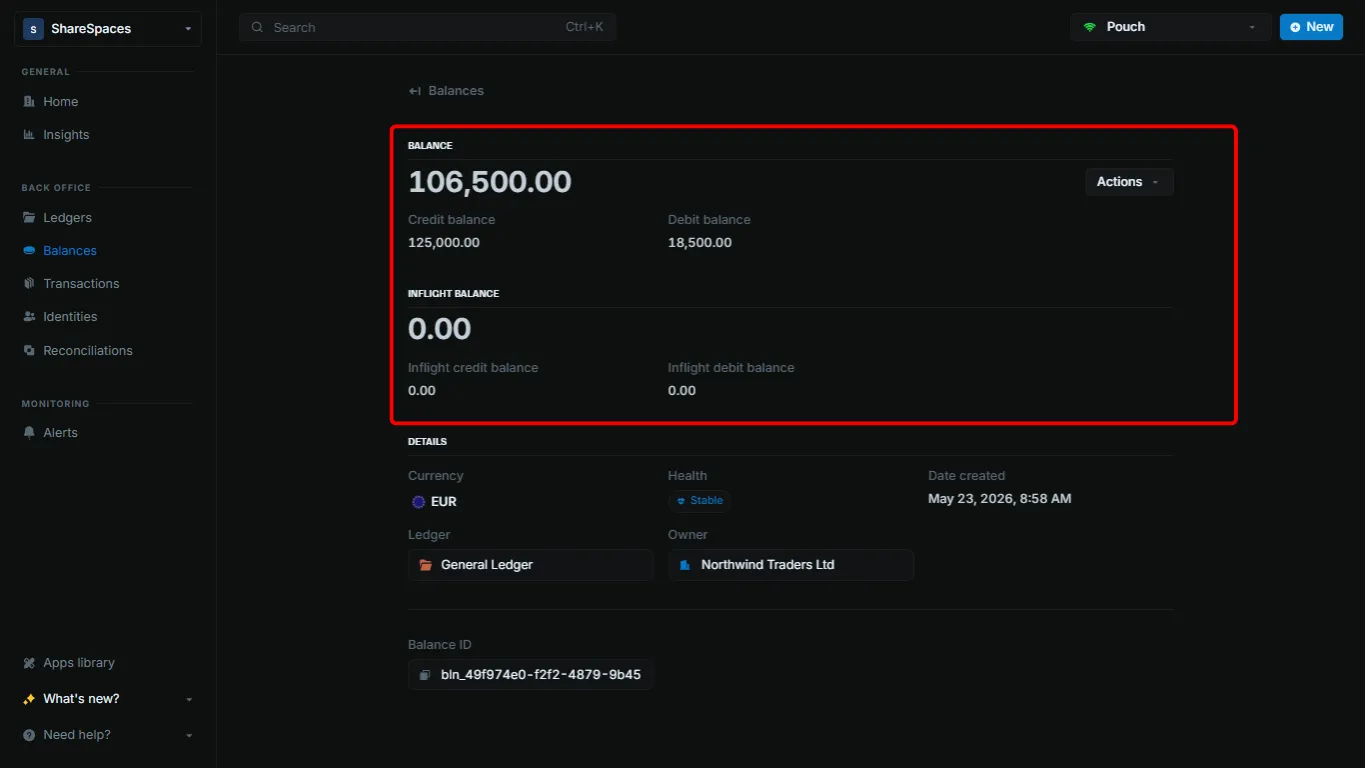
Open the balance
On Balances, open the balance you want to inspect.
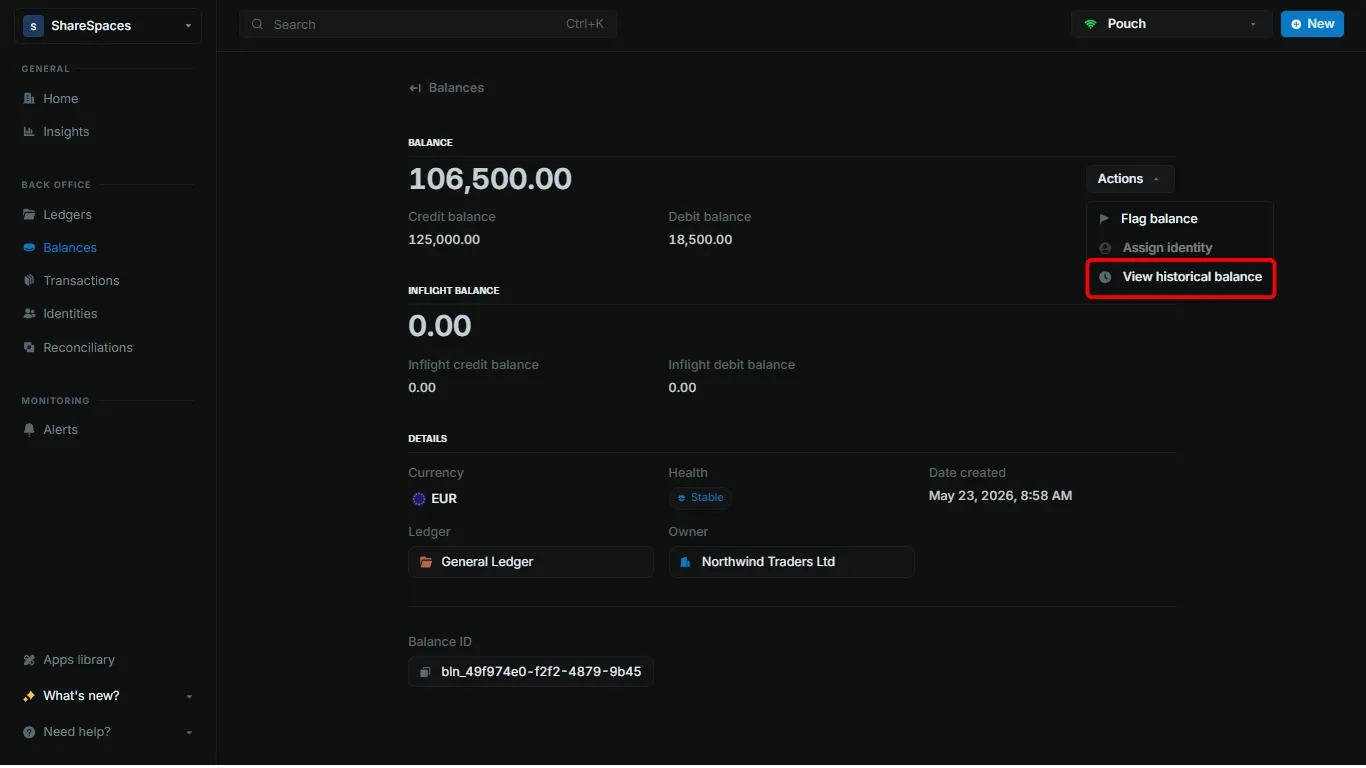
Choose View historical balance
In the top right, click Actions, then select View historical balance. A dialog opens on the balance details page.
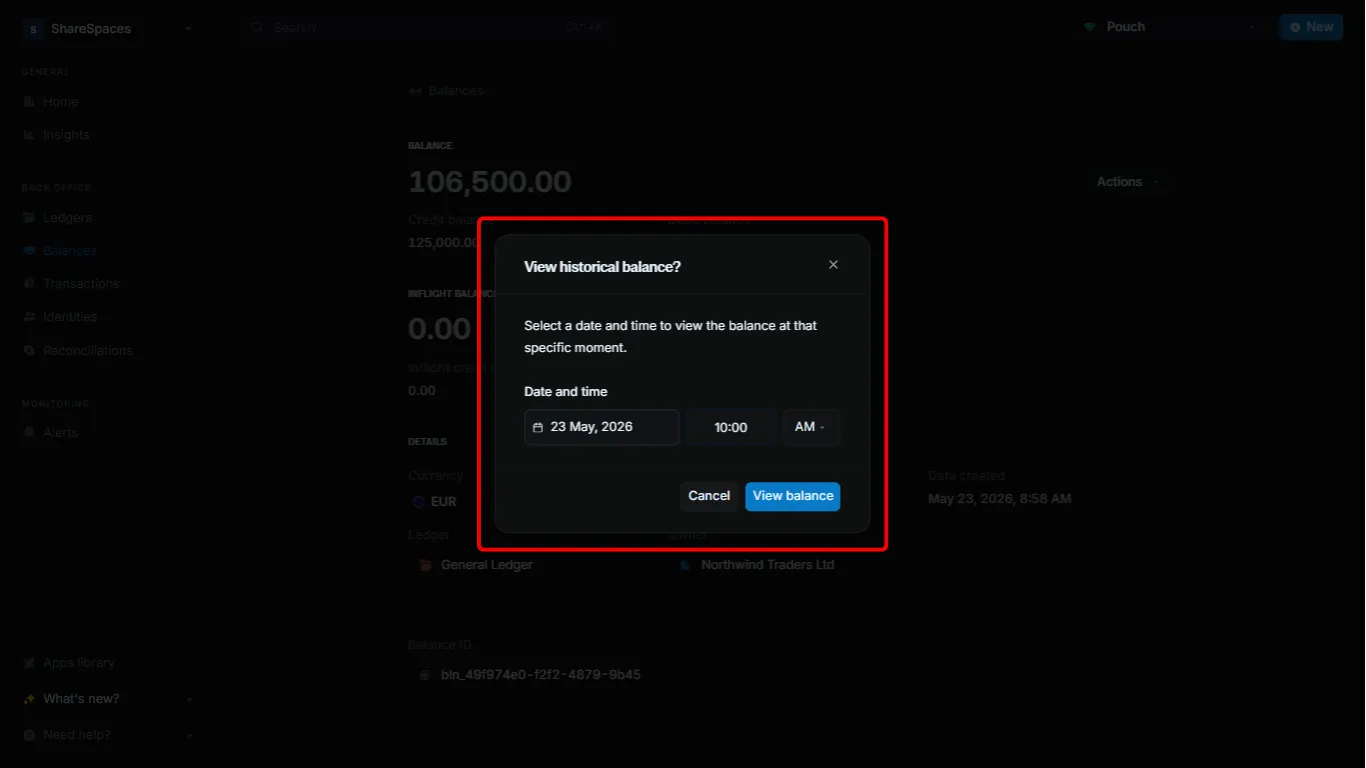
Pick a date and time
Choose the date and time, then click View balance.
The dialog closes. Balance, Credit balance, and Debit balance on the same page update to that point in time.
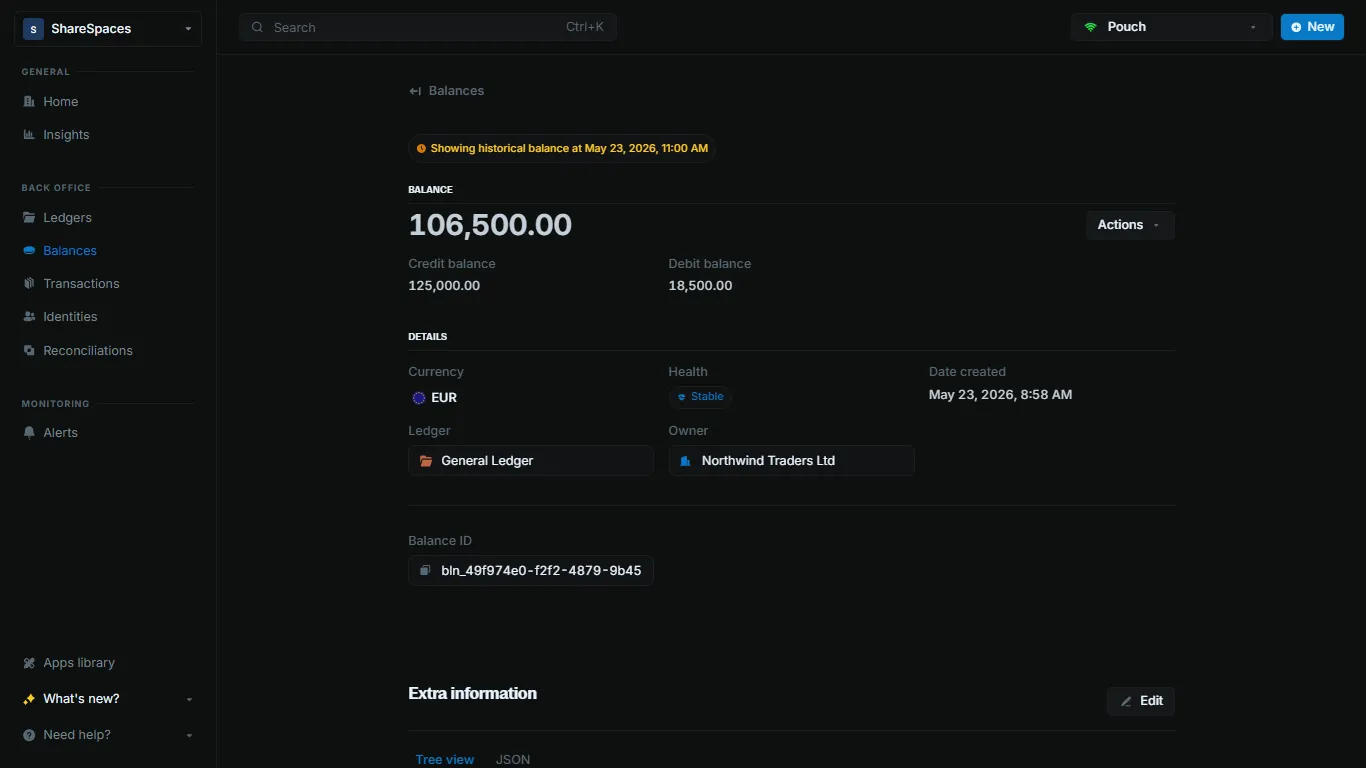
You can copy the link and share it so a teammate sees the balance at that same point in time.
Return to the current balance
Click Actions, then select View current balance.
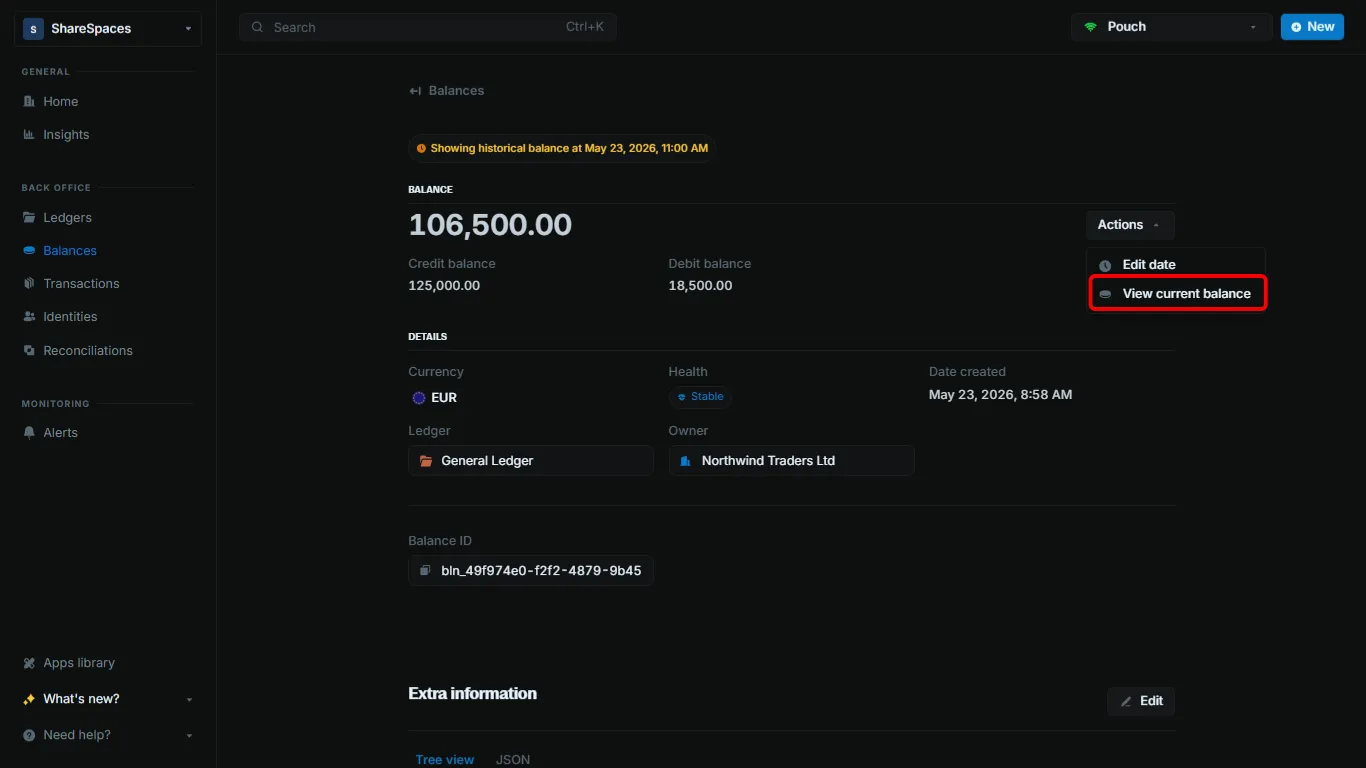
The page shows live amounts again.