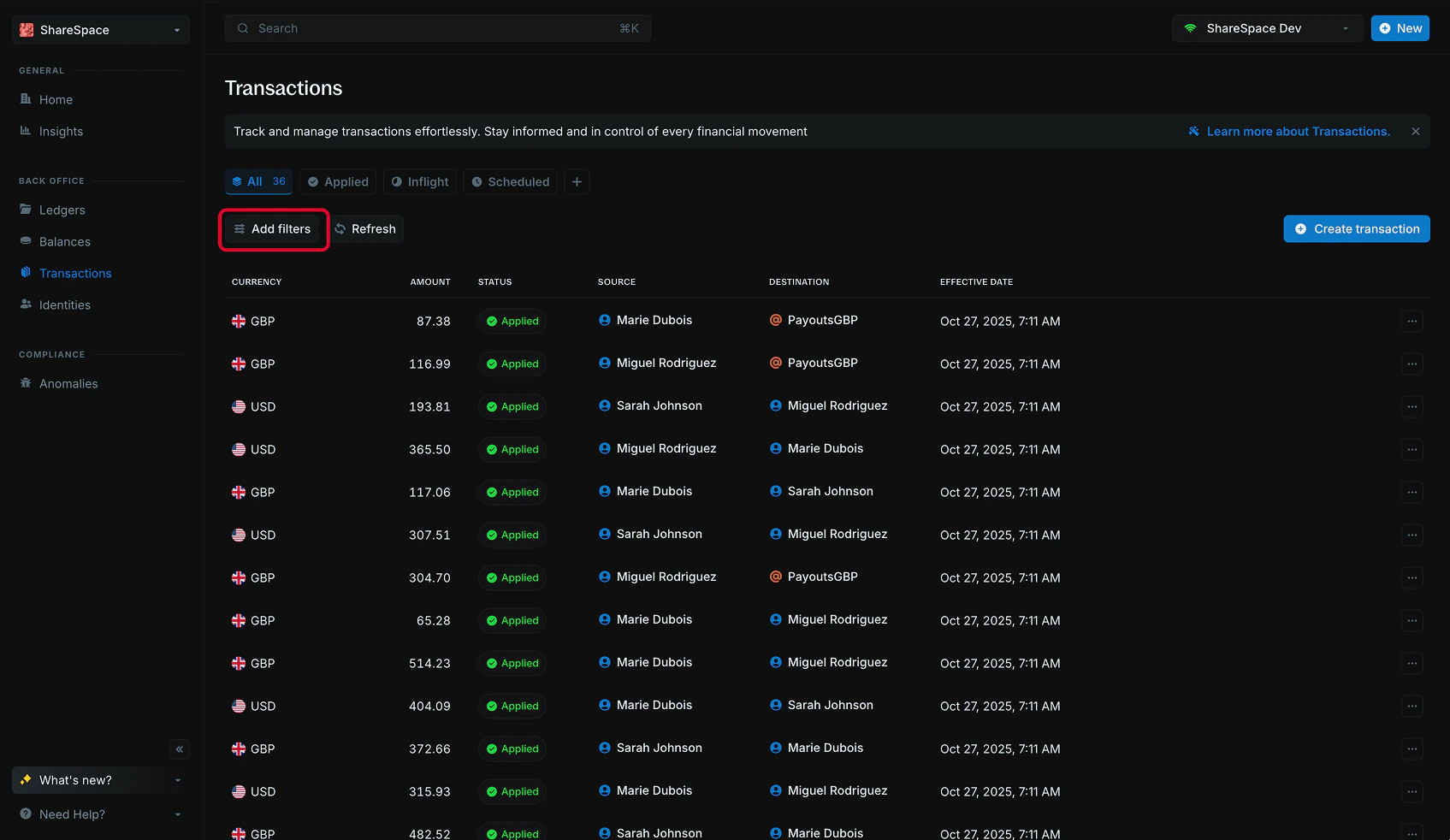
Filters allow you to refine your data tables to just the records you want to see. You can apply filters to all tables in Blnk Cloud: ledgers, balances, transactions, identities and audit logs. To add a filter, click the Add filters button in the top-left corner of the table or press F on your keyboard.Documentation Index
Fetch the complete documentation index at: https://docs.blnkfinance.com/llms.txt
Use this file to discover all available pages before exploring further.

Apply filters
Press F to toggle on filters on any table. You’ll see a new filter panel appear at the right hand side of your screen.
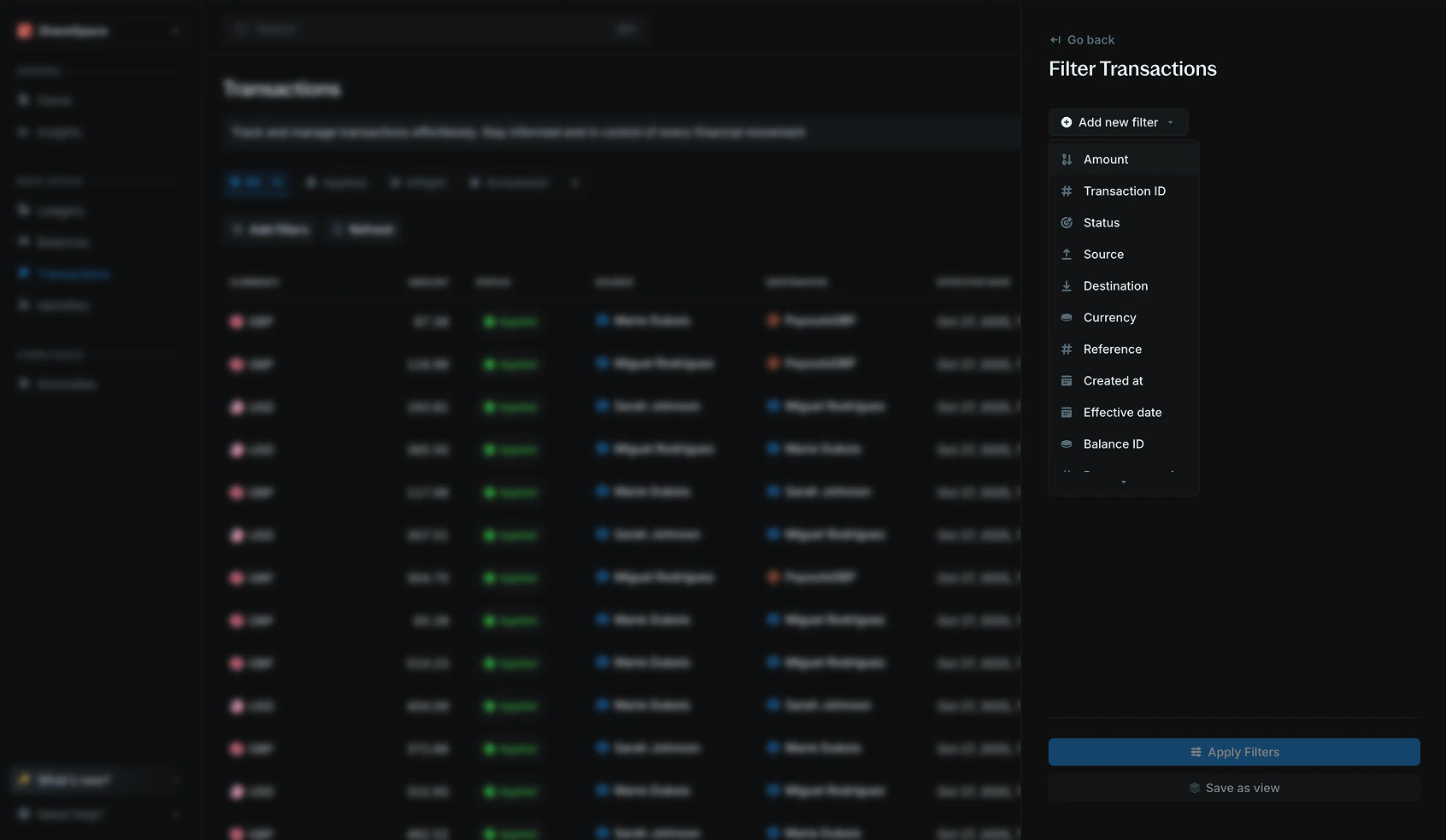
Available filter operators
| Operator | Description |
|---|---|
| Exactly matches | Shows results that are exactly the same as the filter value. |
| Does not match | Shows results that are not the same as the filter value. |
| In list | Shows results that match any value from a list of options. |
| Contains pattern | Shows results that include the text or pattern you enter. |
| Greater than | Shows results with values higher than the filter value. |
| Less than | Shows results with values lower than the filter value. |
| Greater than or equal to | Shows results with values that are the same or higher than the filter value. |
| Less than or equal to | Shows results with values that are the same or lower than the filter value. |
| Between range | Shows results that fall between two values. |
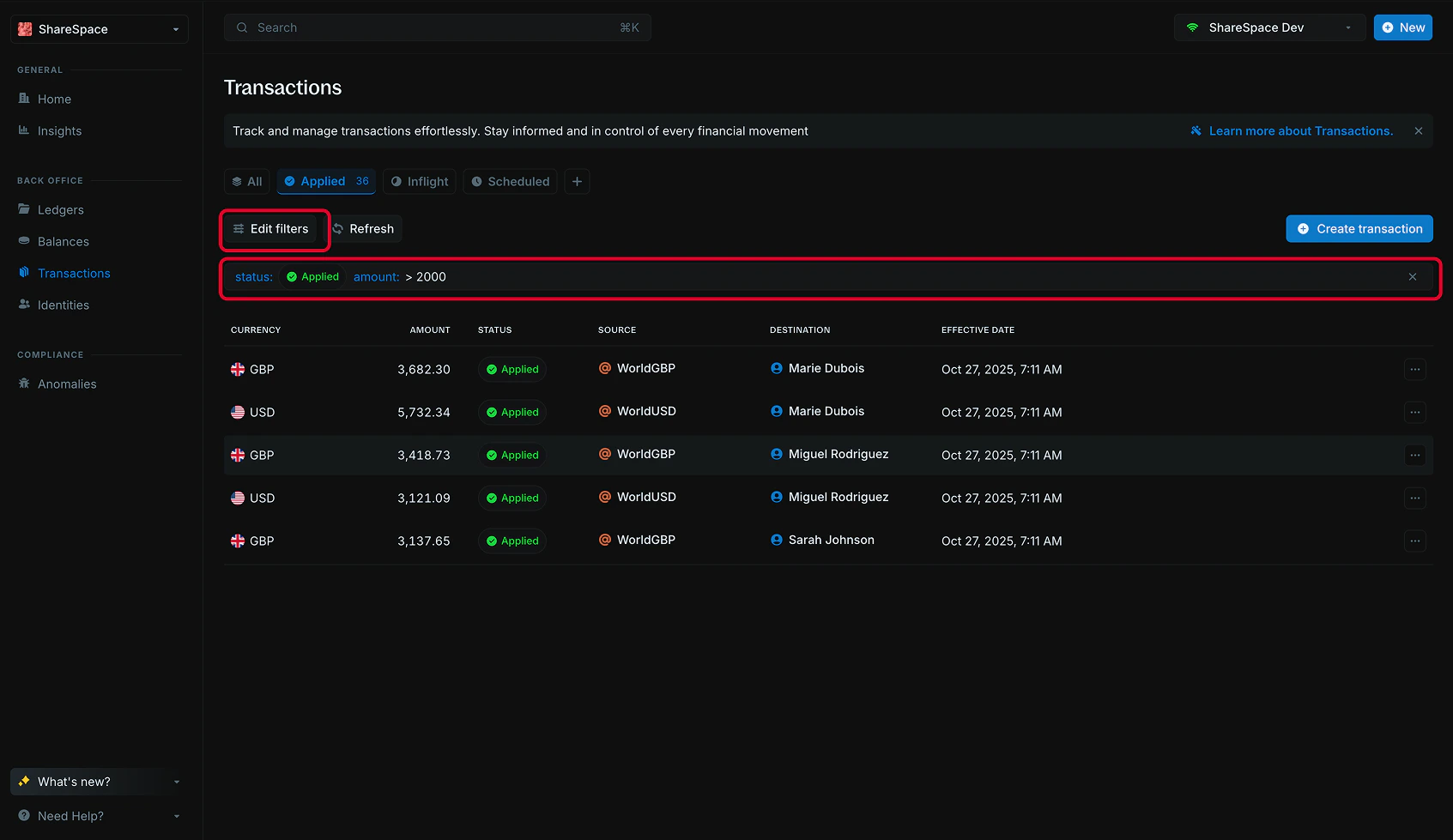
Edit filters
To edit filters, click the Edit filters button at the top-right of the filter panel or press F on your keyboard. You can also click directly on the filter bar to update or change an existing filter.