

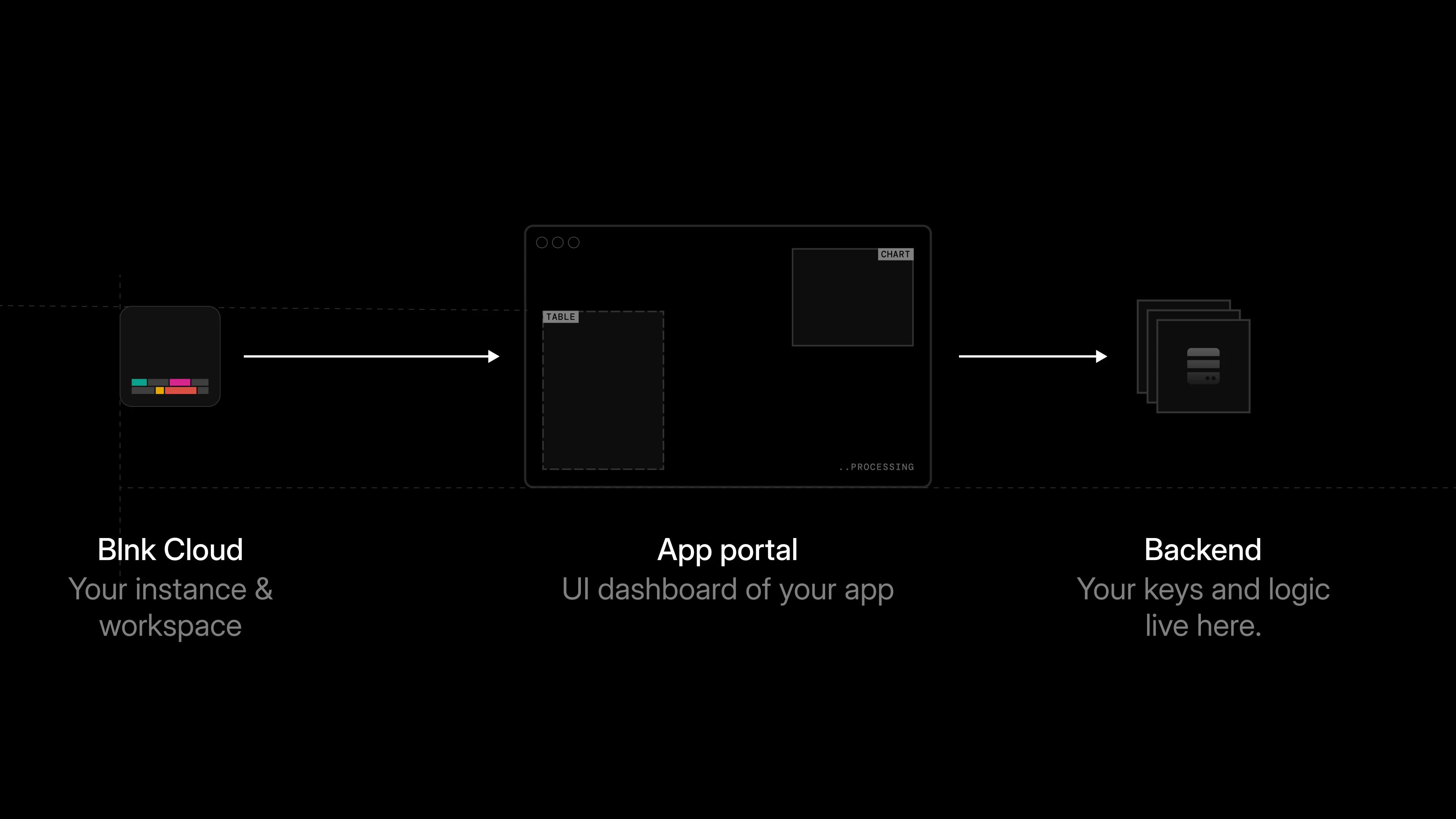
Launch app in Blnk Cloud:
- If the app requires it, the user confirms with their account password and 2FA code (same rules as install).
- Blnk sends a
POSTrequest to your portal generator URL. - Your app checks that the install exists and is active.
- Your app creates a short-lived portal session.
- Your app returns a
portal_url. - Blnk opens that URL inside the dashboard.
Handling the portal request
Cloud sends a payload like this to yourportal_generator_url:
generate_portal.json
Before returning a portal URL, your app should confirm that:
- the install exists and is active
- the
instance_idin the request matches the install record
validateInstallForPortal.ts
Create a portal session
Next, your app should create a portal session once the portal request is validated. The session helps your app know:- which installation opened the portal
- which Cloud instance the portal is launched from
- when the session should expire
We recommend keeping portal sessions short-lived. A 5 to 15 minute expiry is usually enough for launch sessions.
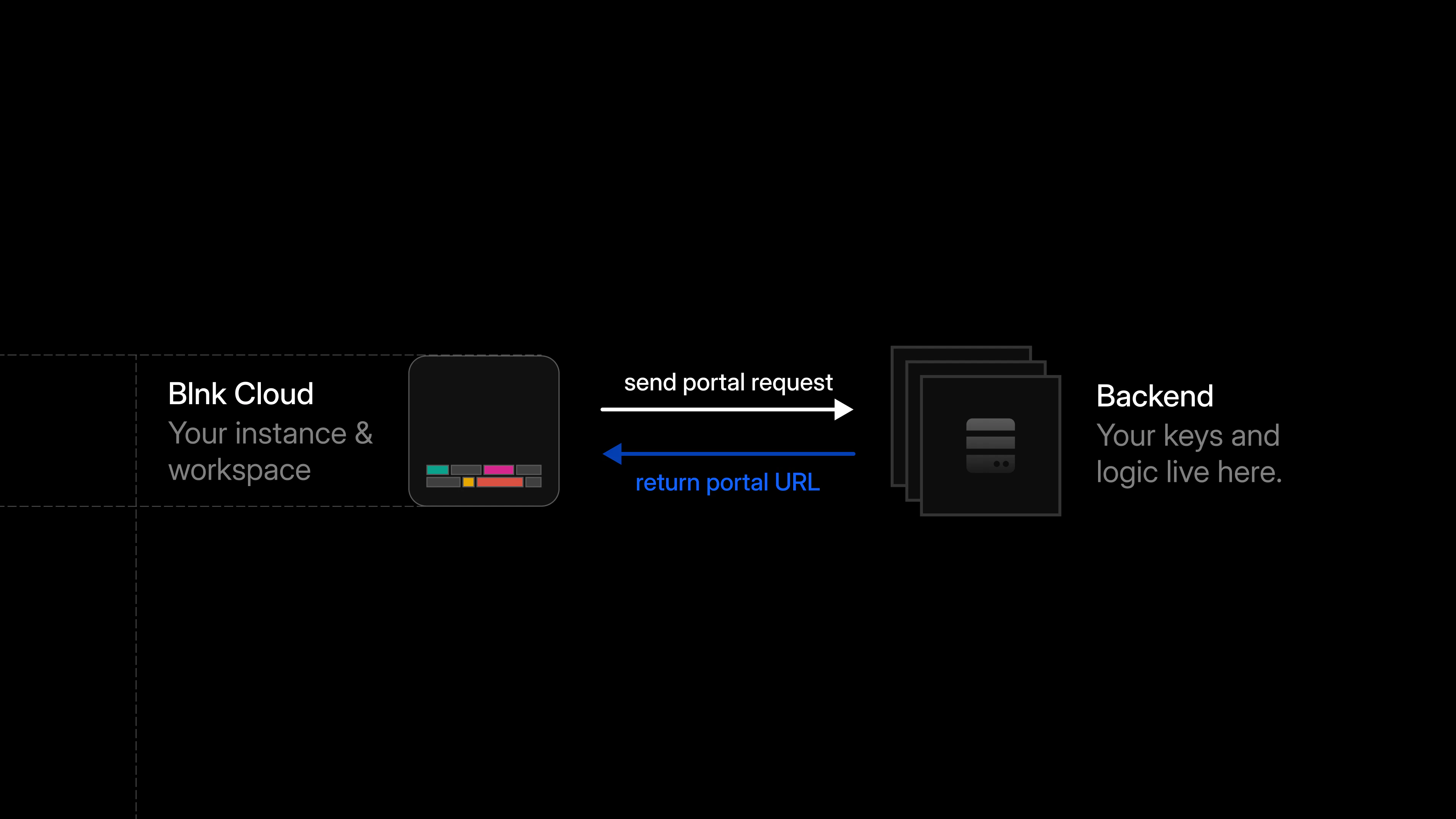
portal_url to Cloud. The response should look like this:
Expected response
The portal URL should only point to your app interface. It should not include API keys, provider secrets, or any sensitive data.
Load the app inside Cloud
When Cloud opens theportal_url, it loads your app inside the dashboard.
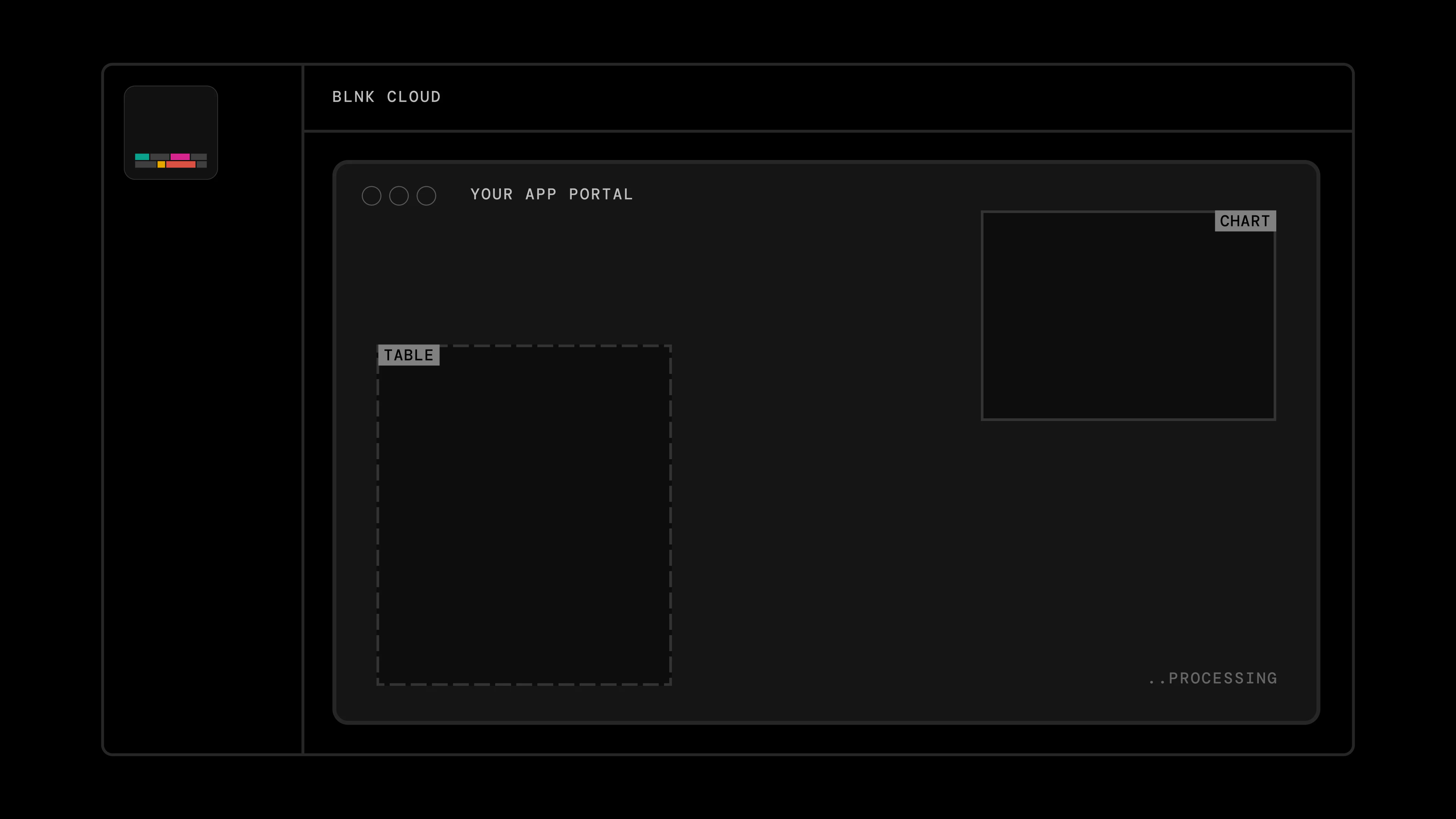
Content-Security-Policy header described in Best practices.
A few rules to keep in mind during this process:
- Blnk sends a fresh portal request for every launch. Your app should return a fresh
portal_urlfor each request. - Keep Cloud API keys on the backend. Do not expose them in the browser.
Test the launch flow
To test app launch:- Install the app in Cloud.
- Click
Launch appfrom the app details page. - If the app requires re-authentication, confirm with your password and 2FA code.
- Confirm your
portal_generator_urlreceives the launch request. - Confirm your app creates a portal session.
- Confirm your app returns a valid
portal_url. - Confirm the app opens inside the Cloud dashboard.
- Confirm expired sessions can no longer open the portal.
Troubleshooting
Run the example Stripe Sync app
Reference Stripe sync implementation.