

Manual flagging
You can manually flag records from their details page usingActions > Flag balance.
For balance-specific steps (including status selection and custom status creation), see Flag balance.
After you flag a balance, use Alerts to update the alert status as needed (for example, Flagged, Investigating, or Resolved).
Working with alerts
All alerts in your workspace are displayed in theAlerts table, where you can view, filter, and manage them.
Alerts table
The Alerts table shows a list of all alerts in your workspace. You can filter alerts by:All:View all alerts in your workspace.Assigned to you:View only alerts assigned to you.
All:View all alerts regardless of status.- Investigating: Alerts currently under investigation.
Flagged:Alerts that have been flagged for review.- Resolved: Alerts that have been resolved.
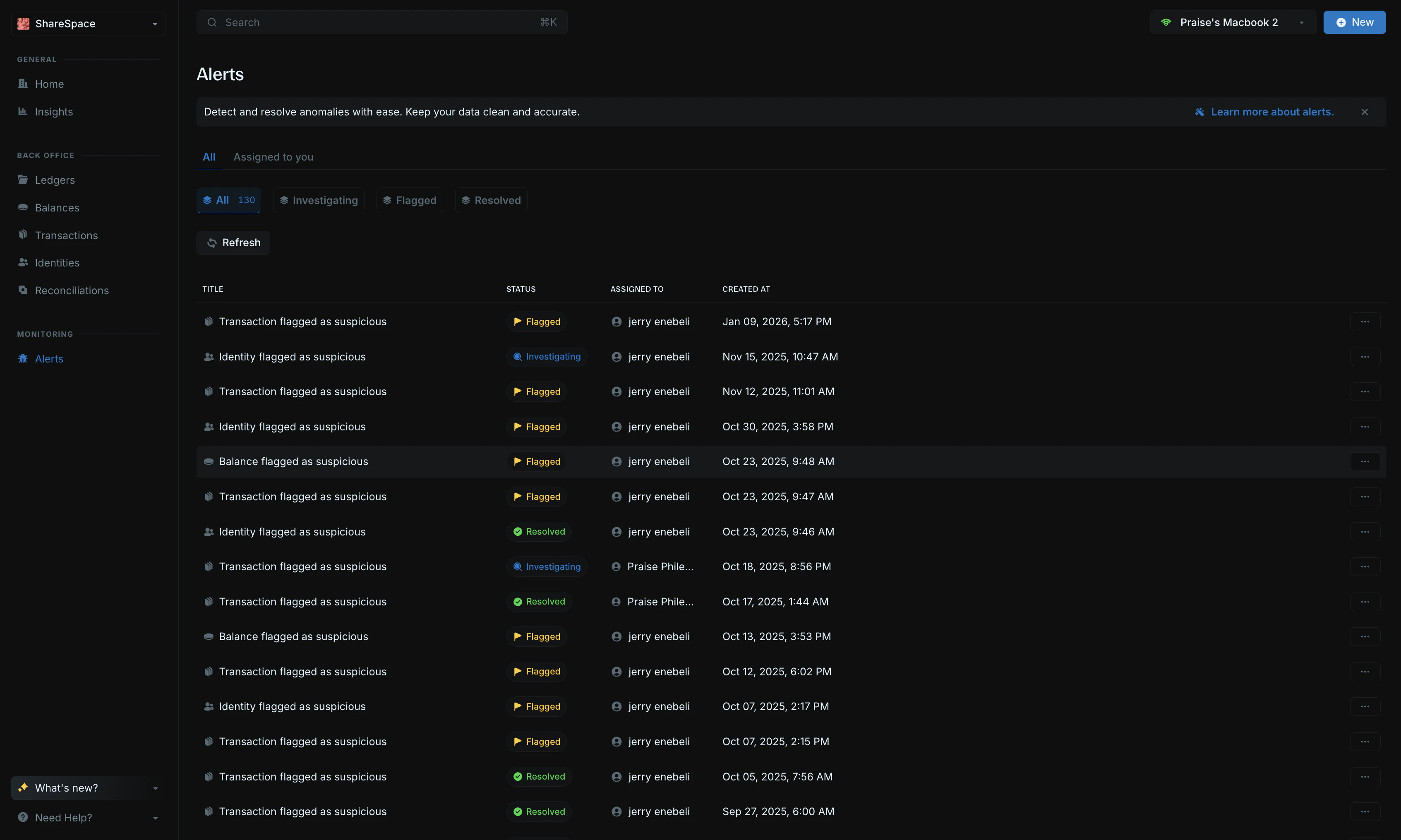
- Title: The title describing the nature of the alert (e.g., “Transaction flagged as suspicious,” “Identity flagged as suspicious”).
- Status: The current status of the alert - flagged, investigating, or resolved.
- Assigned to: The user responsible for handling the alert.
Created at:The date and time the alert was created.
View alert details
Click an alert from the table to open its details panel on the right side of your screen.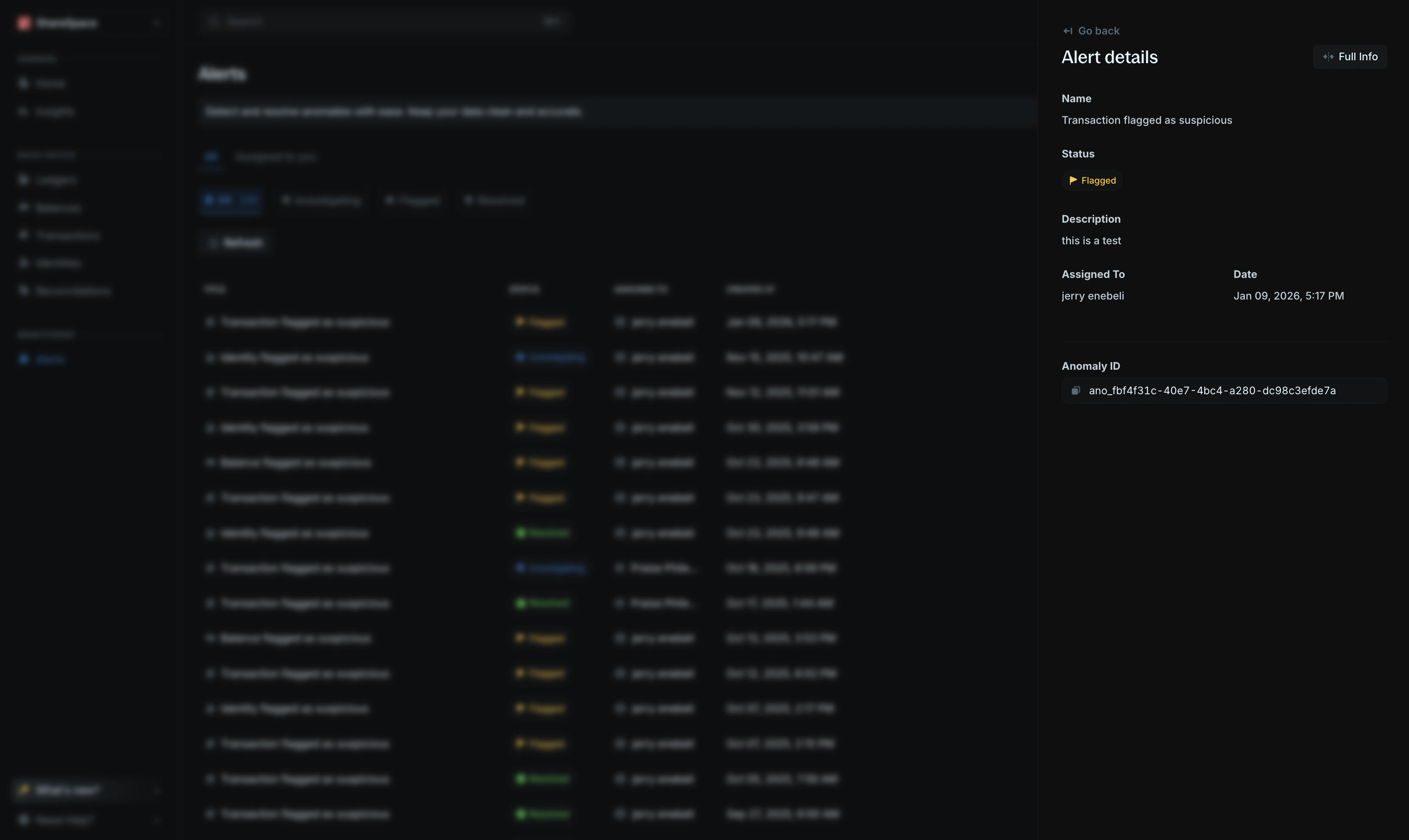
- Name: The title of the alert (e.g., “Transaction flagged as suspicious”).
- Status: The current status displayed as a colored tag with an icon - flagged (yellow), investigating (blue), or resolved (green).
- Description: The description or reason for the alert.
- Assigned to: The user responsible for handling the alert.
Date:The date and time the alert was created.Alert ID:The unique identifier for the alert. Click the copy icon to copy the ID.
Full info in the top-right corner of the details panel or press E to expand the details.
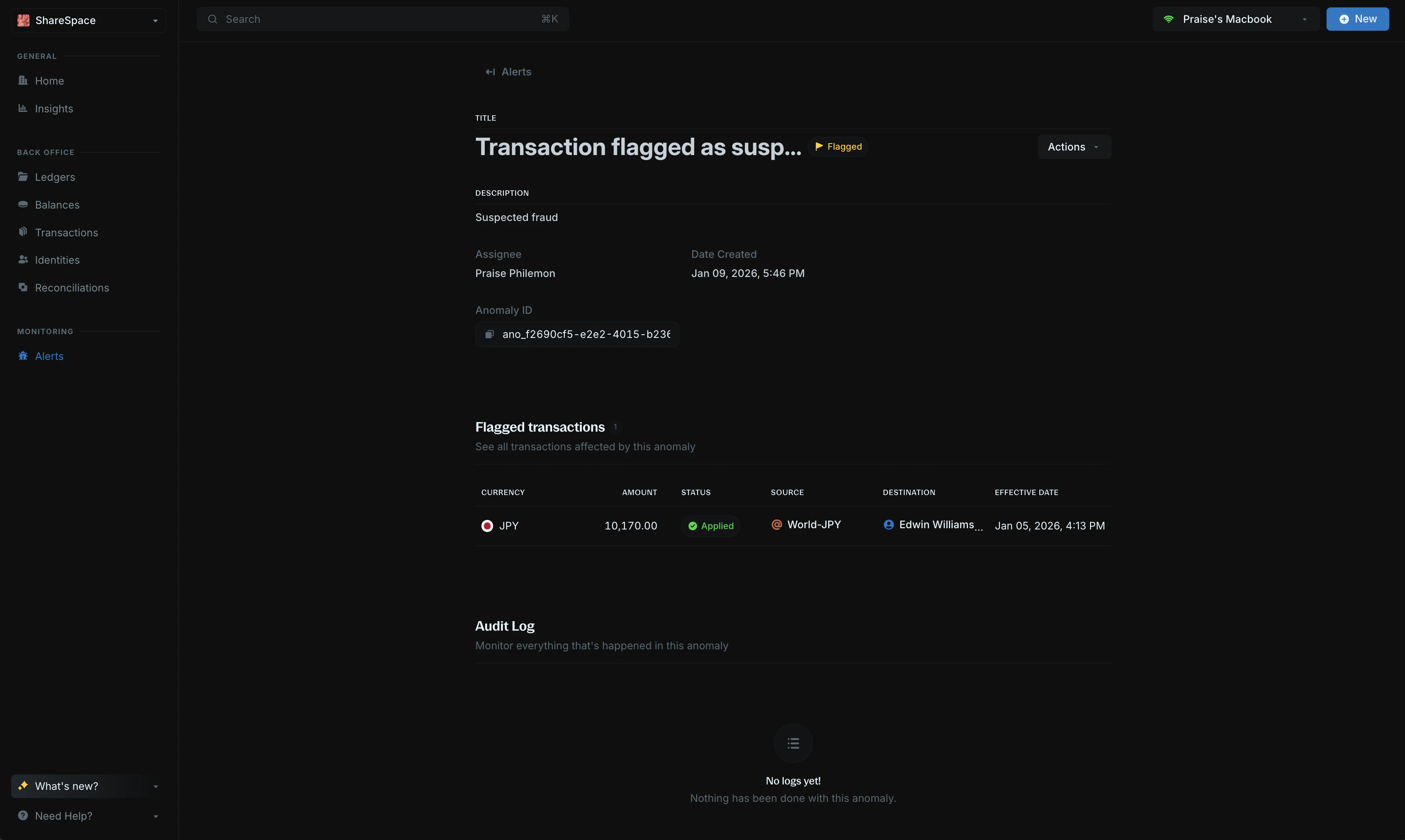
- Flagged records: A section showing all records (transactions, balances, or identities) affected by the alert. The table displays key information about each record, including currency, amount, status, source, destination, and effective date.
View record:Click on any record in the flagged records table to view its full details page.- Audit log: A section that tracks all actions and changes made to the alert, allowing you to monitor the alert’s history.
Alert description
Edit the description, format it with
/, and @mention a teammate.