

Managed instance
Instance deployed on Blnk Cloud.
Agent
Self-hosted instance connected to Cloud.
View instance details
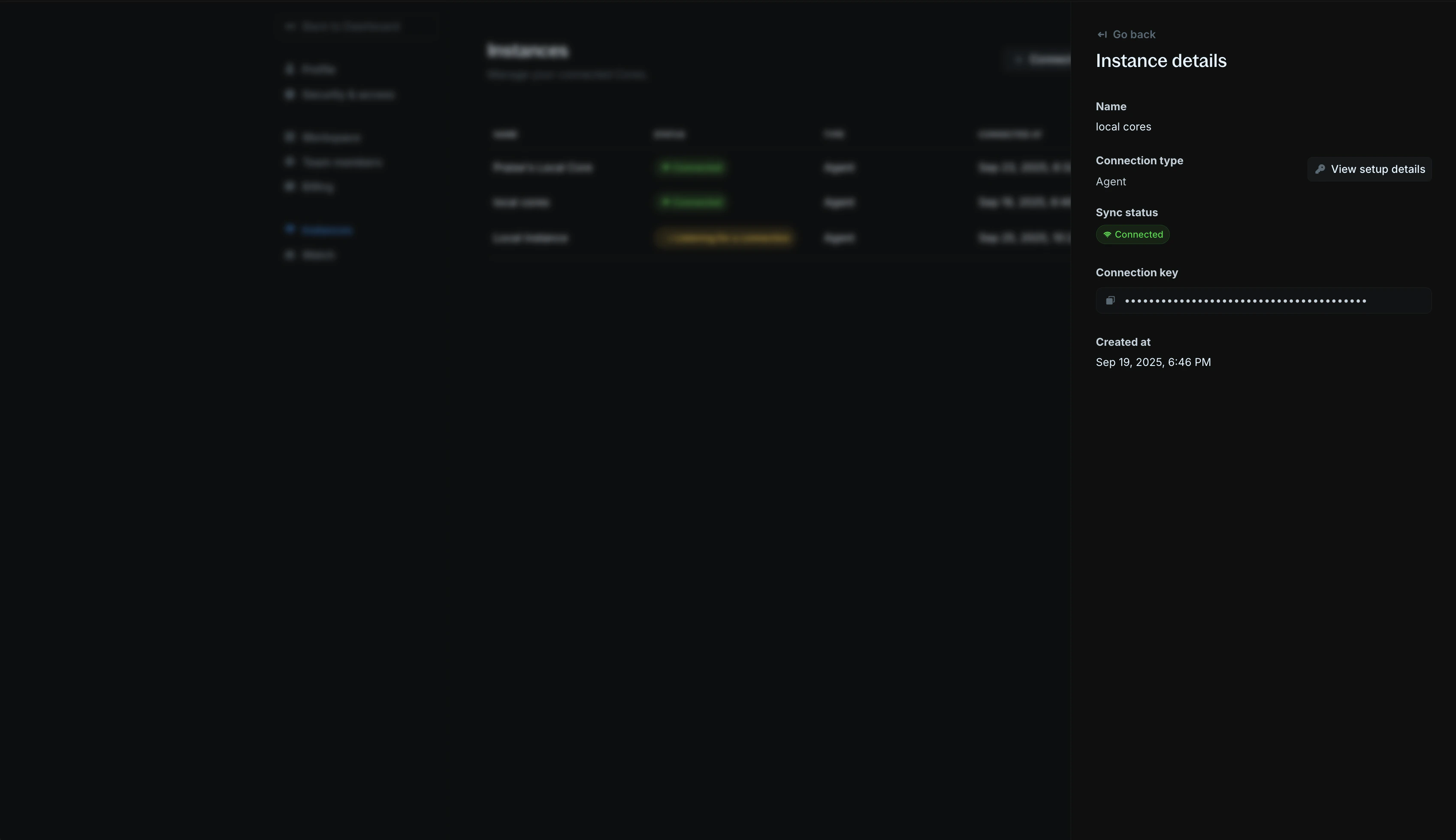
To view instance details, click on an instance in theInstances table. You’ll see an instance details panel opened on the right side of your screen.
Edit instances
To edit an instance, go theSettings > Instances, open its actions list and click Edit instance. You can change the name, update the Core URL, or the Core secret key.
Core URL
-
Make sure it is publicly accessible on the internet. If locally hosted, use a tunnel service like ngrok:
ngrok http 5001to create a public URL.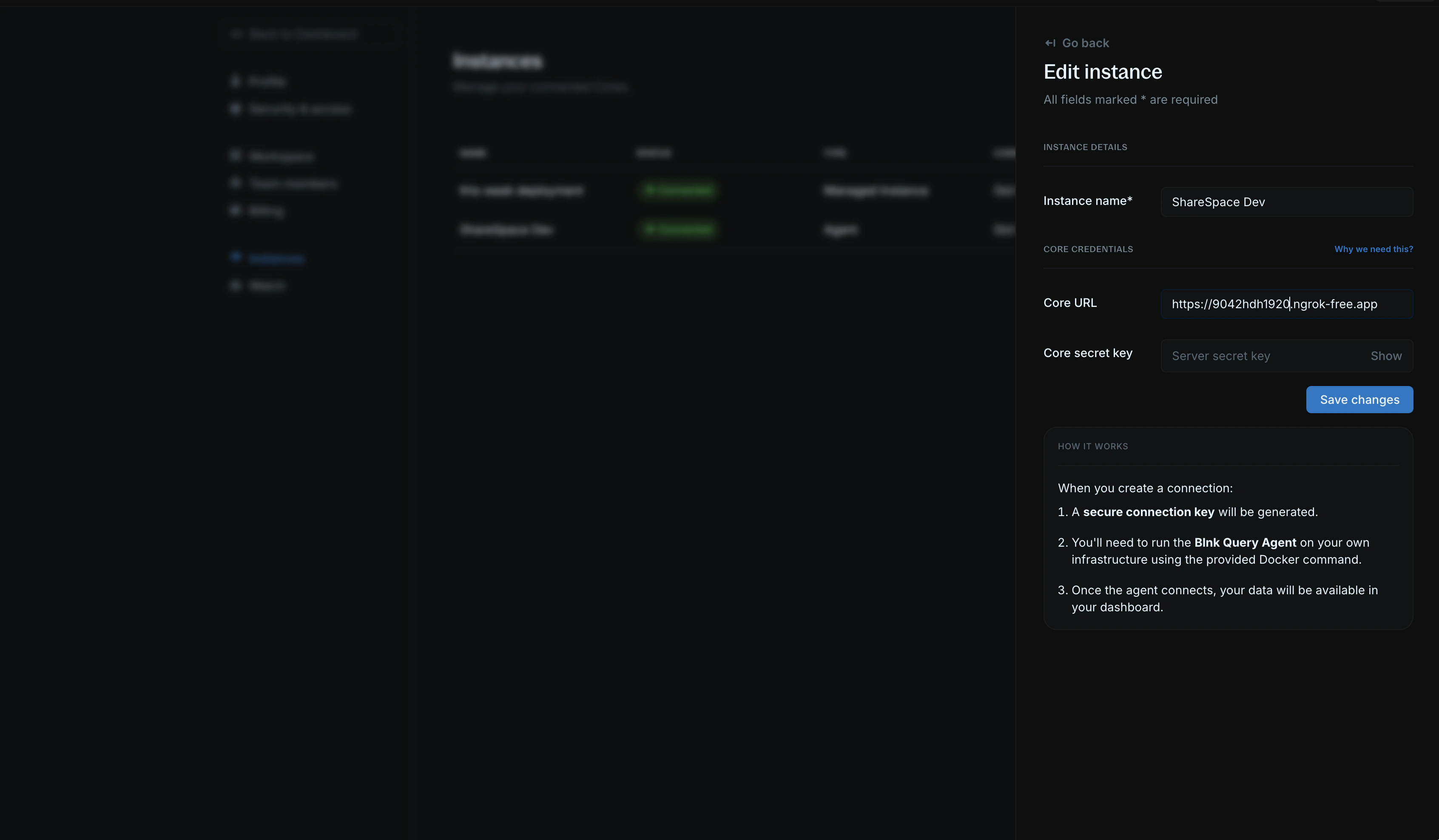
-
If hosted on a private network, make sure to whitelist our IP addresses so that Cloud can communicate with your ledger:
161.35.166.95161.35.171.250
Core secret key
- This is created and set by you in your Blnk configuration.
- Provide the secret key used/created in your config here. If not set, leave empty.
View Query Agent setup guide
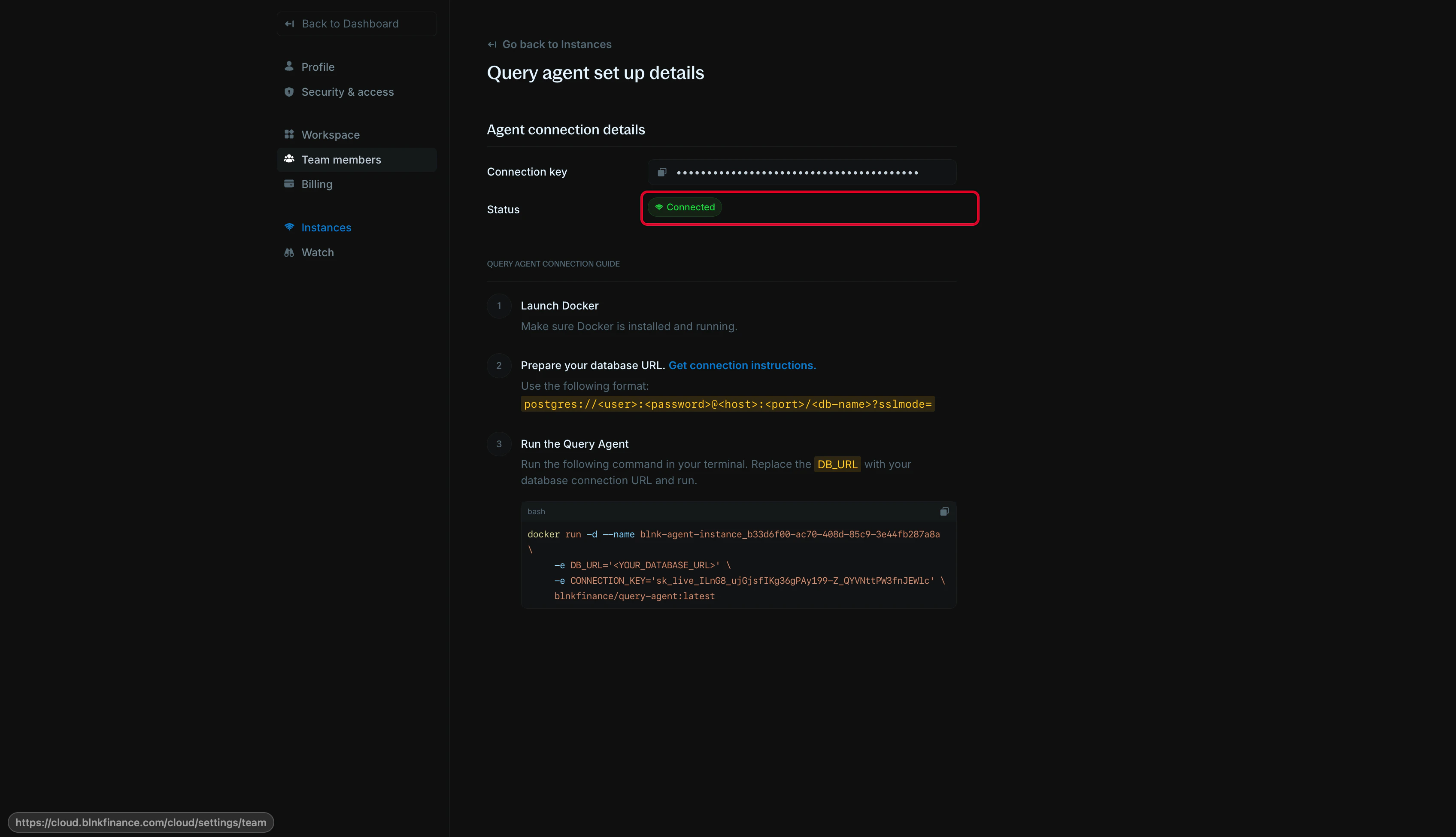
To view the Query Agent setup guide, open the actions list or open the instance details panel and clickView setup details.
In this page, you’ll see your connection details, agent connection key, and other relevant information for setting up your Query Agent.
Remove an instance
To remove an instance, open the actions list and clickDestroy instance for a managed instance or Terminate instance for a self-hosted instance. Follow the instructions in the modal to complete the action.
Please note that this action is irreversible.