Operating
Security & Access
Manage your password, sessions, and two-factor authentication.
The Security & Access settings let you manage your password, sessions, and advanced security options. You can find them in Settings > Security & Access.
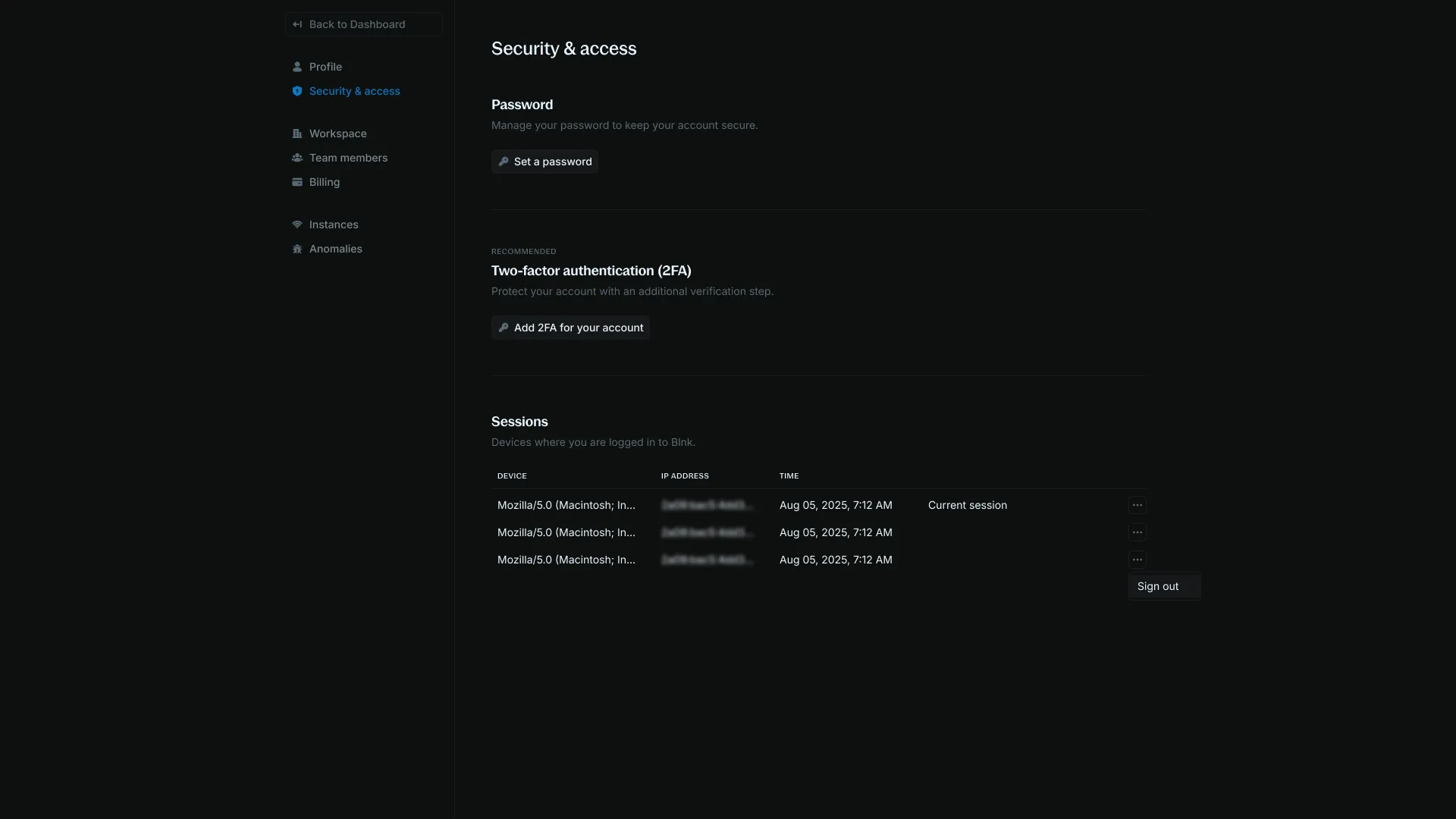
Sessions
Sessions keep a timesheet of the last time you signed in from a unique device or browser. This helps you track account access across locations. Log out by clicking Log out on a session, so you can end access on one device and leave the others signed in.
Active sessions show the device type, location, and timestamp. Login attempts also trigger email notifications.
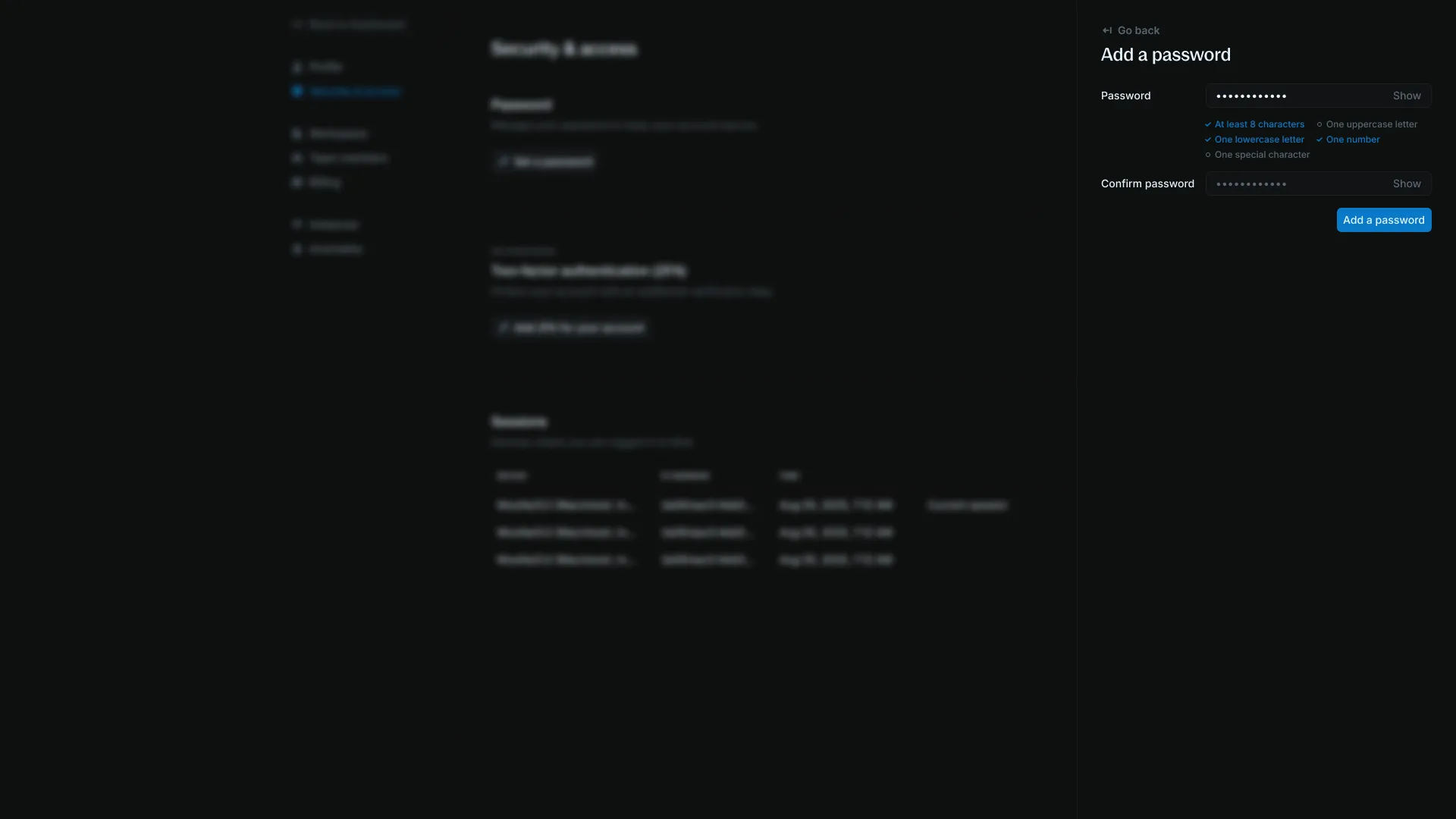
Set password
If you signed up with Google, you can also set a password in case you do not have access to that Google account. Click Set Password in the password section and follow the instructions.
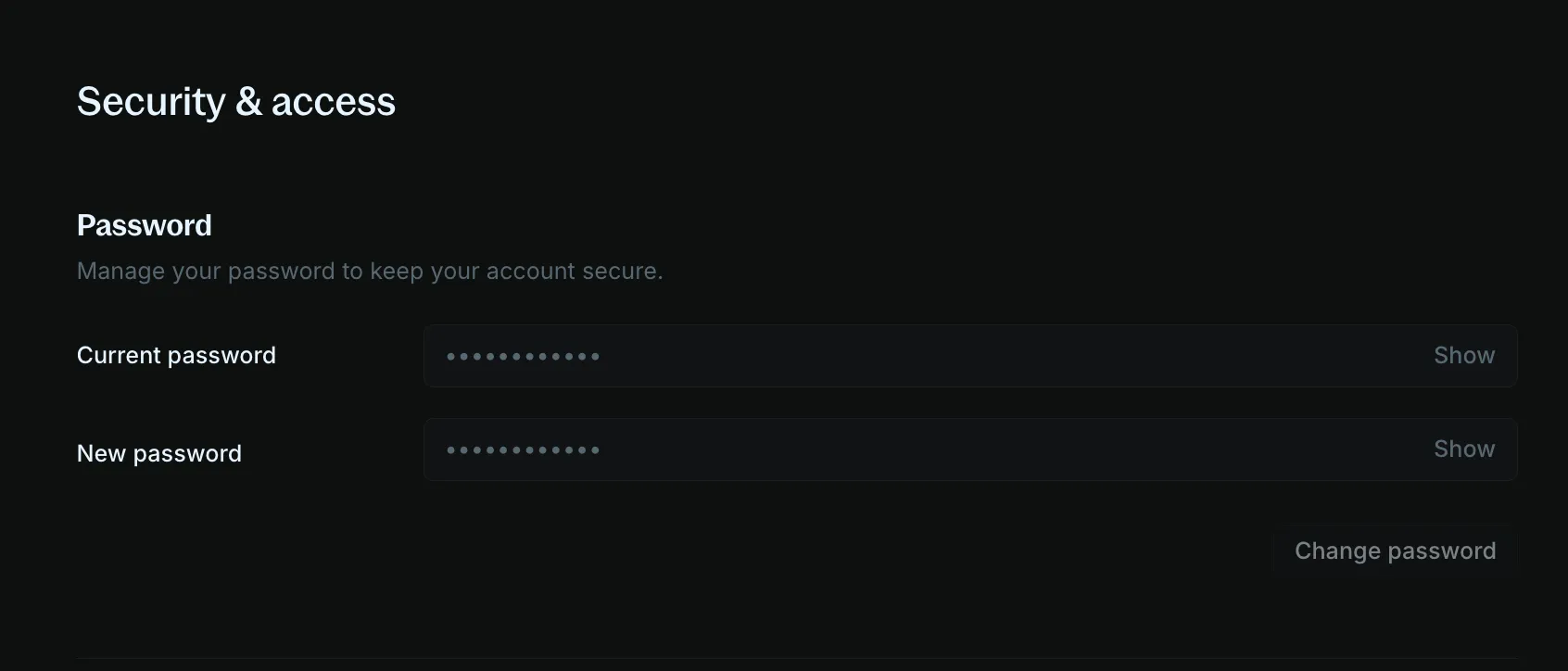
Change password
- Current password: the password you use now
- New password: the password you want to save
Click Change Password.
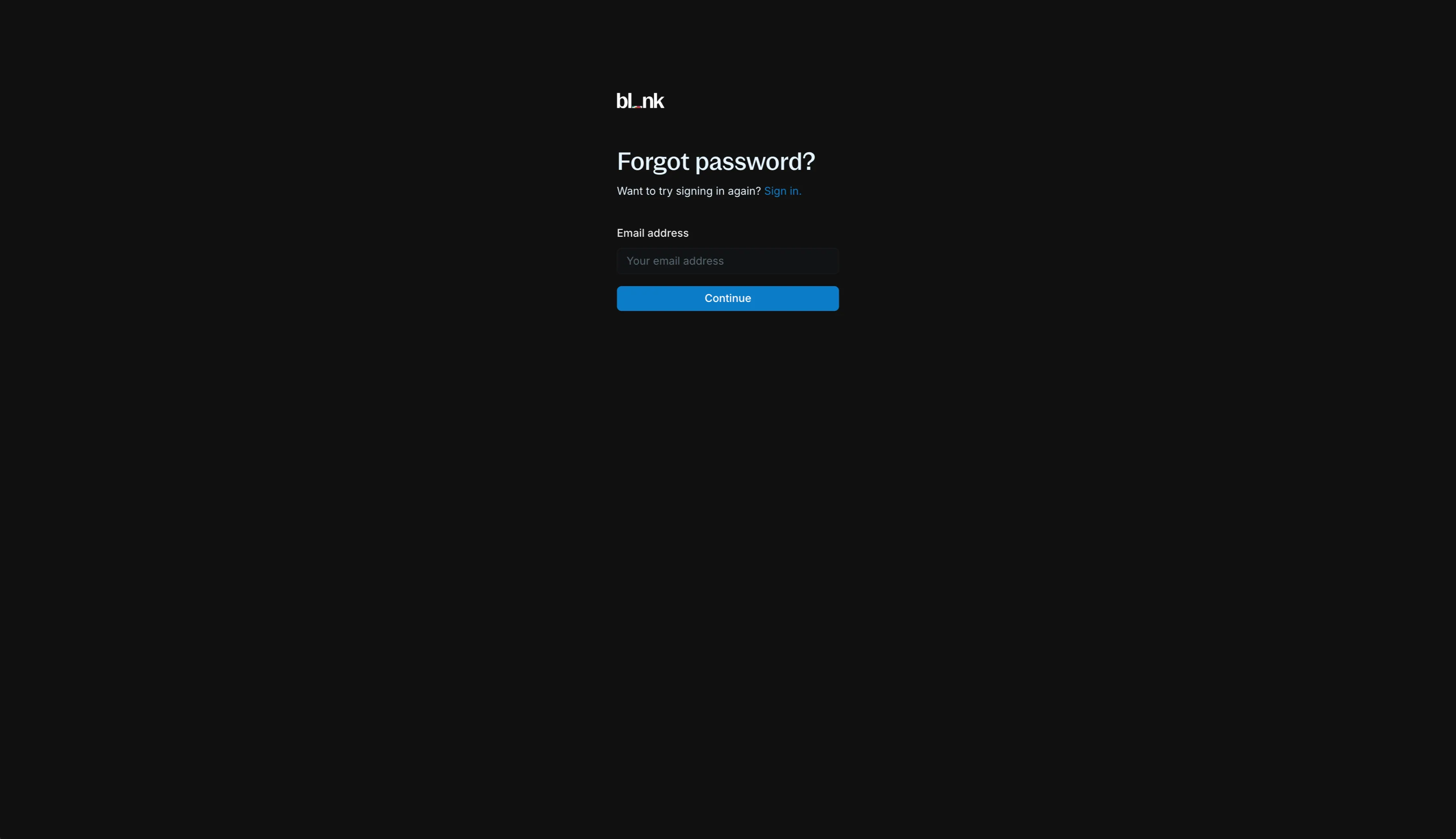
Forgot password
To reset a forgotten password, log out if you are still signed in. On the sign-in page, click Forgot Password? and follow the instructions to reset your password.
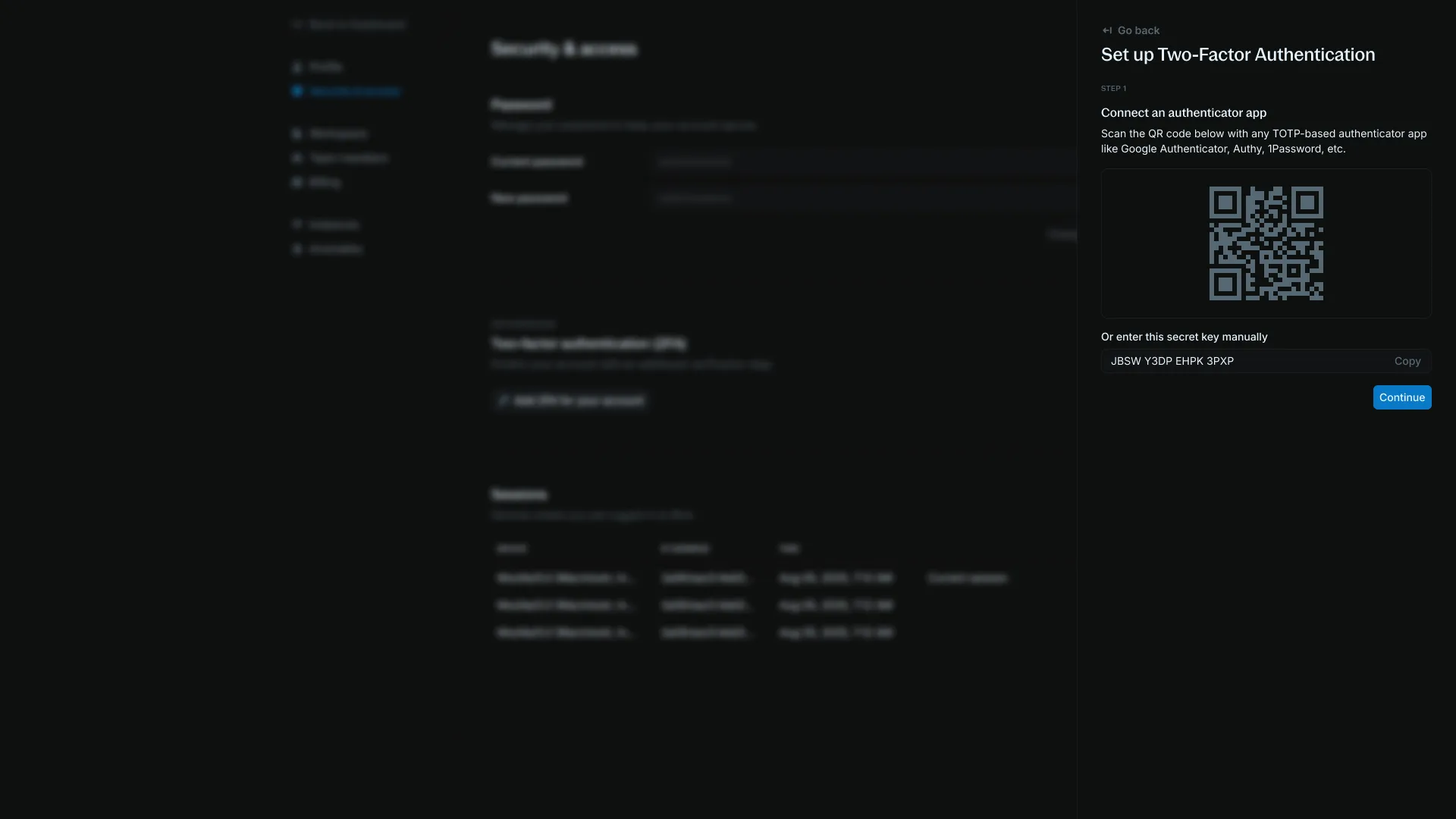
Two-factor authentication
To add an extra layer of protection, enable two-factor authentication. Toggle it on, then follow the instructions to set it up with a supported authenticator app such as Authy or Google Authenticator.