

Access control
Team members
Invite teammates to collaborate in your organization.
Team members are the people who work with you in the organization. Invite them when you want to share instances, ledger data, and back-office work.
Manage them in Settings > Team members.
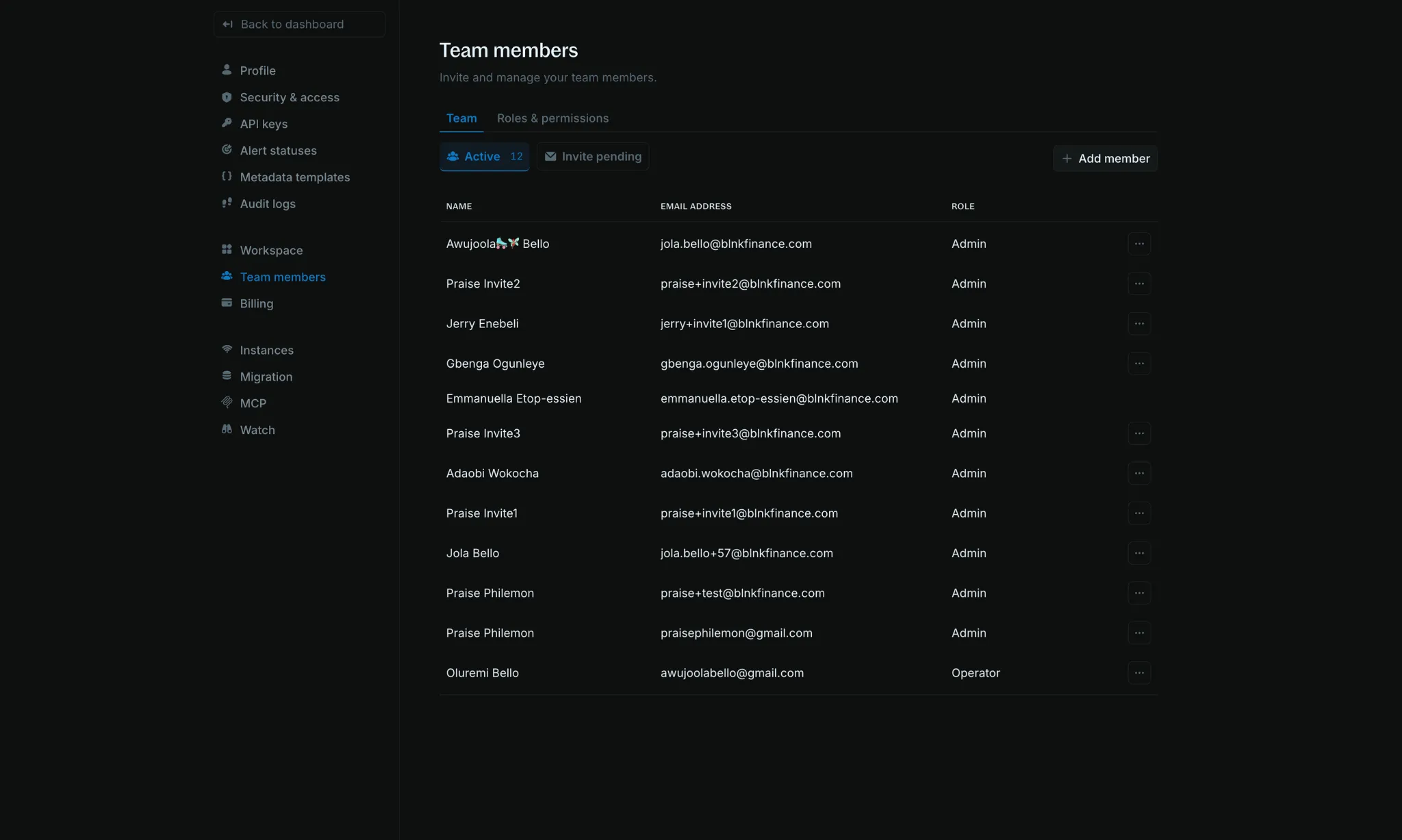
Invite a teammate
Only admins can send invitations. The invite uses a built-in role: Admin, Operator, Investigator, or Analyst.
Open Team members
Go to Settings > Team members.
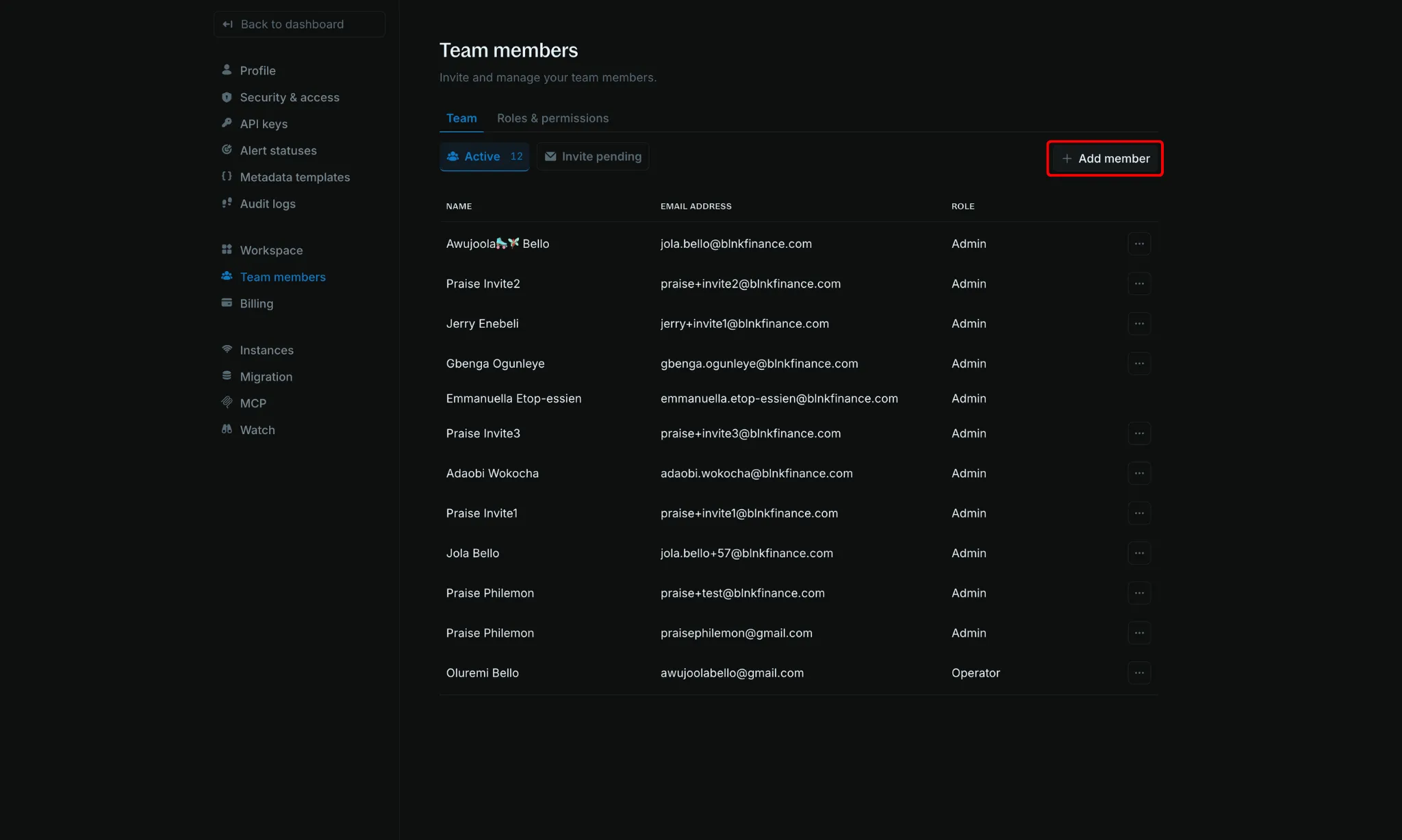
Click Add member
Click Add member at the top right of the page.
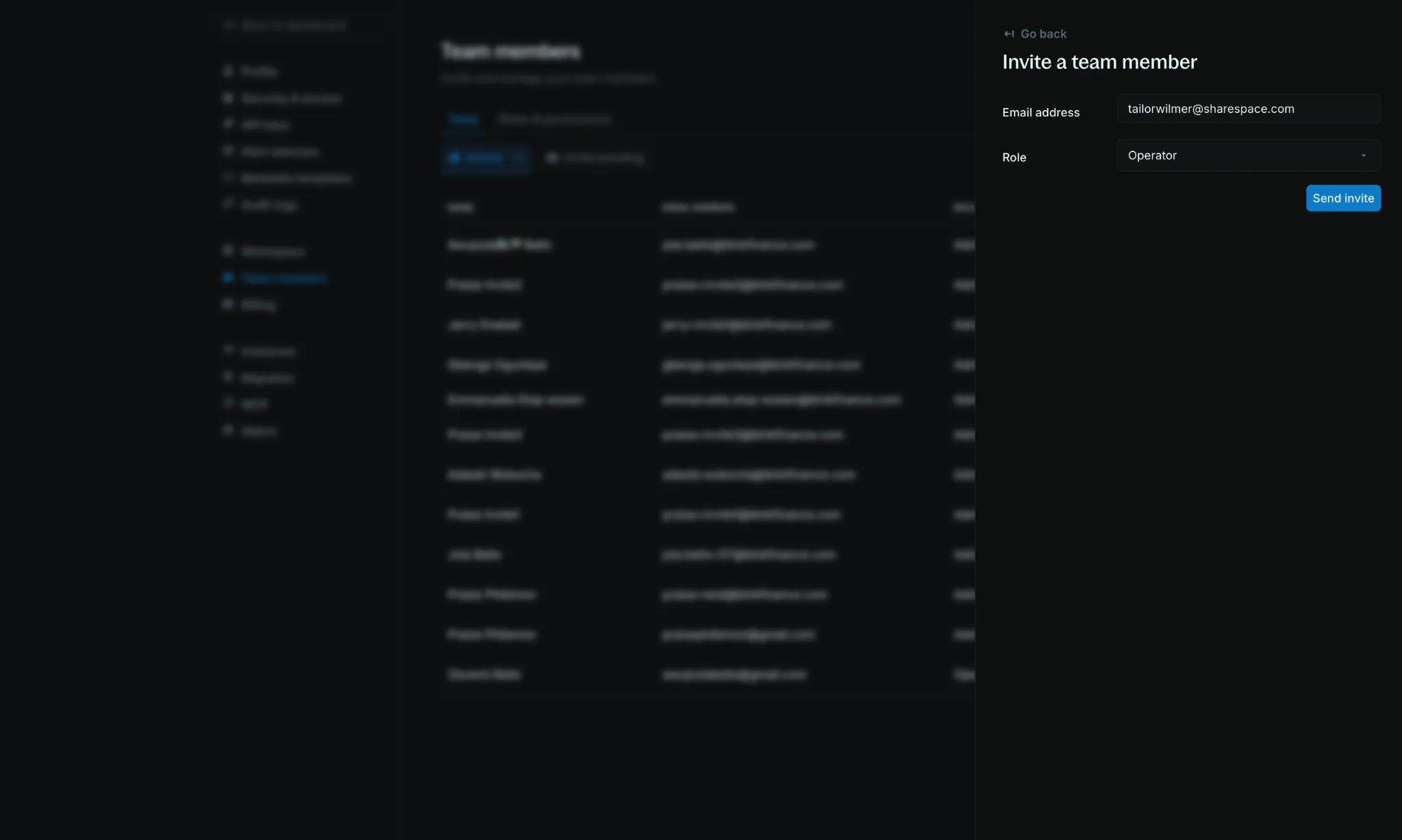
Enter email and role
In the Invite a team member panel:
- Email address: your teammate’s email
- Role: Admin, Operator, Investigator, or Analyst

Choose the role that matches what your teammate needs to do.

Send the invitation
Click Send invite. Your teammate receives an invite link by email with steps to join the workspace.
Enterprise invite
Verify a domain your organization owns, and people who sign up with that email can ask to join. An admin approves the request, and they become a team member.
You do not send a separate email invite.
Verify the organization domain
Go to Settings > Workspace and scroll to Domains.
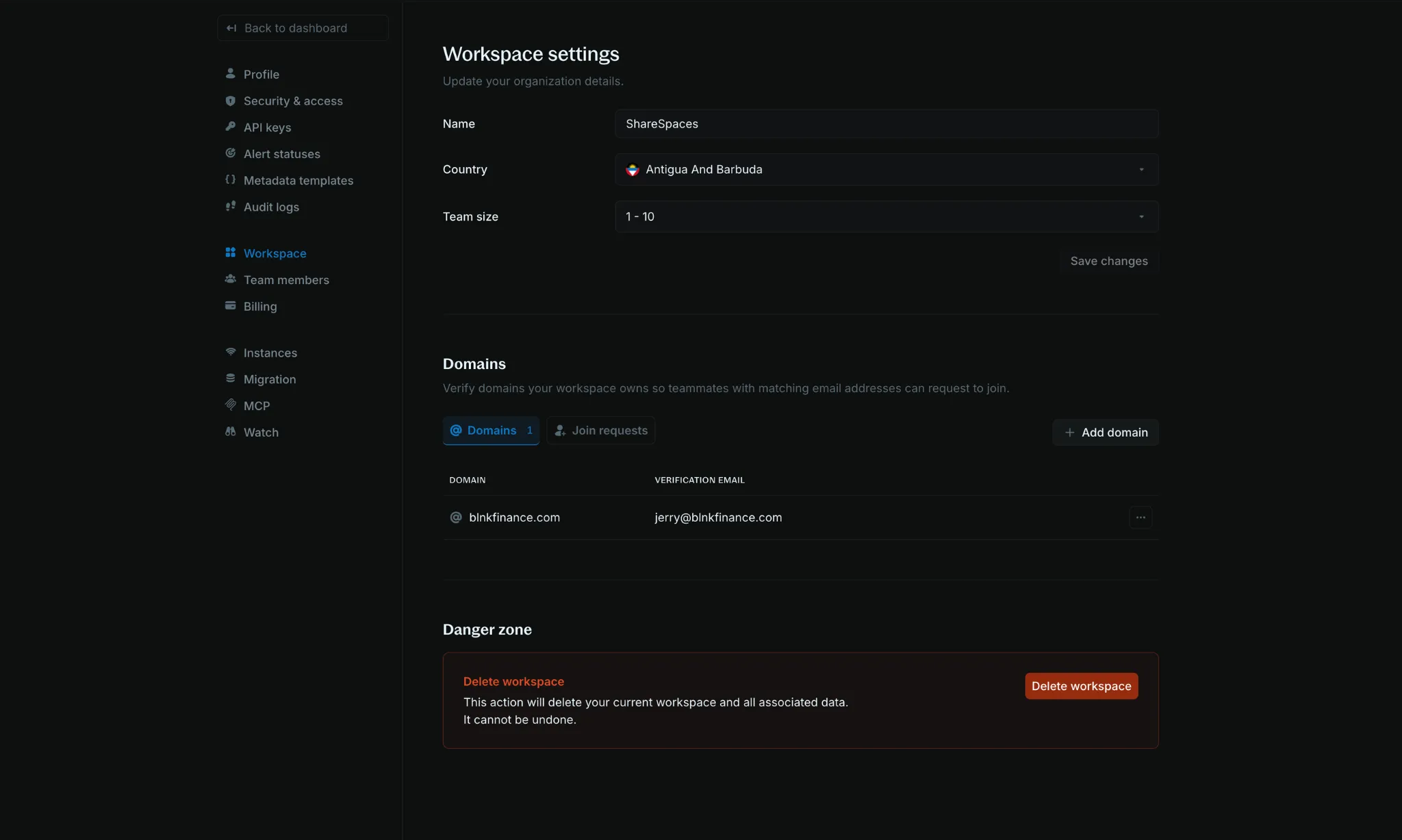
Click Add domain.
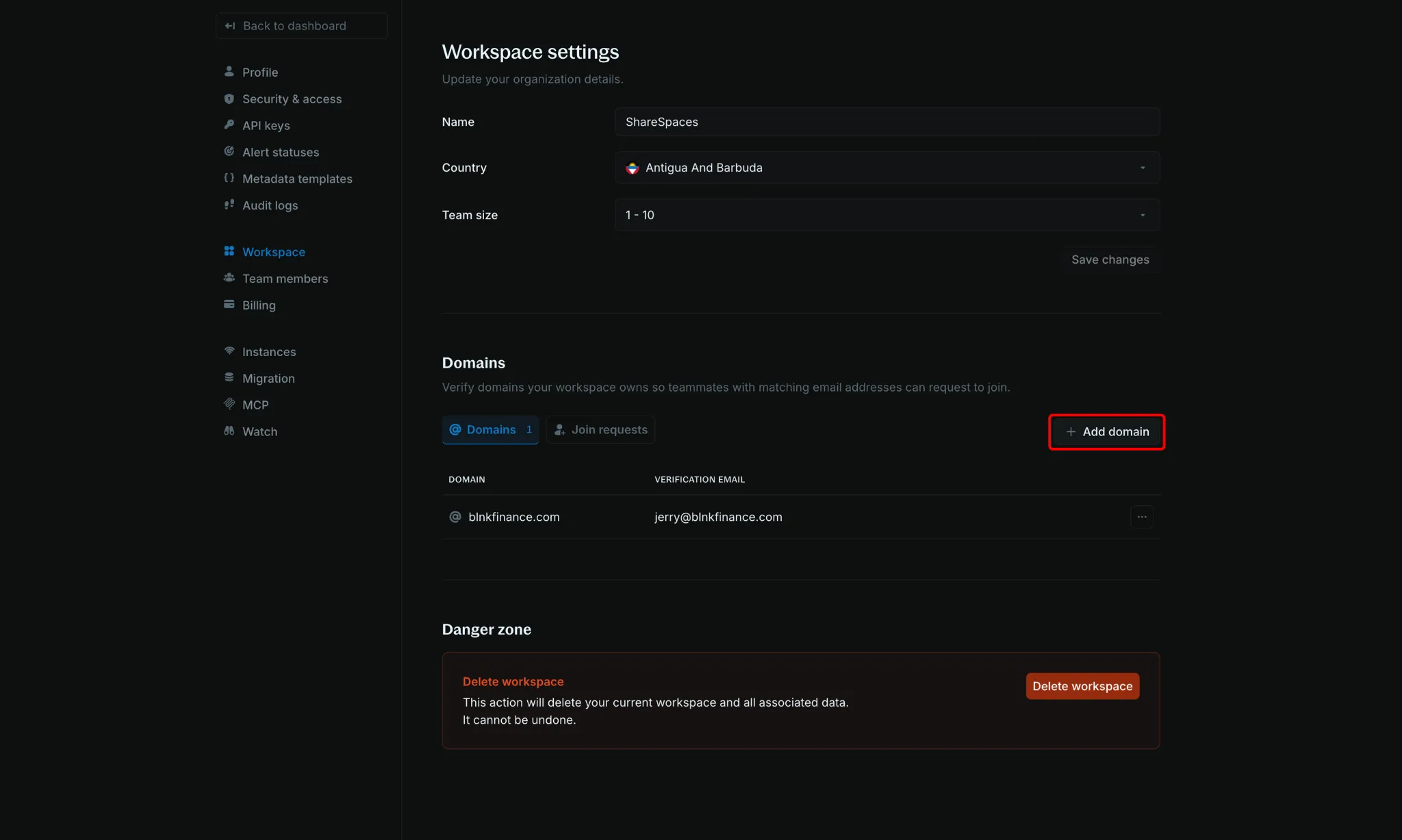
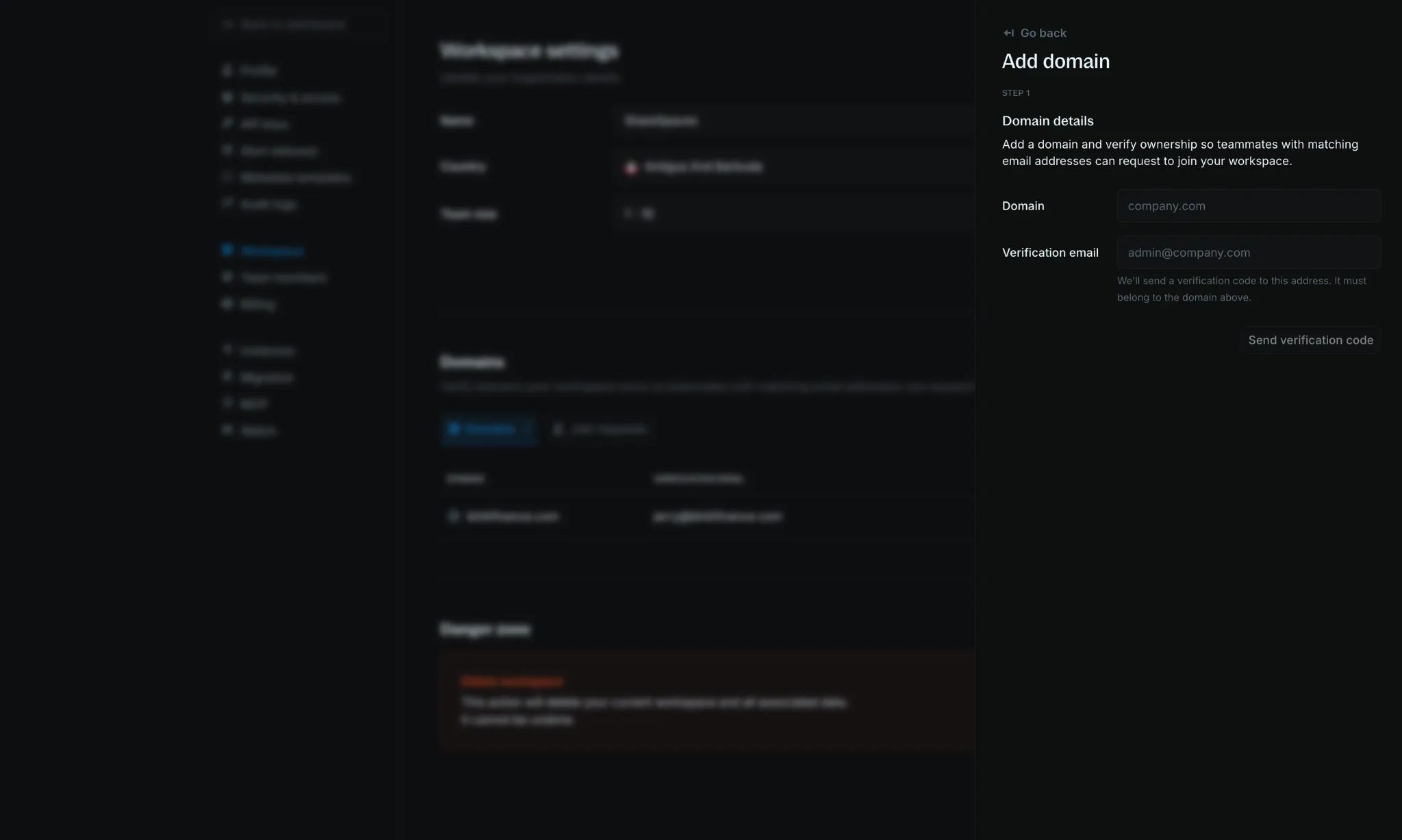
In the Add domain panel:
- Domain: the domain you own, such as
company.com - Verification email: an address on that domain
Click Send verification code, then enter the code from that email. The domain appears in the Domains tab once it is confirmed.
They sign up
The person signs up with an email on that domain. Blnk invites them to join the organization, and the request waits for an admin.
Approve the request
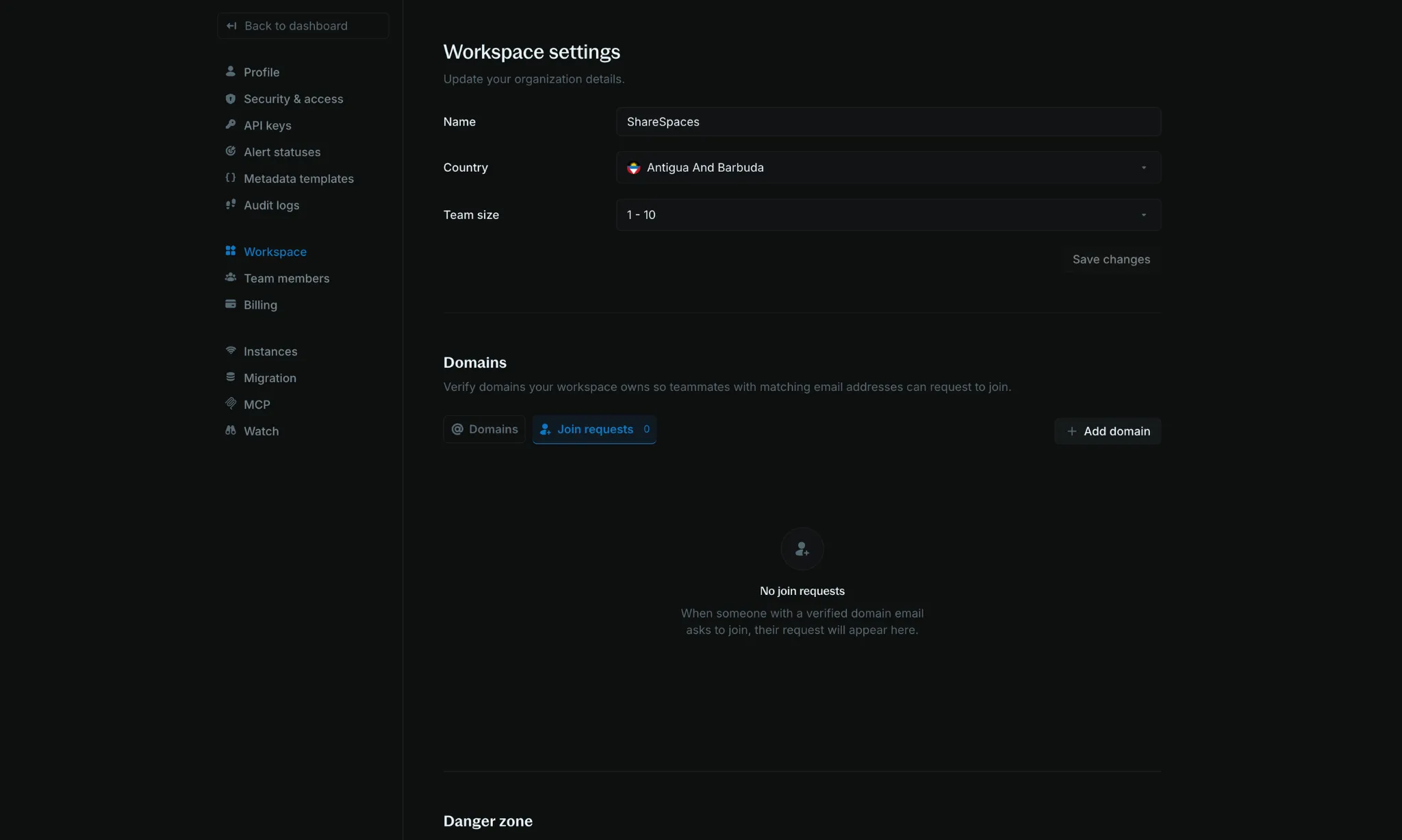
Open Settings > Workspace and switch to the Join requests tab. Approve the request, and they are in the organization.
FAQs
I added a teammate, but they can't log into the workspace.
They may have their email address associated with a different workspace. Contact Support to get this resolved.