

Apps
Installing Custom Apps
Install and activate a Custom App in your Blnk Cloud workspace.
This guide shows you how to install an app from the Apps library in Blnk Cloud. When you install an app, it becomes available inside the organization and Cloud instance you selected.
This means an app can be installed in one instance and unavailable in another. Before you start, check that you are in the right organization and have selected the instance where you want the app to be available.
The Apps library can include two types of apps:
- Official apps: Built and managed by Blnk.
- Private apps: Built and managed by your organization.
Prerequisites
If your instance is deployed on Cloud, you’re set to go. For connected self-hosted instances:
- Make sure you set your Core URL and Core secret key in Edit your instance.
- Make sure your Core URL is reachable. If your Core is set up in a private network, whitelist Cloud IPs so Cloud can reach your ledger.
Install a Custom App
To install a Custom App:
Open Apps library
Navigate to the bottom left section of your side navigation and open the Apps library.
Choose an app
Browse the library for the app you want, and click to open its details.
Review what it does, the permissions it requires, and any other details you need. Confirm that this is the app you need, then click Install.
Review permissions
Next, review what the app is allowed to access or do inside your ledger.
- Review the requested permissions.
- Select the permissions you want to grant.
- Click Continue if you’re happy with the permissions.
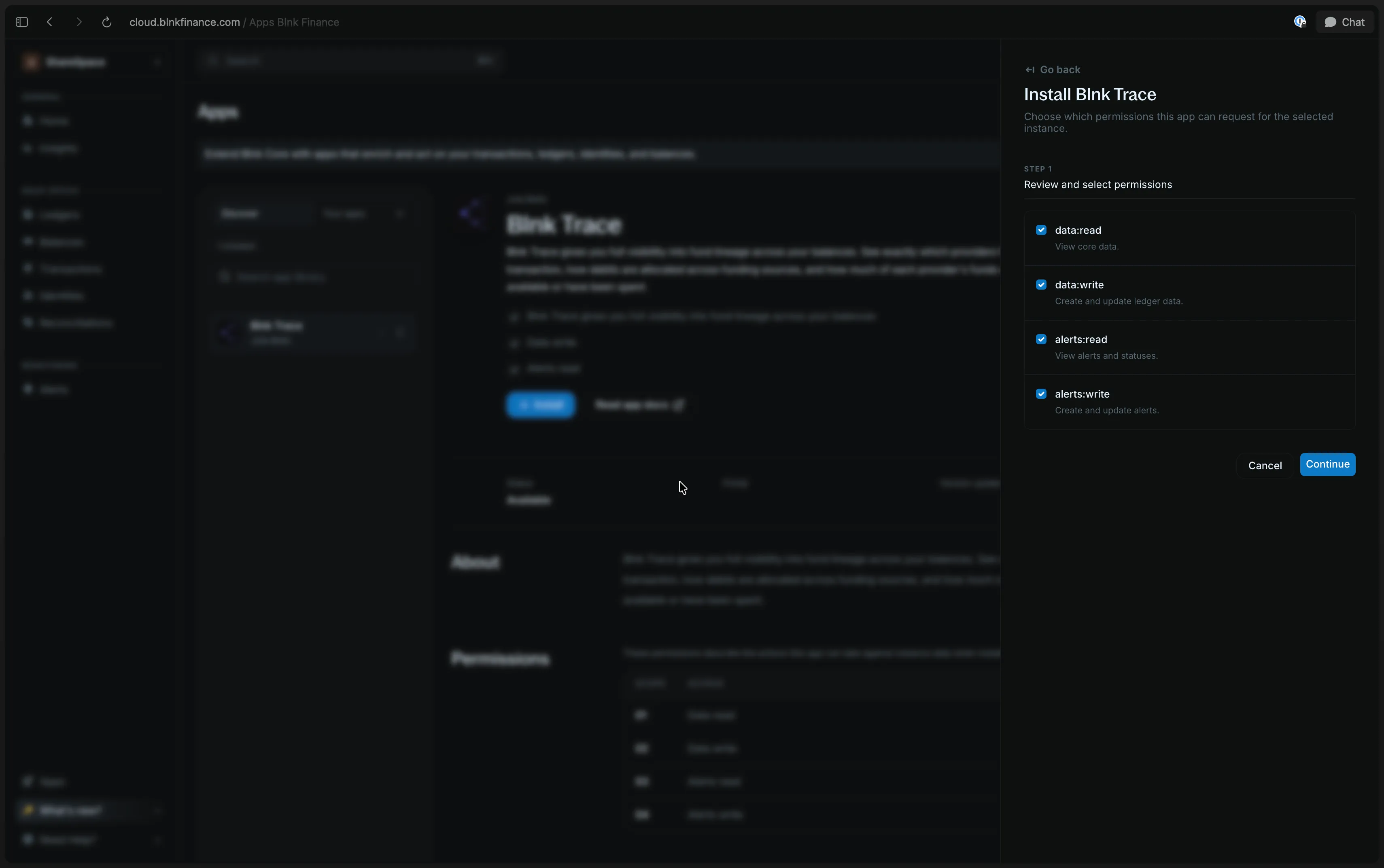
This helps protect your data and ensures the app only does what you want it to.
Confirm installation
Finally, confirm the installation by entering your account password and 2FA code (if enabled).
This final step helps protect the workspace from unauthorized app installs.
Now you can launch the app from the app details page by clicking Launch app in the top right corner. Launching is usually one click. Some apps prompt for your password and 2FA again before opening.
Pin an app for your team
Pinning is for the whole organization, not only the person who clicks it. Everyone in the workspace sees the same pinned apps in the sidebar.
Do this from the Apps library list (you do not need to open app details):
Open Apps
Open Apps from the bottom of the sidebar.
Pin for the team
On the installed app card, click the pin icon. The tooltip is Pin to sidebar for your team.
Cloud confirms with a toast. Pinned apps sort to the top of the library and show in the sidebar for your team.
To take it off the sidebar for everyone, click the pin again. The tooltip is Unpin from sidebar for your team.
Uninstall a Custom App
To uninstall a Custom App:
Open the app details
From the Apps library, open the app you want to uninstall.
Make sure you are viewing the same organization and instance where the app is installed.
Uninstall the app
Click Uninstall from the app details page.
If uninstall fails, wait a few minutes and try again.
Troubleshooting
If something goes wrong during installation, here are a few things you can try:
| Issue | What to do |
|---|---|
| Permissions do not load | Reopen the install flow and try again. |
| Password or 2FA is incorrect | Check your password or 2FA code and try again. You may see Authentication failed. |
| Install fails | Return to the app details page and click Install again. |
| App is not visible after install | Confirm that you are viewing the same organization and instance where the app was installed. |
| Private app not loading | Check that your app is live and accessible via Cloud. |