

Operating
Workspace
Update your organization, verify domains, and switch workspaces.
Your workspace is the control center for instances and data in Blnk Cloud. Each organization has one workspace. If you belong to more than one organization, you can switch between them without signing out.
Update the current workspace in Settings > Workspace.
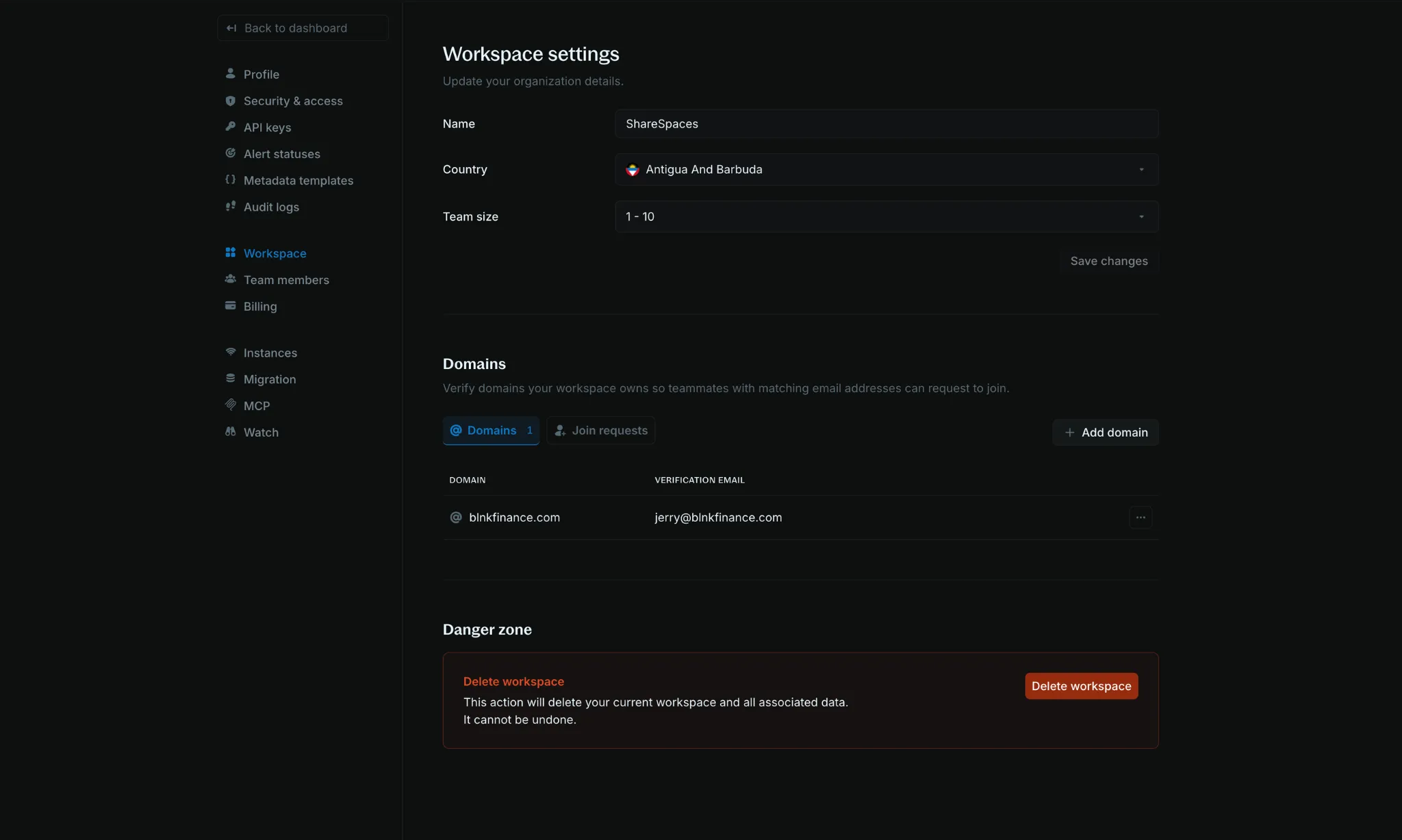
You can update the organization name, team size, and country.
Workspace domains
Verify domains your organization owns so teammates with a matching email address can request to join, without a manual invite.
Open the Domains section
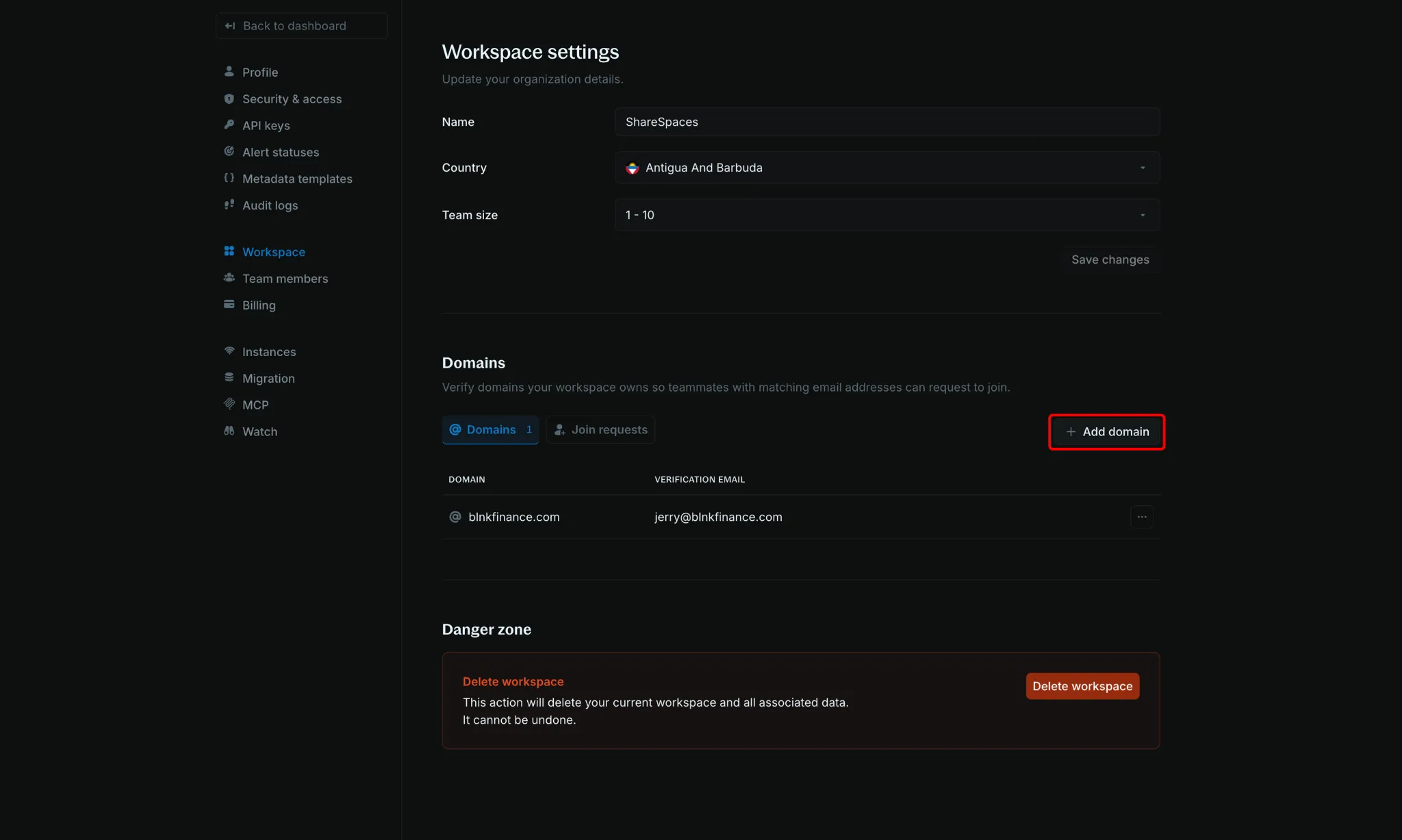
Go to Settings > Workspace and scroll to Domains.
Start adding a domain
Click Add domain at the top right of the Domains section.
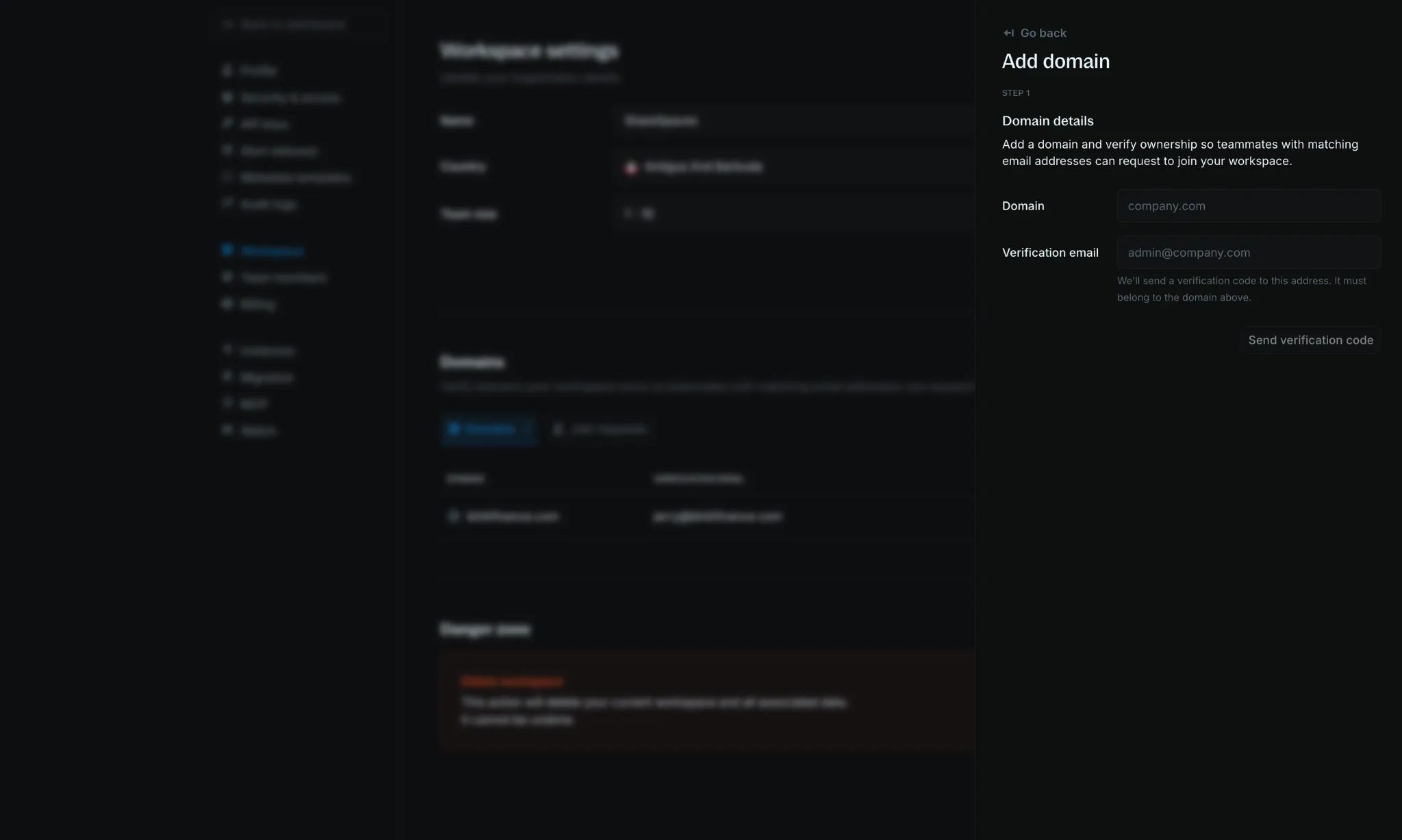
Enter domain details
In the Add domain panel:
- Domain: the domain you own, such as
company.com - Verification email: an address on that domain
Click Send verification code.
Confirm ownership
Enter the verification code sent to that email. Once confirmed, the domain appears in the Domains tab.
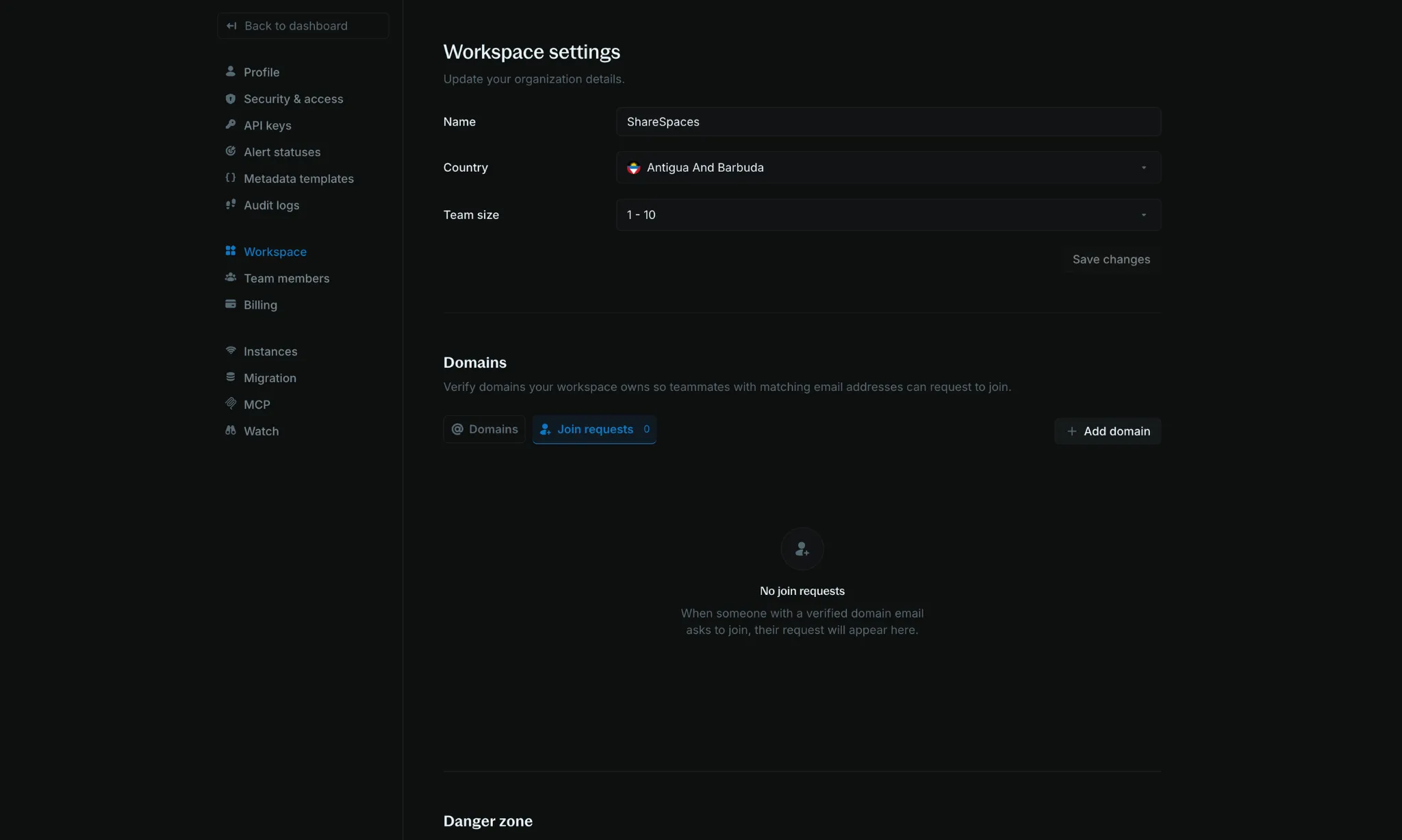
Review join requests
Switch to the Join requests tab to approve or decline teammates who signed up with an email on a verified domain.
Switch workspace
If you belong to more than one organization, you can move between workspaces without signing out.
Open your workspace menu
At the top of the left sidebar, click your workspace name or logo.
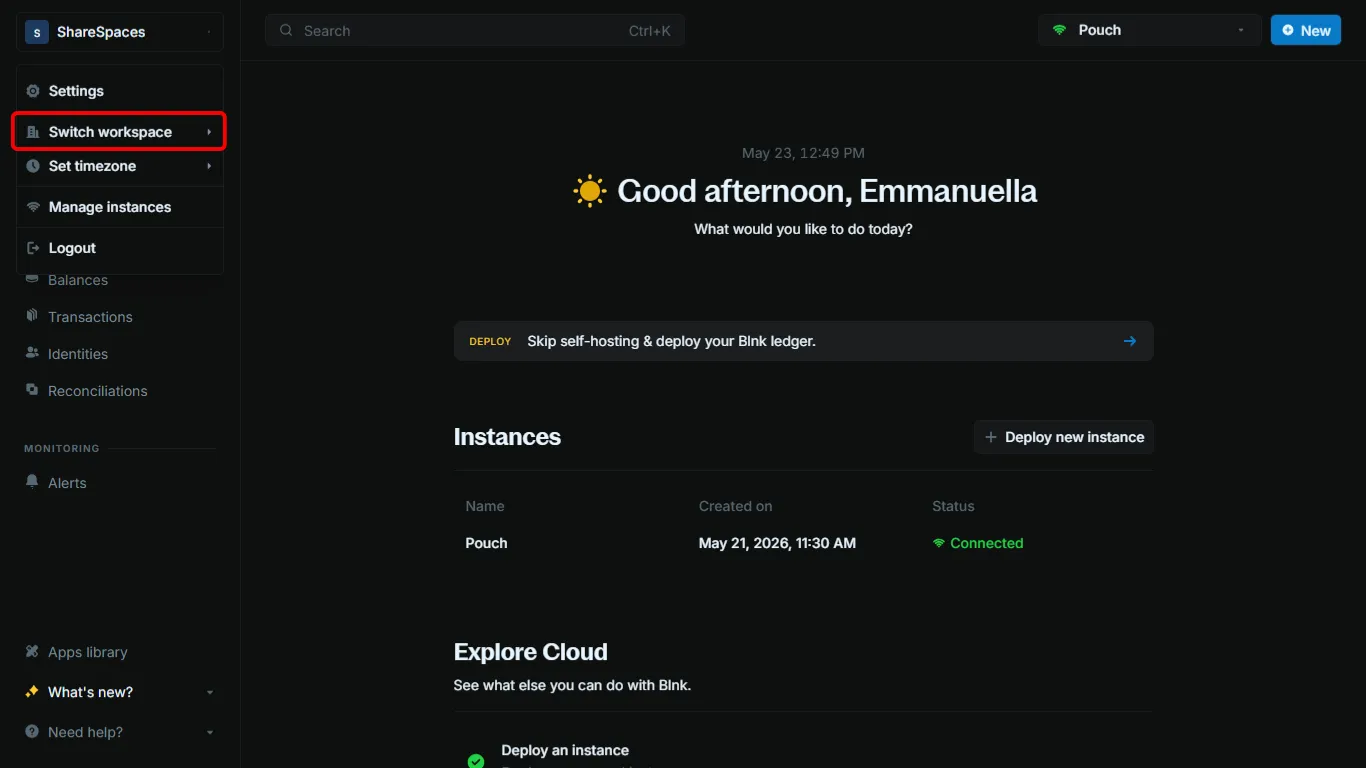
Select Switch workspace.
Choose a workspace
Pick the workspace you want to open. Your current workspace is highlighted in the list.
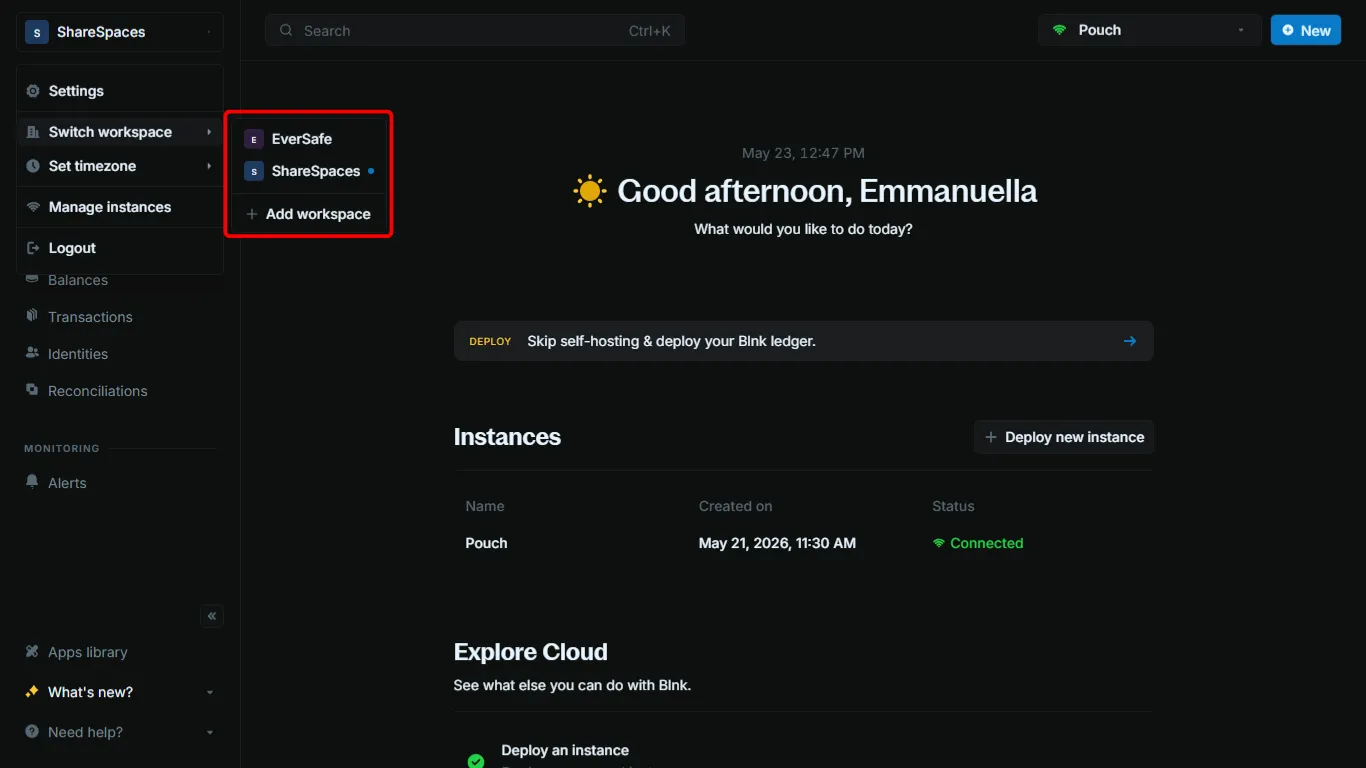
You may see a brief loading state while the switch completes.
When the switch finishes, the dashboard shows the workspace you selected. If that workspace still needs setup, Blnk Cloud walks you through it before you continue.
Add a workspace
You can create a workspace for another organization from the same Switch workspace menu.
Open your workspace menu
At the top of the left sidebar, click your workspace name or logo, then select Switch workspace.
Create the new workspace
Click Add workspace, then enter the organization name, team size, and country.
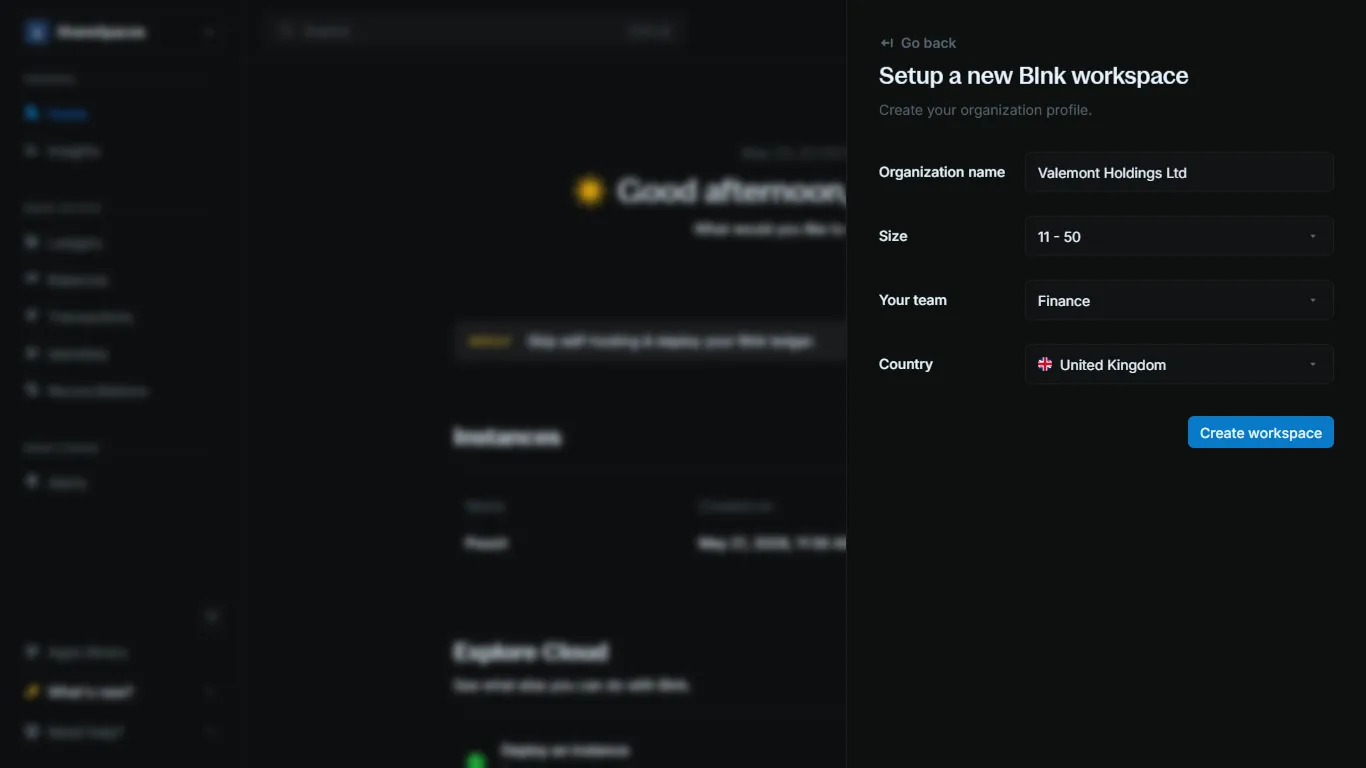
Click Create workspace. Blnk Cloud creates the workspace and opens it.