

Start here
Enterprise API keys
Create an Enterprise API key and send it on Enterprise API requests.
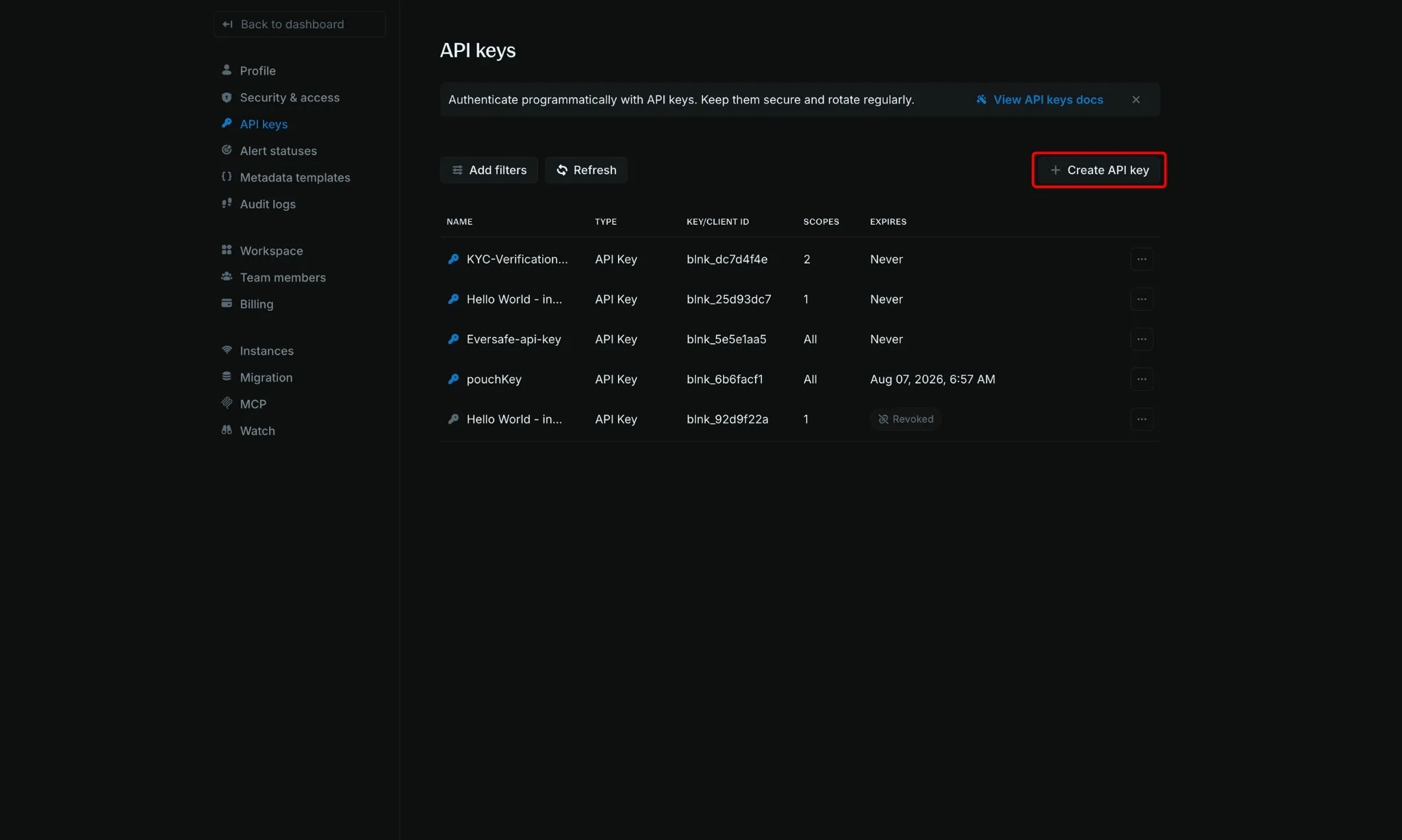
Authenticate Enterprise API calls with an API key or with OAuth. Create and manage keys in Settings > API Keys.
How Enterprise API keys work
Send the key in the X-blnk-key header.
On Blnk Cloud the host is https://api.cloud.blnkfinance.com. On a self-hosted Enterprise deployment the host is ENTERPRISE_PUBLIC_URL.
Each key has a name, a visible prefix such as blnk_fdb796a5..., scopes such as * or mcp:read, and an expiration.
Expiration can be a date or Never.
Create an API key
Open API keys
Go to Settings > API Keys. Click Create API key.
Set the key
- Name: Who or what will use the key, such as an alerts integration.
- Type: API Key.
- Expiration: When the key should stop working.
- Scopes: The permissions this key needs.

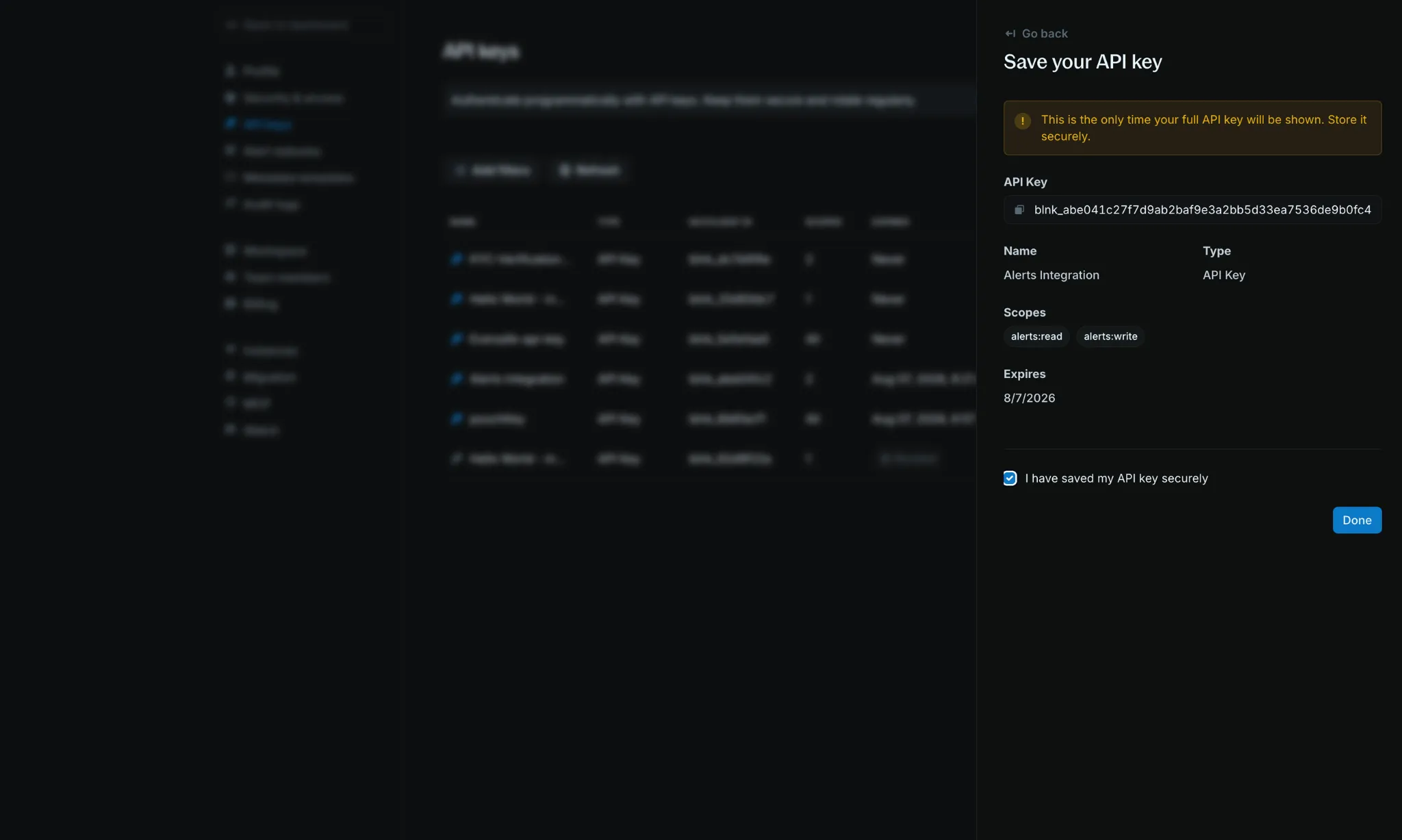
Copy the secret
Click Create API key. The full key is shown once on Save your API key. Copy it before you click Done.
Update expiration
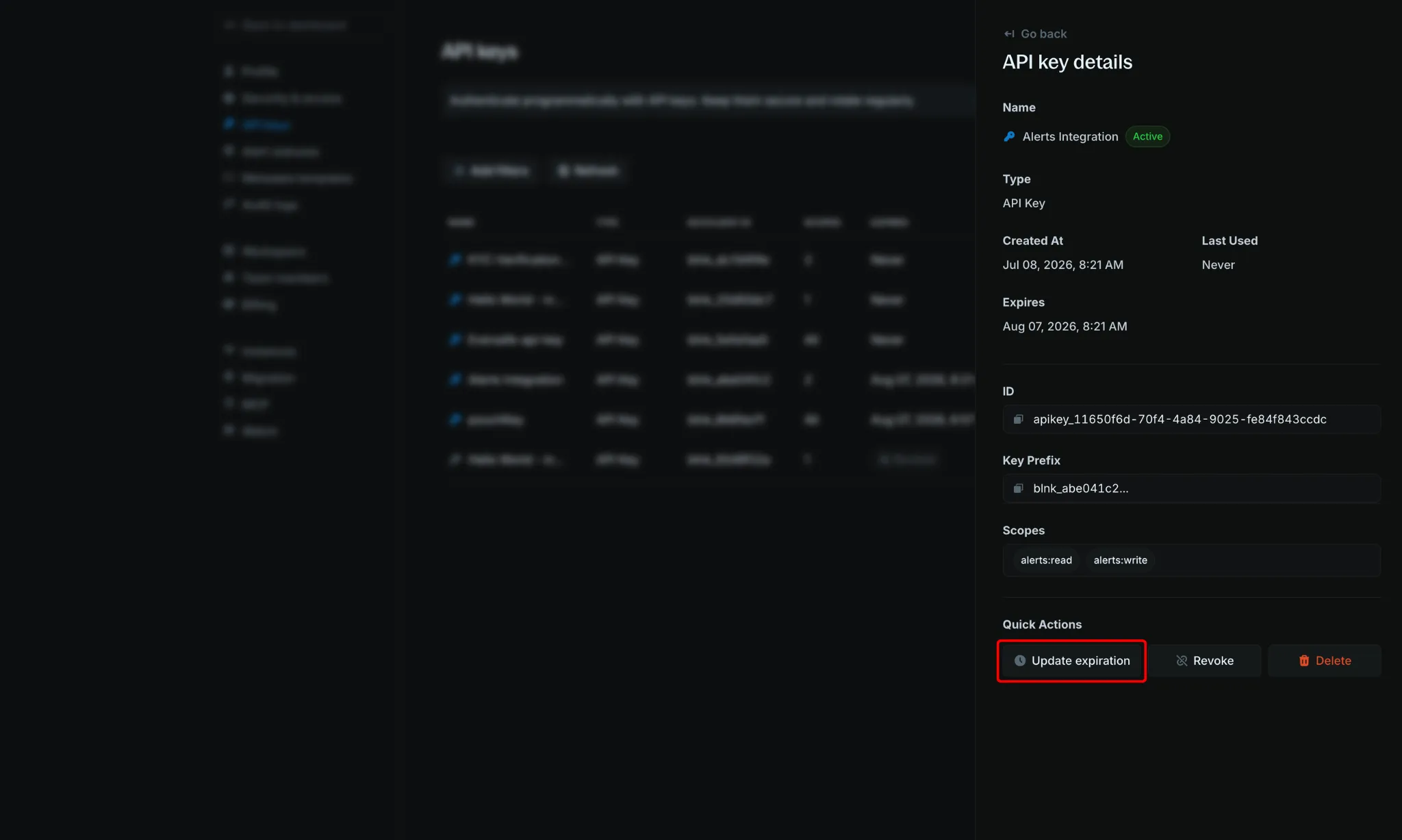
Change when a key expires without creating a new secret.
Open the key
Click the key name in the API Keys table. In Quick actions, click Update expiration.
Set the new date
Choose a new expiration and confirm. The secret stays the same. Only the expiration changes.

Revoke an API key
Revoke a key to stop it immediately. A revoked key stays in the list and cannot authenticate.
Open the key
Click the key name in the API Keys table.
Revoke it
In the details panel, click Revoke.
Confirm
Confirm the revocation. The status in the table changes to Revoked.