

0.15.3 and later: use
ghcr.io/blnkfinance/blnk:<version>.0.15.2 and earlier: use jerryenebeli/blnk:<version>.Deployment guide
There are three ways to self-host Blnk Core in your environment:- Single server: Use Docker Compose on a Linux VM you control, e.g. a DO Droplet, EC2, GCE, or Azure VM.
- Platform-as-a-Service (PaaS): Use a platform hosting service like Railway, Render, Fly.io, etc.
- Kubernetes: Use Kubernetes to deploy Blnk Core.
- Single server
- PaaS (Railway, etc.)
- Kubernetes
Use Docker Compose on a Linux VM you control; for example a DO Droplet, EC2, GCE, or Azure VM.Before you start, make sure you have the following set up (required):
- Managed PostgreSQL instance
- Managed Redis instance
- Docker and Docker Compose installed
- Linux server (Ubuntu 20.04 LTS or newer recommended)
1
Set up your configuration file
This is the configuration file that will be used to start the Blnk Core, it can be the
blnk.json file or environment variables.For more options, go to Blnk Configuration.If you use a secrets manager (AWS Secrets Manager, GCP Secret Manager, Azure Key Vault, etc.), fetch secrets onto the VM and write them to
.env before you run docker compose up.2
Create a 'docker-compose.yml' file
Add the following configuration to provision the server, worker, and supporting services if needed. You can use the default
docker-compose.yml file in the Blnk repository.For live deployments, we recommend connecting your managed Postgres and Redis databases. This means you can exclude the
redis and postgres services from your docker-compose.yaml file.docker-compose.yaml
3
Start deployment
Run these commands in your terminal to start and validate your deployment:
Blnk should be running and accessible at port 5001 and available for requests.
Back-office management
Once your Blnk Core is deployed in your own environment, you can connect it to a Blnk Cloud account to operate your ledger from a back-office dashboard.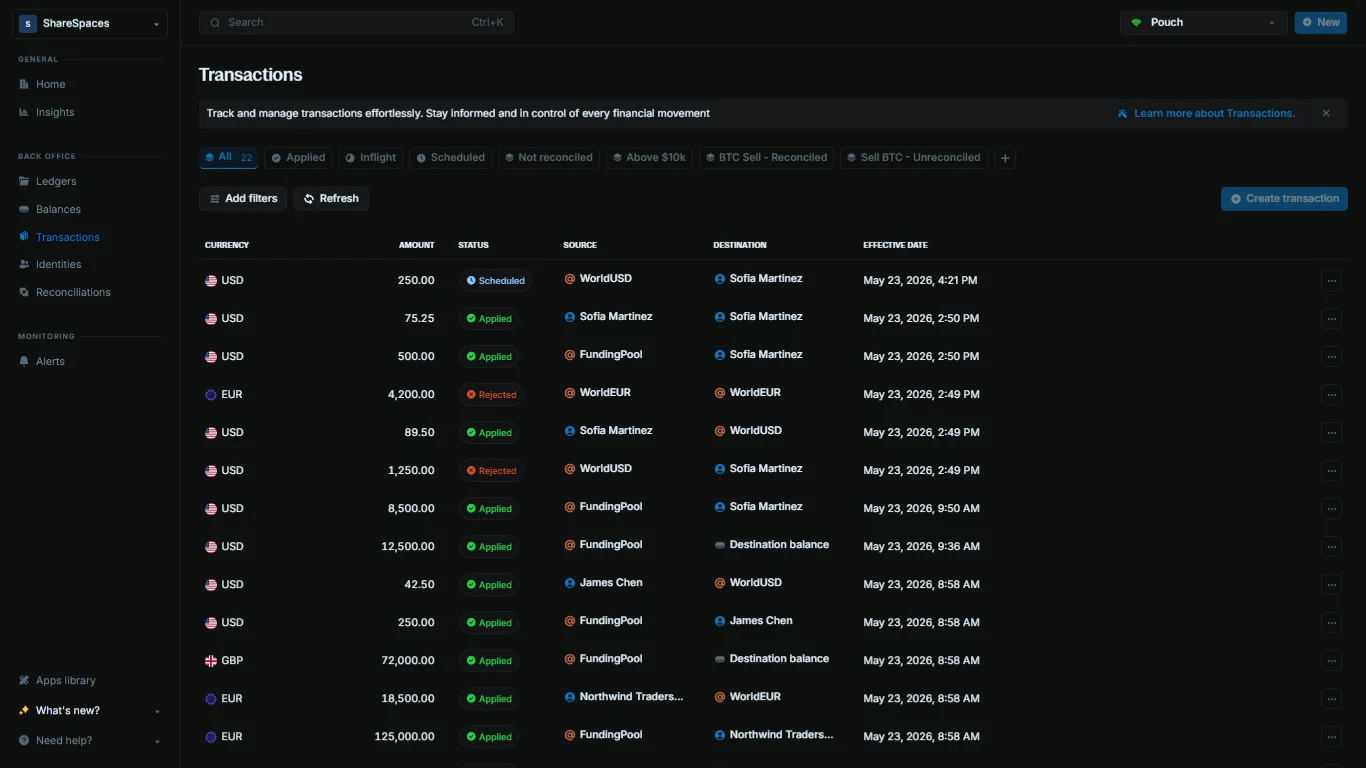
Connect Core to Blnk Cloud
Self-hosted Core connected to Cloud.
Monitoring
Use Blnk Cloud for monitoring
Setting up monitoring
We recommend connecting to Blnk Cloud to set up monitoring for your Core in less than 5 minutes. See Quick setup: Blnk Cloud. To manually export logs, traces, and metrics for your local deployment:1
Enable observability in Core
Enable observability in your configuration file:Restart server and worker after you finish the compose changes below.
2
Add Prometheus config
Create
prometheus.yml beside your compose file:prometheus.yml
3
Add Jaeger and Prometheus services
Update your
docker-compose.yaml to include Jaeger and Prometheus. This example extends the base compose with trace export on server and worker:docker-compose.yaml
4
Start or restart the stack
Run
docker compose --profile monitoring up -d to start Core, Jaeger, and Prometheus together.Open Jaeger at http://localhost:16686 and Prometheus at http://localhost:9090 to confirm data is flowing.To learn more, see Monitoring in Blnk.Troubleshooting
Use this guide to troubleshoot your deployment when Blnk fails to start or you experience errors in your deployment.Server fails to start or cannot reach PostgreSQL
Server fails to start or cannot reach PostgreSQL
Common symptoms: Connection refused or timeout errors in server logs; messages referencing
data_source or BLNK_DATA_SOURCE_DNS.1
Verify your connection string
Confirm
BLNK_DATA_SOURCE_DNS (or data_source.dns in blnk.json) includes the correct host, port, database name, user, and password.Set sslmode to match your provider; most managed Postgres instances require sslmode=require.See Database settings.2
Check network access
Allow inbound traffic from your Blnk host to PostgreSQL. Review security groups, firewall rules, and private networking (VPC peering, subnet routing) between the container host and your database.
3
Test the connection
From a host on the same network as Blnk, run:A successful response confirms credentials and reachability.
Migrations fail on startup
Migrations fail on startup
Common symptoms: The server container exits immediately; logs show errors from
blnk migrate up.The Docker Compose example runs migrations before starting the API (blnk migrate up && blnk start). Migration failures prevent the server from listening on port 5001.1
Confirm database permissions
The database user must be able to create and alter tables in the target database. Read-only or restricted roles cause migration failures.
Grant the application user
CREATE and ALTER privileges on the blnk database (or your chosen database name).2
Inspect migration logs
Read the server container output:Look for the first migration error-later messages often repeat the same root cause.
3
Run migrations manually
Re-run migrations in the foreground to capture the full error:
Transactions stay queued or workers are idle
Transactions stay queued or workers are idle
Common symptoms: The API accepts requests but transactions remain
QUEUED; the worker container restarts or logs Redis connection errors.Workers depend on Redis for queueing and coordination. The server and worker must share the same Redis and queue configuration.1
Verify Redis connectivity
Confirm For TLS-enabled Redis, use
BLNK_REDIS_DNS (or redis.dns in blnk.json) points at your managed Redis instance. Include the password in the URL when required:rediss:// and review Redis configuration.2
Confirm the worker is running
Both On Kubernetes, check worker pod status and logs alongside the server deployment.
server and worker services must be up:3
Check queue health
If you configured See Queue monitoring for dashboard details and metrics.
BLNK_QUEUE_MONITORING_PORT (default 5004), open the monitoring dashboard or probe the endpoint:API is unreachable or containers keep restarting
API is unreachable or containers keep restarting
Common symptoms:
docker ps shows a restarting server or worker container; requests to port 5001 time out.1
Review container status
List all containers, including stopped ones:Restart loops usually point to configuration, migration, or dependency errors in the logs.
2
Confirm port exposure
Verify port
5001 is published in docker-compose.yaml and allowed through your host firewall and cloud security groups.curl http://localhost:5001/health (or your health endpoint) should respond when the server is healthy.3
Validate configuration is loaded
When using
blnk.json, confirm the file is mounted into both server and worker containers. When using environment variables, set them on both services-mismatched config between server and worker causes subtle queue issues.See Blnk configuration.