

API keys for Cloud APIs are different from API keys for Blnk Core. If calling the Core API directly, you’ll need to set up your API keys directly in Core.
How Cloud API keys work
When you make a Cloud API call, send the key in theX-blnk-key header.
The base URL is https://api.cloud.blnkfinance.com. Self-hosted Cloud under the Production License use ENTERPRISE_PUBLIC_URL.
Each API key has:
- Name: A user-friendly identifier to help you organize and identify keys.
- Key prefix: A partial identifier visible in the API keys list (e.g.,
blnk_fdb796a5...). - Scopes: Permissions that define what the key can access, for example
*,mcp:read,mcp:write, etc. - Expiration: Optional expiration date, or Never for keys you don’t want to expire.
Create an API key
1
Go to settings
Go to Settings > API Keys. Click Create API key in the top-right corner of the page.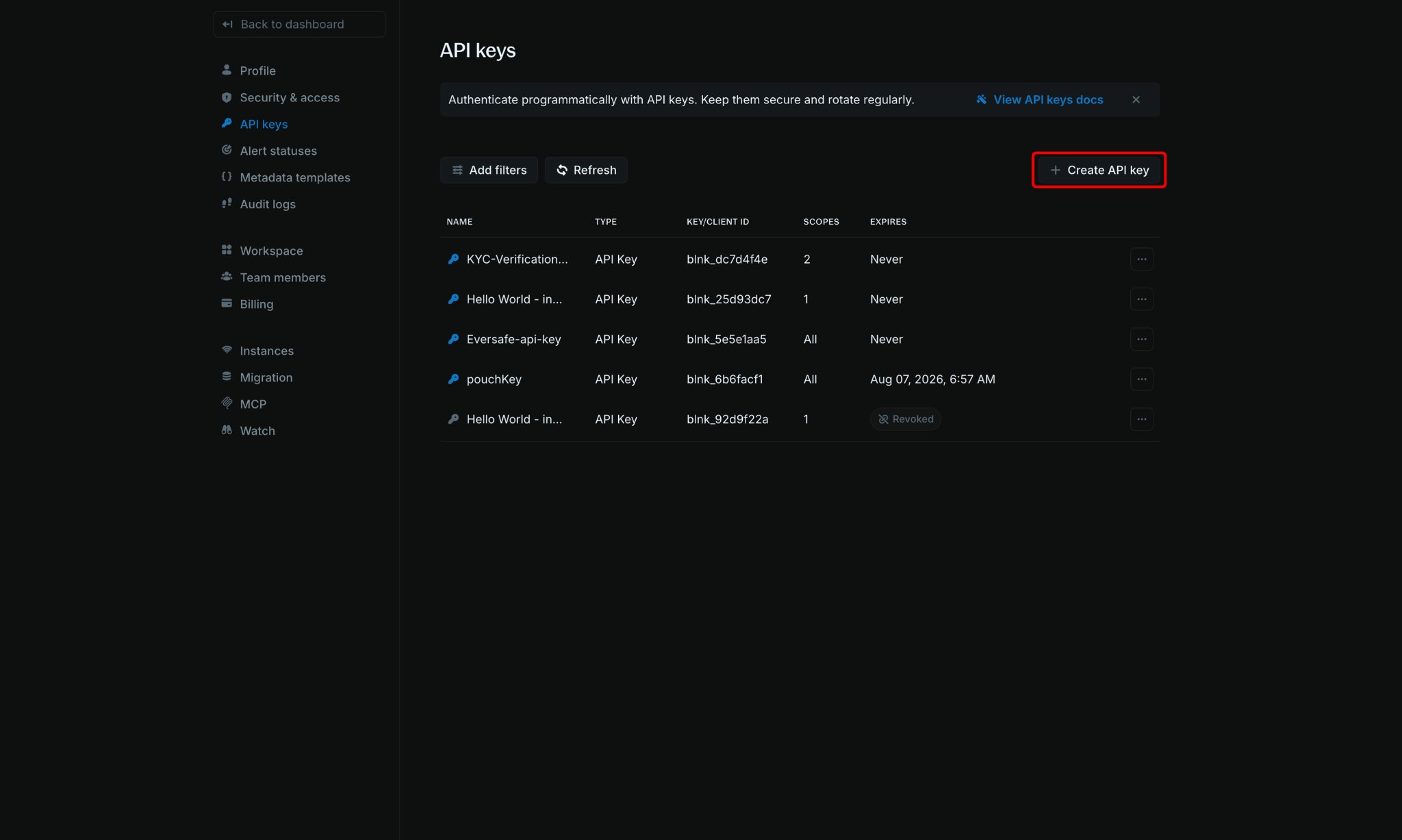
2
Configure your API key
In the Create API key panel, fill in the required details:
- Name: A descriptive name. Best to use the name of the user or integration that will be using the key, e.g. alerts integration, Emily Blunt, etc.
- Type: Select API Key.
- Expiration: Choose when the key should expire
- Scopes: Select the permissions this key needs
3
Save and copy your API key
Click Create API key. The full key is shown only once on the Save your API key screen. Copy it and store it securely before clicking Done.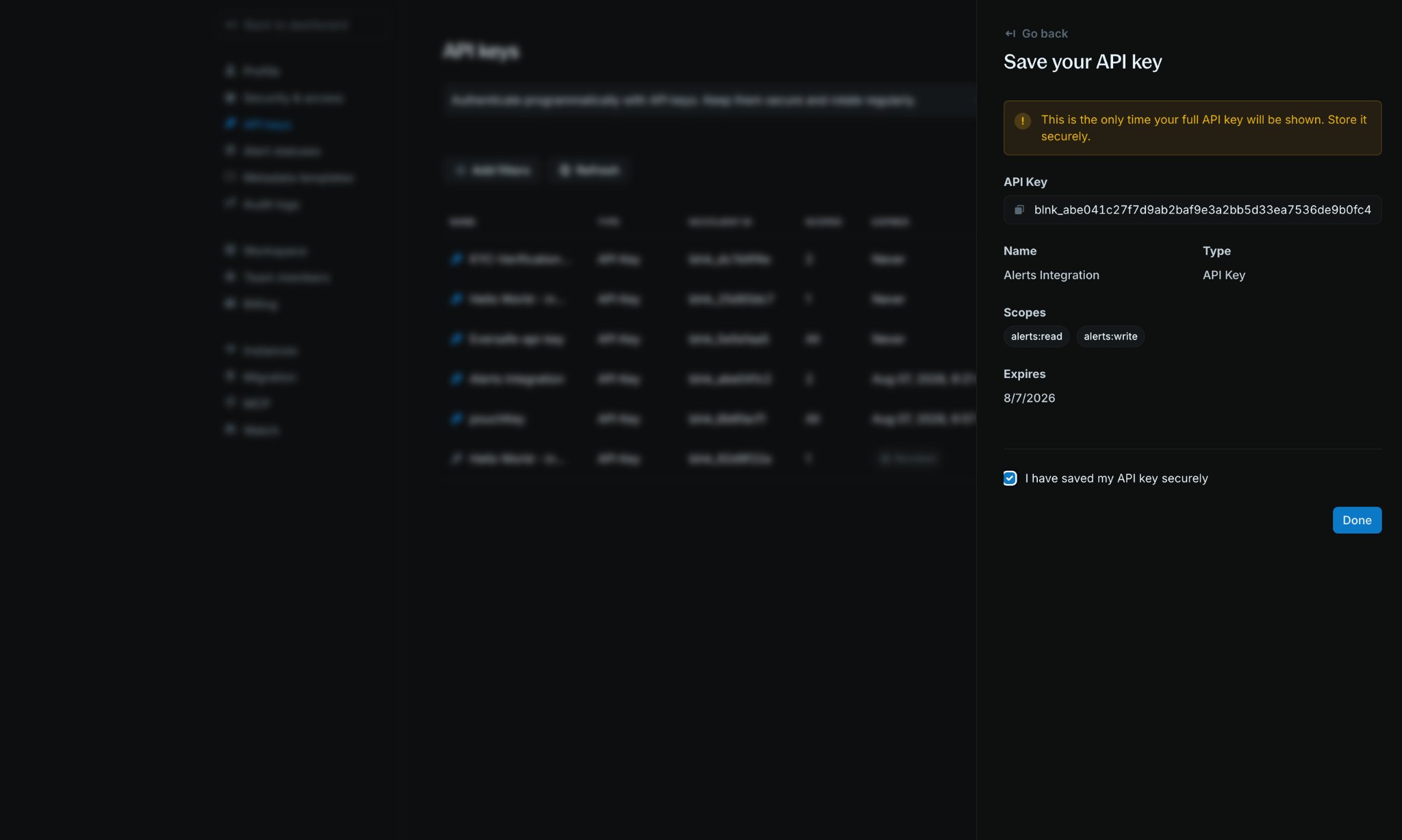
Update expiration
You can change when an API key expires without creating a new key.1
Open API key details
Click an API key name in the API Keys table to open its details panel. In Quick actions, click Update expiration.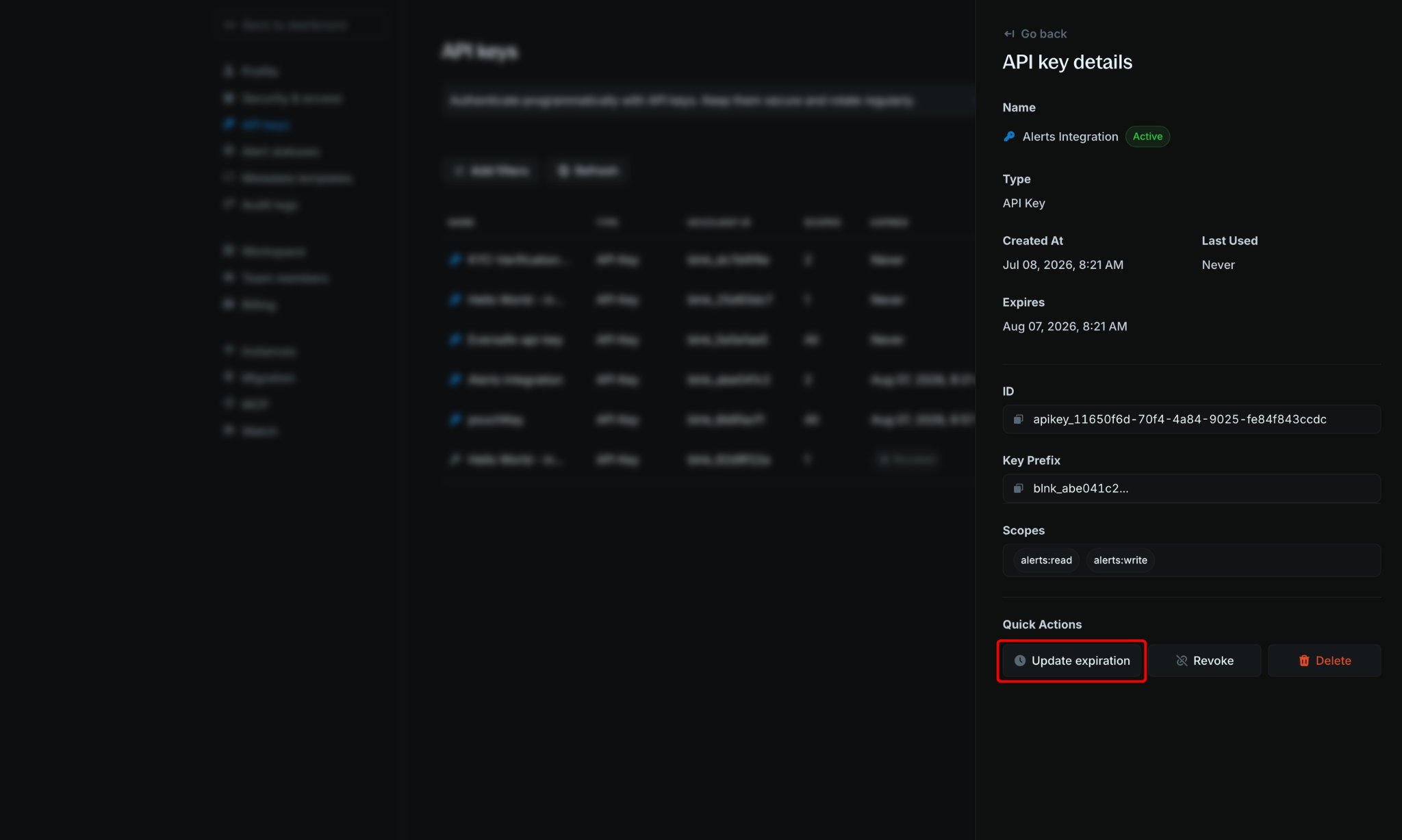
2
Choose a new expiration date
Select a new expiration date, then confirm your change. The key keeps working with the same secret. Only its expiration date changes.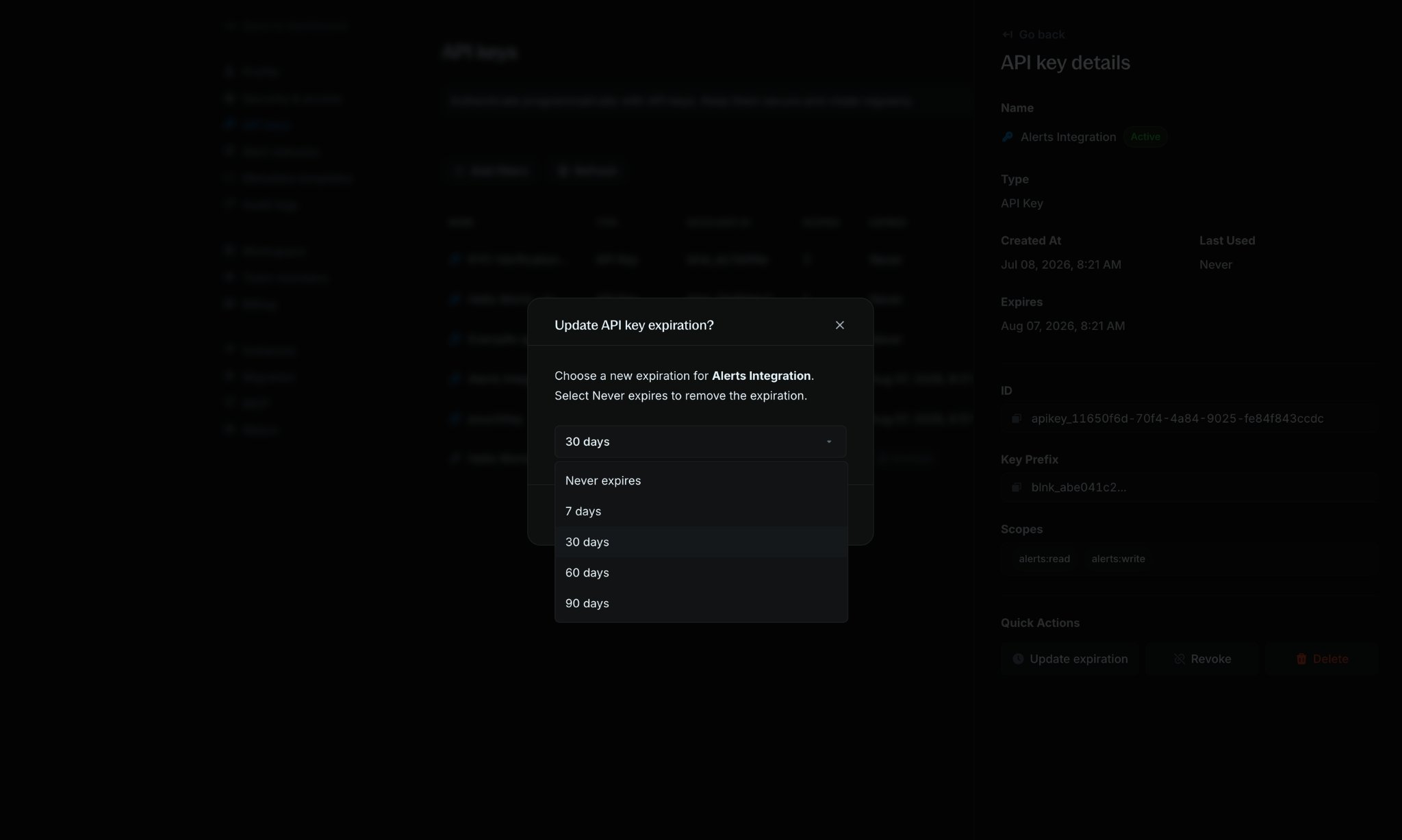
Revoke an API key
If you need to disable an API key without deleting it permanently, you can revoke it. Revoked keys cannot be used for authentication but remain visible in your API keys list for reference.1
Open API key details
Click the API key name in the API Keys table to view its details.
2
Revoke the key
In the API key details panel, click
Revoke.3
Confirm revocation
Confirm that you want to revoke the key. The key’s status will change to Revoked in the API Keys table.