> ## Documentation Index
> Fetch the complete documentation index at: https://docs.blnkfinance.com/llms.txt
> Use this file to discover all available pages before exploring further.
# Deploy the Open-Source Blnk Core
> Learn how to set up and deploy the open-source Blnk Core in your own environment.
export const CtaCallout = props => {
const {title, buttonLabel, href, trackingEvent, buttonTarget, rel = "noopener noreferrer", children} = props;
const handleCtaClick = () => {
if (typeof window === "undefined" || !trackingEvent) {
return;
}
try {
window.dispatchEvent(new CustomEvent("blnk:docs-cta", {
detail: {
name: trackingEvent,
href
}
}));
} catch {}
try {
window.posthog?.capture?.(trackingEvent, {
href
});
} catch {}
const gaPayload = {
cta_href: href
};
try {
window.gtag?.("event", trackingEvent, gaPayload);
} catch {}
try {
window.dataLayer = window.dataLayer || [];
window.dataLayer.push({
event: trackingEvent,
...gaPayload
});
} catch {}
};
const isExternal = typeof href === "string" && (/^https?:\/\//i).test(href);
const target = buttonTarget ?? (isExternal ? "_blank" : undefined);
const linkRel = isExternal ? rel : undefined;
return ;
};
Self-host the open-source Blnk Core in infrastructure your team controls.
You are responsible for deployment, upgrades, configuration, and day-to-day operations across each environment you maintain-dev, staging, production, and beyond.
If you'd like help integrating your self-hosted Core into your product, reach out for Pro Support.
***
## Deployment guide
There are three ways to self-host Blnk Core in your environment:
* **Single server:** Use Docker Compose on a Linux VM you control, e.g. a DO Droplet, EC2, GCE, or Azure VM.
* **Platform-as-a-Service (PaaS):** Use a platform hosting service like Railway, Render, Fly.io, etc.
* **Kubernetes:** Use Kubernetes to deploy Blnk Core.
Use Docker Compose on a Linux VM you control; for example a DO Droplet, EC2, GCE, or Azure VM.
Before you start, make sure you have the following set up (required):
1. Managed PostgreSQL instance
2. Managed Redis instance
3. Docker and Docker Compose installed
4. Linux server (Ubuntu 20.04 LTS or newer recommended)
This is the configuration file that will be used to start the Blnk Core, it can be the `blnk.json` file or environment variables.
For more options, go to [Blnk Configuration](/advanced/configuration/overview).
```json blnk.json theme={"system"}
{
"project_name": "Blnk",
"data_source": {
"dns": "postgres://:@:5432/blnk?sslmode=require"
},
"redis": {
"dns": "redis://:@:6379"
},
"server": {
"secure": true,
"secret_key": "set-your-master-blnk-key-here",
"port": "5001"
},
"queue": {
"monitoring_port": "5004"
}
}
```
```bash .env theme={"system"}
BLNK_PROJECT_NAME=Blnk
BLNK_DATA_SOURCE_DNS='postgres://:@:5432/blnk?sslmode=require'
BLNK_REDIS_DNS='redis://:@:6379'
BLNK_SERVER_SECURE=true
BLNK_SERVER_SECRET_KEY='set-your-master-blnk-key-here'
BLNK_SERVER_PORT=5001
BLNK_QUEUE_MONITORING_PORT=5004
```
If you use a secrets manager (AWS Secrets Manager, GCP Secret Manager, Azure Key Vault, etc.), fetch secrets onto the VM and write them to `.env` before you run `docker compose up`.
Add the following configuration to provision the server, worker, and supporting services if needed. You can use the default `docker-compose.yml` file in the [Blnk repository](https://github.com/blnkfinance/blnk/blob/main/docker-compose.yaml).
For live deployments, we recommend connecting your managed Postgres and Redis databases. This means you can exclude the `redis` and `postgres` services from your `docker-compose.yaml` file.
```yaml docker-compose.yaml wrap expandable theme={"system"}
version: "3.8"
services:
server:
image: ${BLNK_IMAGE:-jerryenebeli/blnk:0.15.0}
container_name: server
restart: on-failure
entrypoint: ["/bin/sh", "-c"]
command:
- "blnk migrate up && blnk start"
environment:
TZ: ${TZ:-Etc/UTC}
env_file:
- .env
ports:
- "5001:5001"
- "80:80"
- "443:443"
volumes:
- ./blnk.json:/blnk.json
worker:
image: ${BLNK_IMAGE:-jerryenebeli/blnk:0.15.0}
container_name: worker
restart: on-failure
entrypoint: ["blnk", "workers"]
env_file:
- .env
ports:
- "5004:5004"
volumes:
- ./blnk.json:/blnk.json
```
Run these commands in your terminal to start and validate your deployment:
```shell theme={"system"}
# Start all services
docker compose up -d
# Verify deployment status
docker ps
# Monitor service logs
docker logs -f server worker
```
Blnk should be running and accessible at port 5001 and available for requests.
Deploy Blnk Core on a platform hosting service like Railway, Render, or Fly.io.
In your project, provision a managed PostgreSQL database and a managed Redis instance if you do not already have them.
You can also connect to a third-party database if you prefer. Make sure that the database and Redis are reachable from the platform.
Copy each connection string from your provider. You will use them in the next step.
If Postgres and Redis run in the same project as Blnk, use the provider's **internal** connection URLs for lower latency and to avoid public network egress.
Add these environment variables to your project. Use your managed Postgres and Redis connection strings.
```bash .env wrap theme={"system"}
BLNK_PROJECT_NAME=Blnk
BLNK_DATA_SOURCE_DNS='postgres://:@:5432/blnk?sslmode=require'
BLNK_REDIS_DNS='redis://:@:6379'
BLNK_SERVER_SECURE=true
BLNK_SERVER_SECRET_KEY='set-your-master-blnk-key-here'
BLNK_SERVER_PORT=5001
BLNK_QUEUE_MONITORING_PORT=5004
```
You can add more environment variables later as you need, go to [Blnk Configuration](/advanced/configuration/overview).
Use the **direct** Postgres connection string, not a pooled URL, if your provider offers both.
Create a service from the Blnk Docker image:
* **Docker image:** `jerryenebeli/blnk:0.15.0`
* **Start command:** `blnk migrate up && blnk start`
* **Port:** `5001`
Connect this service to the environment variables from the previous step, or copy them into the service settings.
Point the server public URL to port `5001` to make it accessible from outside the project.
Deploy the server and wait for migrations to finish in the logs.
Create a second service using the same Docker image and the **same environment variables** as the server.
* **Docker image:** `jerryenebeli/blnk:0.15.0`
* **Start command:** `blnk workers`
The worker does not need a public HTTP port. Optionally, point its public URL to port `5004` if you want to access the [monitoring dashboard](/advanced/monitoring-port).
Deploy the worker once you're done.
Check the server logs for a successful migration and startup. Send a request to your service URL:
```bash theme={"system"}
curl https:///health
```
Confirm the worker service is running in its logs.
Blnk should now be running and accessible on your platform's public URL.
Blnk provides Kubernetes manifests to help you deploy and operate Blnk in containerized environments.
Use the official manifests and instructions:
Official manifests and deploy steps.
After `kubectl` is installed, run:
```bash kubectl theme={"system"}
kubectl apply -f infrastructure/k8s-manifests/namespace.yaml
kubectl apply -f infrastructure/k8s-manifests
```
***
## Back-office management
Once your Blnk Core is deployed in your own environment, you can connect it to a Blnk Cloud account to operate your ledger from a back-office dashboard.
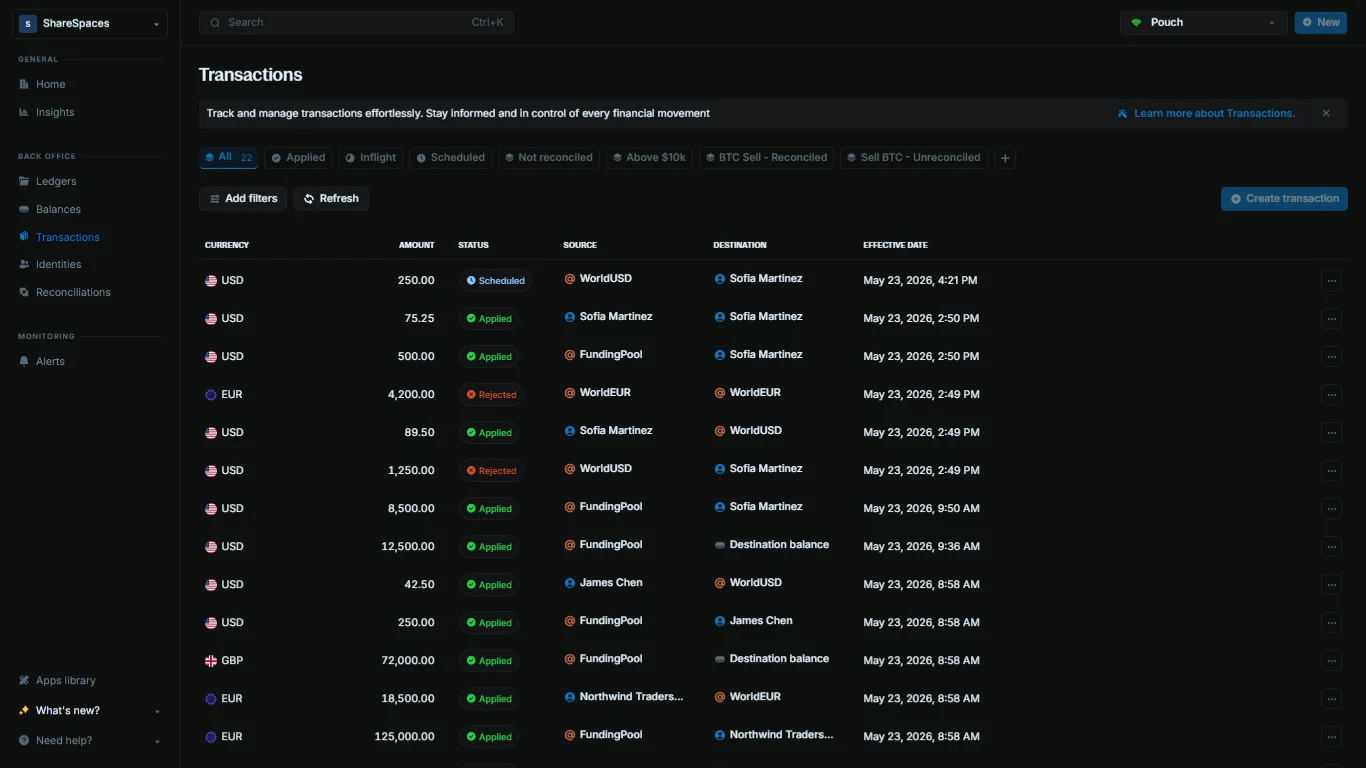 Self-hosted Core connected to Cloud.
Use Blnk Cloud for monitoring
***
## Setting up monitoring
We recommend connecting to Blnk Cloud to set up monitoring for your Core in less than 5 minutes. See [Quick setup: Blnk Cloud](/advanced/monitoring#quick-setup-blnk-cloud).
To manually export logs, traces, and metrics for your local deployment:
Enable observability in your configuration file:
```bash .env wrap theme={"system"}
BLNK_ENABLE_OBSERVABILITY=true
```
```json blnk.json wrap theme={"system"}
{
"enable_observability": true
}
```
Restart server and worker after you finish the compose changes below.
Create `prometheus.yml` beside your compose file:
```yaml prometheus.yml wrap theme={"system"}
global:
scrape_interval: 15s
scrape_configs:
- job_name: 'blnk-server'
authorization:
type: Bearer
credentials: ''
static_configs:
- targets: ['server:5001']
- job_name: 'blnk-worker'
authorization:
type: Bearer
credentials: ''
static_configs:
- targets: ['worker:5004']
```
Update your `docker-compose.yaml` to include Jaeger and Prometheus. This example extends the [base compose](#deployment-guide) with trace export on server and worker:
```yaml docker-compose.yaml {13,18-19,28-29,32-33,37-49,51-62} wrap expandable theme={"system"}
version: "3.8"
services:
server:
image: ${BLNK_IMAGE:-jerryenebeli/blnk:0.15.0}
container_name: server
restart: on-failure
entrypoint: ["/bin/sh", "-c"]
command:
- "blnk migrate up && blnk start"
environment:
TZ: ${TZ:-Etc/UTC}
OTEL_EXPORTER_OTLP_TRACES_ENDPOINT: http://jaeger:4318/v1/traces
env_file:
- .env
ports:
- "5001:5001"
- "80:80"
- "443:443"
depends_on:
- jaeger
volumes:
- ./blnk.json:/blnk.json
worker:
image: ${BLNK_IMAGE:-jerryenebeli/blnk:0.15.0}
container_name: worker
restart: on-failure
entrypoint: ["blnk", "workers"]
environment:
OTEL_EXPORTER_OTLP_TRACES_ENDPOINT: http://jaeger:4318/v1/traces
env_file:
- .env
ports:
- "5004:5004"
depends_on:
- jaeger
volumes:
- ./blnk.json:/blnk.json
jaeger:
image: jaegertracing/all-in-one:latest
container_name: jaeger
ports:
- "16686:16686"
- "4318:4318"
environment:
- COLLECTOR_OTLP_ENABLED=true
healthcheck:
test: ["CMD", "wget", "--spider", "http://localhost:16686"]
interval: 10s
timeout: 5s
retries: 3
prometheus:
image: prom/prometheus:latest
container_name: prometheus
profiles:
- monitoring
ports:
- "9090:9090"
volumes:
- ./prometheus.yml:/etc/prometheus/prometheus.yml
depends_on:
- server
- worker
```
Run `docker compose --profile monitoring up -d` to start Core, Jaeger, and Prometheus together.
Open Jaeger at `http://localhost:16686` and Prometheus at `http://localhost:9090` to confirm data is flowing.
To learn more, see [Monitoring in Blnk](/advanced/monitoring).
***
## Troubleshooting
Use this guide to troubleshoot your deployment when Blnk fails to start or you experience errors in your deployment.
**Common symptoms:** Connection refused or timeout errors in server logs; messages referencing `data_source` or `BLNK_DATA_SOURCE_DNS`.
Confirm `BLNK_DATA_SOURCE_DNS` (or `data_source.dns` in `blnk.json`) includes the correct host, port, database name, user, and password.
Set `sslmode` to match your provider; most managed Postgres instances require `sslmode=require`.
Many hosted Postgres providers expose two URLs: a **direct** connection and a **pooled** connection.
If Blnk keeps timing out or disconnecting under load, confirm you are using the **direct** connection string for `BLNK_DATA_SOURCE_DNS`.
See [Database settings](/advanced/configuration/data-stores#database-settings).
Allow inbound traffic from your Blnk host to PostgreSQL. Review security groups, firewall rules, and private networking (VPC peering, subnet routing) between the container host and your database.
If Postgres is only reachable on a private network, running `psql` from your laptop may succeed or fail independently of the container. Test from the same network context as the Blnk server.
From a host on the same network as Blnk, run:
```bash theme={"system"}
psql "$BLNK_DATA_SOURCE_DNS" -c "SELECT 1"
```
A successful response confirms credentials and reachability.
**Common symptoms:** The server container exits immediately; logs show errors from `blnk migrate up`.
The Docker Compose example runs migrations before starting the API (`blnk migrate up && blnk start`). Migration failures prevent the server from listening on port `5001`.
The database user must be able to create and alter tables in the target database. Read-only or restricted roles cause migration failures.
Grant the application user `CREATE` and `ALTER` privileges on the `blnk` database (or your chosen database name).
Read the server container output:
```bash theme={"system"}
docker logs server
```
Look for the first migration error-later messages often repeat the same root cause.
Re-run migrations in the foreground to capture the full error:
```bash theme={"system"}
docker compose run --rm server blnk migrate up
```
**Common symptoms:** The API accepts requests but transactions remain `QUEUED`; the worker container restarts or logs Redis connection errors.
Workers depend on Redis for queueing and coordination. The server and worker must share the same Redis and [queue configuration](/advanced/configuration/queue).
Confirm `BLNK_REDIS_DNS` (or `redis.dns` in `blnk.json`) points at your managed Redis instance. Include the password in the URL when required:
```bash theme={"system"}
redis://:@:6379
```
For TLS-enabled Redis, use `rediss://` and review [Redis configuration](/advanced/configuration/data-stores#redis-configuration).
Both `server` and `worker` services must be up:
```bash theme={"system"}
docker ps
docker logs -f worker
```
On Kubernetes, check worker pod status and logs alongside the server deployment.
If you configured `BLNK_QUEUE_MONITORING_PORT` (default `5004`), open the monitoring dashboard or probe the endpoint:
```bash theme={"system"}
curl -s http://localhost:5004/monitoring
```
See [Queue monitoring](/advanced/monitoring-port) for dashboard details and metrics.
**Common symptoms:** `docker ps` shows a restarting `server` or `worker` container; requests to port `5001` time out.
List all containers, including stopped ones:
```bash theme={"system"}
docker ps -a
docker logs -f server worker
```
Restart loops usually point to configuration, migration, or dependency errors in the logs.
Verify port `5001` is published in `docker-compose.yaml` and allowed through your host firewall and cloud security groups.
`curl http://localhost:5001/health` (or your health endpoint) should respond when the server is healthy.
When using `blnk.json`, confirm the file is mounted into both `server` and `worker` containers. When using environment variables, set them on both services-mismatched config between server and worker causes subtle queue issues.
See [Blnk configuration](/advanced/configuration/overview).
For PaaS deployments (Railway, Render, Fly.io), run the server and worker as separate services with identical configuration and the correct start commands for each.
Self-hosted Core connected to Cloud.
Use Blnk Cloud for monitoring
***
## Setting up monitoring
We recommend connecting to Blnk Cloud to set up monitoring for your Core in less than 5 minutes. See [Quick setup: Blnk Cloud](/advanced/monitoring#quick-setup-blnk-cloud).
To manually export logs, traces, and metrics for your local deployment:
Enable observability in your configuration file:
```bash .env wrap theme={"system"}
BLNK_ENABLE_OBSERVABILITY=true
```
```json blnk.json wrap theme={"system"}
{
"enable_observability": true
}
```
Restart server and worker after you finish the compose changes below.
Create `prometheus.yml` beside your compose file:
```yaml prometheus.yml wrap theme={"system"}
global:
scrape_interval: 15s
scrape_configs:
- job_name: 'blnk-server'
authorization:
type: Bearer
credentials: ''
static_configs:
- targets: ['server:5001']
- job_name: 'blnk-worker'
authorization:
type: Bearer
credentials: ''
static_configs:
- targets: ['worker:5004']
```
Update your `docker-compose.yaml` to include Jaeger and Prometheus. This example extends the [base compose](#deployment-guide) with trace export on server and worker:
```yaml docker-compose.yaml {13,18-19,28-29,32-33,37-49,51-62} wrap expandable theme={"system"}
version: "3.8"
services:
server:
image: ${BLNK_IMAGE:-jerryenebeli/blnk:0.15.0}
container_name: server
restart: on-failure
entrypoint: ["/bin/sh", "-c"]
command:
- "blnk migrate up && blnk start"
environment:
TZ: ${TZ:-Etc/UTC}
OTEL_EXPORTER_OTLP_TRACES_ENDPOINT: http://jaeger:4318/v1/traces
env_file:
- .env
ports:
- "5001:5001"
- "80:80"
- "443:443"
depends_on:
- jaeger
volumes:
- ./blnk.json:/blnk.json
worker:
image: ${BLNK_IMAGE:-jerryenebeli/blnk:0.15.0}
container_name: worker
restart: on-failure
entrypoint: ["blnk", "workers"]
environment:
OTEL_EXPORTER_OTLP_TRACES_ENDPOINT: http://jaeger:4318/v1/traces
env_file:
- .env
ports:
- "5004:5004"
depends_on:
- jaeger
volumes:
- ./blnk.json:/blnk.json
jaeger:
image: jaegertracing/all-in-one:latest
container_name: jaeger
ports:
- "16686:16686"
- "4318:4318"
environment:
- COLLECTOR_OTLP_ENABLED=true
healthcheck:
test: ["CMD", "wget", "--spider", "http://localhost:16686"]
interval: 10s
timeout: 5s
retries: 3
prometheus:
image: prom/prometheus:latest
container_name: prometheus
profiles:
- monitoring
ports:
- "9090:9090"
volumes:
- ./prometheus.yml:/etc/prometheus/prometheus.yml
depends_on:
- server
- worker
```
Run `docker compose --profile monitoring up -d` to start Core, Jaeger, and Prometheus together.
Open Jaeger at `http://localhost:16686` and Prometheus at `http://localhost:9090` to confirm data is flowing.
To learn more, see [Monitoring in Blnk](/advanced/monitoring).
***
## Troubleshooting
Use this guide to troubleshoot your deployment when Blnk fails to start or you experience errors in your deployment.
**Common symptoms:** Connection refused or timeout errors in server logs; messages referencing `data_source` or `BLNK_DATA_SOURCE_DNS`.
Confirm `BLNK_DATA_SOURCE_DNS` (or `data_source.dns` in `blnk.json`) includes the correct host, port, database name, user, and password.
Set `sslmode` to match your provider; most managed Postgres instances require `sslmode=require`.
Many hosted Postgres providers expose two URLs: a **direct** connection and a **pooled** connection.
If Blnk keeps timing out or disconnecting under load, confirm you are using the **direct** connection string for `BLNK_DATA_SOURCE_DNS`.
See [Database settings](/advanced/configuration/data-stores#database-settings).
Allow inbound traffic from your Blnk host to PostgreSQL. Review security groups, firewall rules, and private networking (VPC peering, subnet routing) between the container host and your database.
If Postgres is only reachable on a private network, running `psql` from your laptop may succeed or fail independently of the container. Test from the same network context as the Blnk server.
From a host on the same network as Blnk, run:
```bash theme={"system"}
psql "$BLNK_DATA_SOURCE_DNS" -c "SELECT 1"
```
A successful response confirms credentials and reachability.
**Common symptoms:** The server container exits immediately; logs show errors from `blnk migrate up`.
The Docker Compose example runs migrations before starting the API (`blnk migrate up && blnk start`). Migration failures prevent the server from listening on port `5001`.
The database user must be able to create and alter tables in the target database. Read-only or restricted roles cause migration failures.
Grant the application user `CREATE` and `ALTER` privileges on the `blnk` database (or your chosen database name).
Read the server container output:
```bash theme={"system"}
docker logs server
```
Look for the first migration error-later messages often repeat the same root cause.
Re-run migrations in the foreground to capture the full error:
```bash theme={"system"}
docker compose run --rm server blnk migrate up
```
**Common symptoms:** The API accepts requests but transactions remain `QUEUED`; the worker container restarts or logs Redis connection errors.
Workers depend on Redis for queueing and coordination. The server and worker must share the same Redis and [queue configuration](/advanced/configuration/queue).
Confirm `BLNK_REDIS_DNS` (or `redis.dns` in `blnk.json`) points at your managed Redis instance. Include the password in the URL when required:
```bash theme={"system"}
redis://:@:6379
```
For TLS-enabled Redis, use `rediss://` and review [Redis configuration](/advanced/configuration/data-stores#redis-configuration).
Both `server` and `worker` services must be up:
```bash theme={"system"}
docker ps
docker logs -f worker
```
On Kubernetes, check worker pod status and logs alongside the server deployment.
If you configured `BLNK_QUEUE_MONITORING_PORT` (default `5004`), open the monitoring dashboard or probe the endpoint:
```bash theme={"system"}
curl -s http://localhost:5004/monitoring
```
See [Queue monitoring](/advanced/monitoring-port) for dashboard details and metrics.
**Common symptoms:** `docker ps` shows a restarting `server` or `worker` container; requests to port `5001` time out.
List all containers, including stopped ones:
```bash theme={"system"}
docker ps -a
docker logs -f server worker
```
Restart loops usually point to configuration, migration, or dependency errors in the logs.
Verify port `5001` is published in `docker-compose.yaml` and allowed through your host firewall and cloud security groups.
`curl http://localhost:5001/health` (or your health endpoint) should respond when the server is healthy.
When using `blnk.json`, confirm the file is mounted into both `server` and `worker` containers. When using environment variables, set them on both services-mismatched config between server and worker causes subtle queue issues.
See [Blnk configuration](/advanced/configuration/overview).
For PaaS deployments (Railway, Render, Fly.io), run the server and worker as separate services with identical configuration and the correct start commands for each.