> ## Documentation Index
> Fetch the complete documentation index at: https://docs.blnkfinance.com/llms.txt
> Use this file to discover all available pages before exploring further.
# Transaction Details
> See how to navigate the transactions details page.
export const CtaCallout = props => {
const {title, buttonLabel, href, trackingEvent, buttonTarget, rel = "noopener noreferrer", children} = props;
const handleCtaClick = () => {
if (typeof window === "undefined" || !trackingEvent) {
return;
}
try {
window.dispatchEvent(new CustomEvent("blnk:docs-cta", {
detail: {
name: trackingEvent,
href
}
}));
} catch {}
try {
window.posthog?.capture?.(trackingEvent, {
href
});
} catch {}
const gaPayload = {
cta_href: href
};
try {
window.gtag?.("event", trackingEvent, gaPayload);
} catch {}
try {
window.dataLayer = window.dataLayer || [];
window.dataLayer.push({
event: trackingEvent,
...gaPayload
});
} catch {}
};
const isExternal = typeof href === "string" && (/^https?:\/\//i).test(href);
const target = buttonTarget ?? (isExternal ? "_blank" : undefined);
const linkRel = isExternal ? rel : undefined;
return ;
};
The transaction details page provides a comprehensive view of individual transactions, displaying all relevant information from basic transaction data to inflight history and connected transactions.
***
## Accessing transaction details
Navigate to a transaction's details page by:
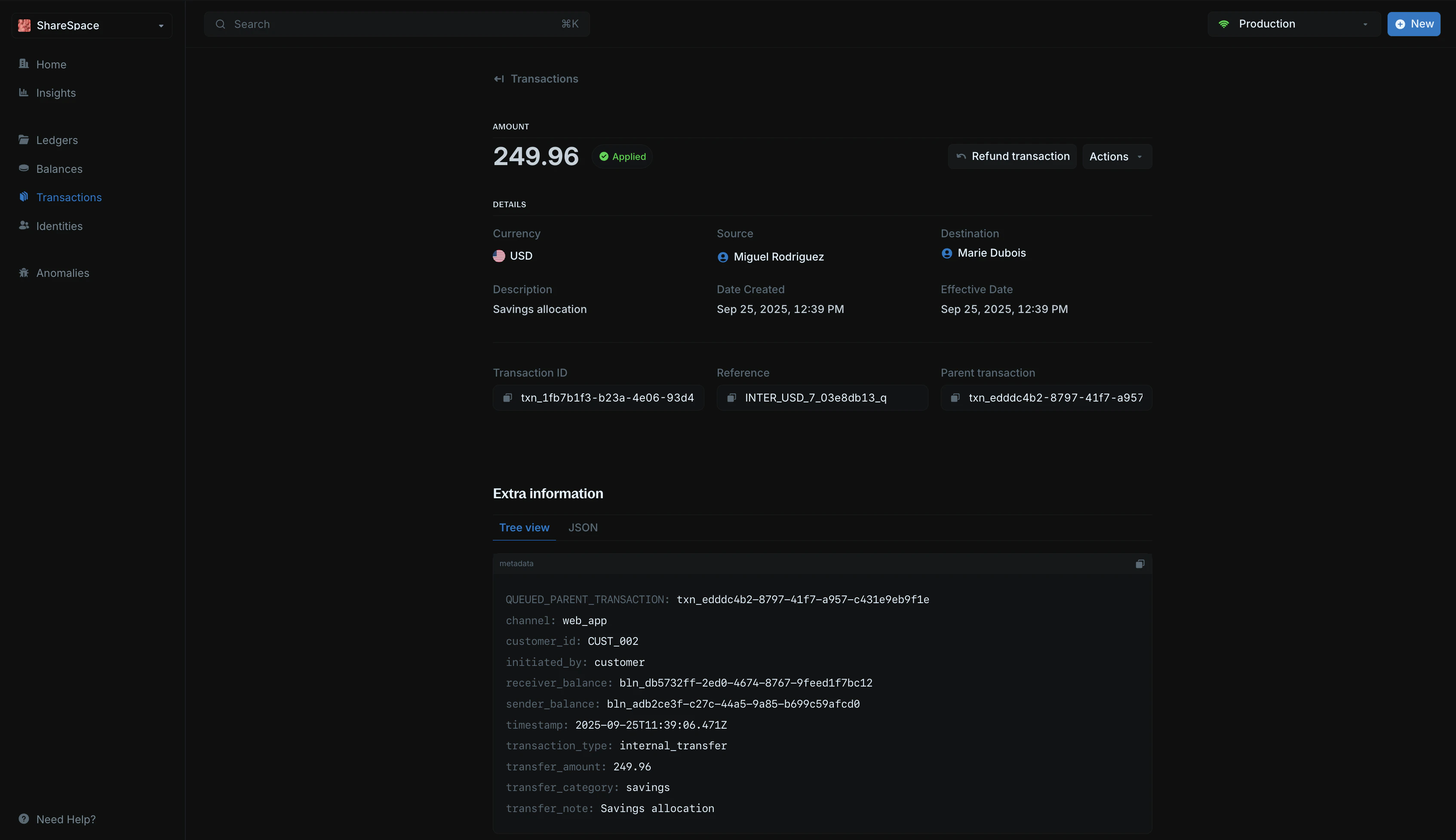 1. Going to the `Transactions` section in your sidebar
2. Clicking on any transaction from the transactions list
3. The details page opens showing complete transaction information
***
## Transaction information
The main section displays essential transaction information in an organized format:
1. Going to the `Transactions` section in your sidebar
2. Clicking on any transaction from the transactions list
3. The details page opens showing complete transaction information
***
## Transaction information
The main section displays essential transaction information in an organized format:
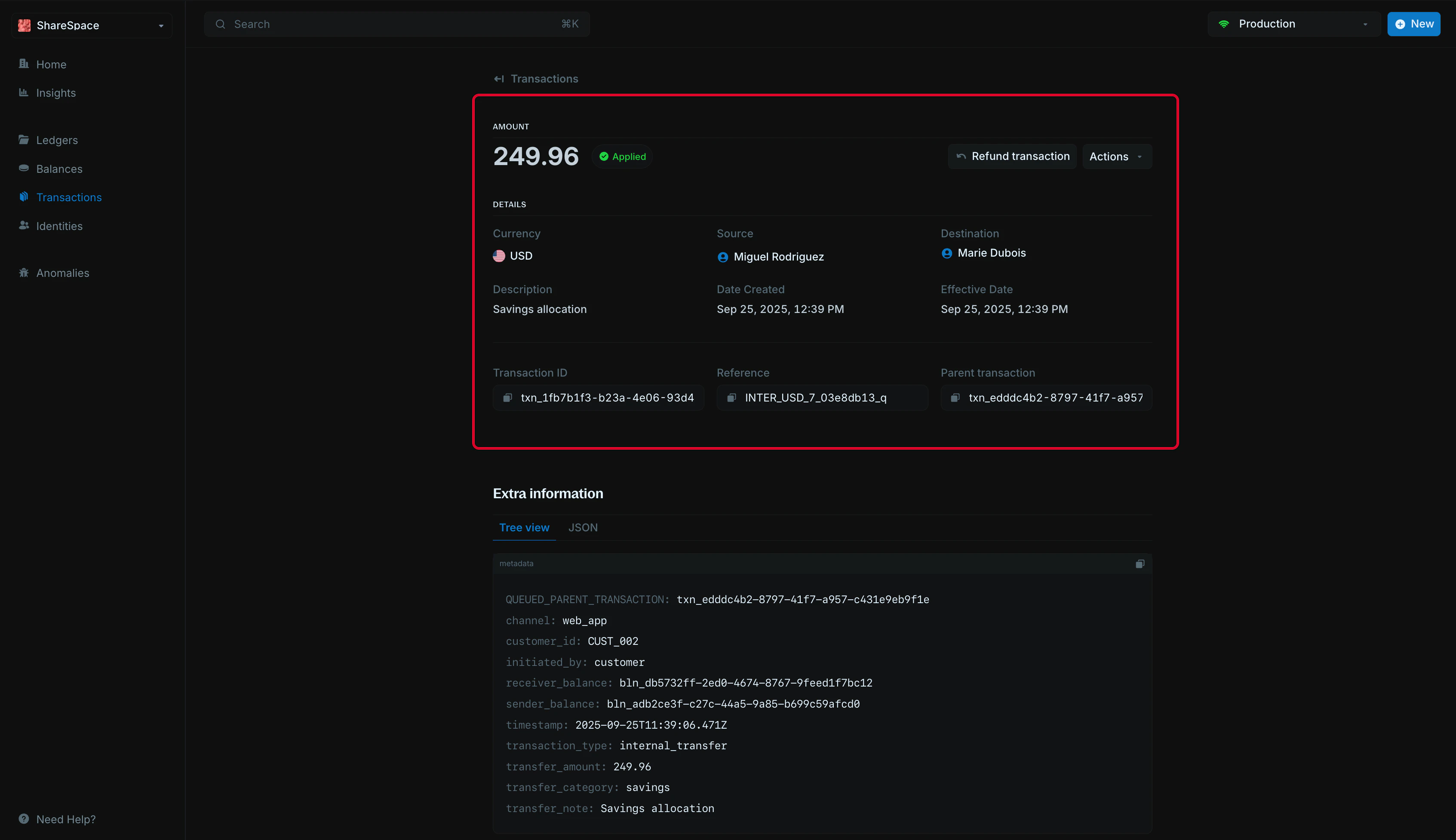 | Field | Description |
| :--------------------- | :------------------------------------------------------------------------------------------------ |
| **Amount** | Transaction amount prominently displayed at the top |
| **Currency** | Shows the transaction's denomination (USD, EUR, etc.) |
| **Status** | Current transaction state (`APPLIED`, `INFLIGHT`, `PENDING`, etc.) |
| **Source** | Origin balance or account for the transaction |
| **Destination** | Target balance or account receiving the funds |
| **Description** | User-defined description explaining the transaction purpose |
| `Date Created` | Timestamp when the transaction was initiated |
| `Effective Date` | When the transaction actually happened. If not specified, it will be the same as the date created |
| **Transaction ID** | Unique identifier for the specific transaction |
| **Reference** | Unique reference number for your transaction |
| **Parent Transaction** | Shows the parent transaction ID for related transactions |
***
## Transaction actions
The details page provides action buttons for transaction management:
* `Refund transaction`: Initiate a refund for the current transaction
* `Actions` menu: Access additional transaction operations
***
## Inflight history
This section is only visible for inflight transactions.
The inflight history section shows a list of all commits and voids for a particular inflight transaction.
| Field | Description |
| :--------------------- | :------------------------------------------------------------------------------------------------ |
| **Amount** | Transaction amount prominently displayed at the top |
| **Currency** | Shows the transaction's denomination (USD, EUR, etc.) |
| **Status** | Current transaction state (`APPLIED`, `INFLIGHT`, `PENDING`, etc.) |
| **Source** | Origin balance or account for the transaction |
| **Destination** | Target balance or account receiving the funds |
| **Description** | User-defined description explaining the transaction purpose |
| `Date Created` | Timestamp when the transaction was initiated |
| `Effective Date` | When the transaction actually happened. If not specified, it will be the same as the date created |
| **Transaction ID** | Unique identifier for the specific transaction |
| **Reference** | Unique reference number for your transaction |
| **Parent Transaction** | Shows the parent transaction ID for related transactions |
***
## Transaction actions
The details page provides action buttons for transaction management:
* `Refund transaction`: Initiate a refund for the current transaction
* `Actions` menu: Access additional transaction operations
***
## Inflight history
This section is only visible for inflight transactions.
The inflight history section shows a list of all commits and voids for a particular inflight transaction.
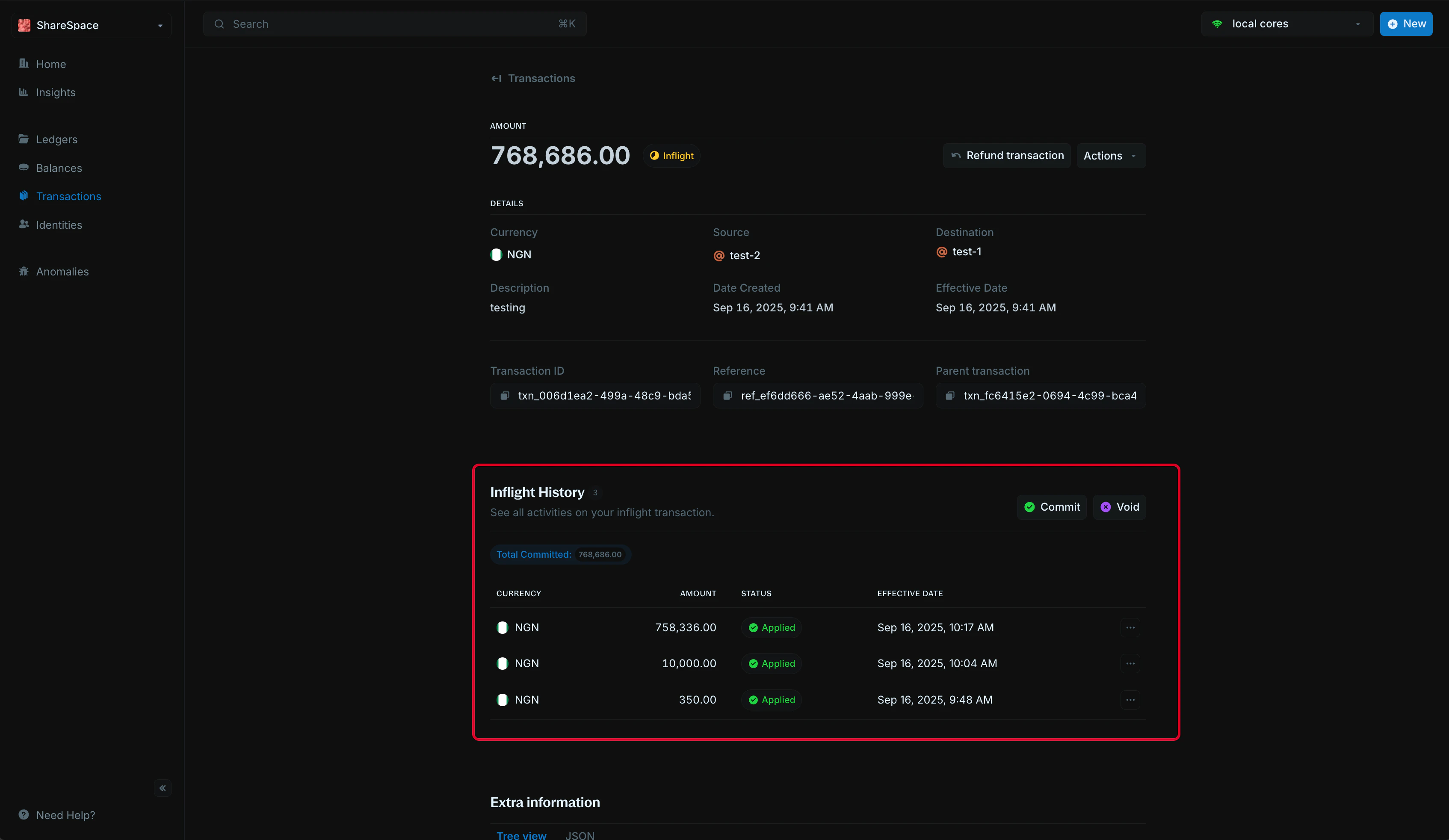 To "update" an inflight transaction, select `Commit` to commit it or `Void` to void it.
Hold, commit, and void inflight transactions.
***
## Extra information
The extra information section provides technical details and metadata:
To "update" an inflight transaction, select `Commit` to commit it or `Void` to void it.
Hold, commit, and void inflight transactions.
***
## Extra information
The extra information section provides technical details and metadata:
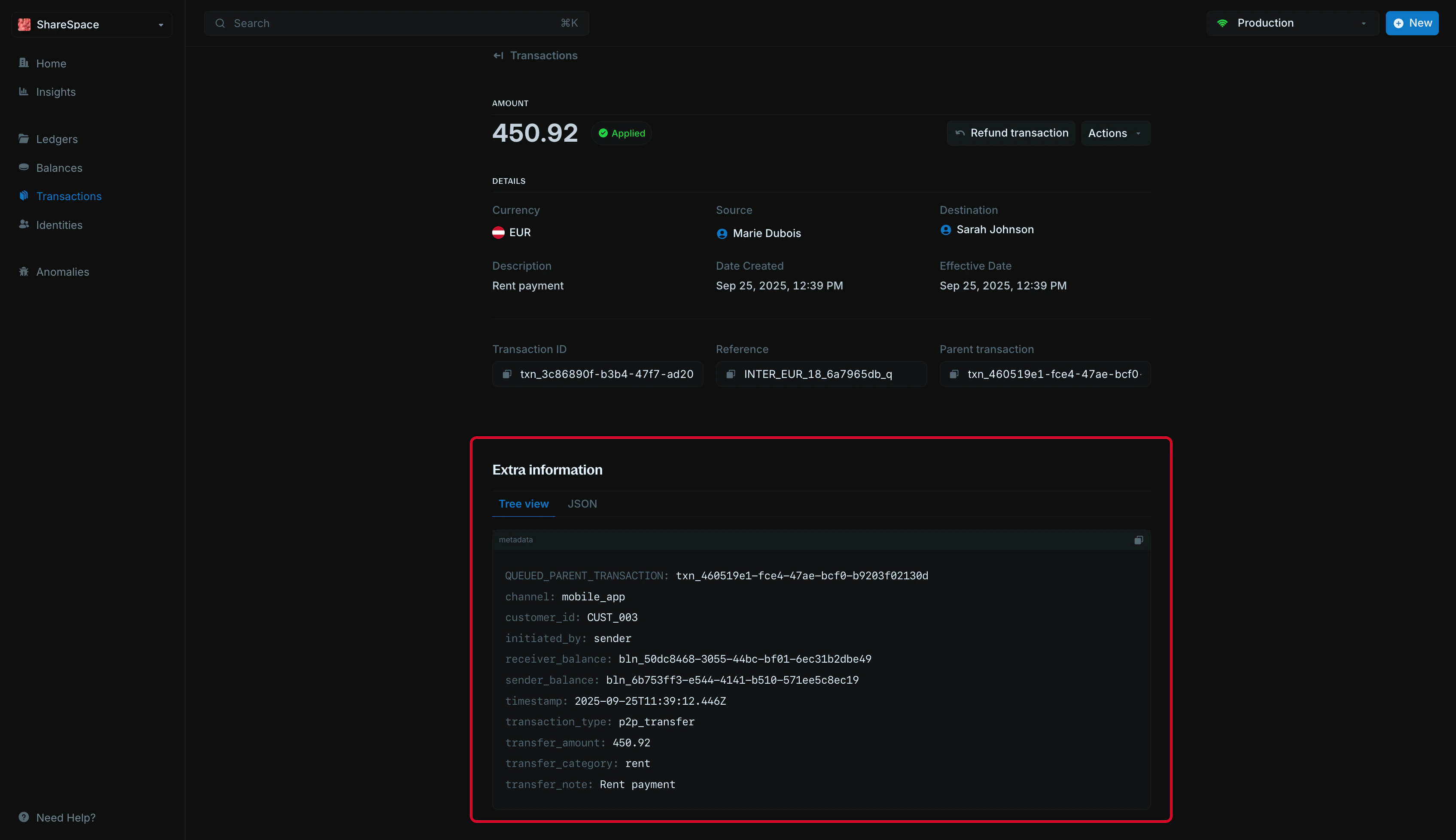 * `Tree view`: Hierarchical display of transaction data
* **JSON**: Raw JSON format showing all transaction properties
***
## Metadata
The metadata section allows you to add custom information to your transaction. You can store additional details, tags, or any other data that helps you organize and manage your transactions.
### Edit metadata
To edit metadata:
* `Tree view`: Hierarchical display of transaction data
* **JSON**: Raw JSON format showing all transaction properties
***
## Metadata
The metadata section allows you to add custom information to your transaction. You can store additional details, tags, or any other data that helps you organize and manage your transactions.
### Edit metadata
To edit metadata:
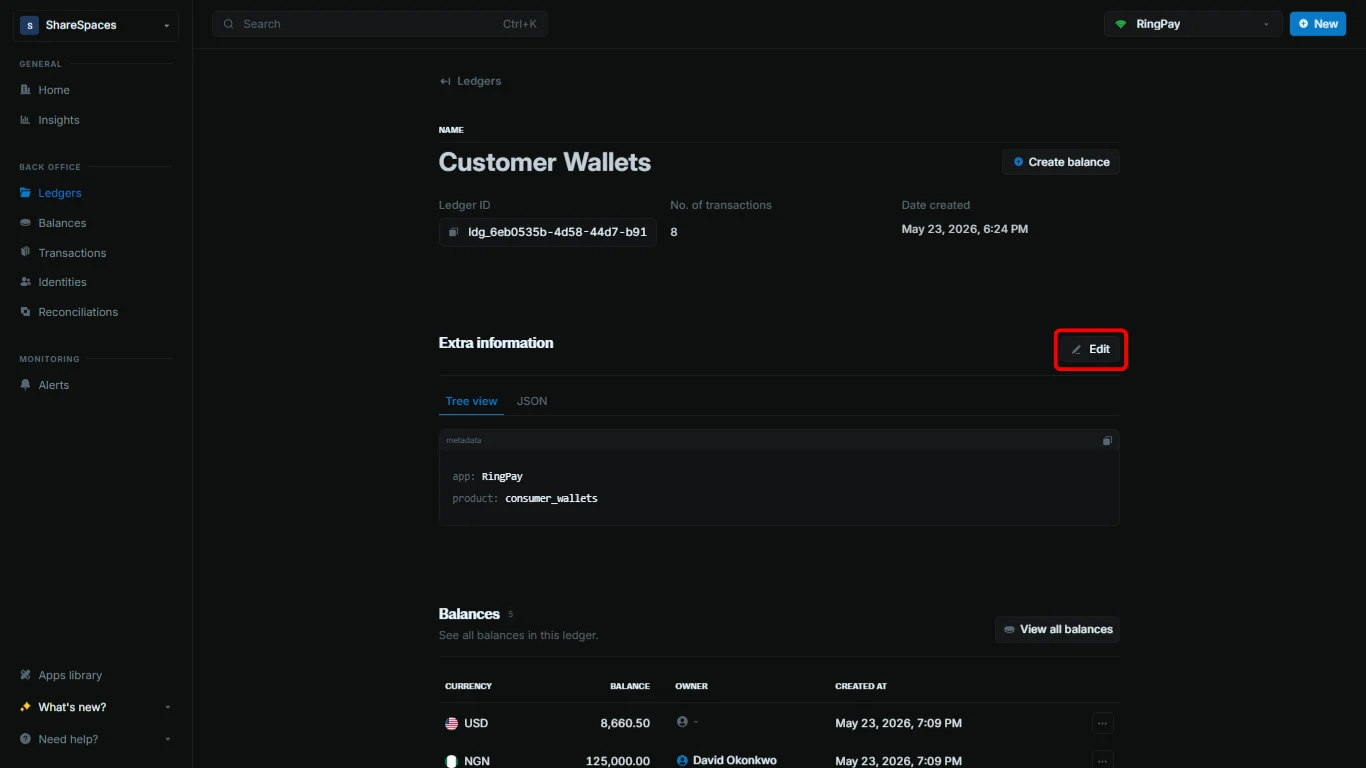 1. Navigate to the `Additional information` section.
2. Click the `Add` or `Edit` button at the top right of the section.
3. Use the code editor to add new metadata or update existing metadata.
4. Click `Update` to apply your changes.
1. Navigate to the `Additional information` section.
2. Click the `Add` or `Edit` button at the top right of the section.
3. Use the code editor to add new metadata or update existing metadata.
4. Click `Update` to apply your changes.
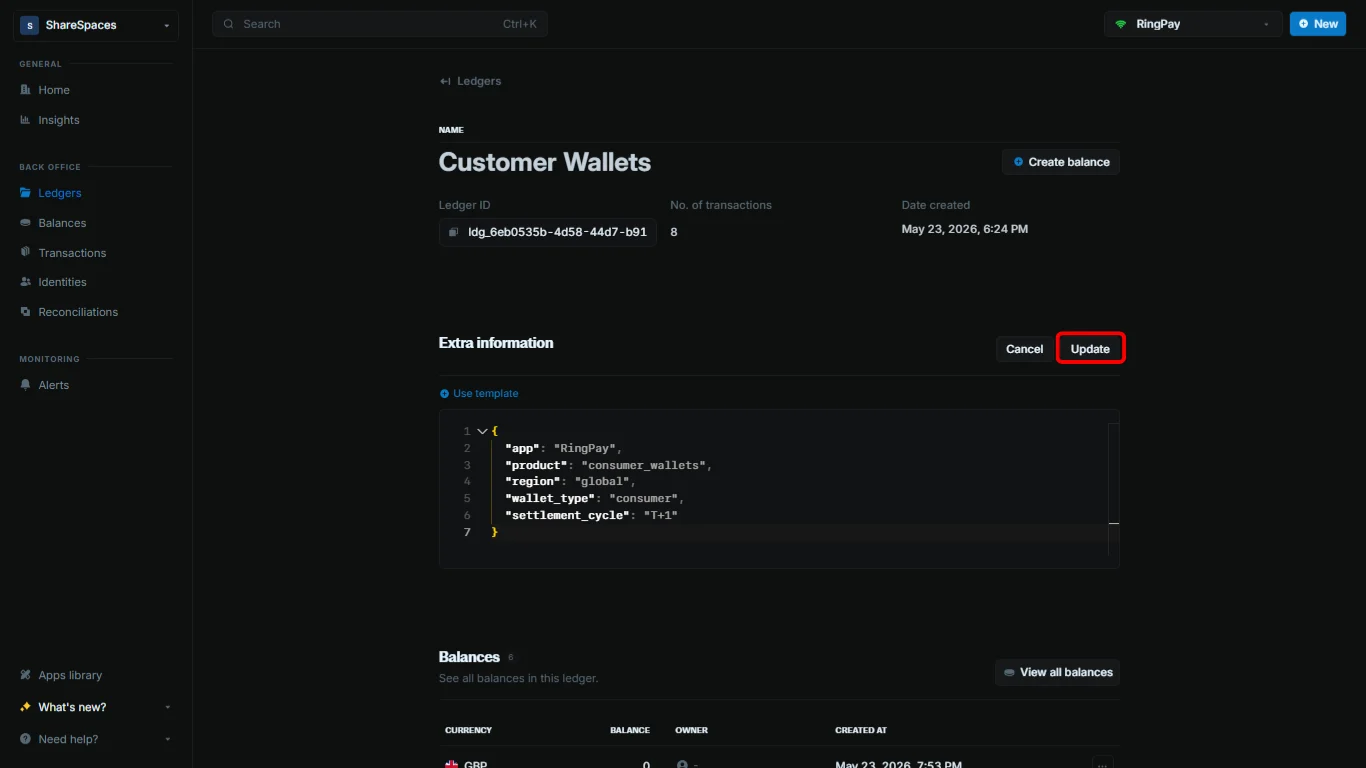 When updating metadata, any fields you don't include in your update will remain unchanged. Blnk adds your new values to the existing metadata instead of deleting them. To remove a value, set it to an empty string.
***
## Need help?
We are very happy to help you make the most of Blnk, regardless of whether it is your first time or you are switching from another tool.
To ask questions or discuss issues, please [contact us](mailto:support@blnkfinance.com) or [join our Discord community](https://discord.gg/7WNv94zPpx).
Get dedicated support for architecture reviews, integration planning, ledger workflows, and production deployment.
When updating metadata, any fields you don't include in your update will remain unchanged. Blnk adds your new values to the existing metadata instead of deleting them. To remove a value, set it to an empty string.
***
## Need help?
We are very happy to help you make the most of Blnk, regardless of whether it is your first time or you are switching from another tool.
To ask questions or discuss issues, please [contact us](mailto:support@blnkfinance.com) or [join our Discord community](https://discord.gg/7WNv94zPpx).
Get dedicated support for architecture reviews, integration planning, ledger workflows, and production deployment.