> ## Documentation Index
> Fetch the complete documentation index at: https://docs.blnkfinance.com/llms.txt
> Use this file to discover all available pages before exploring further.
# Start Guide
> Learn how to get started with Blnk Cloud.
export const CtaCallout = props => {
const {title, buttonLabel, href, trackingEvent, buttonTarget, rel = "noopener noreferrer", children} = props;
const handleCtaClick = () => {
if (typeof window === "undefined" || !trackingEvent) {
return;
}
try {
window.dispatchEvent(new CustomEvent("blnk:docs-cta", {
detail: {
name: trackingEvent,
href
}
}));
} catch {}
try {
window.posthog?.capture?.(trackingEvent, {
href
});
} catch {}
const gaPayload = {
cta_href: href
};
try {
window.gtag?.("event", trackingEvent, gaPayload);
} catch {}
try {
window.dataLayer = window.dataLayer || [];
window.dataLayer.push({
event: trackingEvent,
...gaPayload
});
} catch {}
};
const isExternal = typeof href === "string" && (/^https?:\/\//i).test(href);
const target = buttonTarget ?? (isExternal ? "_blank" : undefined);
const linkRel = isExternal ? rel : undefined;
return ;
};
Blnk exists to give developers the tools and confidence to bring any financial product idea to life regardless of whether you're working solo, with a small team, or as part of a large organization.
Blnk Cloud is a clean and intuitive platform that allows you to view and act on your Core's data, collaborate with your team, and monitor your transactions for any anomalies in real-time.
This guide will walk you through getting started with Blnk Cloud and help you get set up quickly.
Get the Blnk production license for on-prem or private deployments, including the ledger, reconciliation tooling, and back-office dashboard.
***
## 1. Sign up or log in
To access Blnk Cloud, visit [cloud.blnkfinance.com](https://cloud.blnkfinance.com).
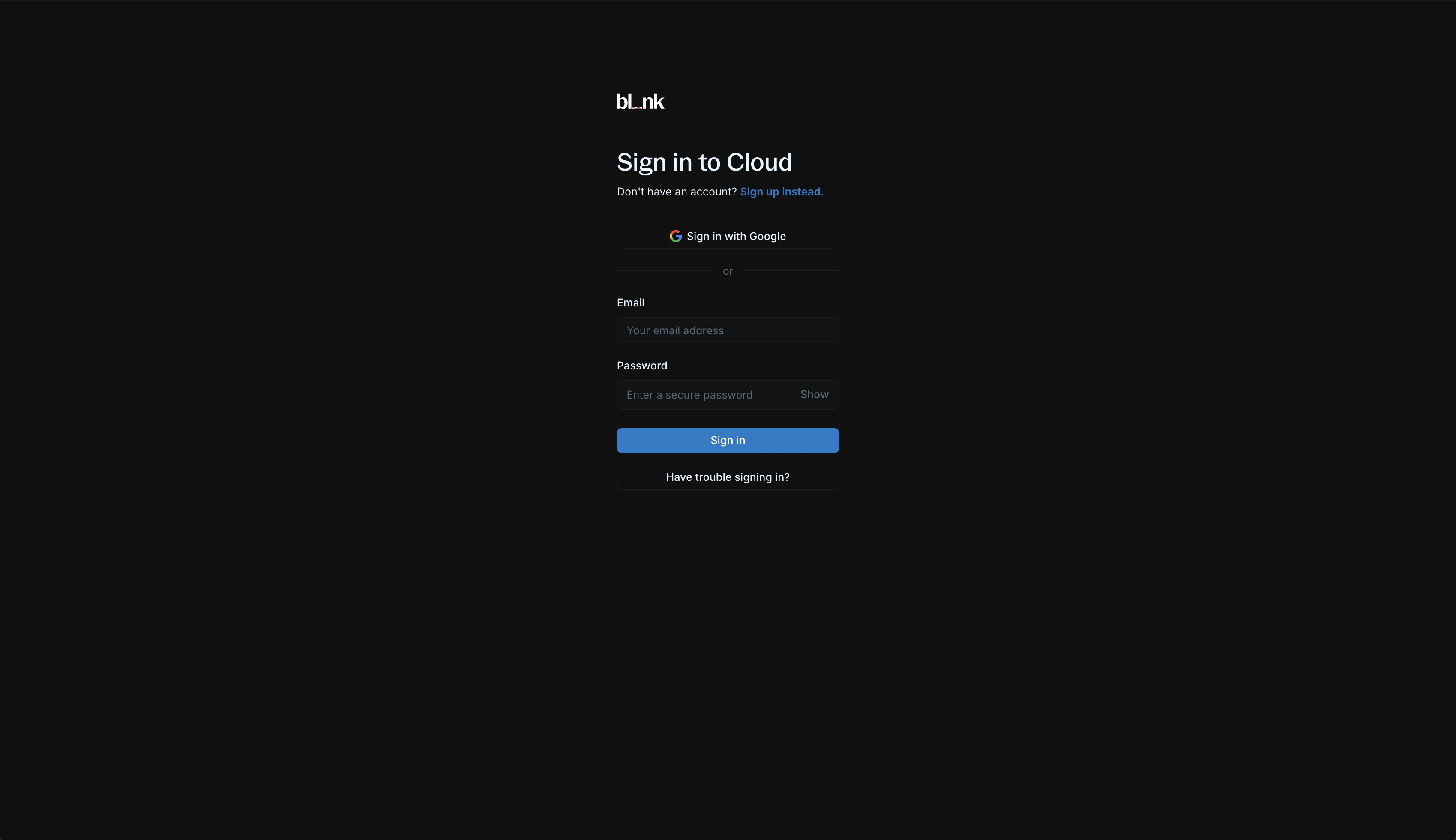 For first-time users, create a new account. You can sign up via Google or manually provide your account details.
We send a 6-digit verification code to your registered email address to verify your account. Once your email is verified, you'll be redirected to sign in with your account information.
> For existing users, sign in via Google or with your email and password.
>
> Google SSO is automatically enabled for your account if your email is linked to a Google account.
***
## 2. Workspace setup
To complete your account, you need to create and set up your workspace.
For first-time users, create a new account. You can sign up via Google or manually provide your account details.
We send a 6-digit verification code to your registered email address to verify your account. Once your email is verified, you'll be redirected to sign in with your account information.
> For existing users, sign in via Google or with your email and password.
>
> Google SSO is automatically enabled for your account if your email is linked to a Google account.
***
## 2. Workspace setup
To complete your account, you need to create and set up your workspace.
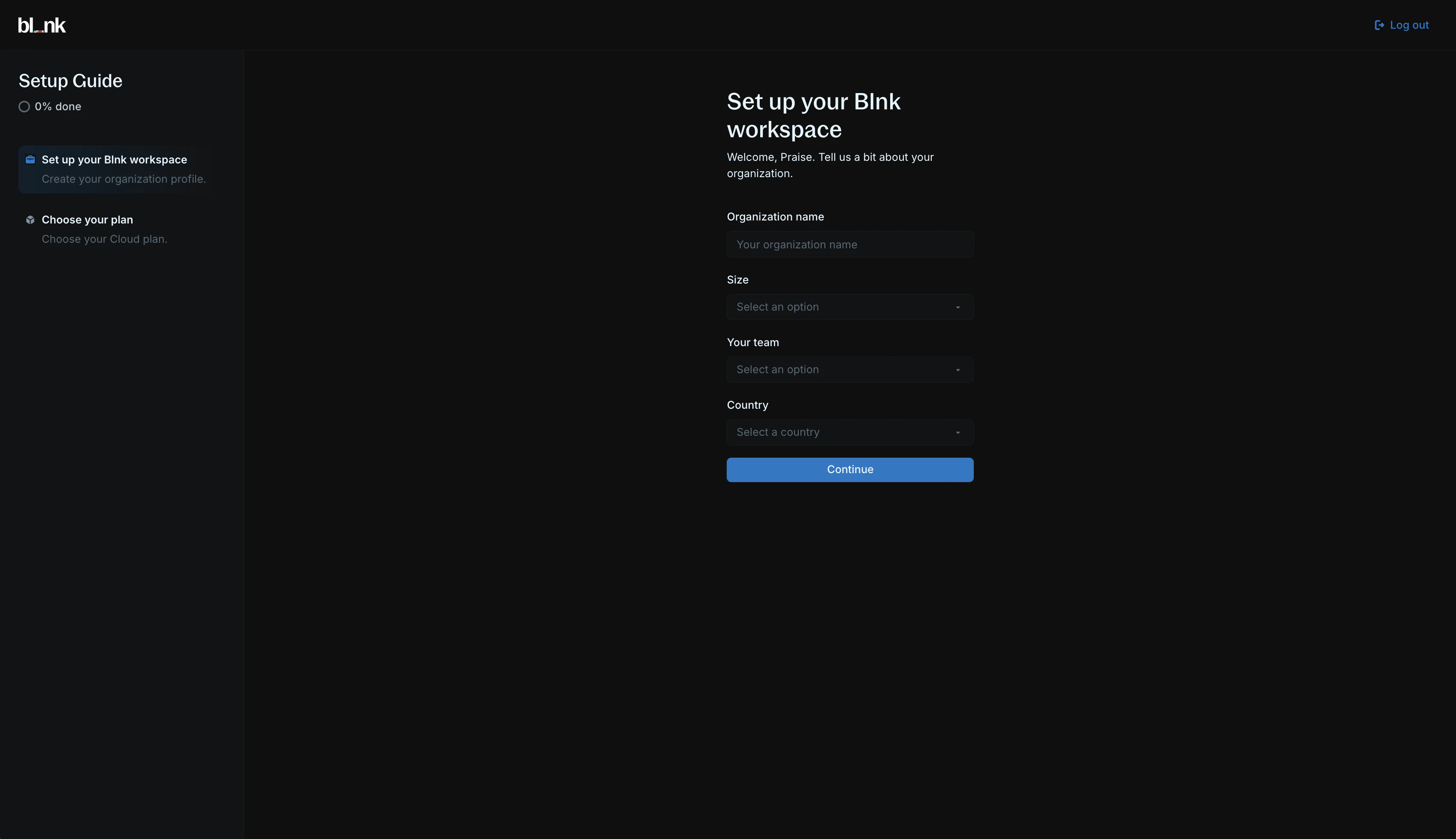 Enter your organization's information:
* Organization name
* Team size
* Country
* Team
Select a Cloud plan that fits your needs to complete your setup and enter your workspace.
Choose between our 2 plans:
* **Sandbox:** Build and validate your money movement and ledger logic before going to production. Includes unlimited team members and full back-office operations.
* **Production:** Run your ledger and money movement in production. Includes everything in Sandbox plus automated backups, SLA & incident support, and 24/7 support.
Enter your organization's information:
* Organization name
* Team size
* Country
* Team
Select a Cloud plan that fits your needs to complete your setup and enter your workspace.
Choose between our 2 plans:
* **Sandbox:** Build and validate your money movement and ledger logic before going to production. Includes unlimited team members and full back-office operations.
* **Production:** Run your ledger and money movement in production. Includes everything in Sandbox plus automated backups, SLA & incident support, and 24/7 support.
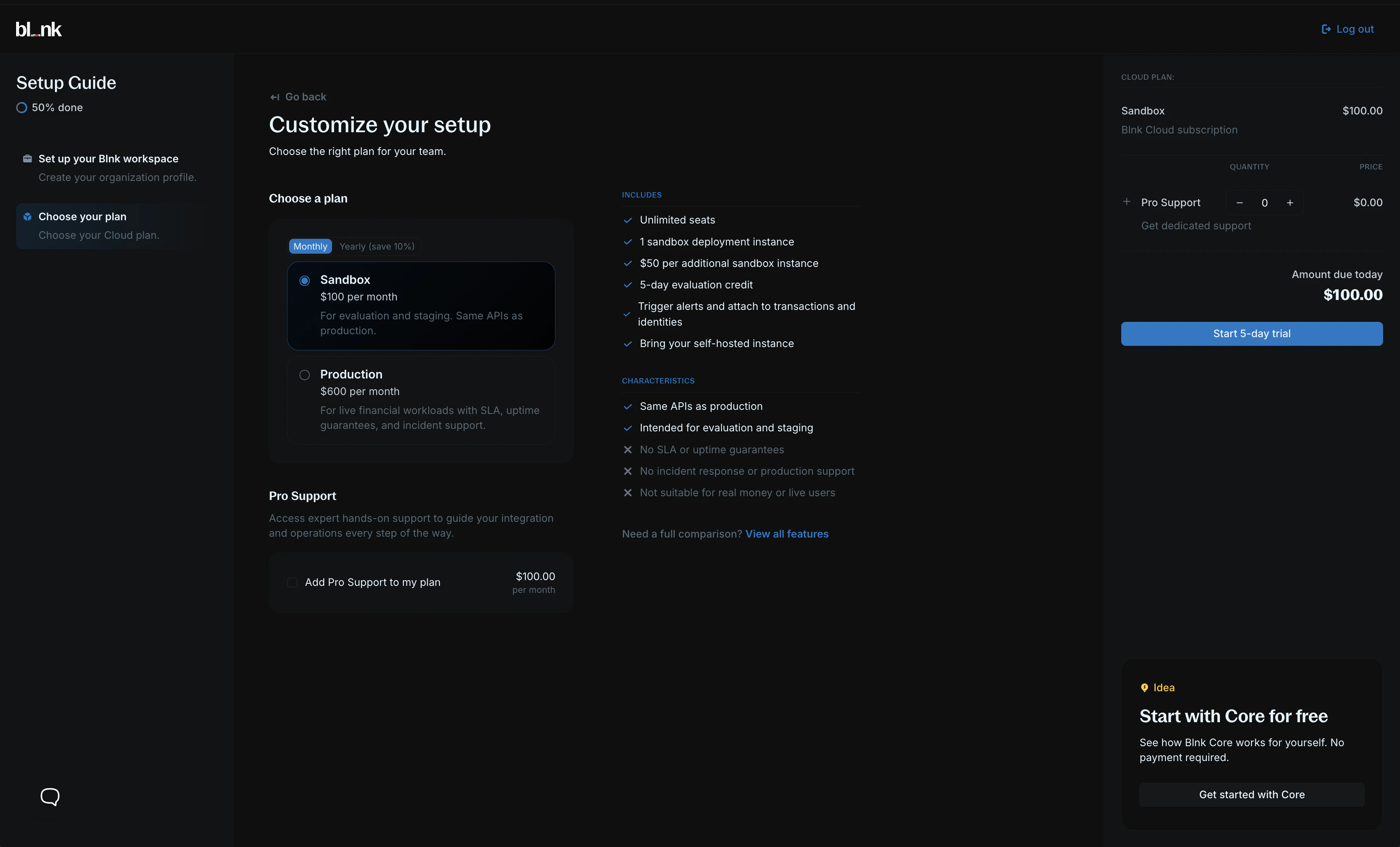 To learn more about our plans, visit our [Pricing page](https://blnkfinance.com/pricing).
***
## 3. Deploy an instance
For Cloud to work, you need a running Blnk Core instance. You can deploy a managed instance on Blnk Cloud or connect your self-hosted instance.
To learn more about our plans, visit our [Pricing page](https://blnkfinance.com/pricing).
***
## 3. Deploy an instance
For Cloud to work, you need a running Blnk Core instance. You can deploy a managed instance on Blnk Cloud or connect your self-hosted instance.
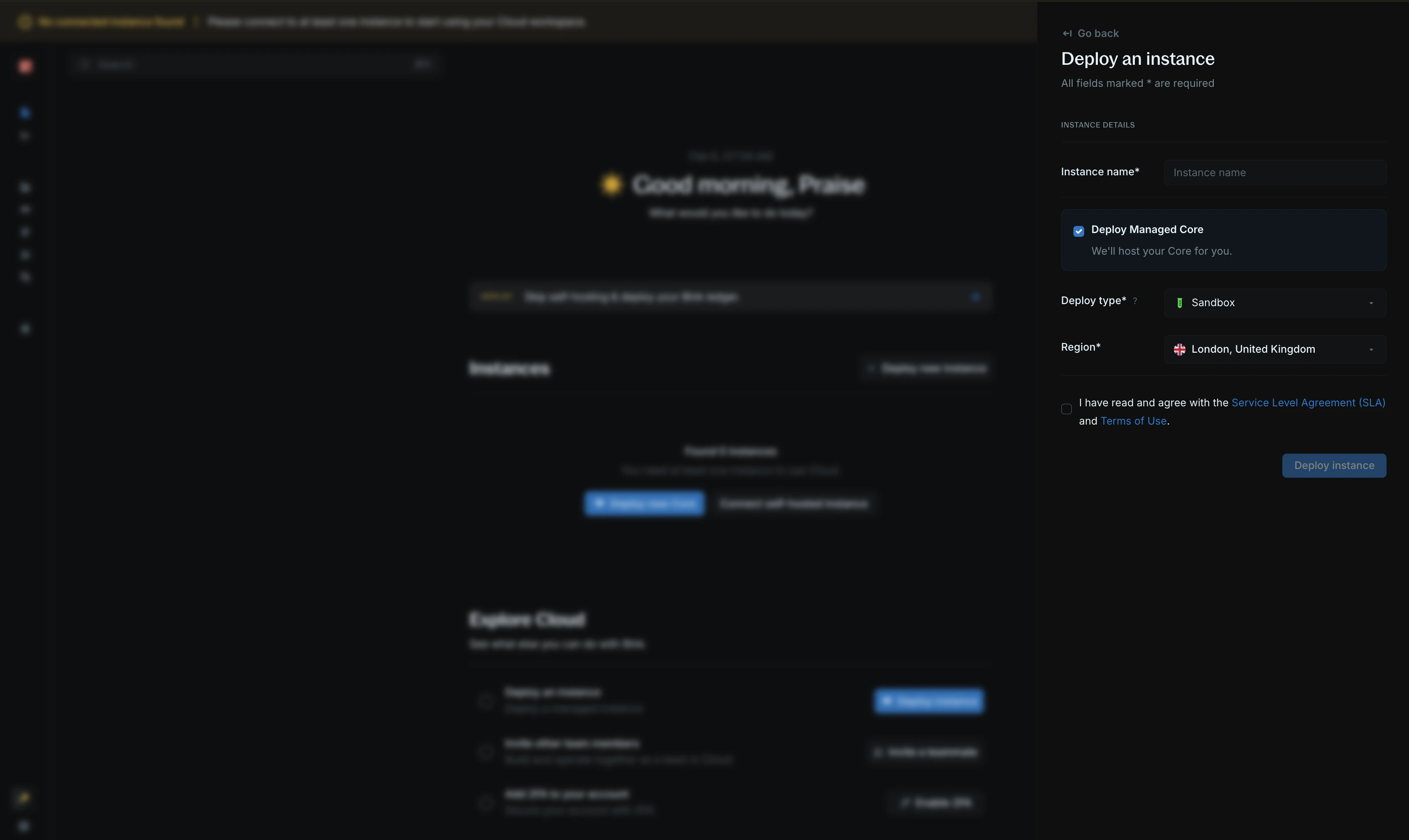 To deploy a new instance " no manual setup required:
1. Click `Deploy new Core` from your homepage.
2. Choose a descriptive `instance name` for your instance, e.g., "Production", "Staging", etc. Any name works.
3. Select your deployment type (B1.Micro and B1.Standard are currently available).
4. Select what region you want to deploy your instance to.
5. Confirm that you agree with our SLA and terms of use.
6. Click on `Deploy instance`.
It takes about 7 - 10 minutes to finish the deployment and get your instance ready for use. When it is ready, the connection status is updated to **Connected** and you can start using your instance.
Self-hosted Core connected to Cloud.
To deploy a new instance " no manual setup required:
1. Click `Deploy new Core` from your homepage.
2. Choose a descriptive `instance name` for your instance, e.g., "Production", "Staging", etc. Any name works.
3. Select your deployment type (B1.Micro and B1.Standard are currently available).
4. Select what region you want to deploy your instance to.
5. Confirm that you agree with our SLA and terms of use.
6. Click on `Deploy instance`.
It takes about 7 - 10 minutes to finish the deployment and get your instance ready for use. When it is ready, the connection status is updated to **Connected** and you can start using your instance.
Self-hosted Core connected to Cloud.