> ## Documentation Index
> Fetch the complete documentation index at: https://docs.blnkfinance.com/llms.txt
> Use this file to discover all available pages before exploring further.
# Reconciliation
> Learn how to do reconciliation for your Blnk Ledger.
export const CtaCallout = props => {
const {title, buttonLabel, href, trackingEvent, buttonTarget, rel = "noopener noreferrer", children} = props;
const handleCtaClick = () => {
if (typeof window === "undefined" || !trackingEvent) {
return;
}
try {
window.dispatchEvent(new CustomEvent("blnk:docs-cta", {
detail: {
name: trackingEvent,
href
}
}));
} catch {}
try {
window.posthog?.capture?.(trackingEvent, {
href
});
} catch {}
const gaPayload = {
cta_href: href
};
try {
window.gtag?.("event", trackingEvent, gaPayload);
} catch {}
try {
window.dataLayer = window.dataLayer || [];
window.dataLayer.push({
event: trackingEvent,
...gaPayload
});
} catch {}
};
const isExternal = typeof href === "string" && (/^https?:\/\//i).test(href);
const target = buttonTarget ?? (isExternal ? "_blank" : undefined);
const linkRel = isExternal ? rel : undefined;
return ;
};
When transactions happen, you usually end up with two sets of records:
* **Internal records:** Your ledger.
* **External records:** Bank statements, card statements, payment processor statements, etc.
Reconciliation is the process that compares both records, matches them, identifies where they disagree. You then get a head start on identifying the root cause of the discrepancy and correcting it where necessary.
***
## Before you start,
You need to do three things first:
* [Upload your external data:](/cloud/reconciliation/external-data) This is the data you want to compare against your ledger. We support CSV and JSON, but the file must follow our required format for reconciliation to work.
* [Set your matching rules:](/cloud/reconciliation/matching-rules) This tells Blnk how to match the two sets of records. For example, you can say that any entries with the same description, amount, and date in both files represent the same transaction and should be matched.
* [Define your reconciliation strategy:](/cloud/reconciliation/strategy) This tells Blnk how transactions are distributed between the two records. For example, one transaction in your ledger could correspond to one transaction in the external data (one-to-one).
Prepare external data for reconciliation.
Rules for matching ledger and external records.
***
## Run a reconciliation
To run a reconciliation:
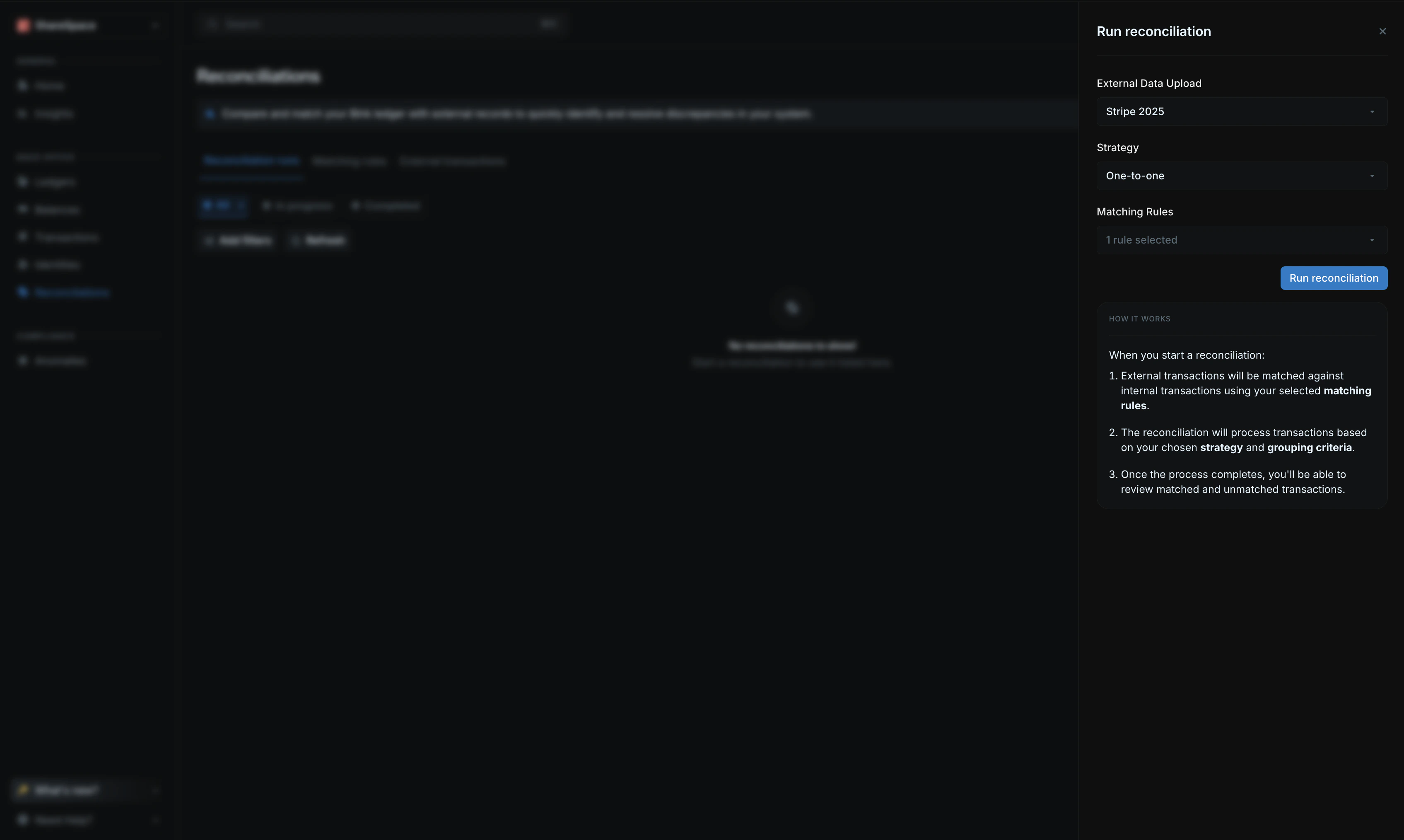 1. Go to the `Reconciliation` page from your sidenav.
2. Click on `Run reconciliation` on the top right corner.
3. From the side panel:
* Choose the [external data](/cloud/reconciliation/external-data) you want to reconcile.
* Pick the [matching rule(s)](/cloud/reconciliation/matching-rules) for this reconciliation run.
* Select your [reconciliation strategy](/cloud/reconciliation/strategy).
* If not using one-to-one reconciliation strategy, select the [grouping criteria](/cloud/reconciliation/strategy#applying-your-strategy).
* Start the reconciliation by clicking `Run reconciliation`.
Blnk starts the reconciliation right away and redirects you to the reconciliation table.
Depending on the size of your data, the process can take anywhere from a second to a few minutes.
***
## View reconciliation details
Once a reconciliation is completed, you can view its results from the reconciliation table.
1. Go to the `Reconciliation` page from your sidenav.
2. Click on `Run reconciliation` on the top right corner.
3. From the side panel:
* Choose the [external data](/cloud/reconciliation/external-data) you want to reconcile.
* Pick the [matching rule(s)](/cloud/reconciliation/matching-rules) for this reconciliation run.
* Select your [reconciliation strategy](/cloud/reconciliation/strategy).
* If not using one-to-one reconciliation strategy, select the [grouping criteria](/cloud/reconciliation/strategy#applying-your-strategy).
* Start the reconciliation by clicking `Run reconciliation`.
Blnk starts the reconciliation right away and redirects you to the reconciliation table.
Depending on the size of your data, the process can take anywhere from a second to a few minutes.
***
## View reconciliation details
Once a reconciliation is completed, you can view its results from the reconciliation table.
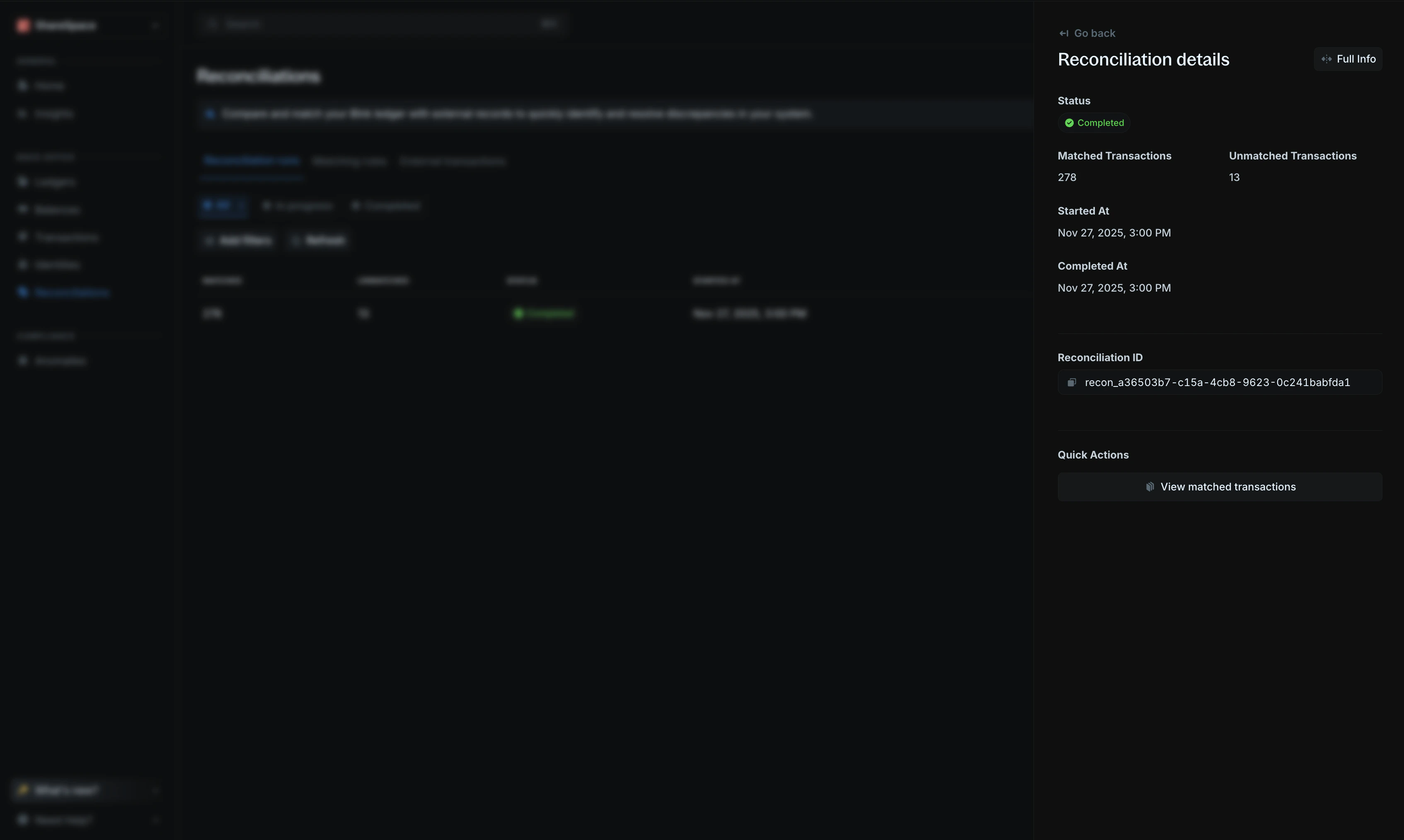 To view its details, click on the reconciliation run you want to inspect, then click `Full info` at the top right of the side panel.
### Summary section
The summary section gives you a quick overview of the reconciliation run.
| Field | Description |
| :--------------------- | :------------------------------------------------------------------------------ |
| Status | The status of the reconciliation run. |
| Matched transactions | Number of external transactions that were matched to internal transactions. |
| Unmatched transactions | Number of external transactions that were not matched to internal transactions. |
| Started at | The date and time the reconciliation run was started. |
| Completed at | The date and time the reconciliation run was completed. |
| Reconciliation ID | The unique identifier for the reconciliation run. |
| Upload ID | The unique identifier for the external data upload. |
### Matched transactions
This section lists an overview of the external transactions matched to internal transactions.
Click `View ledger transactions` to see all of the matched transactions and their individual reconciliation details.
To view its details, click on the reconciliation run you want to inspect, then click `Full info` at the top right of the side panel.
### Summary section
The summary section gives you a quick overview of the reconciliation run.
| Field | Description |
| :--------------------- | :------------------------------------------------------------------------------ |
| Status | The status of the reconciliation run. |
| Matched transactions | Number of external transactions that were matched to internal transactions. |
| Unmatched transactions | Number of external transactions that were not matched to internal transactions. |
| Started at | The date and time the reconciliation run was started. |
| Completed at | The date and time the reconciliation run was completed. |
| Reconciliation ID | The unique identifier for the reconciliation run. |
| Upload ID | The unique identifier for the external data upload. |
### Matched transactions
This section lists an overview of the external transactions matched to internal transactions.
Click `View ledger transactions` to see all of the matched transactions and their individual reconciliation details.
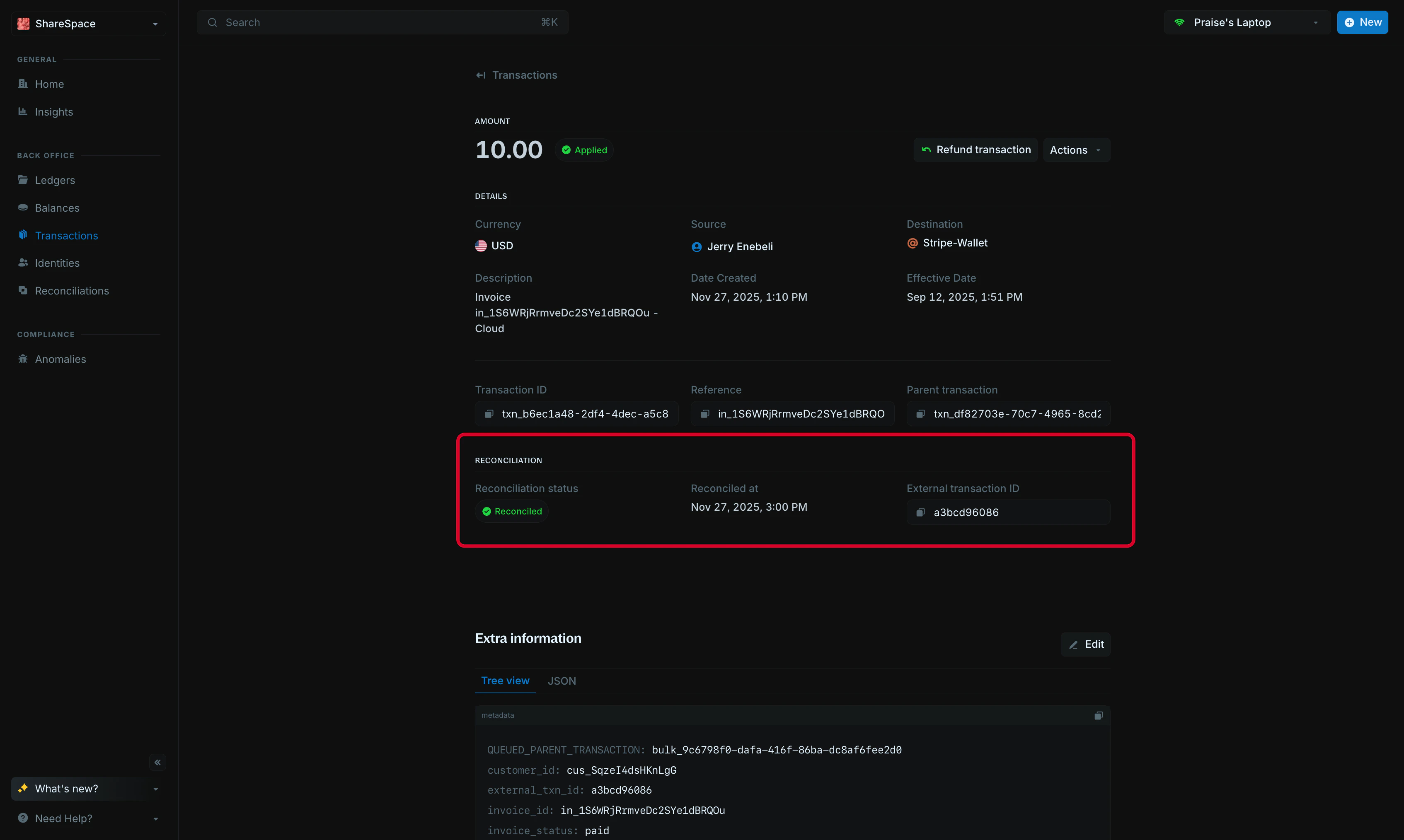 When you view a transaction details page, you can see at a glance if it has been reconciled or not. For more information about its reconciliation, you can view its reconciliation metadata:
| Field | Description |
| :---------------------- | :-------------------------------------------------------------------------------- |
| `external_txn_id` | The unique identifier for the external transaction. |
| `reconciled` | Set to `true` if the transaction has been reconciled. |
| `reconciled_at` | The date and time the transaction was reconciled. |
| `reconciliation_amount` | The amount of the external record that was reconciled. |
| `reconciliation_id` | The unique identifier for the reconciliation run that reconciled the transaction. |
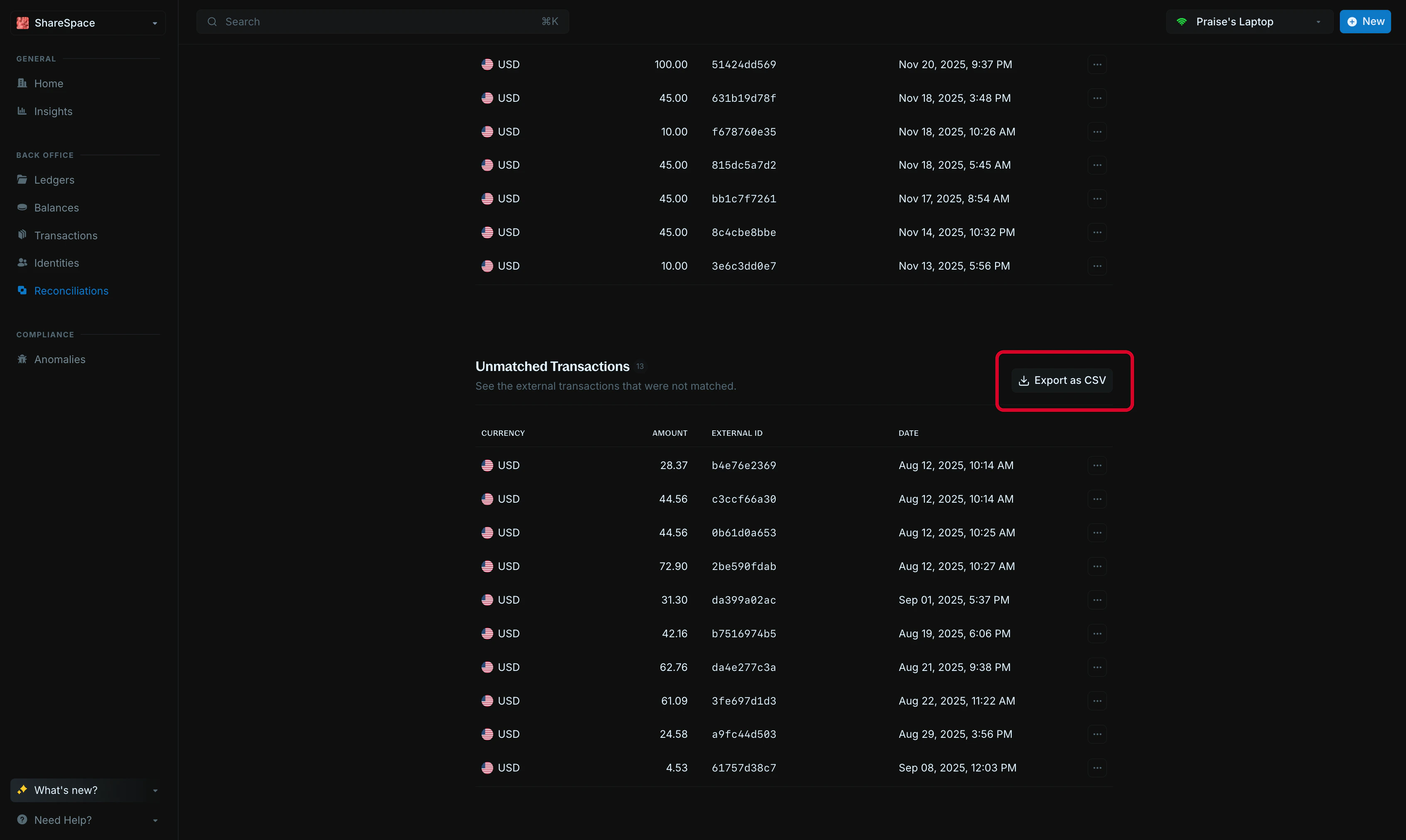
### Unmatched transactions
This section lists the external transactions that had no matching internal transaction. Click `Export as CSV` to download a CSV file of the full list.
When you view a transaction details page, you can see at a glance if it has been reconciled or not. For more information about its reconciliation, you can view its reconciliation metadata:
| Field | Description |
| :---------------------- | :-------------------------------------------------------------------------------- |
| `external_txn_id` | The unique identifier for the external transaction. |
| `reconciled` | Set to `true` if the transaction has been reconciled. |
| `reconciled_at` | The date and time the transaction was reconciled. |
| `reconciliation_amount` | The amount of the external record that was reconciled. |
| `reconciliation_id` | The unique identifier for the reconciliation run that reconciled the transaction. |
### Unmatched transactions
This section lists the external transactions that had no matching internal transaction. Click `Export as CSV` to download a CSV file of the full list.
 ***
## Need help?
We are very happy to help you make the most of Blnk, regardless of whether it is your first time or you are switching from another tool.
To ask questions or discuss issues, please [contact us](mailto:support@blnkfinance.com) or [join our Discord community](https://discord.gg/7WNv94zPpx).
Get dedicated support for architecture reviews, integration planning, ledger workflows, and production deployment.
***
## Need help?
We are very happy to help you make the most of Blnk, regardless of whether it is your first time or you are switching from another tool.
To ask questions or discuss issues, please [contact us](mailto:support@blnkfinance.com) or [join our Discord community](https://discord.gg/7WNv94zPpx).
Get dedicated support for architecture reviews, integration planning, ledger workflows, and production deployment.