> ## Documentation Index
> Fetch the complete documentation index at: https://docs.blnkfinance.com/llms.txt
> Use this file to discover all available pages before exploring further.
# Workspace
> Learn how to set up your workspace.
export const CtaCallout = props => {
const {title, buttonLabel, href, trackingEvent, buttonTarget, rel = "noopener noreferrer", children} = props;
const handleCtaClick = () => {
if (typeof window === "undefined" || !trackingEvent) {
return;
}
try {
window.dispatchEvent(new CustomEvent("blnk:docs-cta", {
detail: {
name: trackingEvent,
href
}
}));
} catch {}
try {
window.posthog?.capture?.(trackingEvent, {
href
});
} catch {}
const gaPayload = {
cta_href: href
};
try {
window.gtag?.("event", trackingEvent, gaPayload);
} catch {}
try {
window.dataLayer = window.dataLayer || [];
window.dataLayer.push({
event: trackingEvent,
...gaPayload
});
} catch {}
};
const isExternal = typeof href === "string" && (/^https?:\/\//i).test(href);
const target = buttonTarget ?? (isExternal ? "_blank" : undefined);
const linkRel = isExternal ? rel : undefined;
return ;
};
Your workspace is the control center of all instances and data in Blnk Cloud. Each organization has one workspace. If you belong to more than one organization, you can switch between them without signing out.
You can update your current workspace in [Settings > Workspace](https://cloud.blnkfinance.com/cloud/settings/workspace).
 You can update:
* Organization name
* Team size
* Country
***
## Switch workspace
If you belong to more than one organization in Blnk Cloud, you can move between workspaces without signing out.
At the top of the left sidebar, click your `workspace name or logo`.
You can update:
* Organization name
* Team size
* Country
***
## Switch workspace
If you belong to more than one organization in Blnk Cloud, you can move between workspaces without signing out.
At the top of the left sidebar, click your `workspace name or logo`.
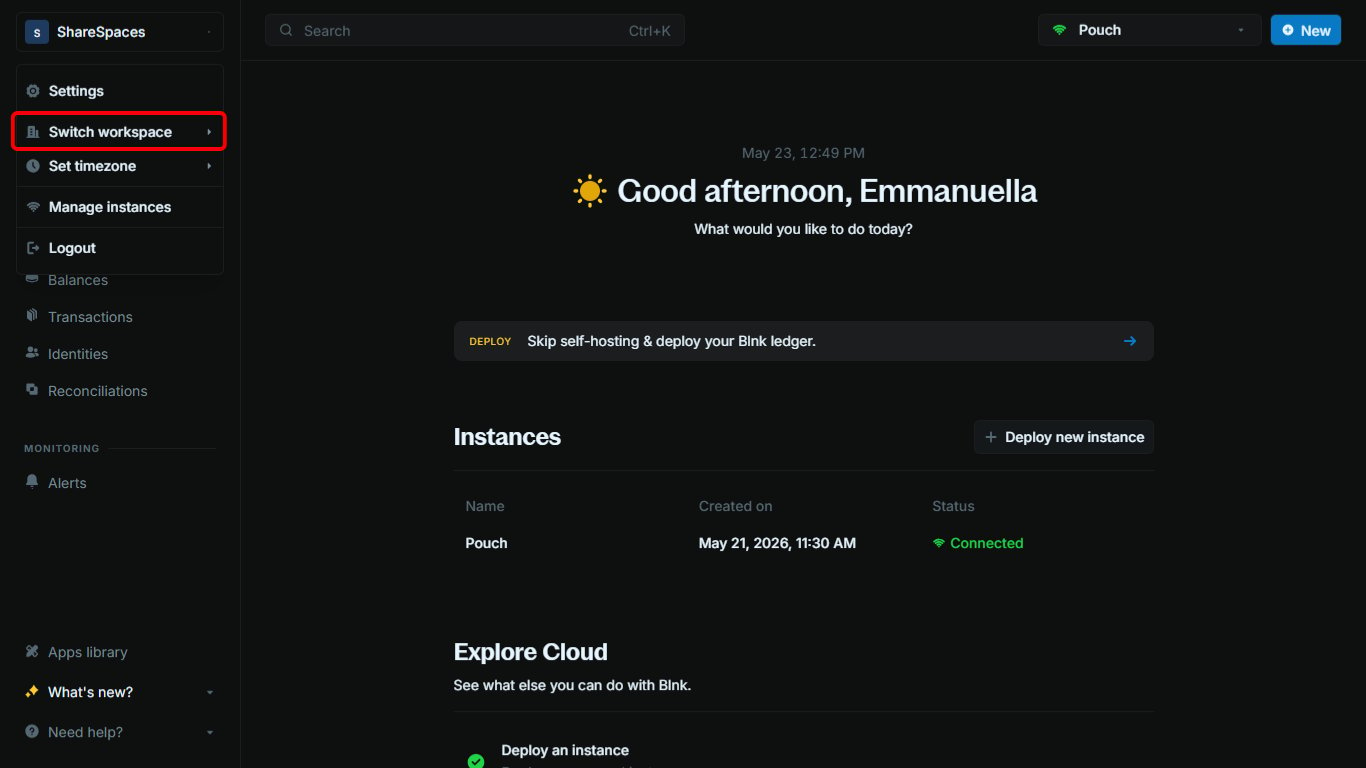 Select `Switch workspace`.
Pick the workspace you want to open. Your current workspace is highlighted in the list.
Select `Switch workspace`.
Pick the workspace you want to open. Your current workspace is highlighted in the list.
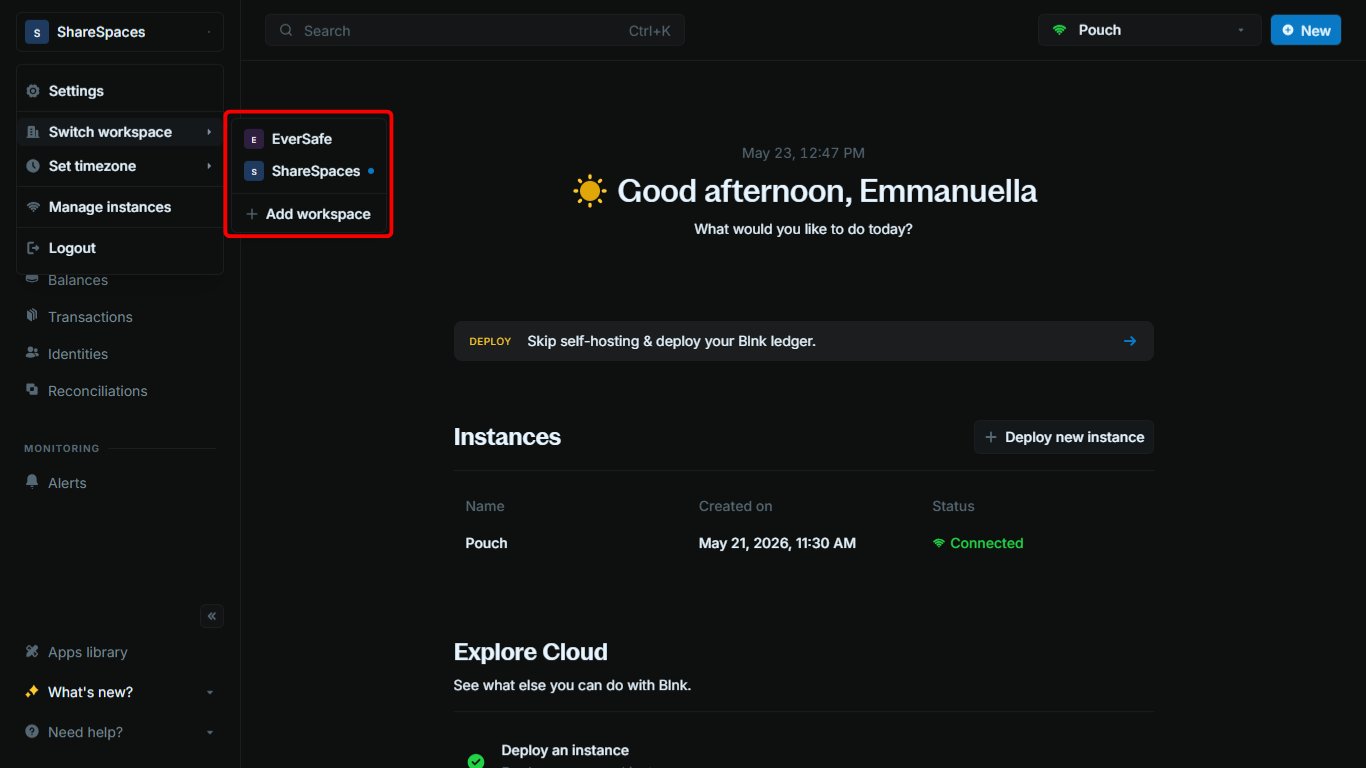 You may see a brief loading state while the switch completes.
When the switch finishes, your dashboard updates to show the workspace you selected. If that workspace still needs setup, Blnk Cloud will walk you through it before you continue.
If something looks missing after a switch, check that you are in the right workspace and instance. Data does not carry over between workspaces.
***
## Add workspace
Need a separate workspace for another organization? You can create one from the same `Switch workspace` menu.
At the top of the left sidebar, click your `workspace name or logo`, then select `Switch workspace`.
Click `Add workspace`, then enter your organization name, team size, and country.
You may see a brief loading state while the switch completes.
When the switch finishes, your dashboard updates to show the workspace you selected. If that workspace still needs setup, Blnk Cloud will walk you through it before you continue.
If something looks missing after a switch, check that you are in the right workspace and instance. Data does not carry over between workspaces.
***
## Add workspace
Need a separate workspace for another organization? You can create one from the same `Switch workspace` menu.
At the top of the left sidebar, click your `workspace name or logo`, then select `Switch workspace`.
Click `Add workspace`, then enter your organization name, team size, and country.
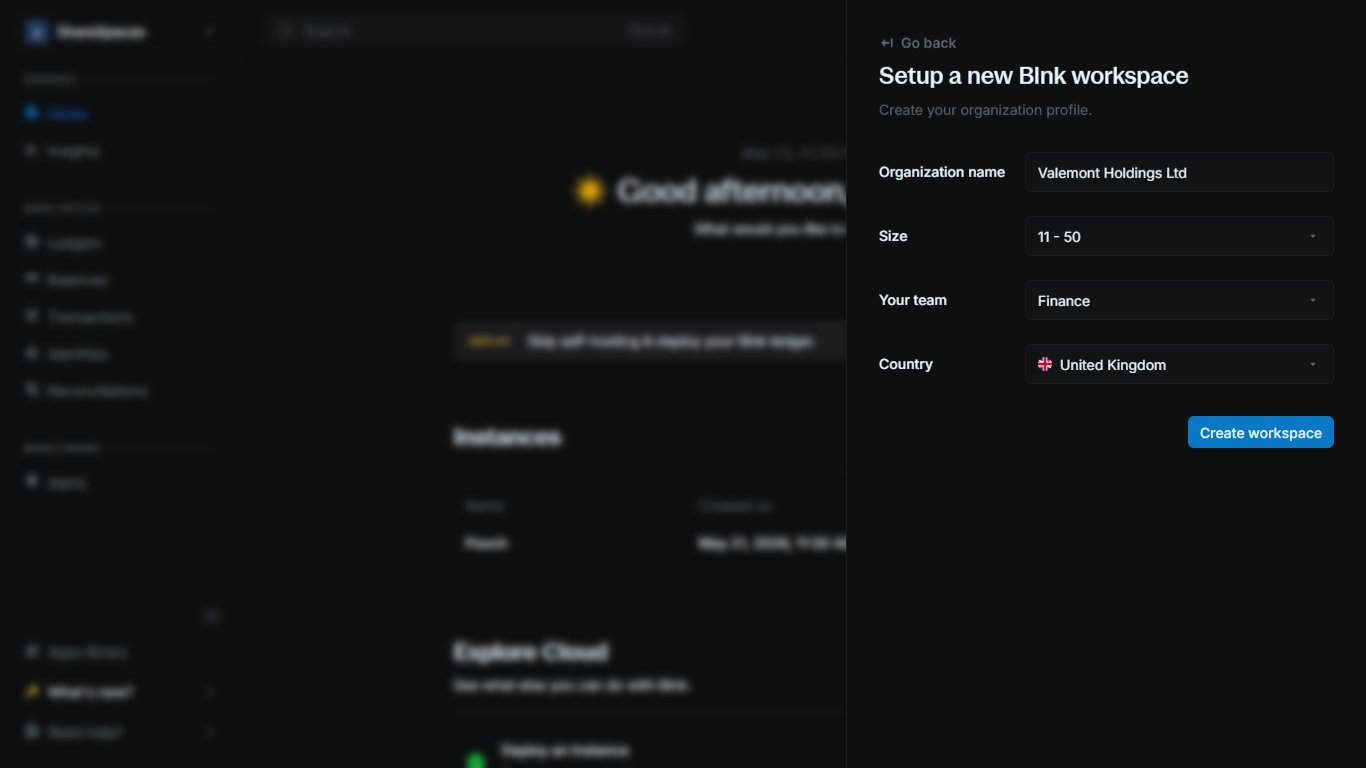 Click `Create workspace` to finish. Blnk Cloud creates the workspace and opens it for you automatically.
***
## Need help?
We are very happy to help you make the most of Blnk, regardless of whether it is your first time or you are switching from another tool.
To ask questions or discuss issues, please [contact us](mailto:support@blnkfinance.com) or [join our Discord community](https://discord.gg/7WNv94zPpx).
Get dedicated support for architecture reviews, integration planning, ledger workflows, and production deployment.
Click `Create workspace` to finish. Blnk Cloud creates the workspace and opens it for you automatically.
***
## Need help?
We are very happy to help you make the most of Blnk, regardless of whether it is your first time or you are switching from another tool.
To ask questions or discuss issues, please [contact us](mailto:support@blnkfinance.com) or [join our Discord community](https://discord.gg/7WNv94zPpx).
Get dedicated support for architecture reviews, integration planning, ledger workflows, and production deployment.