> ## Documentation Index
> Fetch the complete documentation index at: https://docs.blnkfinance.com/llms.txt
> Use this file to discover all available pages before exploring further.
# Metadata templates
> Create and reuse metadata key templates
export const CtaCallout = props => {
const {title, buttonLabel, href, trackingEvent, buttonTarget, rel = "noopener noreferrer", children} = props;
const handleCtaClick = () => {
if (typeof window === "undefined" || !trackingEvent) {
return;
}
try {
window.dispatchEvent(new CustomEvent("blnk:docs-cta", {
detail: {
name: trackingEvent,
href
}
}));
} catch {}
try {
window.posthog?.capture?.(trackingEvent, {
href
});
} catch {}
const gaPayload = {
cta_href: href
};
try {
window.gtag?.("event", trackingEvent, gaPayload);
} catch {}
try {
window.dataLayer = window.dataLayer || [];
window.dataLayer.push({
event: trackingEvent,
...gaPayload
});
} catch {}
};
const isExternal = typeof href === "string" && (/^https?:\/\//i).test(href);
const target = buttonTarget ?? (isExternal ? "_blank" : undefined);
const linkRel = isExternal ? rel : undefined;
return ;
};
Metadata helps you add extra context to your records, such as customer type, product line, region, provider, reference IDs, approval status, or internal tags.
But when teams add metadata manually, the same field may be written inconsistently across records, and re-entering those fields for each record becomes slow as metadata grows. Metadata templates help you avoid that.
With metadata templates, you define a reusable set of metadata keys once and import them whenever you add or edit metadata in your ledger. This keeps your records consistent and easier to search, filter, report on, and review.
***
## When to use metadata templates
Use metadata templates when your team needs consistent metadata across similar records.
For example:
* A loan app can use the same keys for loan ID, repayment schedule, risk tier, and loan officer.
* A wallet product can use the same keys for customer segment, wallet type, provider, and region.
* A treasury team can use the same keys for account type, bank partner, settlement cycle, and currency corridor.
This makes the data easier to filter, compare, and use across your Cloud workspace.
***
## Create metadata template
To create a new metadata template:
1. Go to `[Settings > Metadata templates](https://cloud.blnkfinance.com/cloud/settings/metadata-templates)`.
2. Click `Create template` to add a new template with a name, description, and keys.
* **Name:** A clear name for the template, such as `Loan metadata`, `Customer wallet`, or `Provider settlement`.
* **Description:** A short note explaining when the template should be used.
* `Keys:` The metadata keys you want users to add to records. You can add multiple keys to the template.
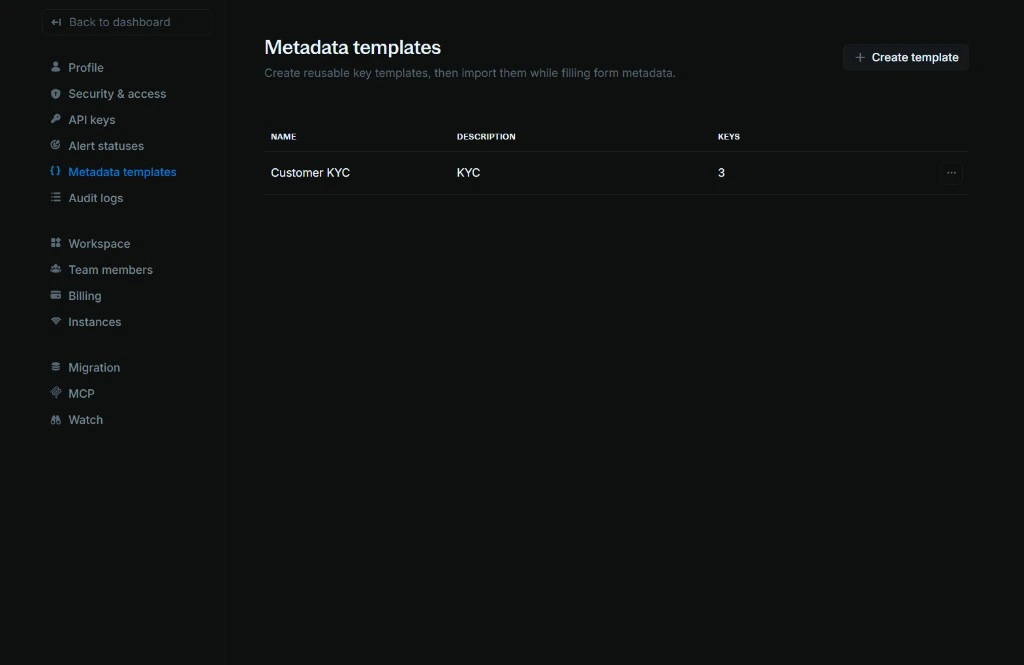 `Note:` You can also edit or delete the template after it's created. Simply click the `Actions` menu (three dots) on the template row and select `Edit` or `Delete`.
***
## Use a metadata template
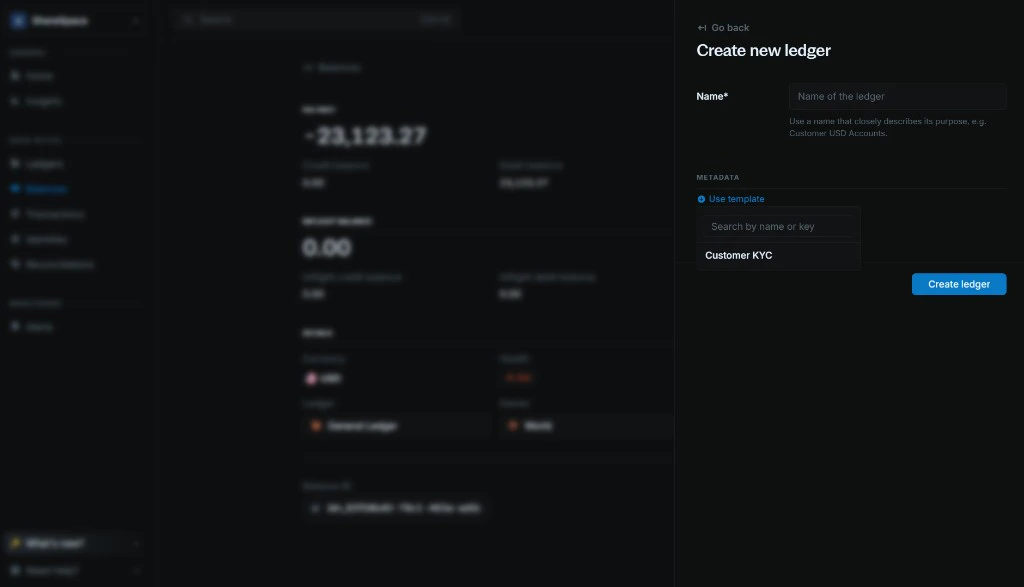
You can use metadata templates on any form that has a metadata section.
To use a template:
1. Click `Use template` to open the template dropdown.
2. Search by template name or key.
3. Select the template you want to use.
4. The template keys are added to the form. Fill in the values for that record.
5. To add another template, click `Use template` again and select another template.
You can also add new metadata keys manually if that specific record needs extra information.
`Note:` You can also edit or delete the template after it's created. Simply click the `Actions` menu (three dots) on the template row and select `Edit` or `Delete`.
***
## Use a metadata template
You can use metadata templates on any form that has a metadata section.
To use a template:
1. Click `Use template` to open the template dropdown.
2. Search by template name or key.
3. Select the template you want to use.
4. The template keys are added to the form. Fill in the values for that record.
5. To add another template, click `Use template` again and select another template.
You can also add new metadata keys manually if that specific record needs extra information.
 ***
## Need help?
We are very happy to help you make the most of Blnk, regardless of whether it is your first time or you are switching from another tool.
To ask questions or discuss issues, please [contact us](mailto:support@blnkfinance.com) or [join our Discord community](https://discord.gg/7WNv94zPpx).
Get dedicated support for architecture reviews, integration planning, ledger workflows, and production deployment.
***
## Need help?
We are very happy to help you make the most of Blnk, regardless of whether it is your first time or you are switching from another tool.
To ask questions or discuss issues, please [contact us](mailto:support@blnkfinance.com) or [join our Discord community](https://discord.gg/7WNv94zPpx).
Get dedicated support for architecture reviews, integration planning, ledger workflows, and production deployment.