> ## Documentation Index
> Fetch the complete documentation index at: https://docs.blnkfinance.com/llms.txt
> Use this file to discover all available pages before exploring further.
# General Ledger
> Learn what a General Ledger is and how to use it.
export const CtaCallout = props => {
const {title, buttonLabel, href, trackingEvent, buttonTarget, rel = "noopener noreferrer", children} = props;
const handleCtaClick = () => {
if (typeof window === "undefined" || !trackingEvent) {
return;
}
try {
window.dispatchEvent(new CustomEvent("blnk:docs-cta", {
detail: {
name: trackingEvent,
href
}
}));
} catch {}
try {
window.posthog?.capture?.(trackingEvent, {
href
});
} catch {}
const gaPayload = {
cta_href: href
};
try {
window.gtag?.("event", trackingEvent, gaPayload);
} catch {}
try {
window.dataLayer = window.dataLayer || [];
window.dataLayer.push({
event: trackingEvent,
...gaPayload
});
} catch {}
};
const isExternal = typeof href === "string" && (/^https?:\/\//i).test(href);
const target = buttonTarget ?? (isExternal ? "_blank" : undefined);
const linkRel = isExternal ? rel : undefined;
return ;
};
The General Ledger is a system-generated ledger that is automatically created for you when your instance is deployed.
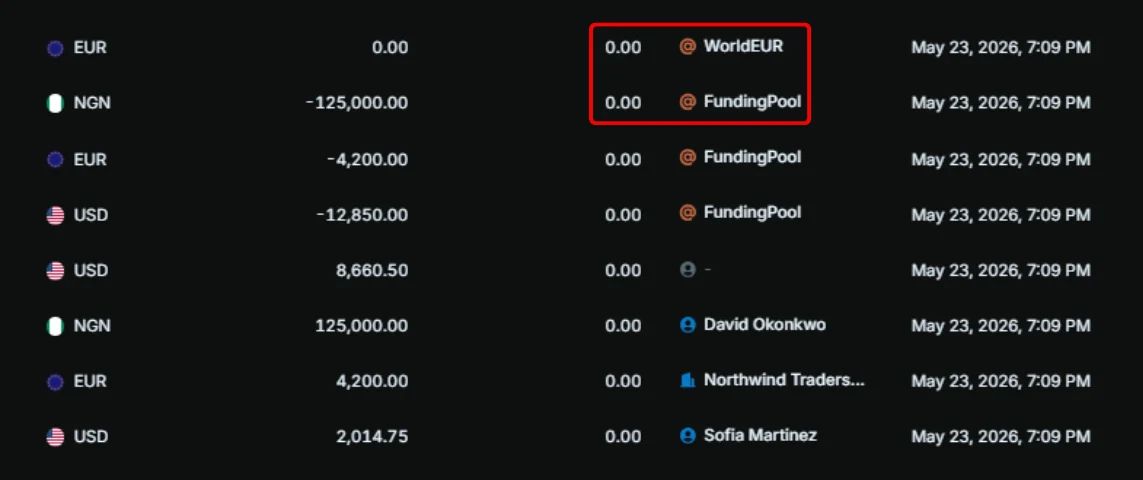
It is best for grouping balances that belong to your organization, e.g., `@Revenue`, `@Fees`, etc.
Balances in the General Ledger are marked with the `@` icon indicator in your `Transactions` and `Balances` tables.
 For how the General Ledger works in Blnk, see the [general ledger guide](/ledgers/general-ledger).
***
## Create general ledger balances
To create a balance in the General Ledger with the `@` indicator:
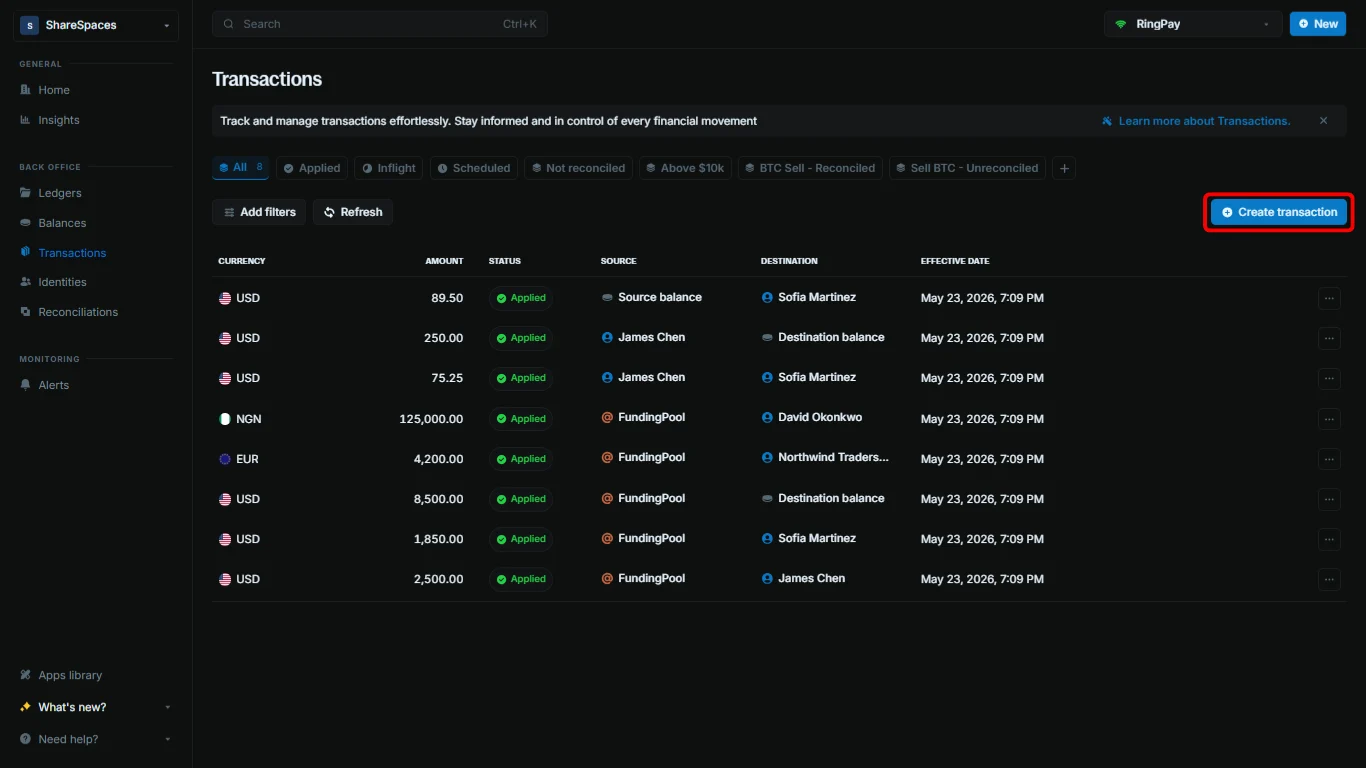
Go to `Transactions`. Click `Create transaction`, or press `⌥ + T` (`Alt + T` for Windows).
For how the General Ledger works in Blnk, see the [general ledger guide](/ledgers/general-ledger).
***
## Create general ledger balances
To create a balance in the General Ledger with the `@` indicator:
Go to `Transactions`. Click `Create transaction`, or press `⌥ + T` (`Alt + T` for Windows).
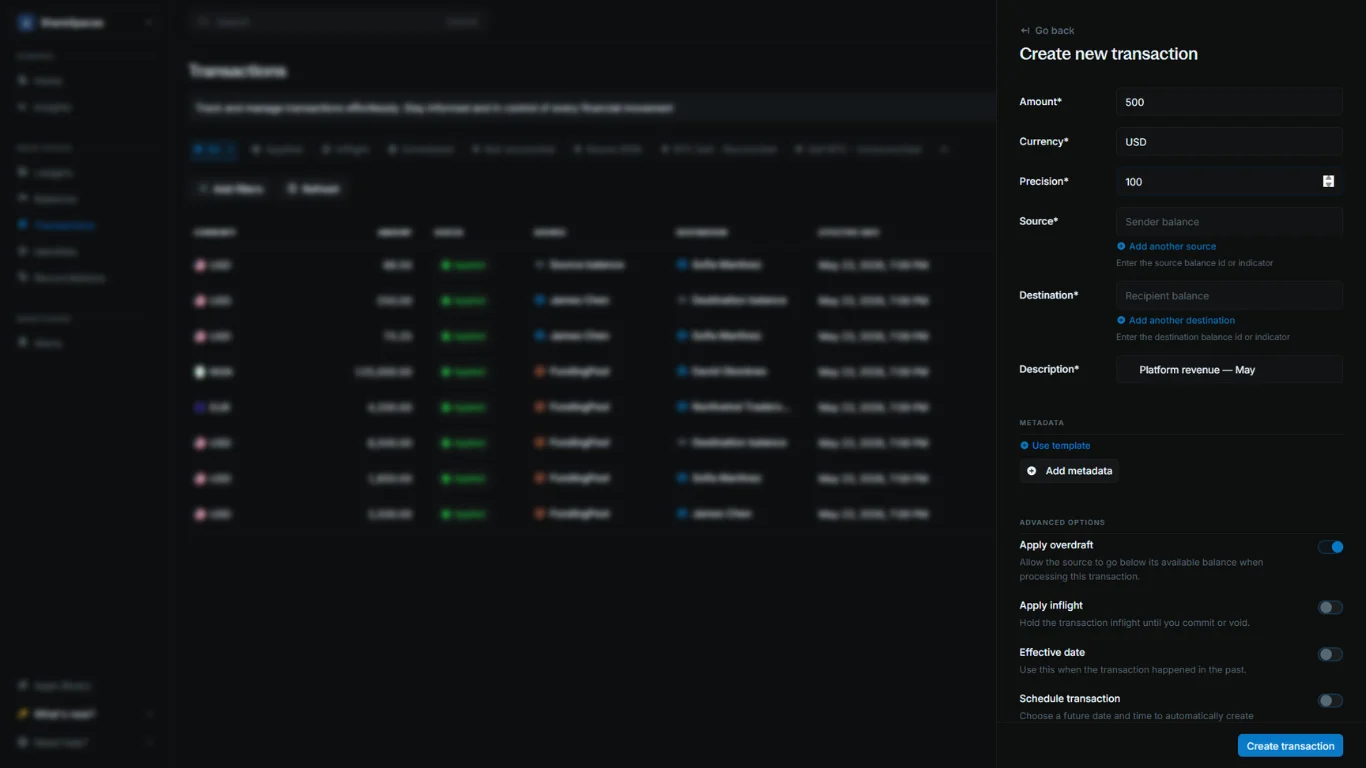
 * `Amount`: The amount of the transaction.
* `Currency`: The currency the transaction will use.
* `Precision`: The multiplier that converts the amount into the currency's smallest unit.
* `Description`: A short note describing the purpose of the transaction.
Blnk Cloud automatically generates a reference number for the transaction.
* `Amount`: The amount of the transaction.
* `Currency`: The currency the transaction will use.
* `Precision`: The multiplier that converts the amount into the currency's smallest unit.
* `Description`: A short note describing the purpose of the transaction.
Blnk Cloud automatically generates a reference number for the transaction.
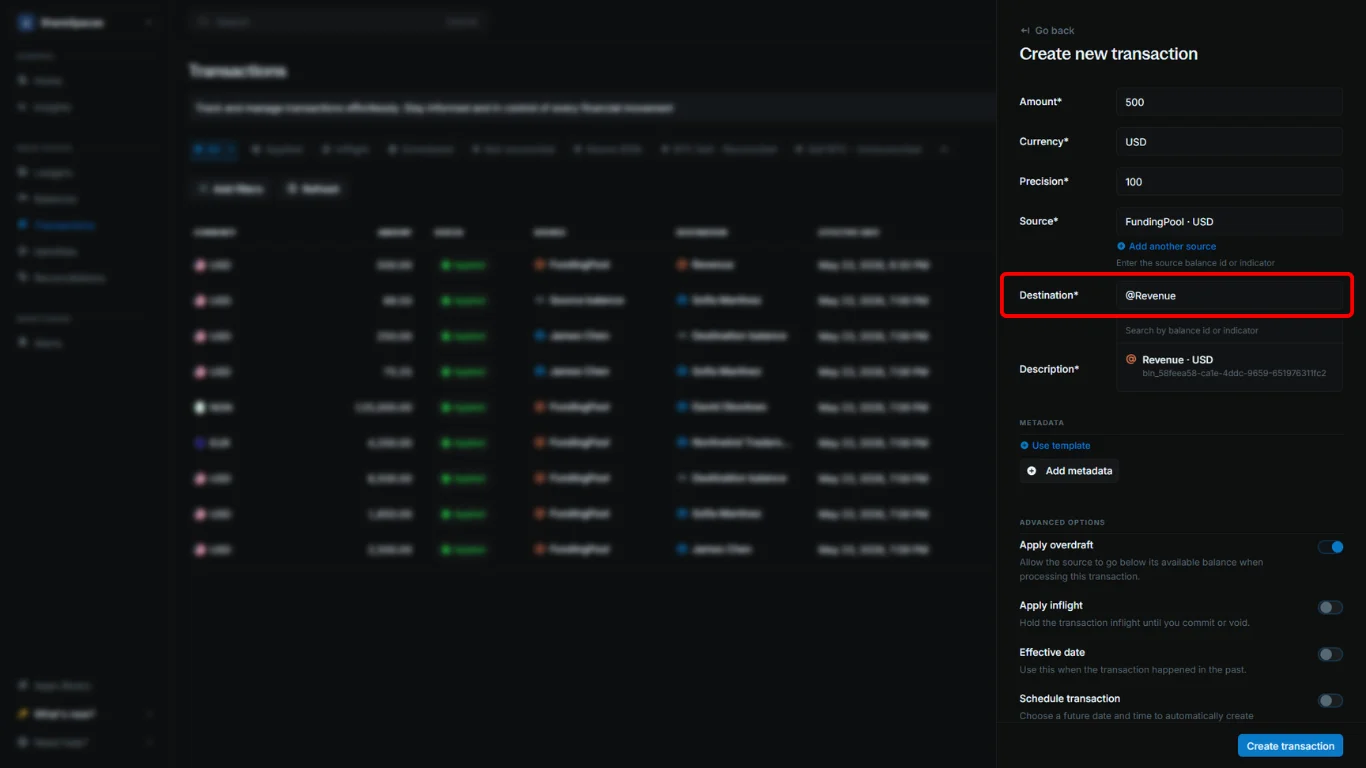
 In `Source` or `Destination`, enter an indicator instead of a balance ID. For example, enter `@Revenue` in `Destination` to create a revenue balance.
 Click `Create transaction` to complete.
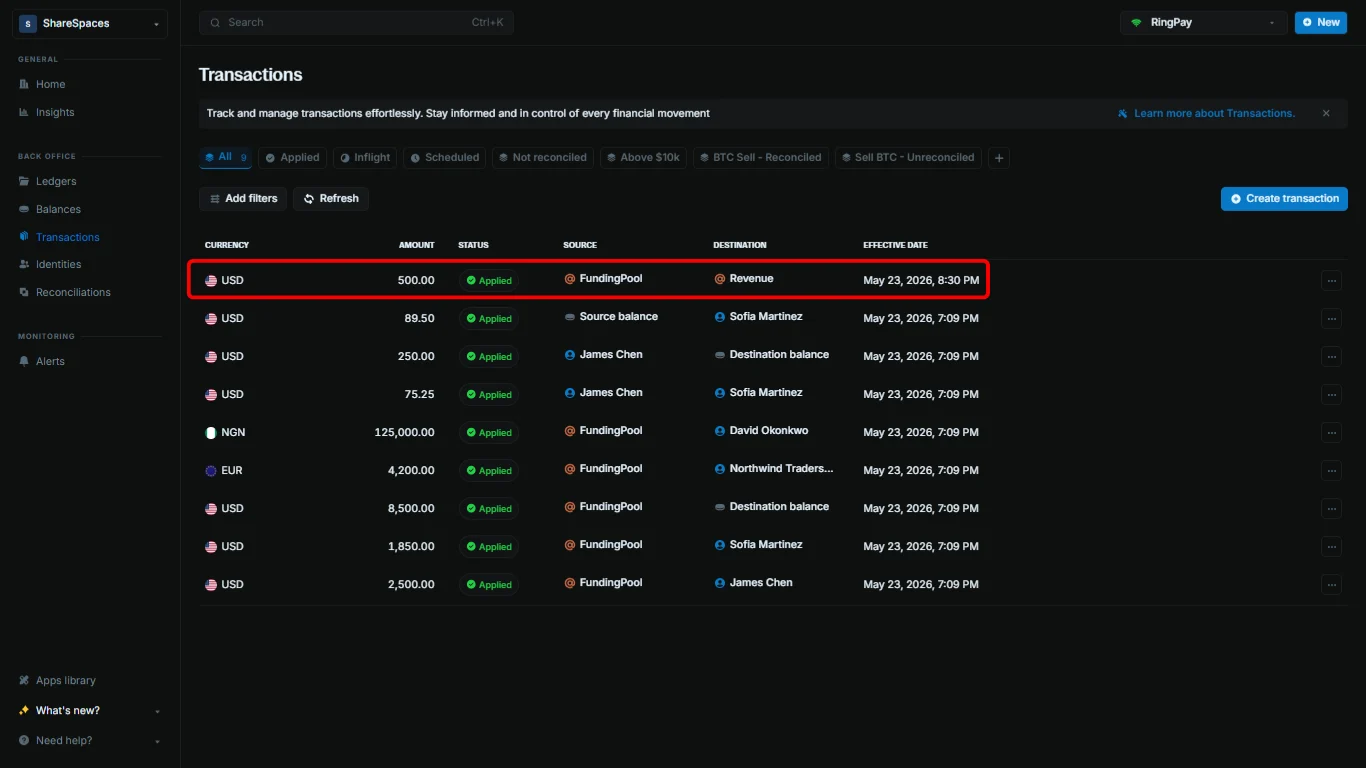 Blnk checks if a balance exists with the given indicator. If it does, it creates a transaction to the balance.
If it doesn't, the balance is automatically created in your General Ledger with the given indicator and the transaction is mapped to it.
Suggested values for a new `@Revenue` balance: Amount `500.00`, Currency `USD`, Precision `100`, Source `@FundingPool`, Destination `@Revenue`, Description `Platform revenue - May`. Enable `Apply overdraft` on the source if the balance has insufficient funds.
***
## Need help?
We are very happy to help you make the most of Blnk, regardless of whether it is your first time or you are switching from another tool.
To ask questions or discuss issues, please [contact us](mailto:support@blnkfinance.com) or [join our Discord community](https://discord.gg/7WNv94zPpx).
Get dedicated support for architecture reviews, integration planning, ledger workflows, and production deployment.
Blnk checks if a balance exists with the given indicator. If it does, it creates a transaction to the balance.
If it doesn't, the balance is automatically created in your General Ledger with the given indicator and the transaction is mapped to it.
Suggested values for a new `@Revenue` balance: Amount `500.00`, Currency `USD`, Precision `100`, Source `@FundingPool`, Destination `@Revenue`, Description `Platform revenue - May`. Enable `Apply overdraft` on the source if the balance has insufficient funds.
***
## Need help?
We are very happy to help you make the most of Blnk, regardless of whether it is your first time or you are switching from another tool.
To ask questions or discuss issues, please [contact us](mailto:support@blnkfinance.com) or [join our Discord community](https://discord.gg/7WNv94zPpx).
Get dedicated support for architecture reviews, integration planning, ledger workflows, and production deployment.