> ## Documentation Index
> Fetch the complete documentation index at: https://docs.blnkfinance.com/llms.txt
> Use this file to discover all available pages before exploring further.
# MCP
> Connect to Blnk MCP to interact with your core data directly from AI assistants.
export const CtaCallout = props => {
const {title, buttonLabel, href, trackingEvent, buttonTarget, rel = "noopener noreferrer", children} = props;
const handleCtaClick = () => {
if (typeof window === "undefined" || !trackingEvent) {
return;
}
try {
window.dispatchEvent(new CustomEvent("blnk:docs-cta", {
detail: {
name: trackingEvent,
href
}
}));
} catch {}
try {
window.posthog?.capture?.(trackingEvent, {
href
});
} catch {}
const gaPayload = {
cta_href: href
};
try {
window.gtag?.("event", trackingEvent, gaPayload);
} catch {}
try {
window.dataLayer = window.dataLayer || [];
window.dataLayer.push({
event: trackingEvent,
...gaPayload
});
} catch {}
};
const isExternal = typeof href === "string" && (/^https?:\/\//i).test(href);
const target = buttonTarget ?? (isExternal ? "_blank" : undefined);
const linkRel = isExternal ? rel : undefined;
return ;
};
Use Blnk's MCP (Model Context Protocol) to interact with your Blnk Core & Cloud workspace directly from AI assistants like Cursor, Claude Desktop, ChatGPT, and other MCP-compatible tools.
For endpoint details, authentication, protocol methods, and tool reference, see the [MCP server API reference](/cloud/reference/mcp).
**Architecture and security:** AI does not have direct access to your Core. All communication flows through Blnk Cloud, which securely connects to your Core and ensures proper security, validation, and access control.
You can authenticate MCP requests using either an API key or OAuth credentials. Both must have `mcp:read` and/or `mcp:write` scopes to use MCP functionality.
* **`mcp:read`**: Allows read-only access to your data through MCP
* **`mcp:write`**: Allows read and write access to your data through MCP
For most use cases, you'll want both `mcp:read` and `mcp:write` scopes to fully interact with your Blnk data.
***
## Your MCP endpoint
Your Blnk MCP endpoint follows this structure. Your MCP endpoint is automatically generated from the Blnk Core instance currently open in your Blnk Cloud workspace.
```
https://api.cloud.blnkfinance.com/mcp/{instance_id}
```
***
## Setting up your MCP
Choose either an API key or OAuth credentials for authentication. Both require MCP scopes: `mcp:read` and `mcp:write`.
Create an API key with MCP scopes.
You can create API keys in [Settings > API Keys](/cloud/auth/api-keys/#create-an-api-key) in your Blnk dashboard.
Create OAuth client credentials with MCP scopes.
You can create OAuth clients in [Settings > API Keys](/cloud/auth/oauth/#create-an-oauth-client) in your Blnk dashboard. Select `OAuth` as the type when creating.
Go to `Settings > MCP` to get your MCP endpoint URL and copy the configuration to use in your app.
Copy this configuration using your API key:
```json wrap theme={"system"}
{
"mcpServers": {
"blnk": {
"url": "https://api.cloud.blnkfinance.com/mcp/YOUR_INSTANCE_ID",
"headers": {
"Authorization": "Bearer YOUR_API_KEY"
}
}
}
}
```
Copy your MCP endpoint URL:
```
https://api.cloud.blnkfinance.com/mcp/YOUR_INSTANCE_ID
```
For OAuth authentication, you only need the MCP endpoint URL. Your OAuth Client ID and Client Secret will be used for authentication.
Add the configuration to your MCP-compatible tool:
To add this configuration in Cursor:
1. Open Cursor Settings
2. Navigate to `Features > MCP Servers`
3. Click `Add Server`
4. Paste the configuration from the previous step (full JSON for API keys, or endpoint URL for OAuth)
Add the configuration from the previous step to your `claude_desktop_config.json` file (full JSON for API keys, or endpoint URL for OAuth):
```bash MacOS wrap theme={"system"}
~/Library/Application Support/Claude/claude_desktop_config.json
```
```bash Windows wrap theme={"system"}
%APPDATA%\Claude\claude_desktop_config.json
```
1. Go to `Settings > Apps.`
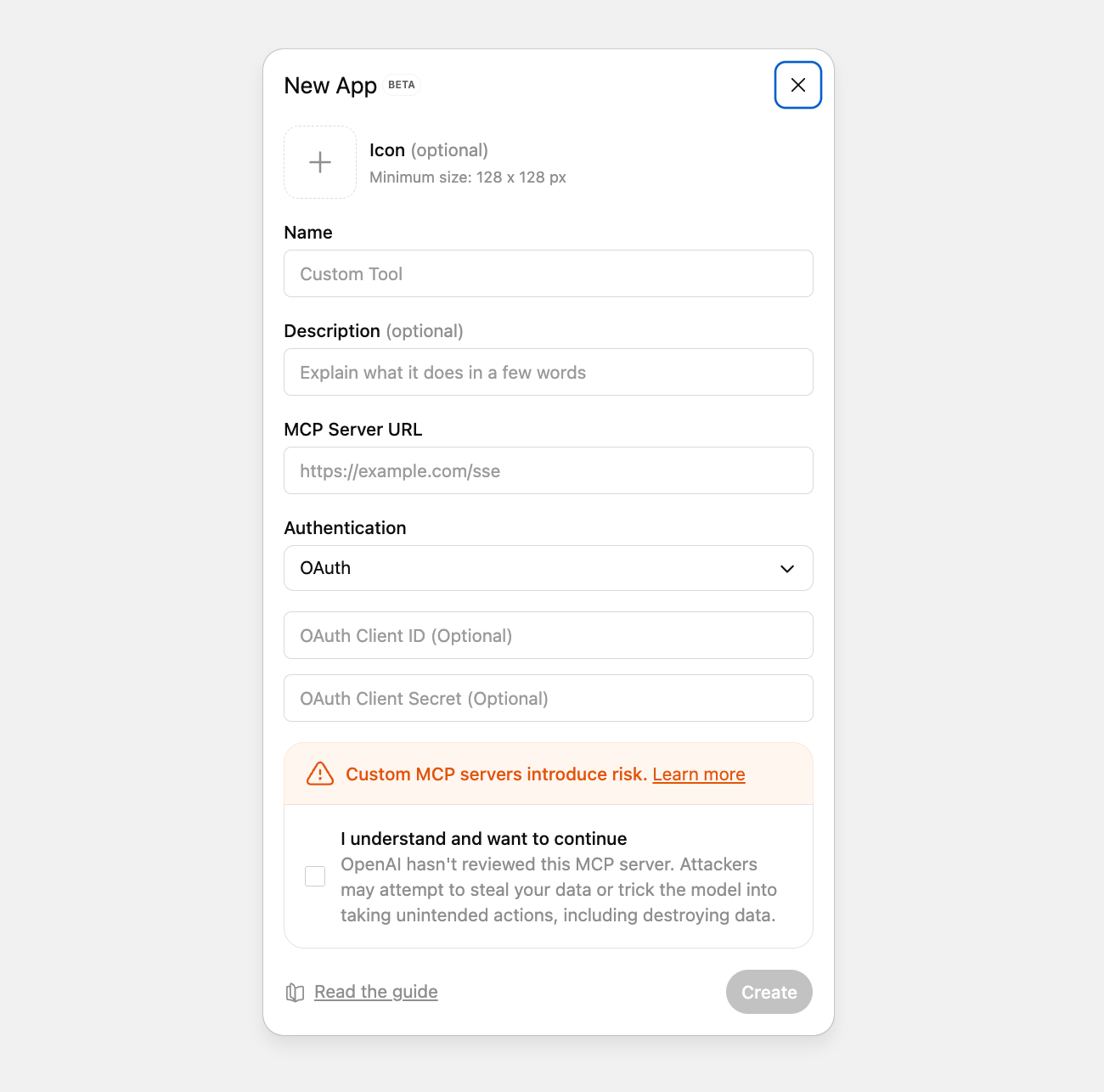 2. Open `Advanced settings` and enable `Developer mode`.
3. Click on the `Create app` button to start configuring your MCP.
4. Fill in the app details
* **Name:** Use a clear name like Blnk MCP.
* **MCP Server URL:** Paste the MCP endpoint URL from the previous step.
* `Authentication type:` Select OAuth, then enter your Client ID and Client Secret.
5. Click `Create` to save the app.
6. You'll be redirected to sign in with **Blnk Cloud.**
7. After successful login, you'll return to ChatGPT with your MCP app fully configured.
You can now chat directly with your ledger to query, explore, and interact with your Blnk data.
***
## What you can ask your AI assistant
1. **Monitor activity**
* "Show me all transactions from the last 24 hours"
* "What changed since yesterday?"
2. **Check balances**
* "What is the current balance for wallet bln\_wallet\_456?"
* "Show me all negative or low balances"
3. **Investigate issues**
* "Find failed or voided transactions"
* "Get the transaction with reference order\_456"
4. `Review large movements`
* "Show all USD transactions over \$5,000"
* "List unusually large transactions today"
5. **Answer operational questions**
* "How much money moved today?"
* "What is the total balance across all customer wallets?"
***
## Supported tools
Blnk MCP provides 33 tools total across 7 categories for interacting with your data.
* `create_ledger` - Create a new ledger for organizing balances
* **`get_ledger`** - Retrieve ledger details by ID
* **`list_ledgers`** - List all ledgers
* `create_balance` - Create a balance within a ledger
* **`get_balance`** - Retrieve balance details and current amounts by ID
* **`list_balances`** - List all balances
* **`record_transaction`** - Record a transaction between two balances
* **`get_transaction`** - Get a transaction by ID
* **`get_transaction_by_reference`** - Get a transaction by its unique reference
* **`commit_inflight`** - Commit an inflight transaction to finalize it
* **`void_inflight`** - Void an inflight transaction to cancel it
* `refund_transaction` - Create a refund for a transaction
* **`schedule_transaction`** - Schedule a transaction for future execution
* **`bulk_transactions`** - Process multiple transactions at once
* `create_identity` - Create a new identity (individual or organization)
* **`get_identity`** - Retrieve identity details by ID
* **`list_identities`** - List all identities
* **`update_identity`** - Update an existing identity
* `delete_identity` - Delete an identity
* `create_view` - Create a saved view (reusable filter configuration)
* `list_views` - List all saved views
* `get_view` - Retrieve a saved view by ID
* `update_view` - Update an existing saved view
* `delete_view` - Delete a saved view
* `create_visualization` - Create a new visualization
* **`list_visualizations`** - List all visualizations
* **`get_visualization_data`** - Execute a saved visualization and get chart data
* `delete_visualization` - Delete a visualization
* **`search`** - Search across entities (transactions, ledgers, balances, identities)
* **`query_transactions`** - Query transactions with advanced filters
* **`query_balances`** - Query balances with advanced filters
* **`query_ledgers`** - Query ledgers with advanced filters
* **`query_identities`** - Query identities with advanced filters
***
## Need help?
We are very happy to help you make the most of Blnk, regardless of whether it is your first time or you are switching from another tool.
To ask questions or discuss issues, please [contact us](mailto:support@blnkfinance.com) or [join our Discord community](https://discord.gg/7WNv94zPpx).
Get dedicated support for architecture reviews, integration planning, ledger workflows, and production deployment.
2. Open `Advanced settings` and enable `Developer mode`.
3. Click on the `Create app` button to start configuring your MCP.
4. Fill in the app details
* **Name:** Use a clear name like Blnk MCP.
* **MCP Server URL:** Paste the MCP endpoint URL from the previous step.
* `Authentication type:` Select OAuth, then enter your Client ID and Client Secret.
5. Click `Create` to save the app.
6. You'll be redirected to sign in with **Blnk Cloud.**
7. After successful login, you'll return to ChatGPT with your MCP app fully configured.
You can now chat directly with your ledger to query, explore, and interact with your Blnk data.
***
## What you can ask your AI assistant
1. **Monitor activity**
* "Show me all transactions from the last 24 hours"
* "What changed since yesterday?"
2. **Check balances**
* "What is the current balance for wallet bln\_wallet\_456?"
* "Show me all negative or low balances"
3. **Investigate issues**
* "Find failed or voided transactions"
* "Get the transaction with reference order\_456"
4. `Review large movements`
* "Show all USD transactions over \$5,000"
* "List unusually large transactions today"
5. **Answer operational questions**
* "How much money moved today?"
* "What is the total balance across all customer wallets?"
***
## Supported tools
Blnk MCP provides 33 tools total across 7 categories for interacting with your data.
* `create_ledger` - Create a new ledger for organizing balances
* **`get_ledger`** - Retrieve ledger details by ID
* **`list_ledgers`** - List all ledgers
* `create_balance` - Create a balance within a ledger
* **`get_balance`** - Retrieve balance details and current amounts by ID
* **`list_balances`** - List all balances
* **`record_transaction`** - Record a transaction between two balances
* **`get_transaction`** - Get a transaction by ID
* **`get_transaction_by_reference`** - Get a transaction by its unique reference
* **`commit_inflight`** - Commit an inflight transaction to finalize it
* **`void_inflight`** - Void an inflight transaction to cancel it
* `refund_transaction` - Create a refund for a transaction
* **`schedule_transaction`** - Schedule a transaction for future execution
* **`bulk_transactions`** - Process multiple transactions at once
* `create_identity` - Create a new identity (individual or organization)
* **`get_identity`** - Retrieve identity details by ID
* **`list_identities`** - List all identities
* **`update_identity`** - Update an existing identity
* `delete_identity` - Delete an identity
* `create_view` - Create a saved view (reusable filter configuration)
* `list_views` - List all saved views
* `get_view` - Retrieve a saved view by ID
* `update_view` - Update an existing saved view
* `delete_view` - Delete a saved view
* `create_visualization` - Create a new visualization
* **`list_visualizations`** - List all visualizations
* **`get_visualization_data`** - Execute a saved visualization and get chart data
* `delete_visualization` - Delete a visualization
* **`search`** - Search across entities (transactions, ledgers, balances, identities)
* **`query_transactions`** - Query transactions with advanced filters
* **`query_balances`** - Query balances with advanced filters
* **`query_ledgers`** - Query ledgers with advanced filters
* **`query_identities`** - Query identities with advanced filters
***
## Need help?
We are very happy to help you make the most of Blnk, regardless of whether it is your first time or you are switching from another tool.
To ask questions or discuss issues, please [contact us](mailto:support@blnkfinance.com) or [join our Discord community](https://discord.gg/7WNv94zPpx).
Get dedicated support for architecture reviews, integration planning, ledger workflows, and production deployment.