> ## Documentation Index
> Fetch the complete documentation index at: https://docs.blnkfinance.com/llms.txt
> Use this file to discover all available pages before exploring further.
# IP Whitelisting
> Learn how to control inbound access to managed Core instances and how to allow Blnk Cloud to reach self-hosted Core or databases on private networks.
export const CtaCallout = props => {
const {title, buttonLabel, href, trackingEvent, buttonTarget, rel = "noopener noreferrer", children} = props;
const handleCtaClick = () => {
if (typeof window === "undefined" || !trackingEvent) {
return;
}
try {
window.dispatchEvent(new CustomEvent("blnk:docs-cta", {
detail: {
name: trackingEvent,
href
}
}));
} catch {}
try {
window.posthog?.capture?.(trackingEvent, {
href
});
} catch {}
const gaPayload = {
cta_href: href
};
try {
window.gtag?.("event", trackingEvent, gaPayload);
} catch {}
try {
window.dataLayer = window.dataLayer || [];
window.dataLayer.push({
event: trackingEvent,
...gaPayload
});
} catch {}
};
const isExternal = typeof href === "string" && (/^https?:\/\//i).test(href);
const target = buttonTarget ?? (isExternal ? "_blank" : undefined);
const linkRel = isExternal ? rel : undefined;
return ;
};
IP whitelisting in Blnk Cloud covers two directions of network traffic. Depending on how your Core is hosted, you may need to configure one, the other, or both:
* **Inbound whitelisting (managed instances):** Control which IP addresses can connect *into* your deployed Core instance on Blnk Cloud.
* **Outbound whitelisting (self-hosted instances):** Allow Blnk Cloud's IP addresses to reach your *self-hosted* Core or database that sits behind a private network or firewall.
Common reasons to use IP whitelisting:
* **Access control:** Prevent unauthorized access from unknown sources.
* **Compliance:** Meet security requirements for sensitive financial applications.
* **Network isolation:** Ensure only your applications and services can connect to your Core.
***
## Managed instances: control inbound access
For Core instances deployed on Blnk Cloud, you can restrict which IP addresses are allowed to make requests to your instance.
When IP whitelisting is enabled, only the IPs you specify can reach your Core. By default, Blnk Cloud allows connections from any IP address until you configure the whitelist.
To set up whitelisting for your managed instance, follow these steps:
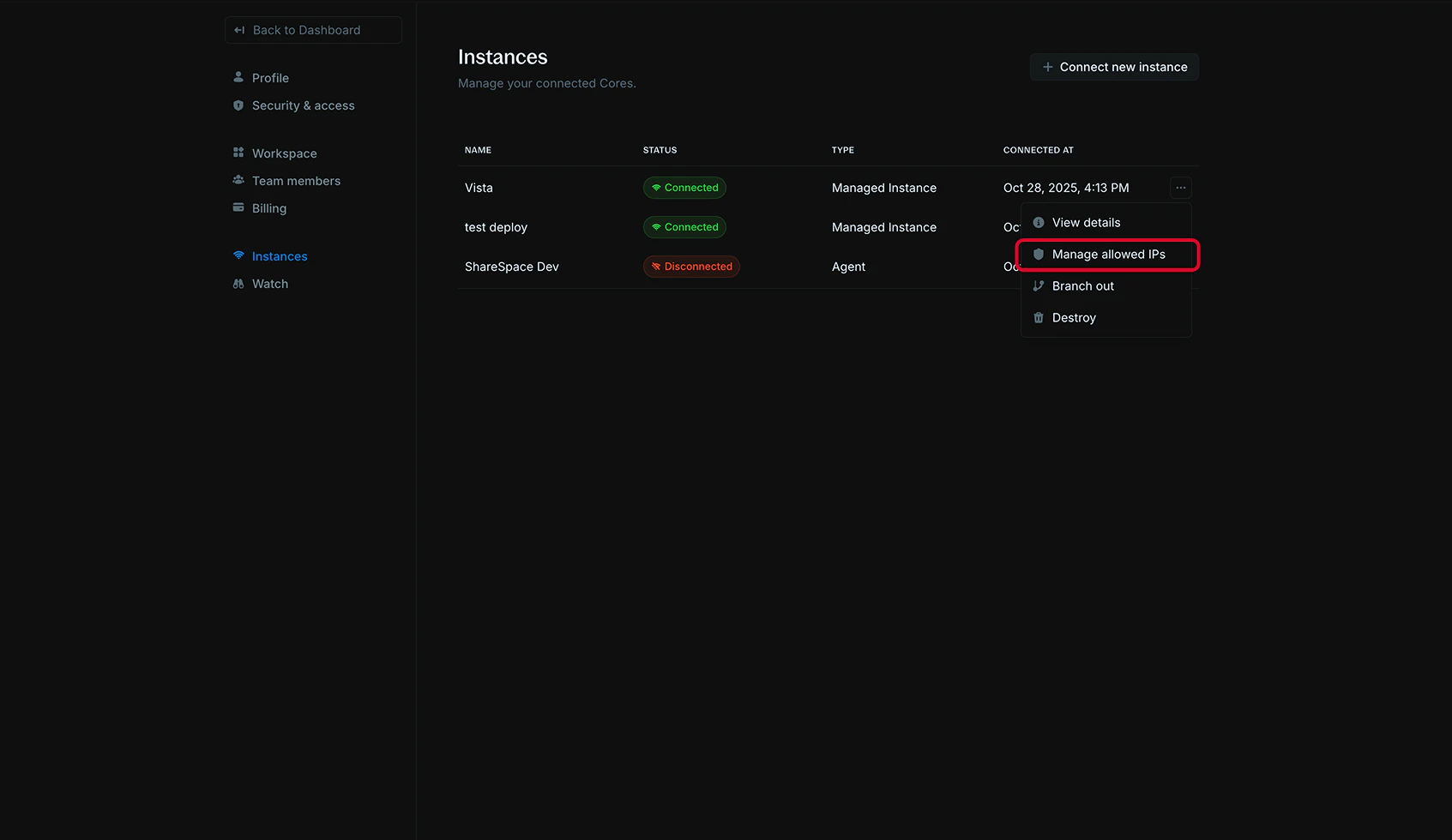
1. In your Blnk Cloud workspace, go to `Settings > Instances`;
2. Find the managed instance you want to configure;
3. Click the actions menu (three dots) next to the instance;
4. Click `Manage allowed IPs`.
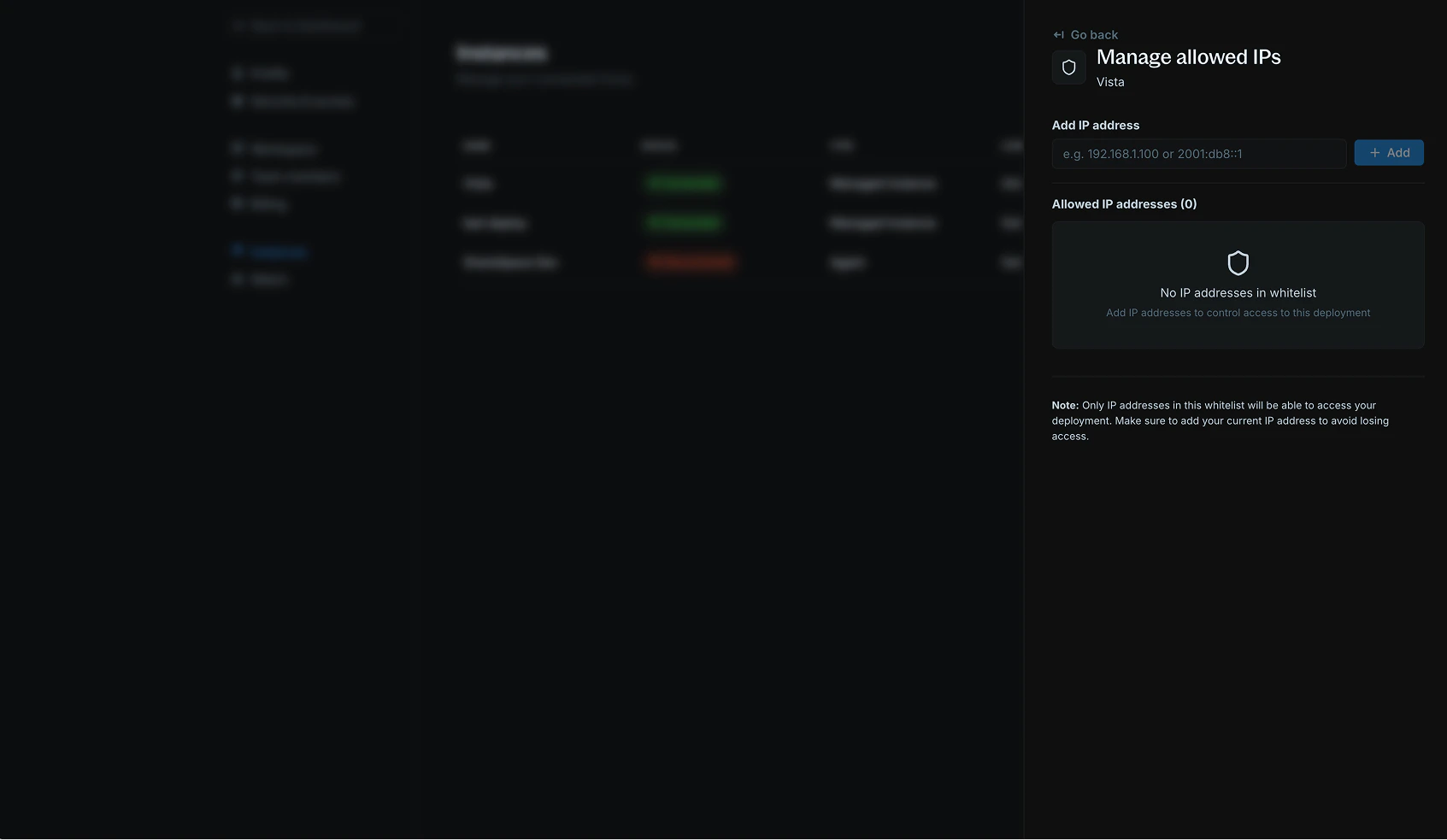
 1. In the `Add IP address` field, enter an IP address:
* IPv4 address: `192.168.1.100`
* IPv6 address: `2001:db8::1`
2. Click `+ Add` to add the IP to your whitelist.
1. In the `Add IP address` field, enter an IP address:
* IPv4 address: `192.168.1.100`
* IPv6 address: `2001:db8::1`
2. Click `+ Add` to add the IP to your whitelist.
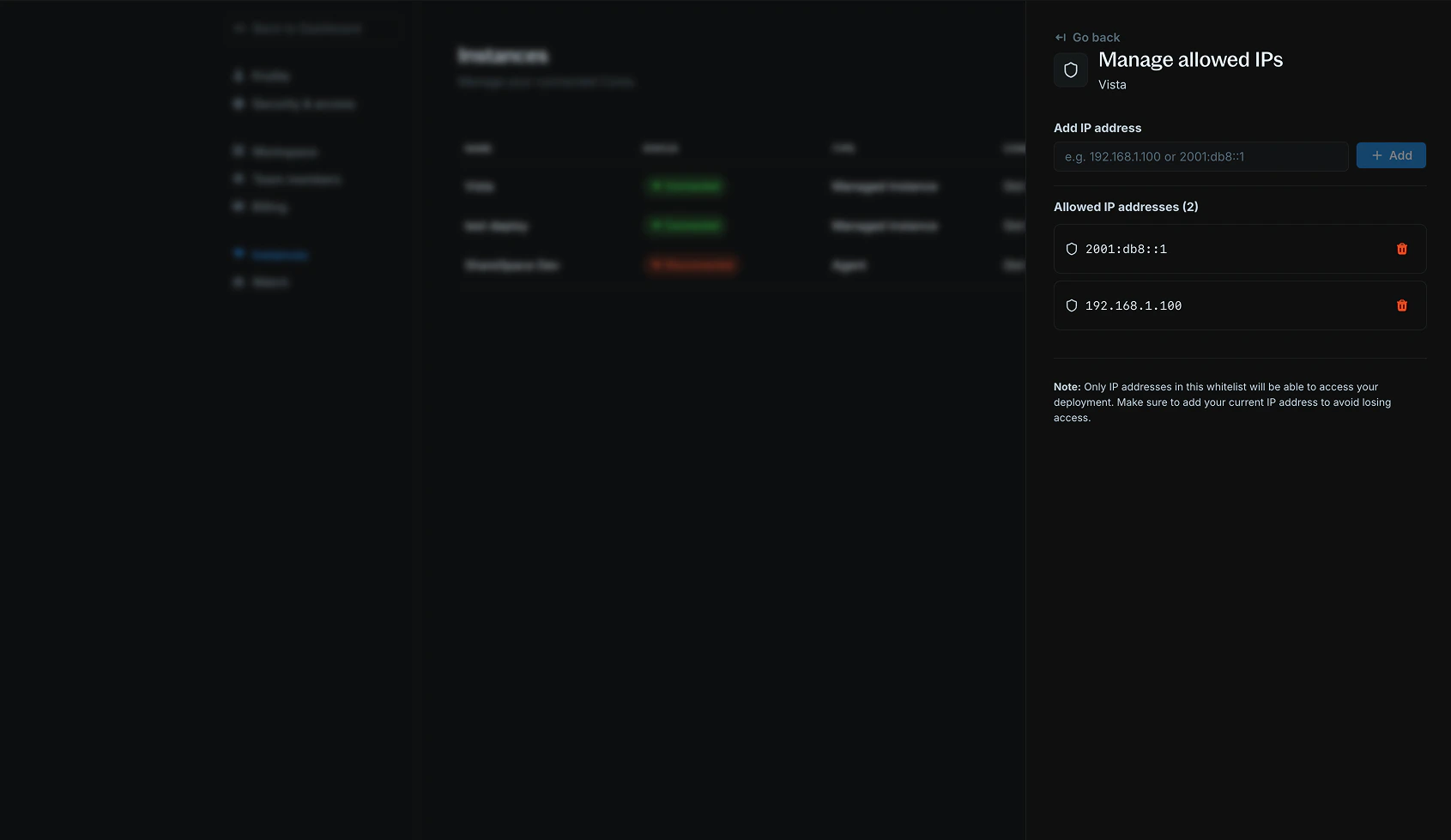
 Your whitelisted IP addresses appear in the **Allowed IP addresses** section. You can:
* View all currently whitelisted IPs;
* Remove IPs by clicking the trash icon next to any address;
* Add additional IPs as needed.
Your whitelisted IP addresses appear in the **Allowed IP addresses** section. You can:
* View all currently whitelisted IPs;
* Remove IPs by clicking the trash icon next to any address;
* Add additional IPs as needed.
 ***
## Self-hosted instances: allow Blnk Cloud to reach your Core
If you are connecting a [self-hosted Core](/cloud/instances/create) to Blnk Cloud, or pointing Cloud at a database that sits behind a private network or firewall, you must whitelist Blnk Cloud's outbound IP addresses so Cloud can reach your infrastructure.
Add the following IPs to your firewall, security group, or VPC ingress rules:
| IP address | Purpose |
| ---------------- | ----------------- |
| `161.35.166.95` | Blnk Cloud egress |
| `161.35.171.250` | Blnk Cloud egress |
You should whitelist our IPs when:
* `Self-hosted Core URL on a private network:` When the `Core URL` set on your instance isn't open to the public internet, allow these IPs through your firewall so Cloud can communicate with your ledger.
* **Database access during migration:** When [migrating data](/cloud/instances/migration) to or from an external PostgreSQL database that isn't publicly accessible, allow these IPs to reach your database host.
If your Core or database is locally hosted and you don't want to expose it on a private network, use a tunnel service like ngrok (for example, `ngrok http 5001`) to create a temporary public URL for testing.
Without whitelisting these IPs, Blnk Cloud cannot reach your self-hosted Core or external database, and connection or migration attempts will fail.
***
## Need help?
We are very happy to help you make the most of Blnk, regardless of whether it is your first time or you are switching from another tool.
To ask questions or discuss issues, please [contact us](mailto:support@blnkfinance.com) or [join our Discord community](https://discord.gg/7WNv94zPpx).
Get dedicated support for architecture reviews, integration planning, ledger workflows, and production deployment.
***
## Self-hosted instances: allow Blnk Cloud to reach your Core
If you are connecting a [self-hosted Core](/cloud/instances/create) to Blnk Cloud, or pointing Cloud at a database that sits behind a private network or firewall, you must whitelist Blnk Cloud's outbound IP addresses so Cloud can reach your infrastructure.
Add the following IPs to your firewall, security group, or VPC ingress rules:
| IP address | Purpose |
| ---------------- | ----------------- |
| `161.35.166.95` | Blnk Cloud egress |
| `161.35.171.250` | Blnk Cloud egress |
You should whitelist our IPs when:
* `Self-hosted Core URL on a private network:` When the `Core URL` set on your instance isn't open to the public internet, allow these IPs through your firewall so Cloud can communicate with your ledger.
* **Database access during migration:** When [migrating data](/cloud/instances/migration) to or from an external PostgreSQL database that isn't publicly accessible, allow these IPs to reach your database host.
If your Core or database is locally hosted and you don't want to expose it on a private network, use a tunnel service like ngrok (for example, `ngrok http 5001`) to create a temporary public URL for testing.
Without whitelisting these IPs, Blnk Cloud cannot reach your self-hosted Core or external database, and connection or migration attempts will fail.
***
## Need help?
We are very happy to help you make the most of Blnk, regardless of whether it is your first time or you are switching from another tool.
To ask questions or discuss issues, please [contact us](mailto:support@blnkfinance.com) or [join our Discord community](https://discord.gg/7WNv94zPpx).
Get dedicated support for architecture reviews, integration planning, ledger workflows, and production deployment.