> ## Documentation Index
> Fetch the complete documentation index at: https://docs.blnkfinance.com/llms.txt
> Use this file to discover all available pages before exploring further.
# Instances
> Learn what instances are and how to manage them in Blnk Cloud.
export const CtaCallout = props => {
const {title, buttonLabel, href, trackingEvent, buttonTarget, rel = "noopener noreferrer", children} = props;
const handleCtaClick = () => {
if (typeof window === "undefined" || !trackingEvent) {
return;
}
try {
window.dispatchEvent(new CustomEvent("blnk:docs-cta", {
detail: {
name: trackingEvent,
href
}
}));
} catch {}
try {
window.posthog?.capture?.(trackingEvent, {
href
});
} catch {}
const gaPayload = {
cta_href: href
};
try {
window.gtag?.("event", trackingEvent, gaPayload);
} catch {}
try {
window.dataLayer = window.dataLayer || [];
window.dataLayer.push({
event: trackingEvent,
...gaPayload
});
} catch {}
};
const isExternal = typeof href === "string" && (/^https?:\/\//i).test(href);
const target = buttonTarget ?? (isExternal ? "_blank" : undefined);
const linkRel = isExternal ? rel : undefined;
return ;
};
Instances are how you connect your Blnk Core to your Blnk Cloud workspace. There are two types of instances you can create on Cloud:
Instance deployed on Blnk Cloud.
Self-hosted instance connected to Cloud.
***
## View instance details
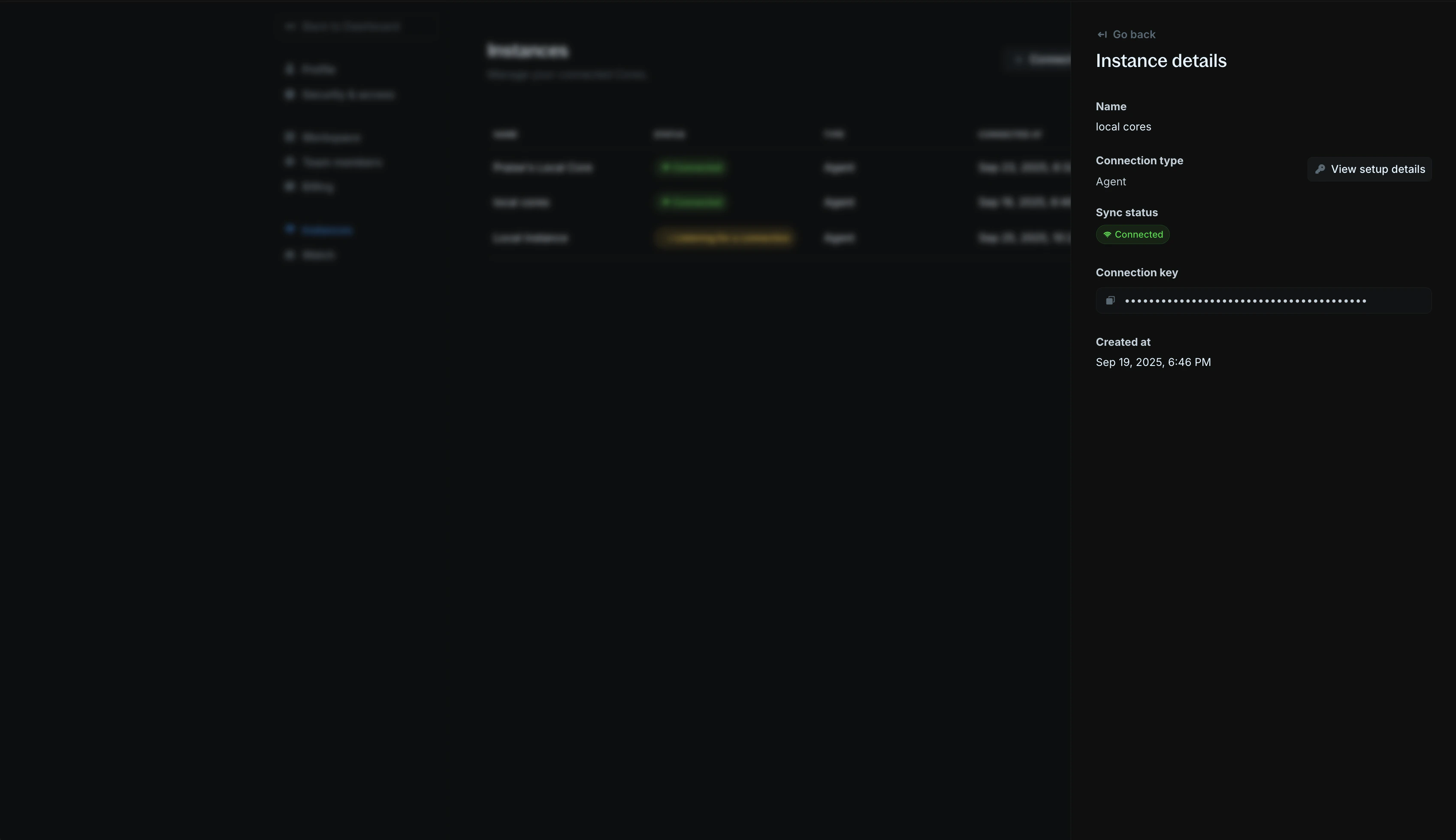
To view instance details, click on an instance in the `Instances` table. You'll see an instance details panel opened on the right side of your screen.
 ***
## Edit instances
To edit an instance, go the `Settings > Instances`, open its actions list and click `Edit instance`. You can change the name, update the Core URL, or the Core secret key.
### Core URL
* Make sure it is publicly accessible on the internet. If locally hosted, use a tunnel service like ngrok: `ngrok http 5001` to create a public URL.
***
## Edit instances
To edit an instance, go the `Settings > Instances`, open its actions list and click `Edit instance`. You can change the name, update the Core URL, or the Core secret key.
### Core URL
* Make sure it is publicly accessible on the internet. If locally hosted, use a tunnel service like ngrok: `ngrok http 5001` to create a public URL.
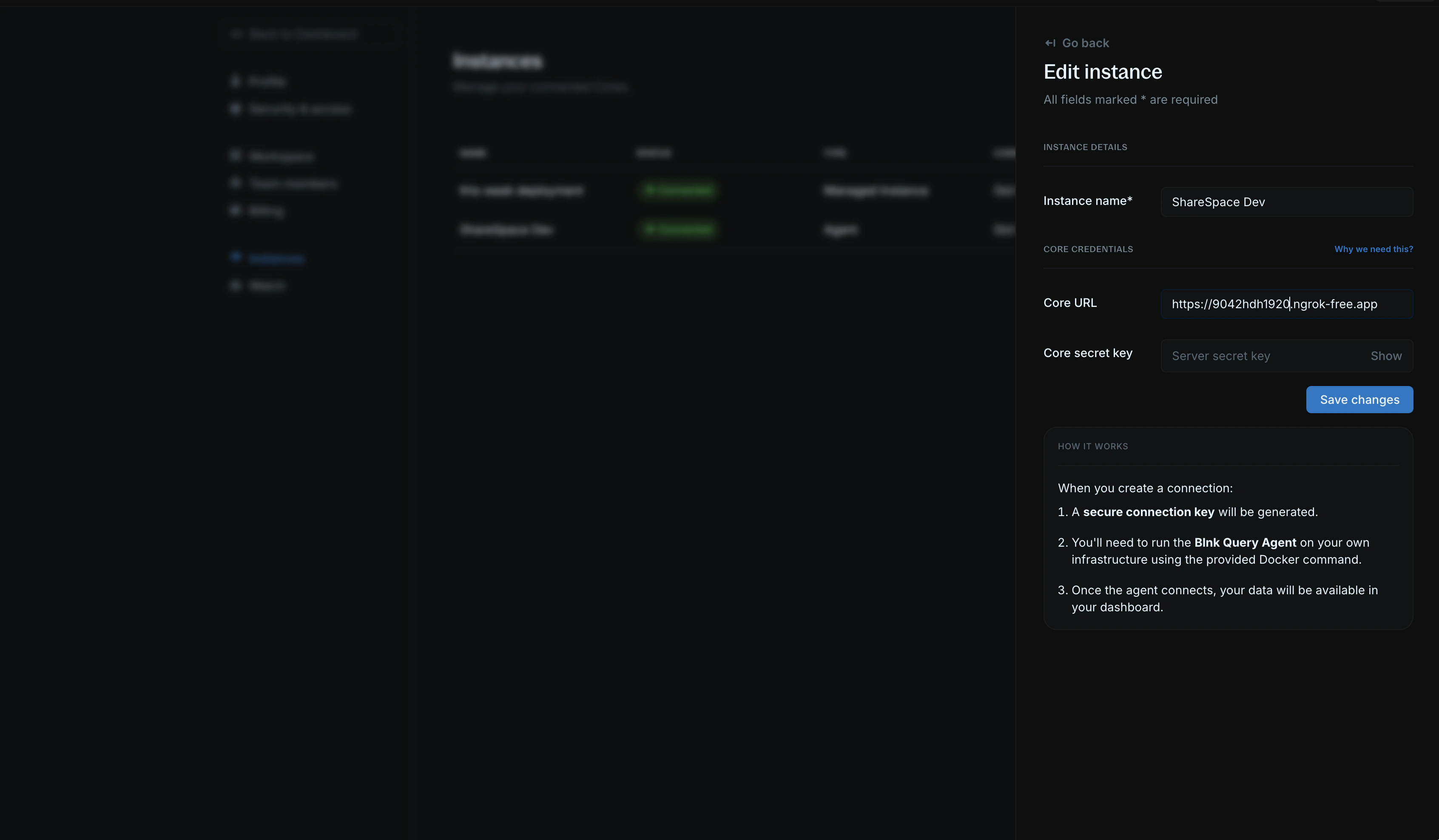 * If hosted on a private network, make sure to whitelist our IP addresses so that Cloud can communicate with your ledger:
* `161.35.166.95`
* `161.35.171.250`
### Core secret key
* This is created and set by you in your Blnk configuration.
* Provide the secret key used/created in your config here. If not set, leave empty.
***
## View Query Agent setup guide
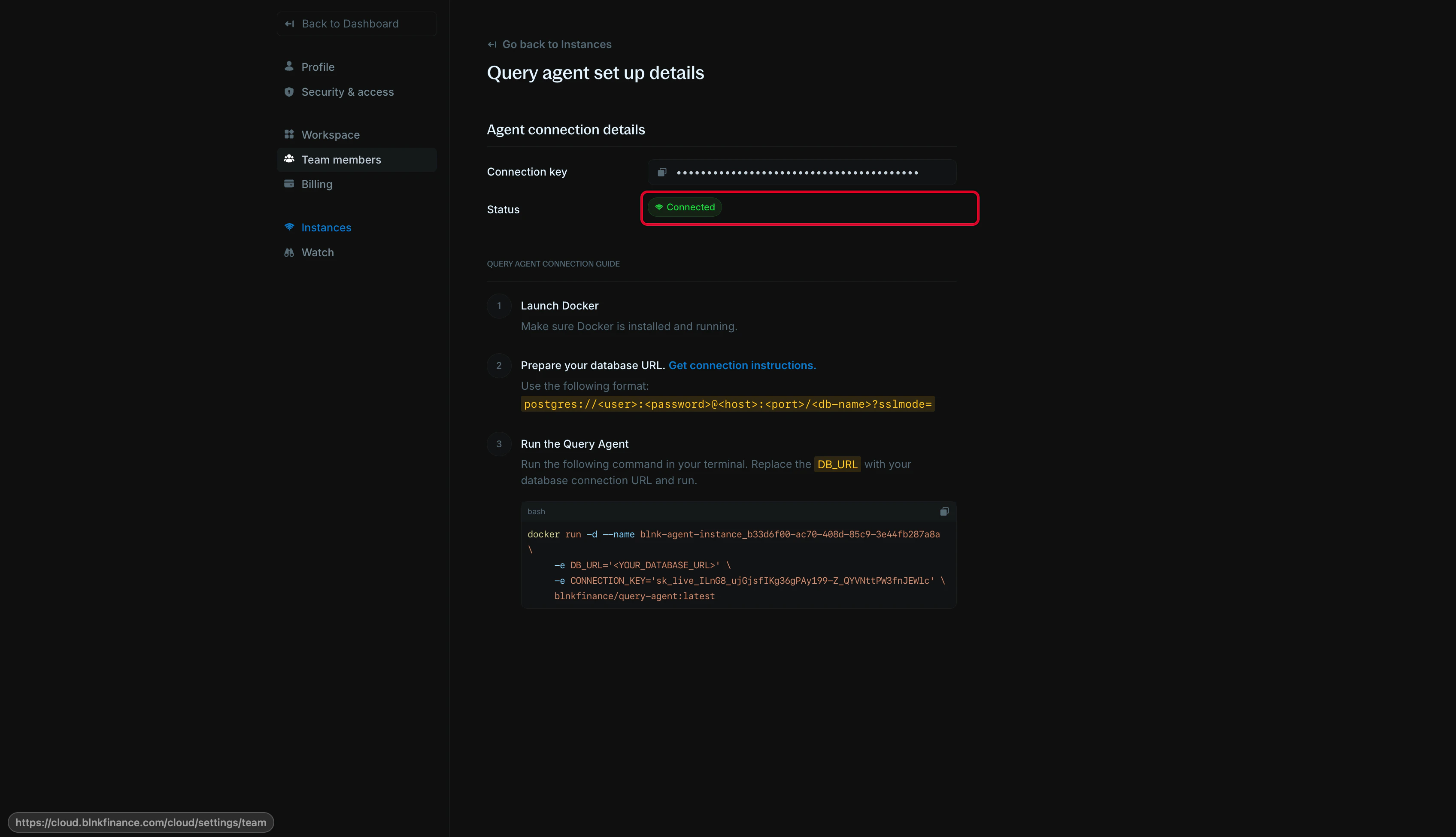
To view the Query Agent setup guide, open the actions list or open the instance details panel and click `View setup details`.
In this page, you'll see your connection details, agent connection key, and other relevant information for setting up your Query Agent.
* If hosted on a private network, make sure to whitelist our IP addresses so that Cloud can communicate with your ledger:
* `161.35.166.95`
* `161.35.171.250`
### Core secret key
* This is created and set by you in your Blnk configuration.
* Provide the secret key used/created in your config here. If not set, leave empty.
***
## View Query Agent setup guide
To view the Query Agent setup guide, open the actions list or open the instance details panel and click `View setup details`.
In this page, you'll see your connection details, agent connection key, and other relevant information for setting up your Query Agent.
 ***
## Remove an instance
To remove an instance, open the actions list and click `Destroy instance` for a managed instance or `Terminate instance` for a self-hosted instance. Follow the instructions in the modal to complete the action.
Please note that this action is irreversible.
***
## Need help?
We are very happy to help you make the most of Blnk, regardless of whether it is your first time or you are switching from another tool.
To ask questions or discuss issues, please [contact us](mailto:support@blnkfinance.com) or [join our Discord community](https://discord.gg/7WNv94zPpx).
Get dedicated support for architecture reviews, integration planning, ledger workflows, and production deployment.
***
## Remove an instance
To remove an instance, open the actions list and click `Destroy instance` for a managed instance or `Terminate instance` for a self-hosted instance. Follow the instructions in the modal to complete the action.
Please note that this action is irreversible.
***
## Need help?
We are very happy to help you make the most of Blnk, regardless of whether it is your first time or you are switching from another tool.
To ask questions or discuss issues, please [contact us](mailto:support@blnkfinance.com) or [join our Discord community](https://discord.gg/7WNv94zPpx).
Get dedicated support for architecture reviews, integration planning, ledger workflows, and production deployment.