;
};
Blnk Cloud requires a running Blnk Core instance to work. You can host your own Core instance or [deploy a managed Core instance from Blnk.](/cloud/instances/deploy)
For self-hosted instances, Blnk uses a Query Agent to establish a connection between your Core instance and Blnk Cloud.
The Query Agent is packaged in a docker container that you run on your machine or infrastructure.
**Using Core v0.12.0 or lower?** To improve speed and performance for your connection, read the [optimization guide below](#performance-optimization-for-core-0-12-1-or-lower).
Using the Query Agent, you get:
* **Enhanced security:** No need to expose database credentials or configure complex firewall rules.
* `Read-only access:` Agent only requires SELECT permissions, ensuring data integrity.
* **Simplified setup:** Eliminates network configuration complexity.
* **Reliable connection:** Automatic reconnection and health monitoring.
***
## Connect your self-hosted Core
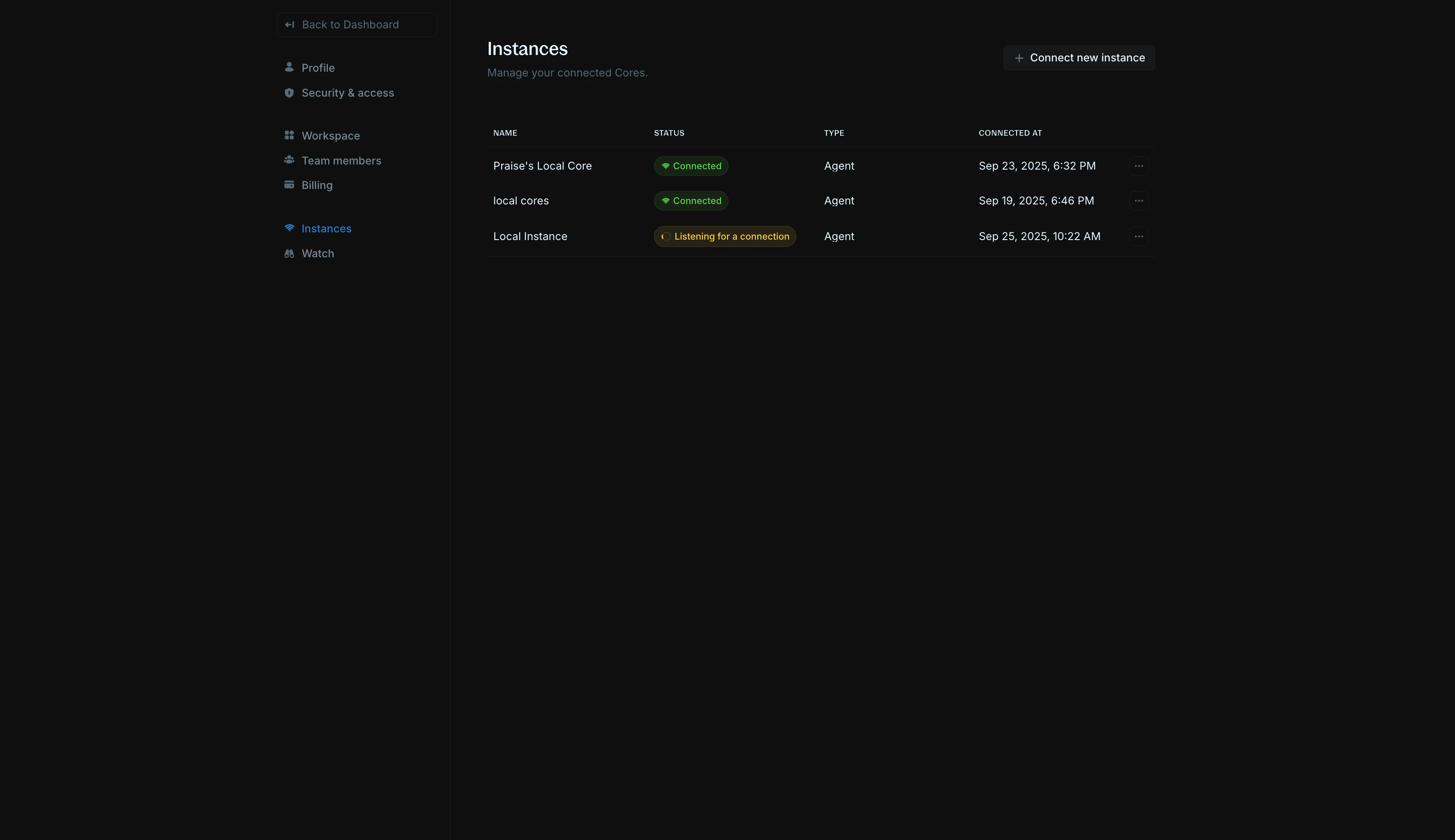
1. In your Blnk Cloud workspace, go to `Settings > Instances`;
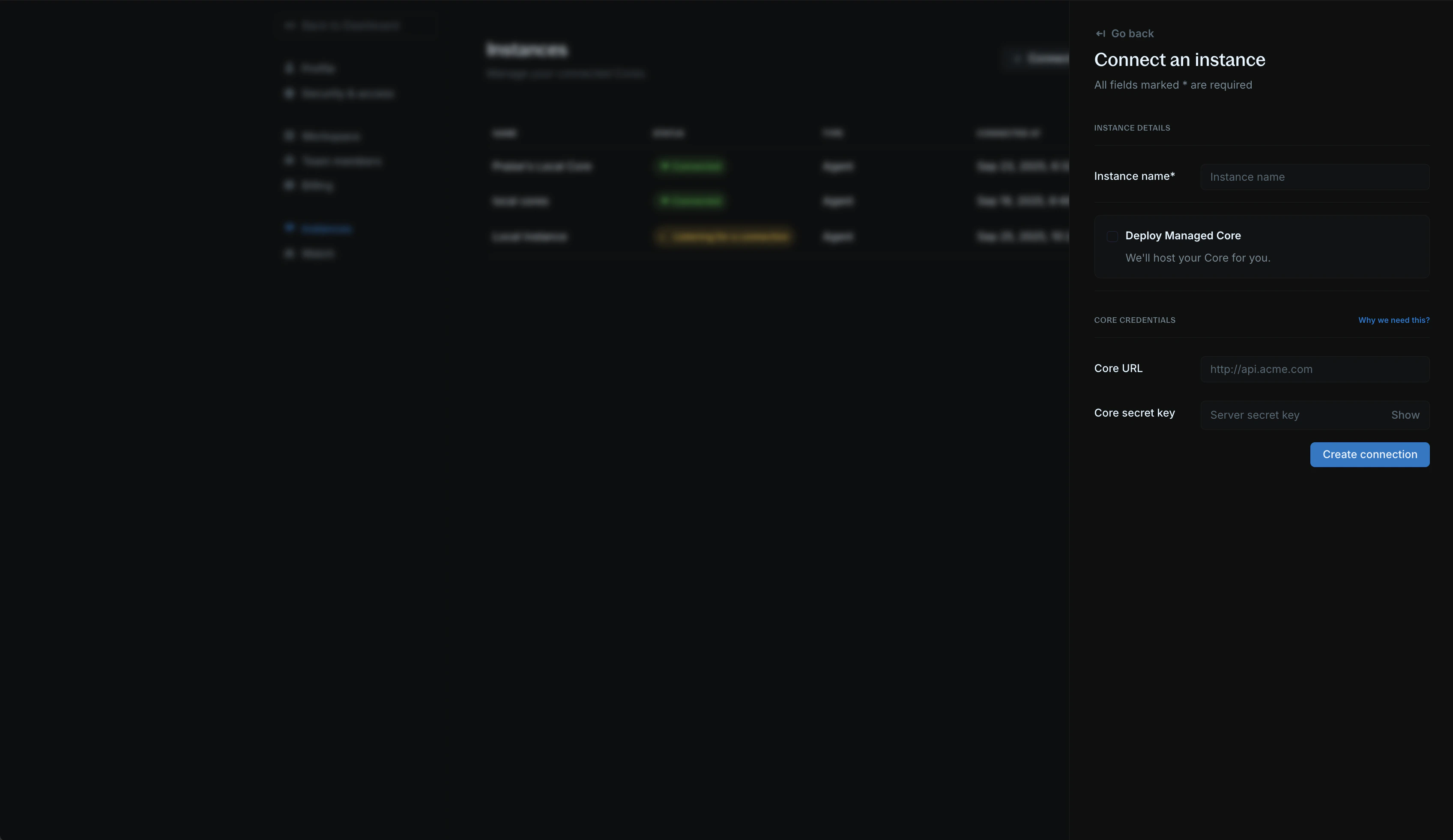
2. Click `Connect new instance`;
3. You'll see the instance creation form.
Fill in your instance information:
1. `Instance name:` Choose a descriptive name (e.g., "Production", "Staging"). This is the only required field;
2. **Core URL:** Your Blnk Core instance URL (e.g., [https://api.yourcompany.com](https://api.yourcompany.com)):
* Make sure it is publicly accessible on the internet. If locally hosted, use a tunnel service like ngrok: `ngrok http 5001` to create a public URL.
* If hosted on a private network, make sure to whitelist our IP addresses so that Cloud can communicate with your ledger:
* `161.35.166.95`
* `161.35.171.250`
3. `Core secret key:` Your Blnk Core API secret key set in your `blnk.json` configuration file. You can leave this empty if you don't have a secret key.
We use your Core URL and secret key to process actions in your workspace. Without them, your instance will be limited to read-only access.
Once done, submit the form.
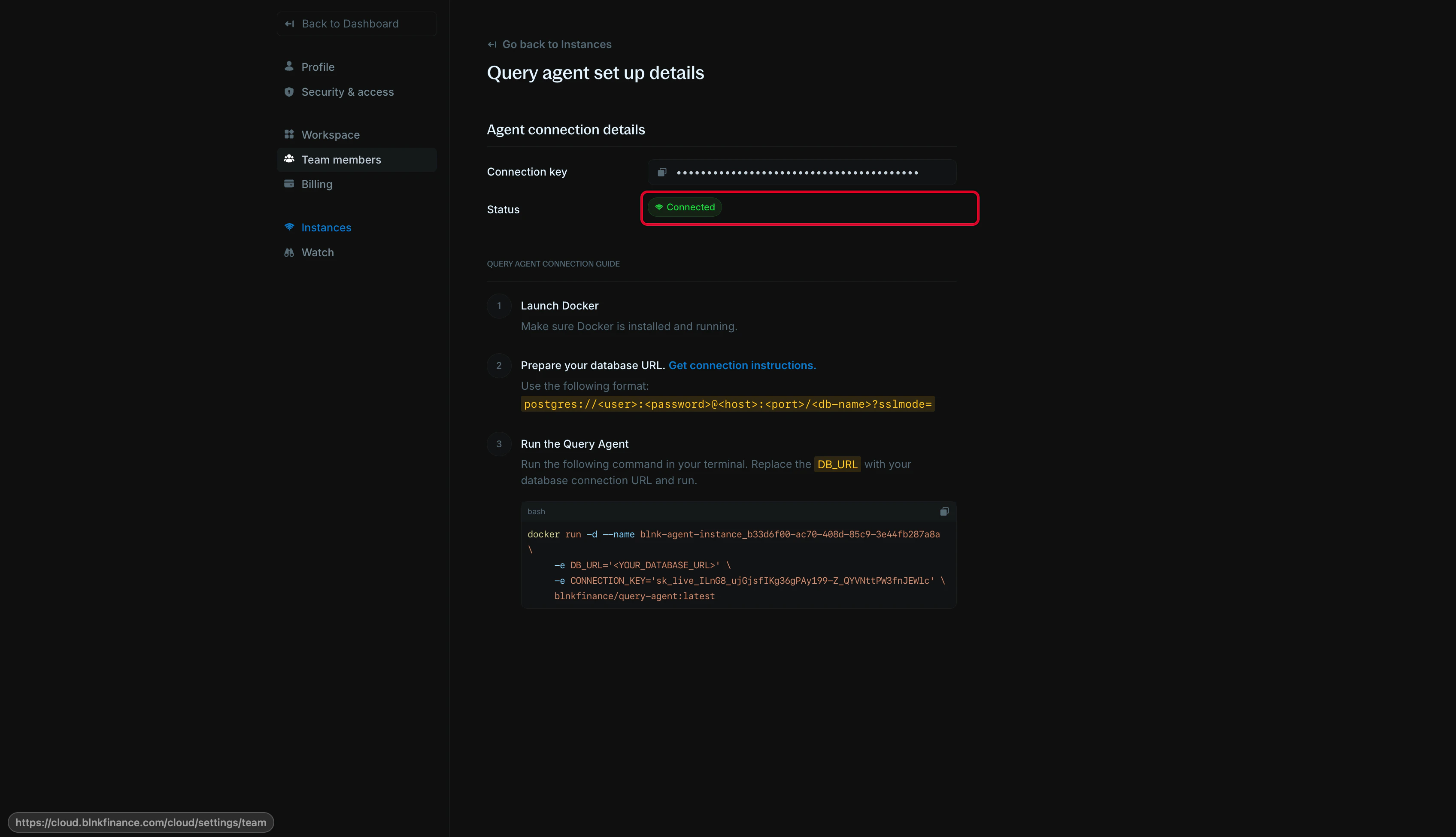
Next, you run the following docker command in your terminal to set up your Query Agent.
```bash bash theme={"system"}
docker run -d \
-e DB_URL="postgres://username:password@host:port/database_name?sslmode=disable" \
-e CONNECTION_KEY="sk_live_..." \
blnkfinance/query-agent:latest
```
| Parameter | Description |
| --------------- | ---------------------------------------------------------------------------------------------- |
| `username` | Your PostgreSQL database username |
| `password` | Your PostgreSQL database password |
| `host` | Database server address |
| `port` | Database port (default is `5432` for PostgreSQL) |
| `database_name` | Name of your database. Default value is `blnk` if not changed. |
| `sslmode` | SSL mode setting. Options: `disable`, `allow`, `prefer`, `require`, `verify-ca`, `verify-full` |
Make sure to set the correct `sslmode` for your database. The database connection will fail without it.
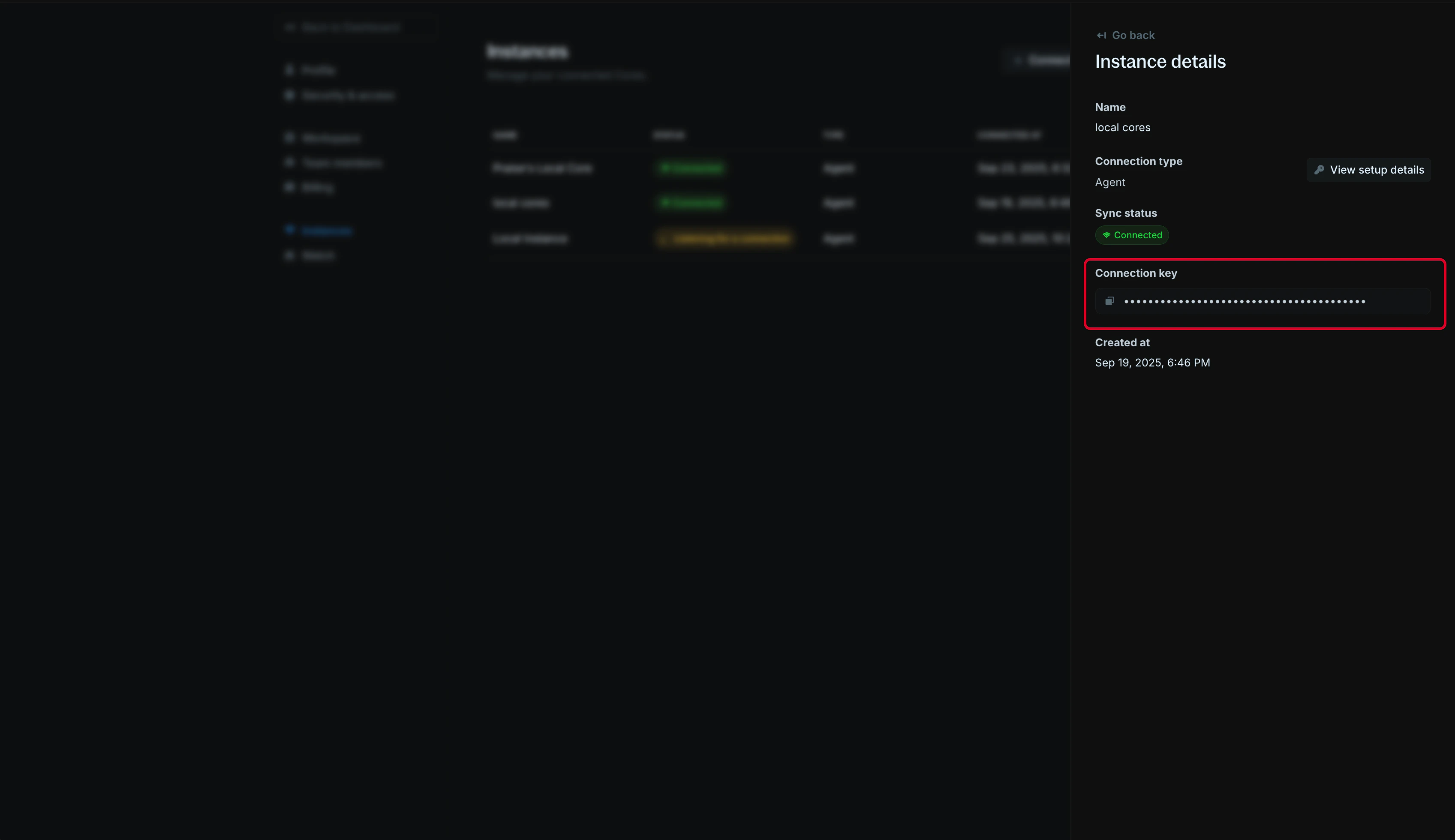
1. To get your `CONNECTION_KEY`:
* Go to `Settings > Instances` and view your instance details.
* Copy your **Connection key** from your instance info.
2. To get your `DB_URL`:
* `Find your database connection string:` Open your `blnk.json` configuration file and locate the `database_url` field. This should contain your PostgreSQL connection details.
If you're running Blnk locally in Docker using the default `blnk.json`, see [how to connect to your instance in Docker](#connecting-to-your-database-running-inside-your-docker-container).
Return to your Blnk Cloud workspace:
1. `Check connection status:` Navigate back to `Settings > Instances`;
2. **Verify agent status:** Your instance should show as "Connected" with a green indicator.
***
## Connecting to your database running inside your Docker container
To connect to your database running inside your Docker container:
First, you need to identify which Docker network your database container is running on.
```bash theme={"system"}
docker inspect postgres | grep NetworkMode
```
This command will show you the network name that your PostgreSQL container is using.
Next, run the Query Agent container on the same network as your database container.
```bash wrap theme={"system"}
docker run -d \
--network \
-e DB_URL="postgres://username:password@postgres:5432/database_name?sslmode=disable" \
-e CONNECTION_KEY="sk_live_..." \
blnkfinance/query-agent:latest
```
Make sure to replace:
* `` with the network name from the previous step, e.g. `--network blnk_default`.
* Update the `DB_URL` with your actual database connection details. You can find it in your default `blnk.json` configuration file.
* **Important:** Since you're running the Query Agent in the same network as your Core docker image, keep `postgres` as the host in your connection string. This is the service name of your PostgreSQL container.
* Replace `sk_live_...` with your actual connection key from the connection setup page on Cloud.
***
## Managing your query agent
### Monitor connection health
To see how your connection is doing:
```bash bash theme={"system"}
# Health check endpoint (returns 200 OK when live)
curl -X GET http://localhost:9090/live
```
The agent listens on port 9090 by default. To change the internal HTTP port, set the `HTTP_PORT` environment variable.
```bash theme={"system"}
docker run -d \
-e HTTP_PORT=9090 \
-e DB_URL="postgres://username:password@host:port/database_name?sslmode=disable" \
-e CONNECTION_KEY="sk_live_..." \
blnkfinance/query-agent:latest
```
### View logs and resource usage
```bash bash theme={"system"}
# View real-time logs
docker logs -f
# Check container resource usage
docker stats
```
### Update the Query Agent
To upgrade the Query Agent to the latest version:
```bash bash theme={"system"}
# Pull latest version
docker pull blnkfinance/query-agent:latest
# Stop current container
docker stop
# Restart with updated image (use your original configuration)
docker run -d \
--name \
-e DB_URL="postgres://username:password@host:port/database_name?sslmode=disable" \
-e CONNECTION_KEY="sk_live_..." \
blnkfinance/query-agent:latest
```
If you previously customized the agent's HTTP port, remember to include `-e HTTP_PORT=` and publish the same container port with `-p :` when restarting.
### Stop the Query Agent
To terminate your Query Agent:
```bash bash theme={"system"}
# Stop the container
docker stop
```
***
## Performance optimization for Core 0.12.1 or lower
If you're running Blnk Core version 0.12.1 or lower, you need to apply database indexes to significantly improve query performance and speed up your Blnk Cloud workspace.
If you're on later versions, these indexes are automatically included and you don't need to take any action.
Connect to your Core database using your preferred PostgreSQL client or command line:
```bash bash theme={"system"}
psql -h your-host -p 5432 -U your-user -d your-database
```
Run the following SQL commands to create the required indexes:
```sql expandable theme={"system"}
CREATE INDEX CONCURRENTLY IF NOT EXISTS
blnk_transactions_currency_created_at_idx
ON blnk.transactions (currency, created_at DESC);
CREATE INDEX CONCURRENTLY IF NOT EXISTS
blnk_transactions_created_at_source_idx
ON blnk.transactions (created_at, source);
CREATE INDEX CONCURRENTLY IF NOT EXISTS
blnk_transactions_created_at_destination_idx
ON blnk.transactions (created_at, destination);
CREATE INDEX CONCURRENTLY IF NOT EXISTS
blnk_balances_created_at_idx
ON blnk.balances (created_at DESC);
CREATE INDEX CONCURRENTLY IF NOT EXISTS blnk_txn_created_at_not_queued_idx
ON blnk.transactions (created_at DESC)
WHERE status <> 'QUEUED';
CREATE INDEX CONCURRENTLY IF NOT EXISTS blnk_txn_currency_created_at_desc_idx
ON blnk.transactions (currency, created_at DESC)
INCLUDE (precision);
CREATE INDEX CONCURRENTLY IF NOT EXISTS blnk_identity_created_at_idx
ON blnk.identity (created_at DESC);
CREATE INDEX CONCURRENTLY IF NOT EXISTS blnk_balances_identity_id_idx
ON blnk.balances (identity_id);
CREATE INDEX CONCURRENTLY IF NOT EXISTS blnk_ledgers_created_at_idx
ON blnk.ledgers (created_at DESC);
CREATE INDEX CONCURRENTLY IF NOT EXISTS blnk_balances_ledger_id_idx
ON blnk.balances (ledger_id);
CREATE INDEX CONCURRENTLY IF NOT EXISTS blnk_balances_currency_identity_id_idx
ON blnk.balances (currency, identity_id);
CREATE INDEX CONCURRENTLY IF NOT EXISTS blnk_identity_country_created_at_idx
ON blnk.identity (country, created_at DESC);
CREATE INDEX IF NOT EXISTS idx_transactions_status ON blnk.transactions(status);
CREATE INDEX IF NOT EXISTS idx_transactions_currency ON blnk.transactions(currency);
CREATE INDEX IF NOT EXISTS idx_transactions_source ON blnk.transactions(source);
CREATE INDEX IF NOT EXISTS idx_transactions_destination ON blnk.transactions(destination);
CREATE INDEX IF NOT EXISTS idx_transactions_parent_transaction ON blnk.transactions(parent_transaction);
CREATE INDEX IF NOT EXISTS idx_transactions_meta_data ON blnk.transactions USING gin(meta_data);
```
The indexes will be created and applied to your database. This may take a few moments depending on your database size.
To see faster improvements across Core and Cloud, follow these regional deployment recommendations:
1. **Keep Core and the PostgreSQL database (and other services) in the same region**: Deploy your Core instance, PostgreSQL database, and any other related services within the same geographical region to minimize latency.
2. **Keep the Query Agent in the same region as the database**: Ensure your Query Agent is deployed in the same region as your PostgreSQL database to reduce query latency and improve connection speed.
After applying the indexes, refresh your Blnk Cloud workspace to experience improved performance when loading balances, transactions, and other data.
***
## FAQs
* If you're running PostgreSQL inside Docker (on a Mac/Linux), use `host.docker.internal` as the host in your database URL.
* For Windows, run the Query Agent container on the same network as your database container. [Learn more](#connecting-to-your-database-running-inside-your-docker-container)
* If you're running PostgreSQL directly on your machine, use `localhost` as the host in your database URL.
* Ensure PostgreSQL is running and accessible.
* Check that the port (default: 5432) is correct.
* Verify your database credentials are correct.
* Verify the database URL format is correct.
* Ensure the database host is accessible from your Docker host.
* Check that the database user has proper read permissions.
* Verify network connectivity allows database connections.
* Ensure SSL mode is correctly configured.
* Verify Docker is running: `docker --version`
* Check if port conflicts exist: `docker ps`
* Ensure environment variables are properly formatted.
* Review Docker logs: `docker logs blnk-agent --tail 50`
* Verify the instance URL is accessible and responding.
* Verify the instance secret key is correctly copied.
* Ensure SSL certificate is valid if using HTTPS.
* Confirm the instance is running and accepting connections.
* Test instance connectivity: `curl -H "Authorization: Bearer YOUR_SECRET_KEY" https://your-instance-url/health`
***
## Need help?
We are very happy to help you make the most of Blnk, regardless of whether it is your first time or you are switching from another tool.
To ask questions or discuss issues, please [contact us](mailto:support@blnkfinance.com) or [join our Discord community](https://discord.gg/7WNv94zPpx).
Get dedicated support for architecture reviews, integration planning, ledger workflows, and production deployment.
 2. To get your `DB_URL`:
* `Find your database connection string:` Open your `blnk.json` configuration file and locate the `database_url` field. This should contain your PostgreSQL connection details.
2. To get your `DB_URL`:
* `Find your database connection string:` Open your `blnk.json` configuration file and locate the `database_url` field. This should contain your PostgreSQL connection details.