> ## Documentation Index
> Fetch the complete documentation index at: https://docs.blnkfinance.com/llms.txt
> Use this file to discover all available pages before exploring further.
# Create insights
> Learn how to create custom insights for your workspace.
export const CtaCallout = props => {
const {title, buttonLabel, href, trackingEvent, buttonTarget, rel = "noopener noreferrer", children} = props;
const handleCtaClick = () => {
if (typeof window === "undefined" || !trackingEvent) {
return;
}
try {
window.dispatchEvent(new CustomEvent("blnk:docs-cta", {
detail: {
name: trackingEvent,
href
}
}));
} catch {}
try {
window.posthog?.capture?.(trackingEvent, {
href
});
} catch {}
const gaPayload = {
cta_href: href
};
try {
window.gtag?.("event", trackingEvent, gaPayload);
} catch {}
try {
window.dataLayer = window.dataLayer || [];
window.dataLayer.push({
event: trackingEvent,
...gaPayload
});
} catch {}
};
const isExternal = typeof href === "string" && (/^https?:\/\//i).test(href);
const target = buttonTarget ?? (isExternal ? "_blank" : undefined);
const linkRel = isExternal ? rel : undefined;
return ;
};
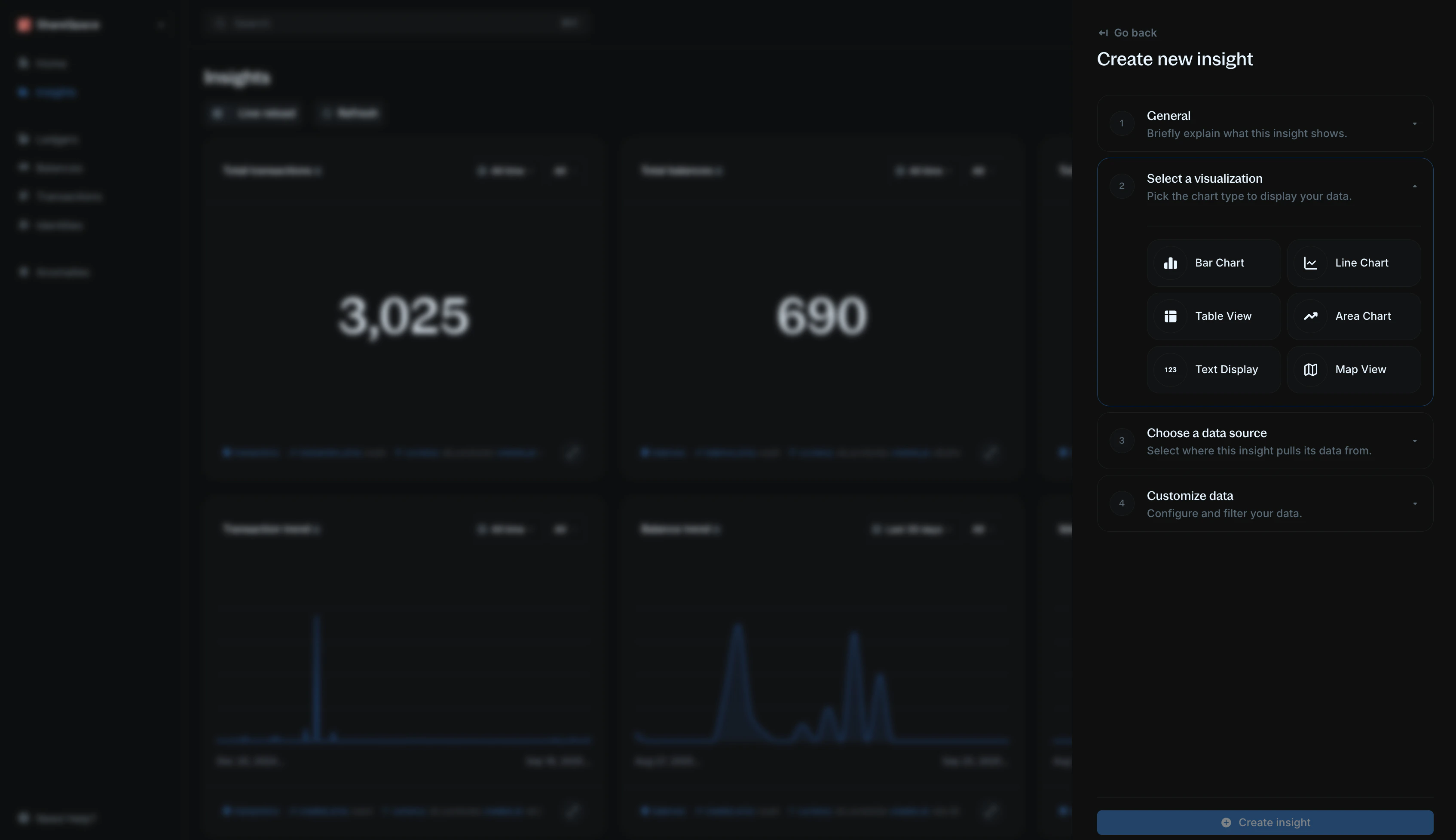 Creating an insight lets you generate custom visualizations based on your ledger data. Use insights to answer questions like:
* What day of the week has the highest transaction volume?
* How much revenue is generated per currency?
* What is the total amount being held for customers today?
To create a new insight, click `Create Insight` in the top-right corner of the Insights page or press `⌥ + R` (`Alt + I` for Windows).
***
## Step 1: General information
Start by giving your insight context:
* **Title** - a short, clear name (e.g., "Monthly transaction volume").
* **Description (optional)** - explain what this insight shows so others can understand its purpose.
***
## Step 2: Select visualization
Choose how you want to display the data:
* **Bar chart, line chart, area chart** for graphical representation.
* `Table view or text display` for showing raw numbers.
* `Map view` for location-based data.
***
## Step 3: Choose a data source
Decide which dataset the insight will pull from:
* **Transactions** " your transaction records and activities.
* **Balances** " balances in your ledger that hold value.
* **Identities** " individuals or organizations in your ledger.
* **Alerts** " events flagged by Blnk's monitoring engine.
***
## Step 4: Customize data
Refine the dataset to show only what you need:
Select the field you want to analyze. This determines the specific question your insight will answer.
**For example:** You want to know the **total transaction amount** deposited in the last 30 days, your data field would be `amount`.
However, if you want to know the **number of transactions** deposited in the last 30 days, your data field would be `transaction_id`.
This determines how the system calculates your data field.
* **Count occurrences** " number of times a value appears.
* **Sum of amount** " total of all values (for numbers only).
E.g., For total transaction amount, you would use `sum of amount`. But for number of transactions, you would use `count occurrences`.
This breaks down the results into categories. This is best used for charts visualization.
`For example:` You want to know the `total transaction amount` deposited in the last 30 days, you would group by `created_at`.
You can go further and add a `status` group to see the total transaction amount for each status.
Apply filters to narrow down your results in your visualization.
`For example:` You want to know the `total transaction amount` deposited in the last 30 days, you would filter by `created_at` between the last 30 days.
You can go further and add a `status` filter to see only transactions that are `APPLIED` or `INFLIGHT`.
***
## Need help?
We are very happy to help you make the most of Blnk, regardless of whether it is your first time or you are switching from another tool.
To ask questions or discuss issues, please [contact us](mailto:support@blnkfinance.com) or [join our Discord community](https://discord.gg/7WNv94zPpx).
Get dedicated support for architecture reviews, integration planning, ledger workflows, and production deployment.
Creating an insight lets you generate custom visualizations based on your ledger data. Use insights to answer questions like:
* What day of the week has the highest transaction volume?
* How much revenue is generated per currency?
* What is the total amount being held for customers today?
To create a new insight, click `Create Insight` in the top-right corner of the Insights page or press `⌥ + R` (`Alt + I` for Windows).
***
## Step 1: General information
Start by giving your insight context:
* **Title** - a short, clear name (e.g., "Monthly transaction volume").
* **Description (optional)** - explain what this insight shows so others can understand its purpose.
***
## Step 2: Select visualization
Choose how you want to display the data:
* **Bar chart, line chart, area chart** for graphical representation.
* `Table view or text display` for showing raw numbers.
* `Map view` for location-based data.
***
## Step 3: Choose a data source
Decide which dataset the insight will pull from:
* **Transactions** " your transaction records and activities.
* **Balances** " balances in your ledger that hold value.
* **Identities** " individuals or organizations in your ledger.
* **Alerts** " events flagged by Blnk's monitoring engine.
***
## Step 4: Customize data
Refine the dataset to show only what you need:
Select the field you want to analyze. This determines the specific question your insight will answer.
**For example:** You want to know the **total transaction amount** deposited in the last 30 days, your data field would be `amount`.
However, if you want to know the **number of transactions** deposited in the last 30 days, your data field would be `transaction_id`.
This determines how the system calculates your data field.
* **Count occurrences** " number of times a value appears.
* **Sum of amount** " total of all values (for numbers only).
E.g., For total transaction amount, you would use `sum of amount`. But for number of transactions, you would use `count occurrences`.
This breaks down the results into categories. This is best used for charts visualization.
`For example:` You want to know the `total transaction amount` deposited in the last 30 days, you would group by `created_at`.
You can go further and add a `status` group to see the total transaction amount for each status.
Apply filters to narrow down your results in your visualization.
`For example:` You want to know the `total transaction amount` deposited in the last 30 days, you would filter by `created_at` between the last 30 days.
You can go further and add a `status` filter to see only transactions that are `APPLIED` or `INFLIGHT`.
***
## Need help?
We are very happy to help you make the most of Blnk, regardless of whether it is your first time or you are switching from another tool.
To ask questions or discuss issues, please [contact us](mailto:support@blnkfinance.com) or [join our Discord community](https://discord.gg/7WNv94zPpx).
Get dedicated support for architecture reviews, integration planning, ledger workflows, and production deployment.