> ## Documentation Index
> Fetch the complete documentation index at: https://docs.blnkfinance.com/llms.txt
> Use this file to discover all available pages before exploring further.
# Add Filters
> Learn how to add and manage filters in Blnk Cloud.
export const CtaCallout = props => {
const {title, buttonLabel, href, trackingEvent, buttonTarget, rel = "noopener noreferrer", children} = props;
const handleCtaClick = () => {
if (typeof window === "undefined" || !trackingEvent) {
return;
}
try {
window.dispatchEvent(new CustomEvent("blnk:docs-cta", {
detail: {
name: trackingEvent,
href
}
}));
} catch {}
try {
window.posthog?.capture?.(trackingEvent, {
href
});
} catch {}
const gaPayload = {
cta_href: href
};
try {
window.gtag?.("event", trackingEvent, gaPayload);
} catch {}
try {
window.dataLayer = window.dataLayer || [];
window.dataLayer.push({
event: trackingEvent,
...gaPayload
});
} catch {}
};
const isExternal = typeof href === "string" && (/^https?:\/\//i).test(href);
const target = buttonTarget ?? (isExternal ? "_blank" : undefined);
const linkRel = isExternal ? rel : undefined;
return ;
};
Filters allow you to refine your data tables to just the records you want to see. You can apply filters to all tables in Blnk Cloud: ledgers, balances, transactions, identities and audit logs.
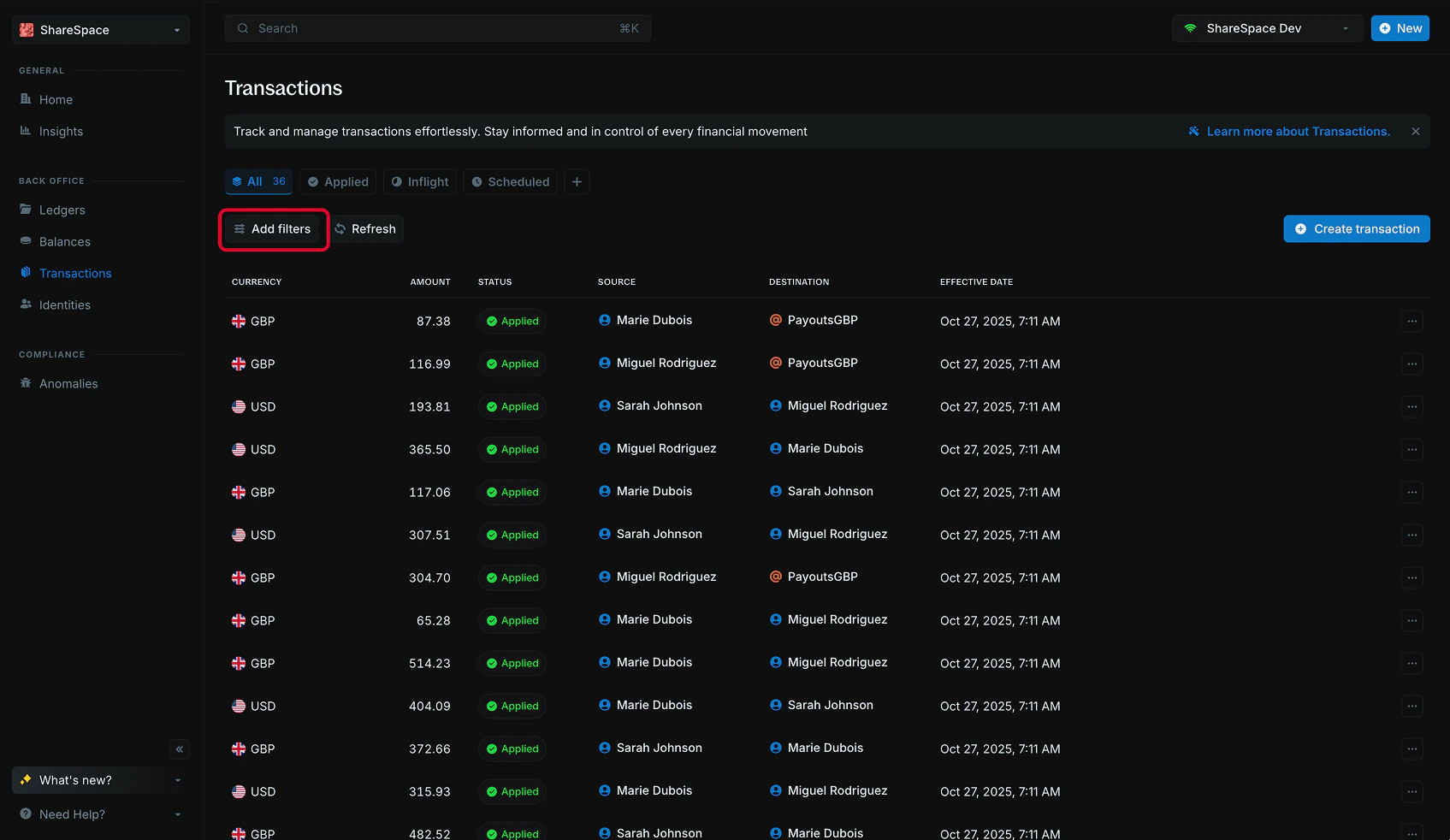
To add a filter, click the `Add filters` button in the top-left corner of the table or press `F` on your keyboard.
 ***
## Apply filters
Press `F` to toggle on filters on any table. You'll see a new filter panel appear at the right hand side of your screen.
***
## Apply filters
Press `F` to toggle on filters on any table. You'll see a new filter panel appear at the right hand side of your screen.
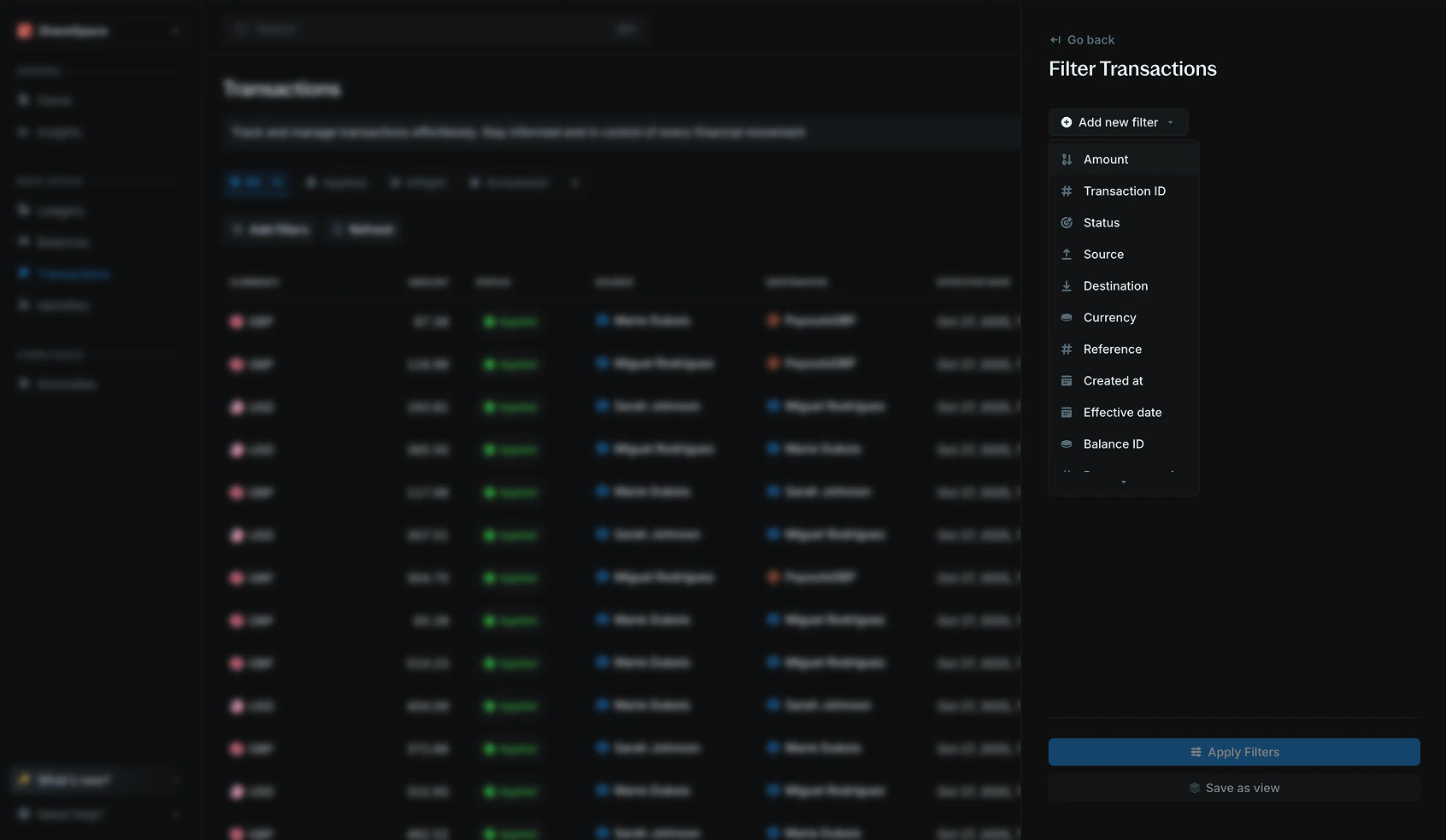 You can then pick the fields you want to filter and set the values you want to see. Each field has different filter operators to help you find what you need more easily. Once done, click `Apply filters` to update the table:
### Available filter operators
| **Operator** | **Description** |
| :----------------------- | :--------------------------------------------------------------------------- |
| Exactly matches | Shows results that are exactly the same as the filter value. |
| Does not match | Shows results that are not the same as the filter value. |
| In list | Shows results that match any value from a list of options. |
| Contains pattern | Shows results that include the text or pattern you enter. |
| Greater than | Shows results with values higher than the filter value. |
| Less than | Shows results with values lower than the filter value. |
| Greater than or equal to | Shows results with values that are the same or higher than the filter value. |
| Less than or equal to | Shows results with values that are the same or lower than the filter value. |
| Between range | Shows results that fall between two values. |
Click the Refresh button to update the table with the latest results based on your active filters.
***
## Edit filters
To edit filters, click the `Edit filters` button at the top-right of the filter panel or press `F` on your keyboard. You can also click directly on the filter bar to update or change an existing filter.
You can then pick the fields you want to filter and set the values you want to see. Each field has different filter operators to help you find what you need more easily. Once done, click `Apply filters` to update the table:
### Available filter operators
| **Operator** | **Description** |
| :----------------------- | :--------------------------------------------------------------------------- |
| Exactly matches | Shows results that are exactly the same as the filter value. |
| Does not match | Shows results that are not the same as the filter value. |
| In list | Shows results that match any value from a list of options. |
| Contains pattern | Shows results that include the text or pattern you enter. |
| Greater than | Shows results with values higher than the filter value. |
| Less than | Shows results with values lower than the filter value. |
| Greater than or equal to | Shows results with values that are the same or higher than the filter value. |
| Less than or equal to | Shows results with values that are the same or lower than the filter value. |
| Between range | Shows results that fall between two values. |
Click the Refresh button to update the table with the latest results based on your active filters.
***
## Edit filters
To edit filters, click the `Edit filters` button at the top-right of the filter panel or press `F` on your keyboard. You can also click directly on the filter bar to update or change an existing filter.
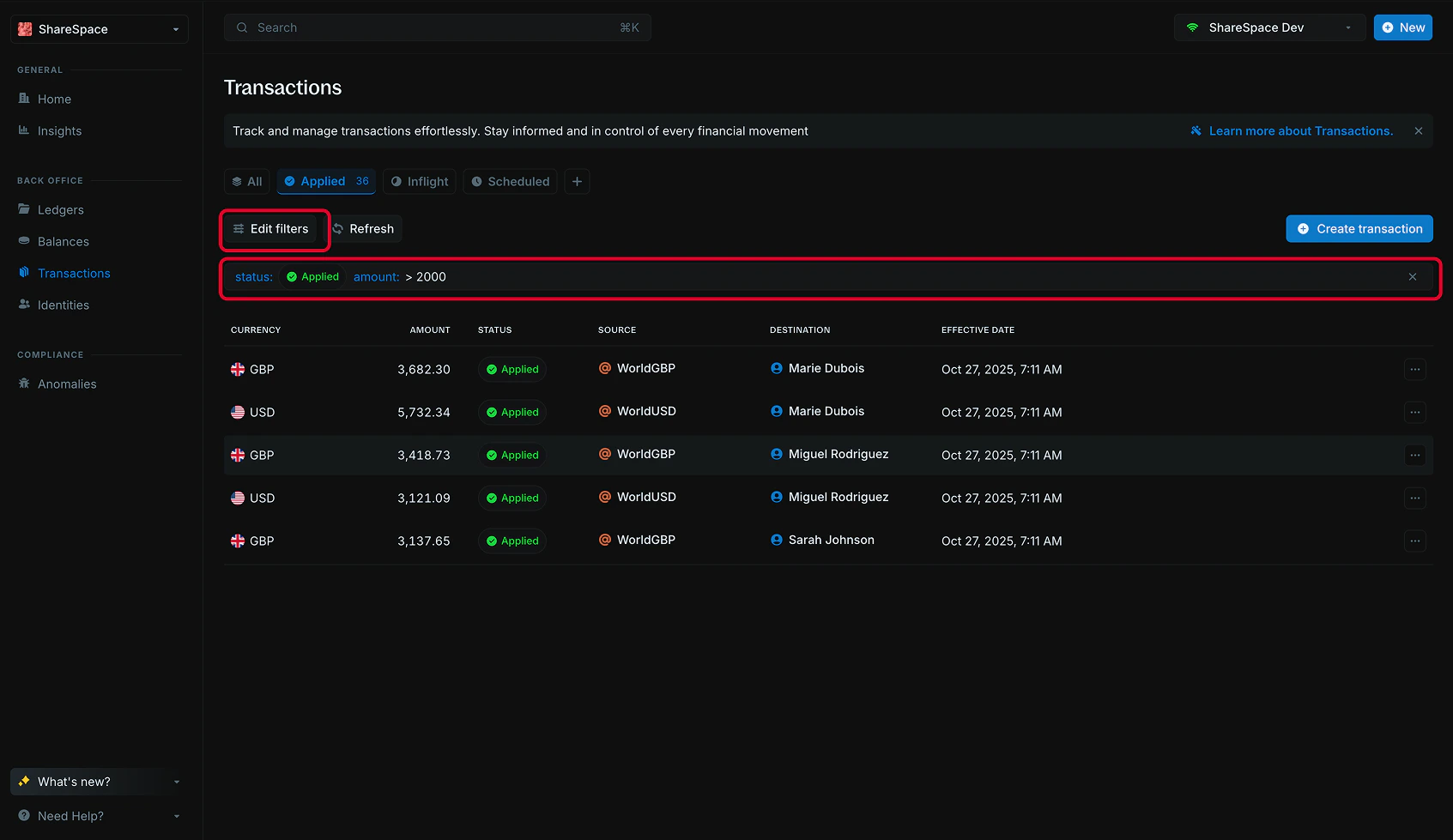 Click on the `'x'` button on the filter bar to clear any applied filter.
***
## Need help?
We are very happy to help you make the most of Blnk, regardless of whether it is your first time or you are switching from another tool.
To ask questions or discuss issues, please [contact us](mailto:support@blnkfinance.com) or [join our Discord community](https://discord.gg/7WNv94zPpx).
Get dedicated support for architecture reviews, integration planning, ledger workflows, and production deployment.
Click on the `'x'` button on the filter bar to clear any applied filter.
***
## Need help?
We are very happy to help you make the most of Blnk, regardless of whether it is your first time or you are switching from another tool.
To ask questions or discuss issues, please [contact us](mailto:support@blnkfinance.com) or [join our Discord community](https://discord.gg/7WNv94zPpx).
Get dedicated support for architecture reviews, integration planning, ledger workflows, and production deployment.