> ## Documentation Index
> Fetch the complete documentation index at: https://docs.blnkfinance.com/llms.txt
> Use this file to discover all available pages before exploring further.
# Balances
> Learn what balances are and how they work.
export const CtaCallout = props => {
const {title, buttonLabel, href, trackingEvent, buttonTarget, rel = "noopener noreferrer", children} = props;
const handleCtaClick = () => {
if (typeof window === "undefined" || !trackingEvent) {
return;
}
try {
window.dispatchEvent(new CustomEvent("blnk:docs-cta", {
detail: {
name: trackingEvent,
href
}
}));
} catch {}
try {
window.posthog?.capture?.(trackingEvent, {
href
});
} catch {}
const gaPayload = {
cta_href: href
};
try {
window.gtag?.("event", trackingEvent, gaPayload);
} catch {}
try {
window.dataLayer = window.dataLayer || [];
window.dataLayer.push({
event: trackingEvent,
...gaPayload
});
} catch {}
};
const isExternal = typeof href === "string" && (/^https?:\/\//i).test(href);
const target = buttonTarget ?? (isExternal ? "_blank" : undefined);
const linkRel = isExternal ? rel : undefined;
return ;
};
Balances represent stores of value in your ledger. They can be bank accounts, wallets, cards, store points, finance accounts, and more. When recording transactions, balances specify the source (where the amount comes from) and destination (where the amount goes to).
There are two types of balances in Blnk:
* [Internal balances](/balances/internal-balances): Balances grouped in the General Ledger and identified with the `@` icon indicator in your workspace.
* Application balances: Balances that you or your application create. Each has a unique balance ID and can be linked to identities on Cloud.
***
## Create balances
To create a new balance:
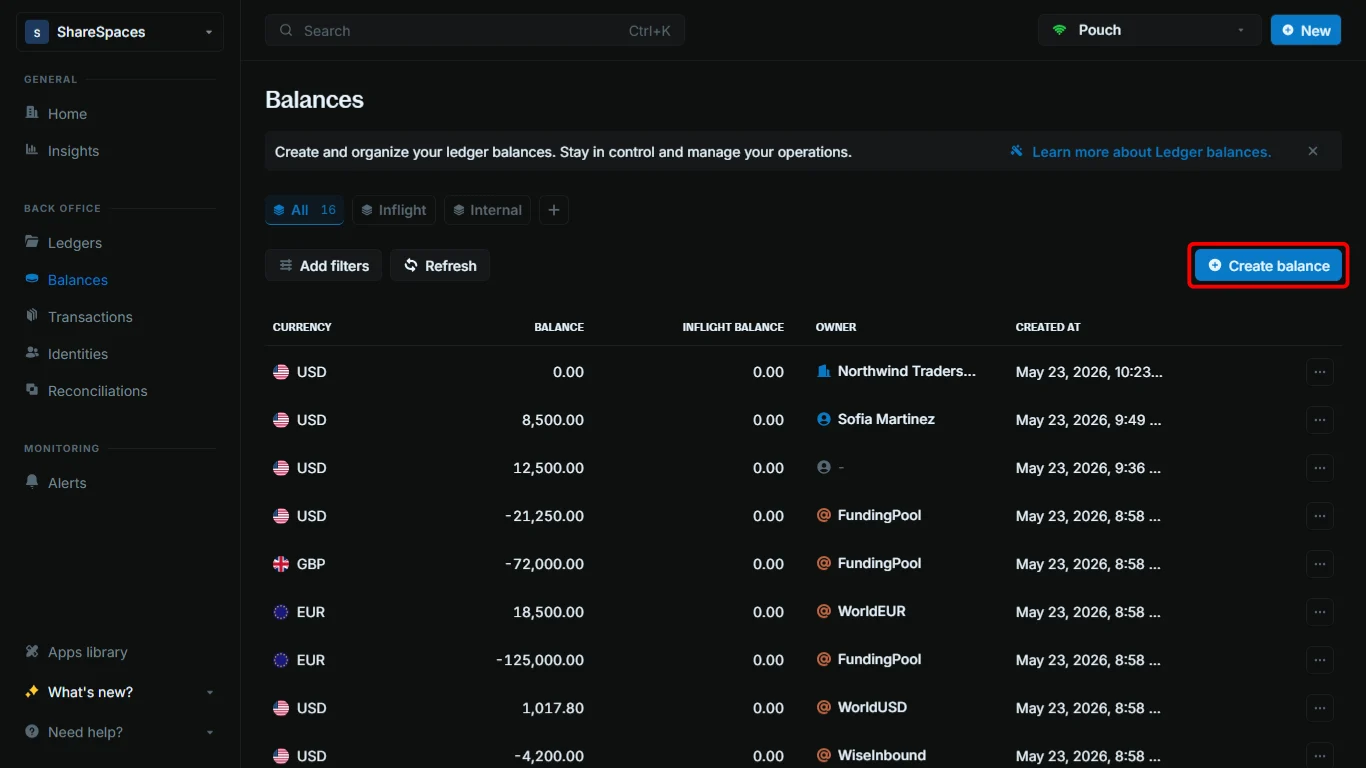
Go to `Balances`. In the top-right corner of the table, click `Create balance`, or press `⌥ + B` (`Alt + B` on Windows).
 Select the ledger where the balance should live. Type the ledger name and pick it from the dropdown, or paste the ledger ID.
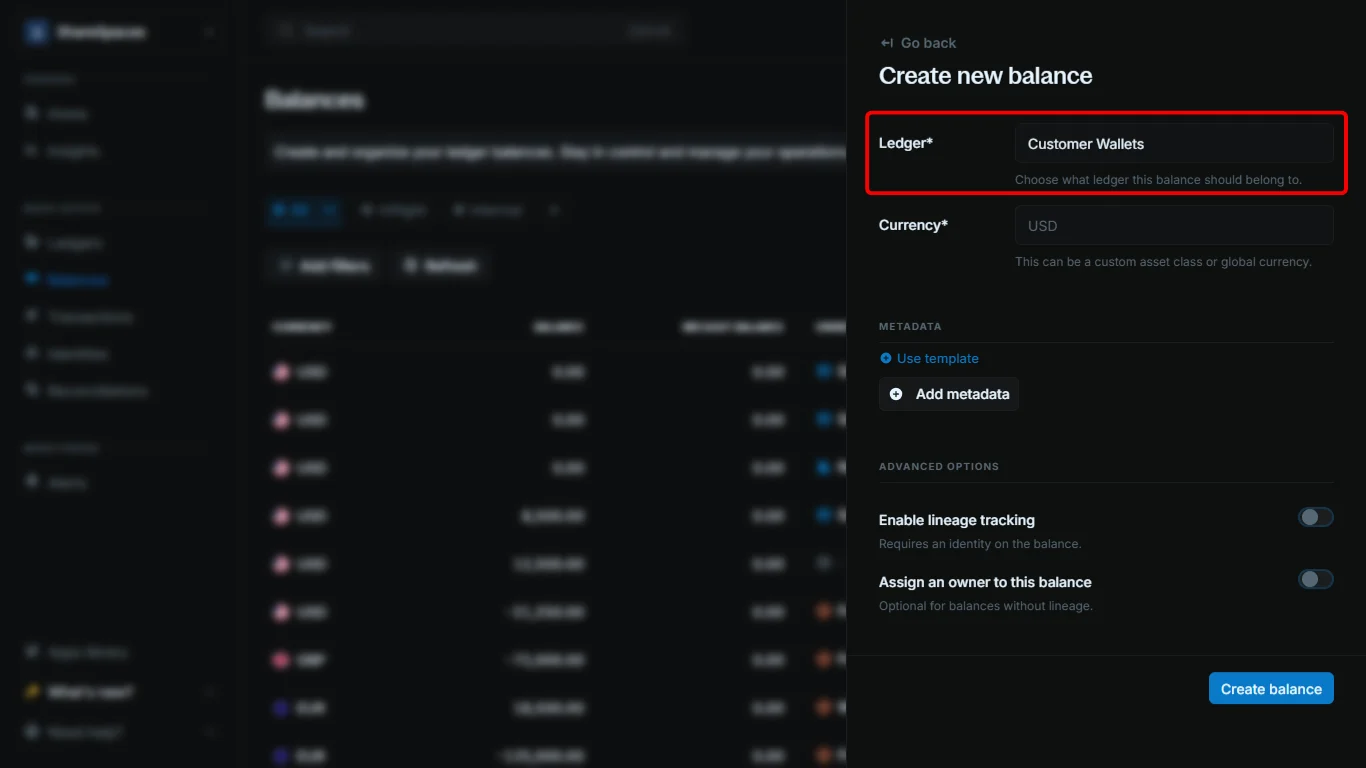 Application balances usually live in a ledger such as `Customer Wallets`, not the General Ledger.
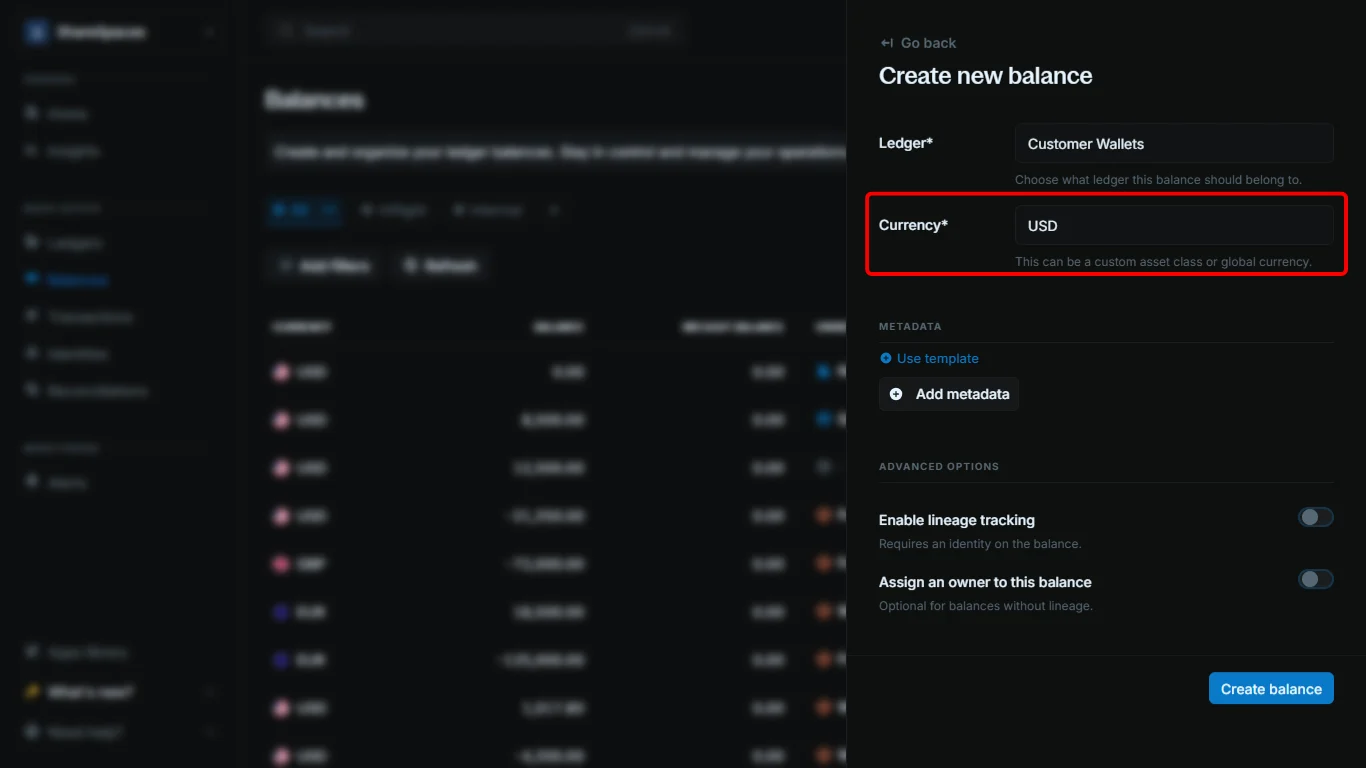
Enter the currency for the balance:
* Use the ISO 4217 code for fiat currencies.
* Use the ticker symbol for crypto.
* Use a unique identifier for custom assets.
Application balances usually live in a ledger such as `Customer Wallets`, not the General Ledger.
Enter the currency for the balance:
* Use the ISO 4217 code for fiat currencies.
* Use the ticker symbol for crypto.
* Use a unique identifier for custom assets.
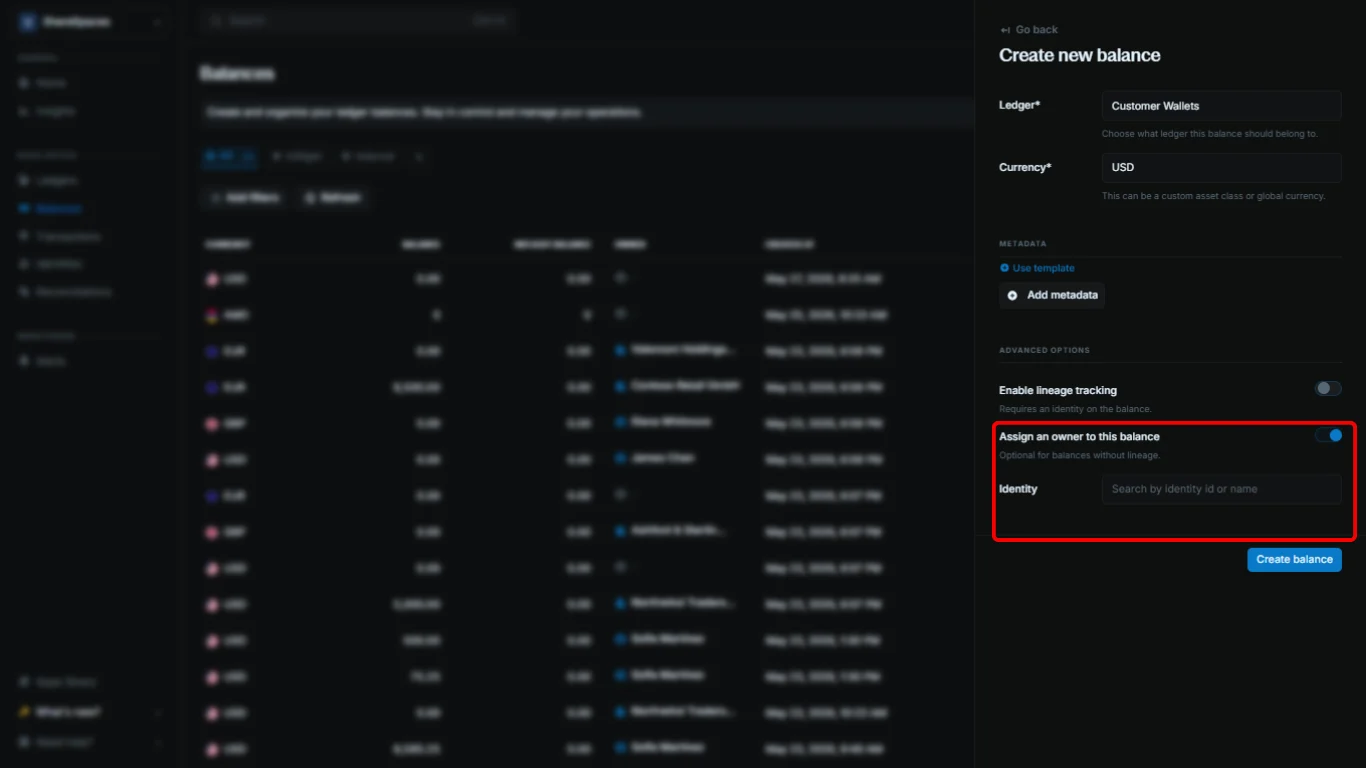
 Under `Advanced options`, enable `Enable lineage tracking` to tag incoming funds and track how they are spent over time.
* Select `Allocation` (for example, `FIFO`) to control how tagged funds are used when the balance is debited.
* Enabling lineage automatically turns on `Assign an owner to this balance`. Choose an identity in the next step.
Under `Advanced options`, enable `Enable lineage tracking` to tag incoming funds and track how they are spent over time.
* Select `Allocation` (for example, `FIFO`) to control how tagged funds are used when the balance is debited.
* Enabling lineage automatically turns on `Assign an owner to this balance`. Choose an identity in the next step.
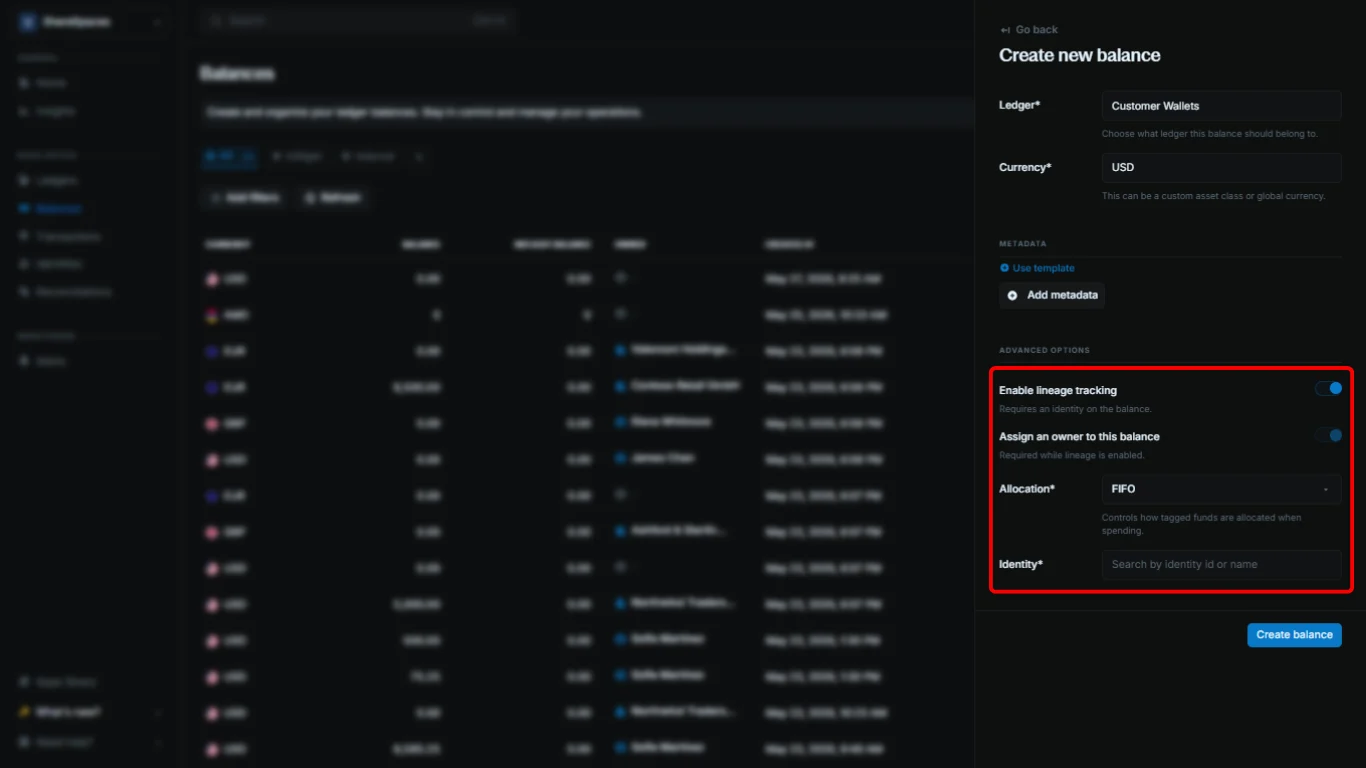 To link the balance to an identity, enable `Assign an owner to this balance`, then search by name and select from the list, or paste an identity ID. This is required while lineage tracking is enabled.
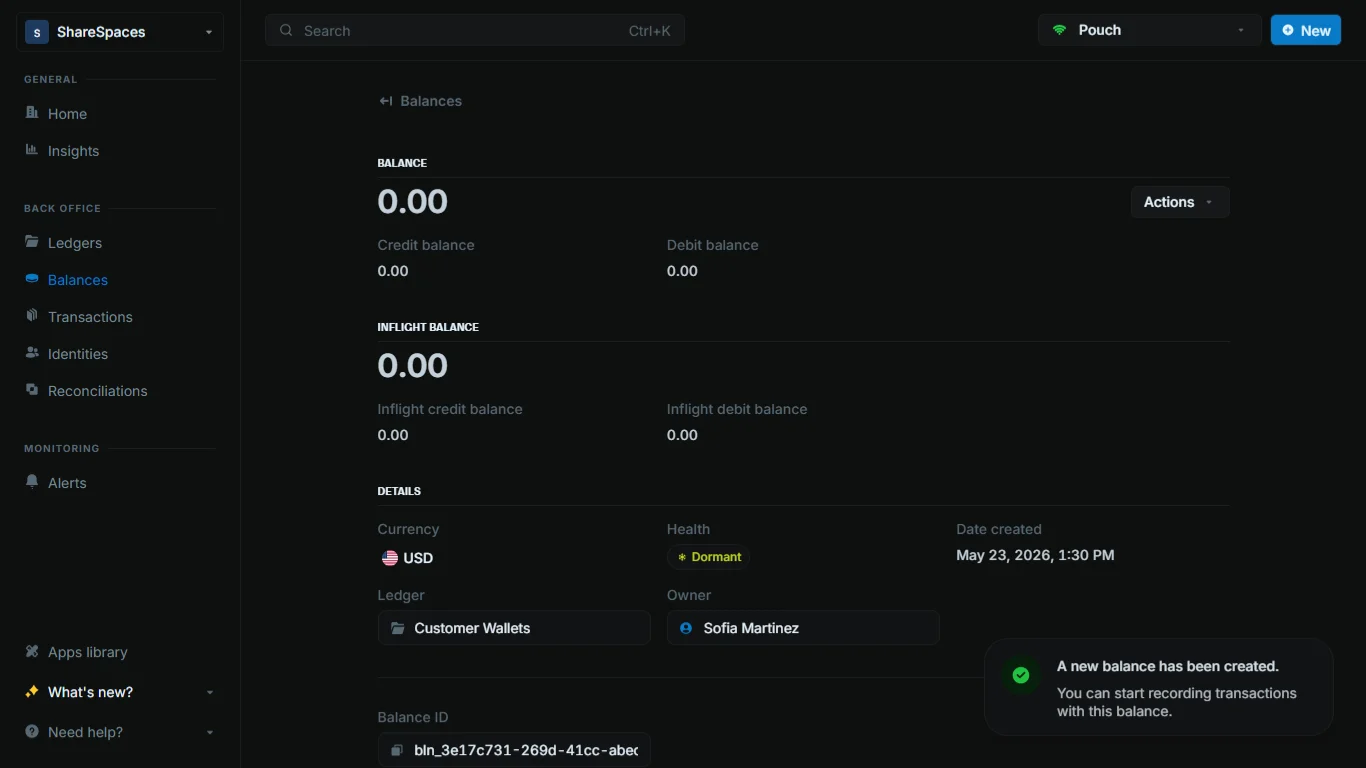
 Click `Create balance`. The new balance appears in the `Balances` table and you can open it for details.
 To create a balance that is automatically linked to an identity, navigate to the identity details page and click `New > New balance` in the top-right corner.
***
## Working with balances
All records in Blnk are immutable. This means that once a balance is created, it cannot be deleted or directly modified.
### Balances table
The `Balances` table shows a list of all balances in your workspace. For each balance, you can see:
To create a balance that is automatically linked to an identity, navigate to the identity details page and click `New > New balance` in the top-right corner.
***
## Working with balances
All records in Blnk are immutable. This means that once a balance is created, it cannot be deleted or directly modified.
### Balances table
The `Balances` table shows a list of all balances in your workspace. For each balance, you can see:
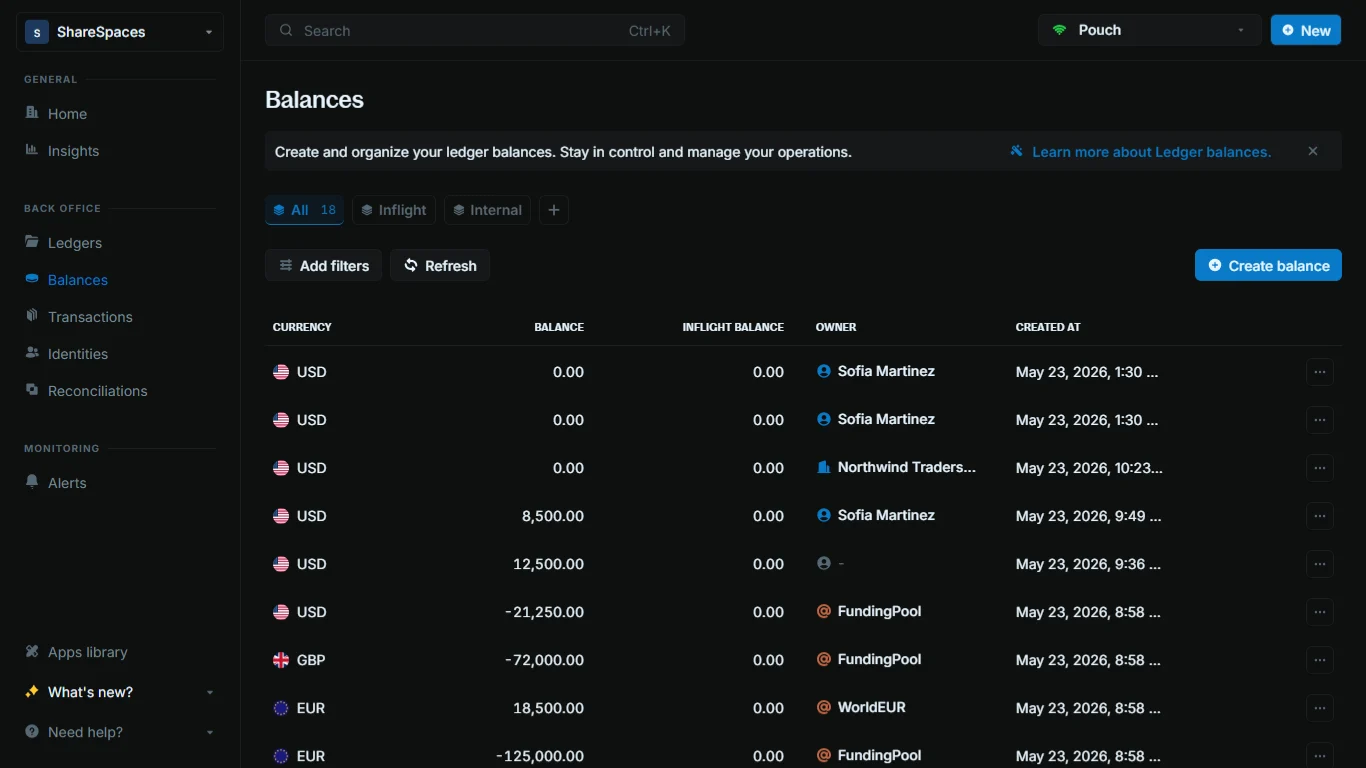 * `Currency`: The type of asset being stored.
* `Balance`: The actual balance amount.
* `Inflight balance`: The net amount waiting to be added or deducted from the balance.
* `Owner`: The identity the balance is linked to, or its indicator if it is an internal balance. Application balances with no linked identity are empty.
* `Created at`: The date and time the balance was created.
Click the `Refresh` button on the `Balances` table to get the latest balance data from your instance.
### View balance details
Click a balance to see its summary details, including the balance amount, currency, health, etc.
* `Currency`: The type of asset being stored.
* `Balance`: The actual balance amount.
* `Inflight balance`: The net amount waiting to be added or deducted from the balance.
* `Owner`: The identity the balance is linked to, or its indicator if it is an internal balance. Application balances with no linked identity are empty.
* `Created at`: The date and time the balance was created.
Click the `Refresh` button on the `Balances` table to get the latest balance data from your instance.
### View balance details
Click a balance to see its summary details, including the balance amount, currency, health, etc.
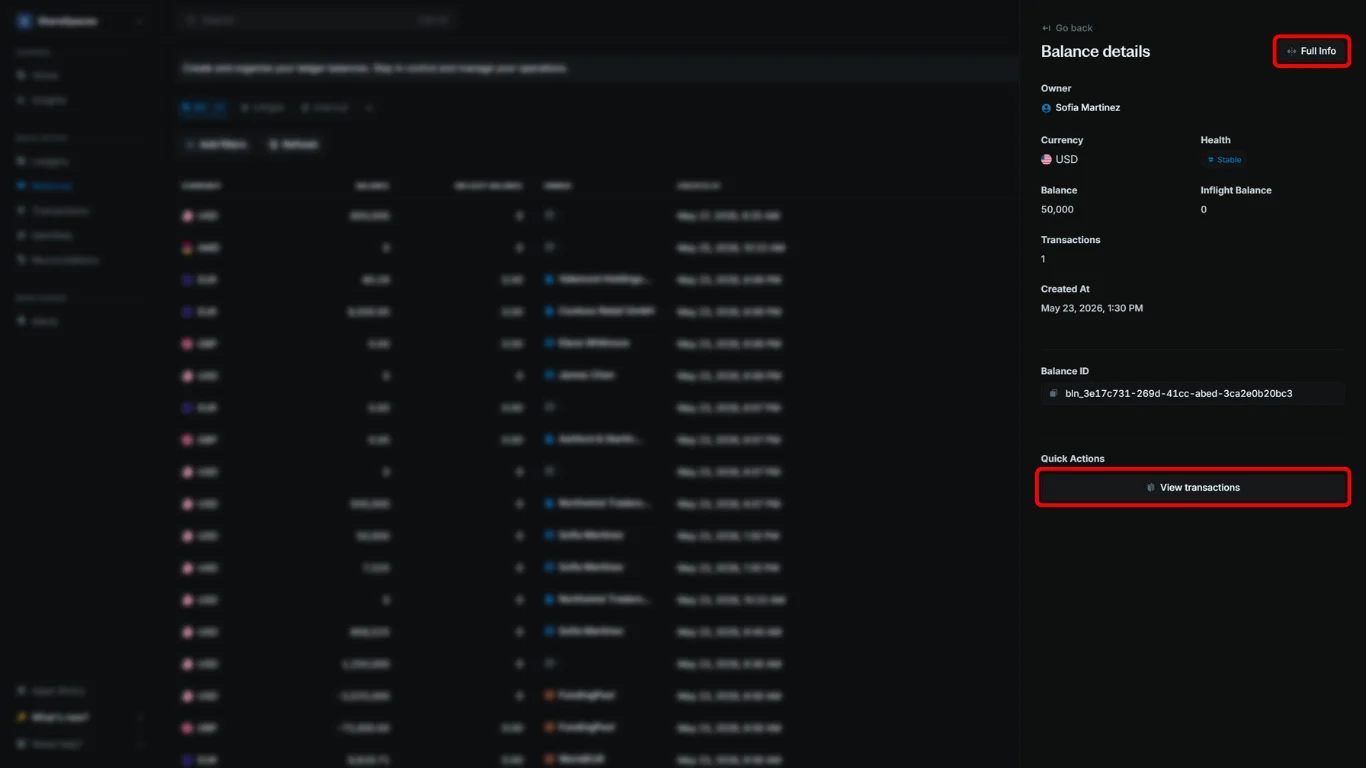 For a complete view, select `Full info` in the top-right corner of the summary or press `E` to expand the details.
To view all transactions performed on the balance, go to the `Quick Actions` section at the bottom of the summary and click `View transactions`.
***
## Need help?
We are very happy to help you make the most of Blnk, regardless of whether it is your first time or you are switching from another tool.
To ask questions or discuss issues, please [contact us](mailto:support@blnkfinance.com) or [join our Discord community](https://discord.gg/7WNv94zPpx).
Get dedicated support for architecture reviews, integration planning, ledger workflows, and production deployment.
For a complete view, select `Full info` in the top-right corner of the summary or press `E` to expand the details.
To view all transactions performed on the balance, go to the `Quick Actions` section at the bottom of the summary and click `View transactions`.
***
## Need help?
We are very happy to help you make the most of Blnk, regardless of whether it is your first time or you are switching from another tool.
To ask questions or discuss issues, please [contact us](mailto:support@blnkfinance.com) or [join our Discord community](https://discord.gg/7WNv94zPpx).
Get dedicated support for architecture reviews, integration planning, ledger workflows, and production deployment.