> ## Documentation Index
> Fetch the complete documentation index at: https://docs.blnkfinance.com/llms.txt
> Use this file to discover all available pages before exploring further.
# Historical Balances
> View and analyze historical balance data in Blnk Cloud.
export const CtaCallout = props => {
const {title, buttonLabel, href, trackingEvent, buttonTarget, rel = "noopener noreferrer", children} = props;
const handleCtaClick = () => {
if (typeof window === "undefined" || !trackingEvent) {
return;
}
try {
window.dispatchEvent(new CustomEvent("blnk:docs-cta", {
detail: {
name: trackingEvent,
href
}
}));
} catch {}
try {
window.posthog?.capture?.(trackingEvent, {
href
});
} catch {}
const gaPayload = {
cta_href: href
};
try {
window.gtag?.("event", trackingEvent, gaPayload);
} catch {}
try {
window.dataLayer = window.dataLayer || [];
window.dataLayer.push({
event: trackingEvent,
...gaPayload
});
} catch {}
};
const isExternal = typeof href === "string" && (/^https?:\/\//i).test(href);
const target = buttonTarget ?? (isExternal ? "_blank" : undefined);
const linkRel = isExternal ? rel : undefined;
return ;
};
You can use [historical balances](/balances/historical-balances) to see what a balance looked like at any point in the past. This is useful for financial reporting, auditing, or analyzing how balances have changed over time.
When you use the historical balance feature in Cloud, you can see the exact amount that was in the balance at a specific date and time, along with the credit and debit balances at that moment.
Historical balances do not include [inflight](/transactions/inflight/creating-inflight) balances.
***
## View historical balance
Historical balance does not open a separate page. You stay on the balance details page: `Actions` opens a dialog, then the summary amounts on that same page update to show the past point in time.
To view a balance at a specific date and time:
From `Balances`, open the balance you want to inspect. You should be on the balance details page (summary, transactions, and metadata).
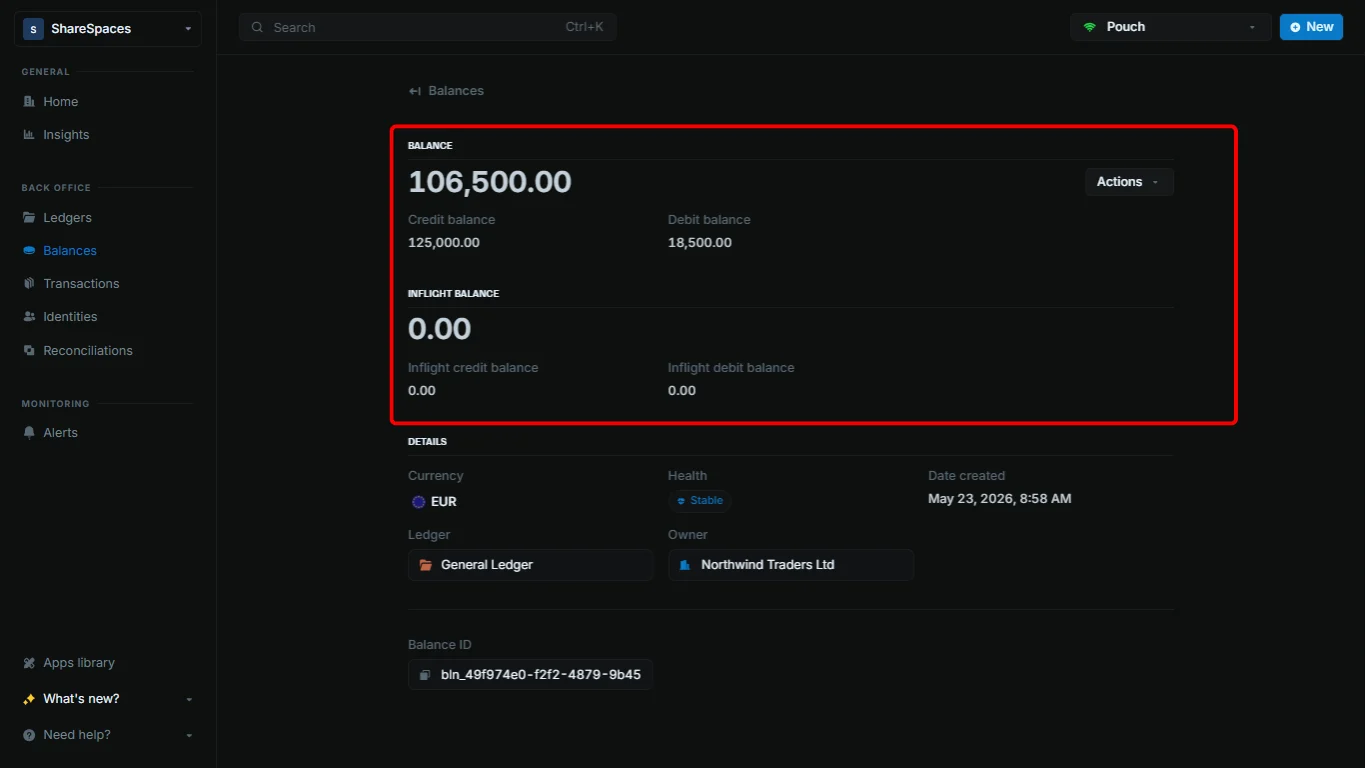 In the top-right corner of the balance details page, click `Actions`.
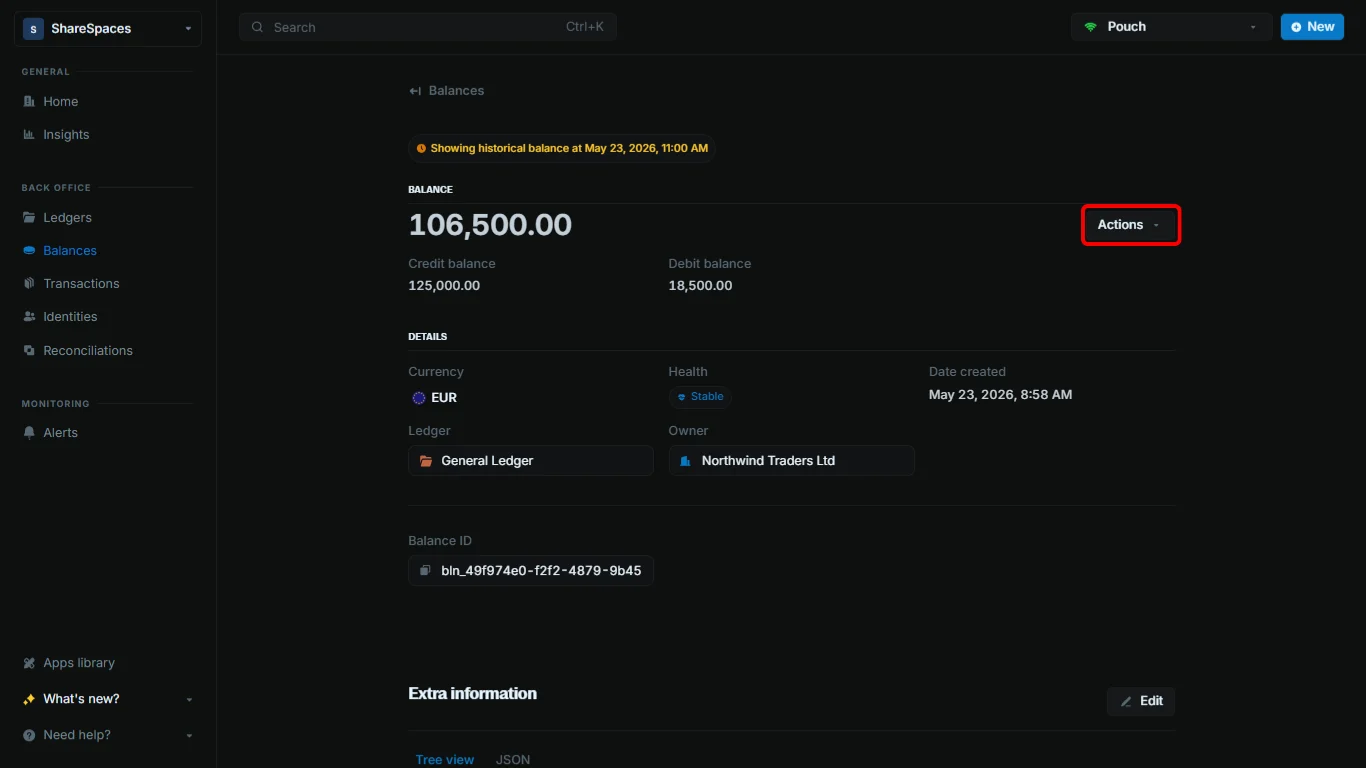 In the dropdown, select `View historical balance`. A dialog titled `View historical balance?` opens on top of the balance details page.
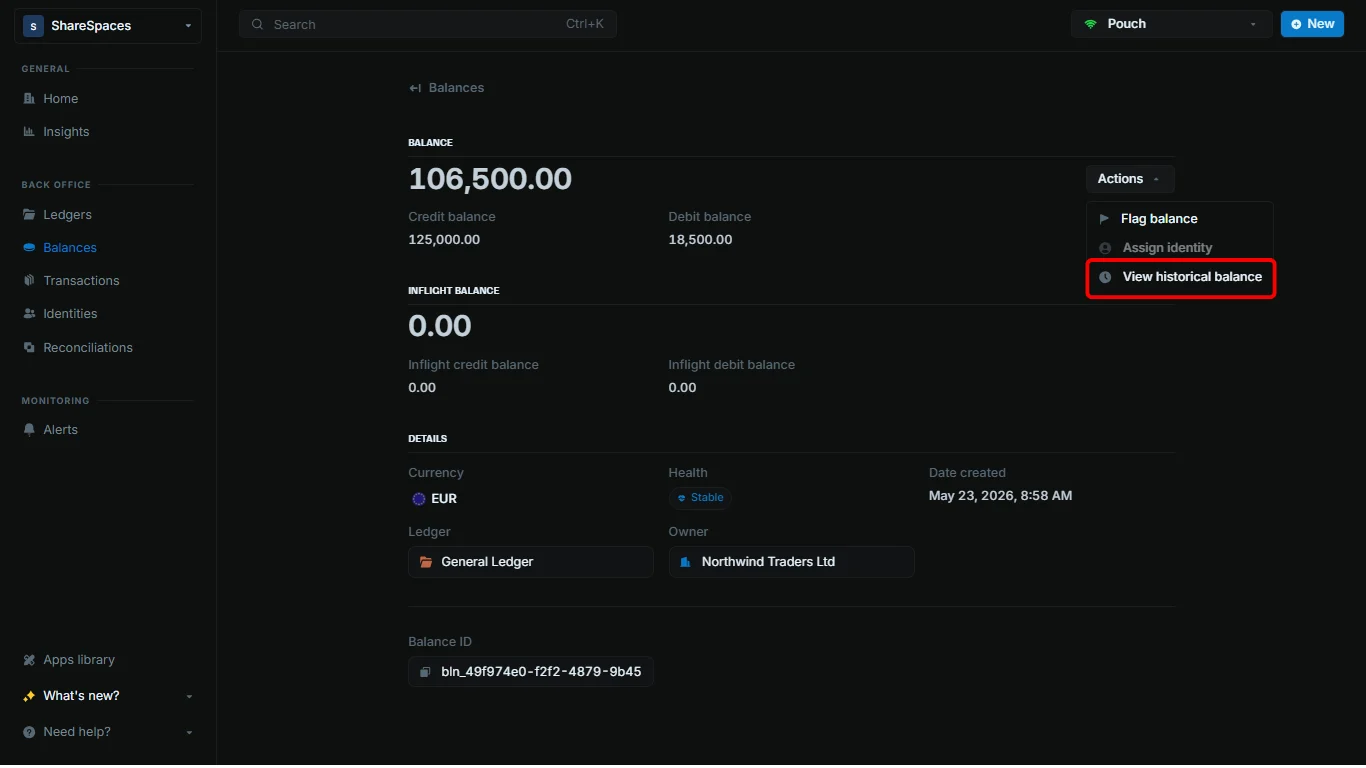 In the dialog, choose the date and time you want to view the balance at, then click `View balance`.
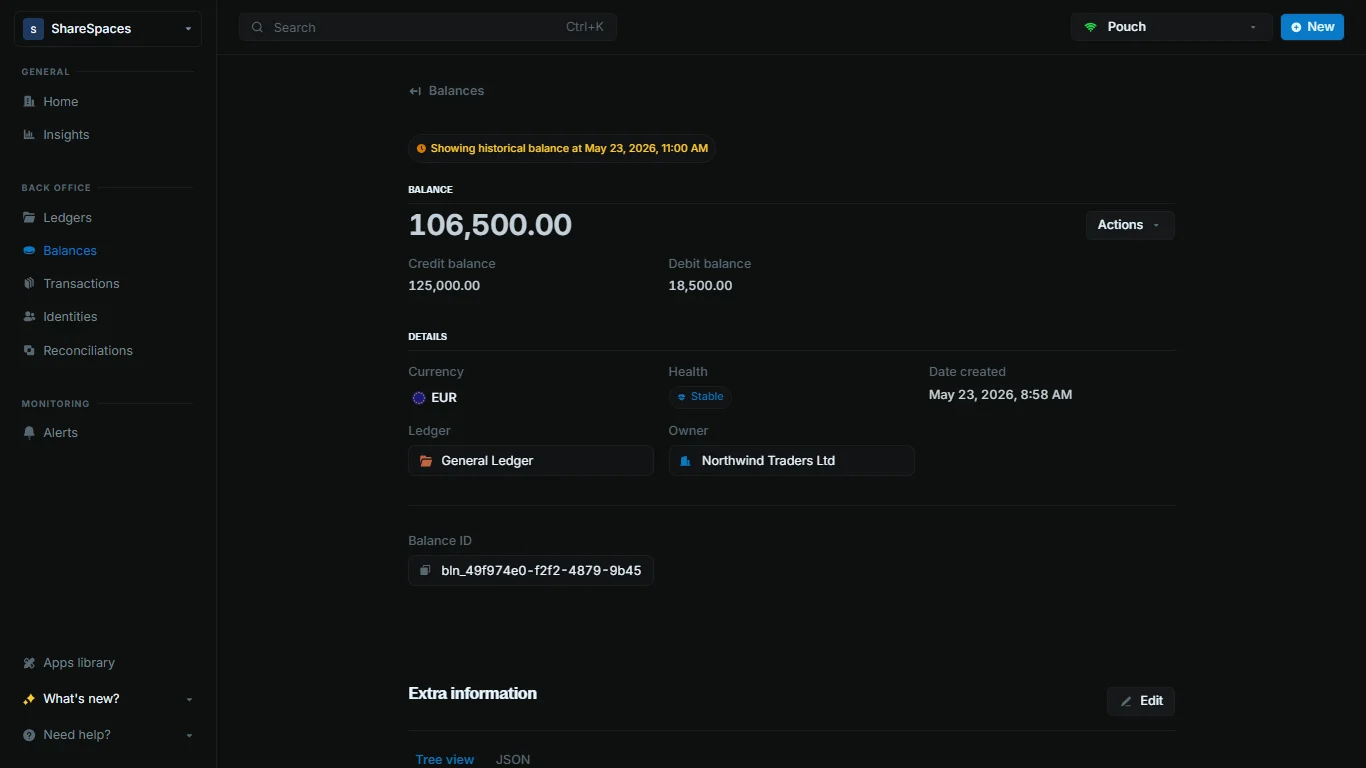
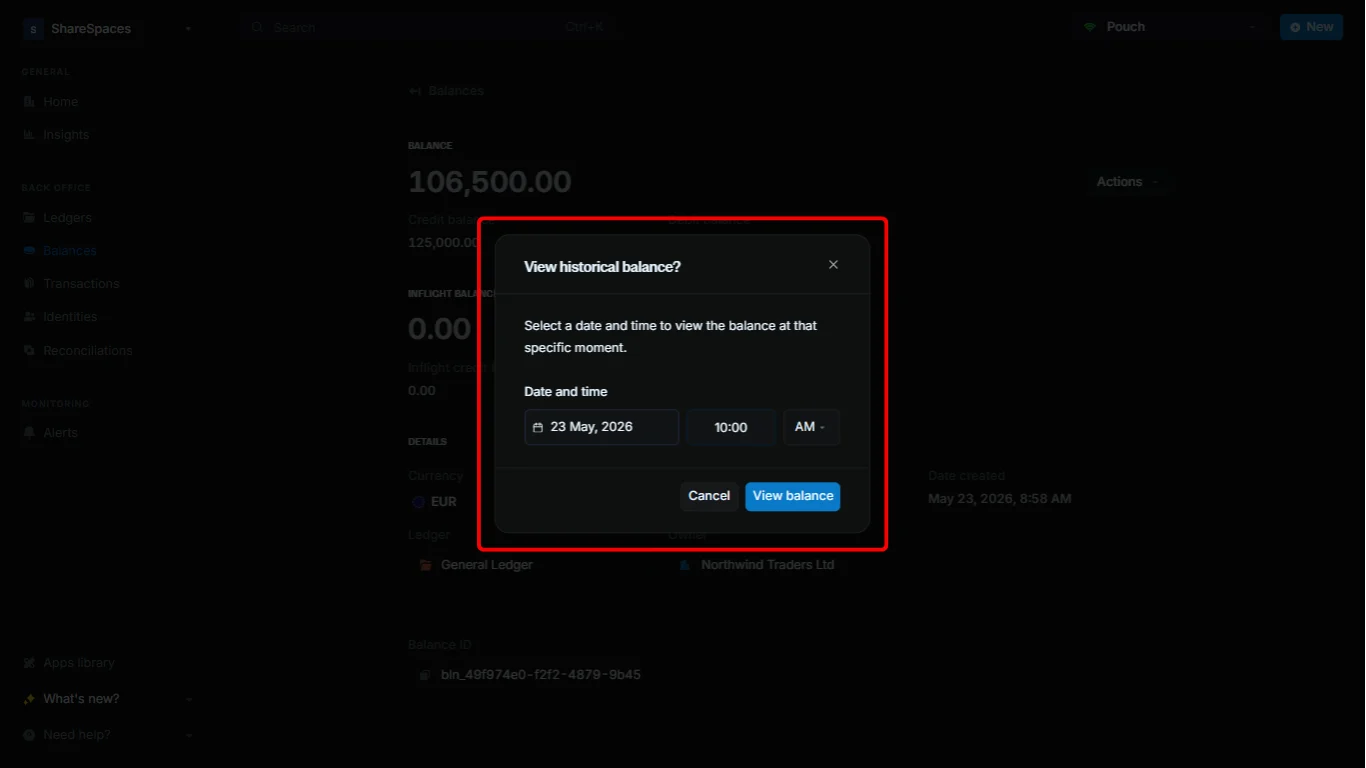 The dialog closes. On the same balance details page, `Balance`, `Credit balance`, and `Debit balance` update to reflect that point in time.
 ***
## Share historical balance
You can copy the link and share it with other teammates so they can also view the balance at that same point in time. This is helpful for collaborative analysis or when you need to show specific balance states to colleagues.
***
## Return to current balance
After you view a historical balance, you are still on the balance details page (with past amounts shown). To switch back to live amounts:
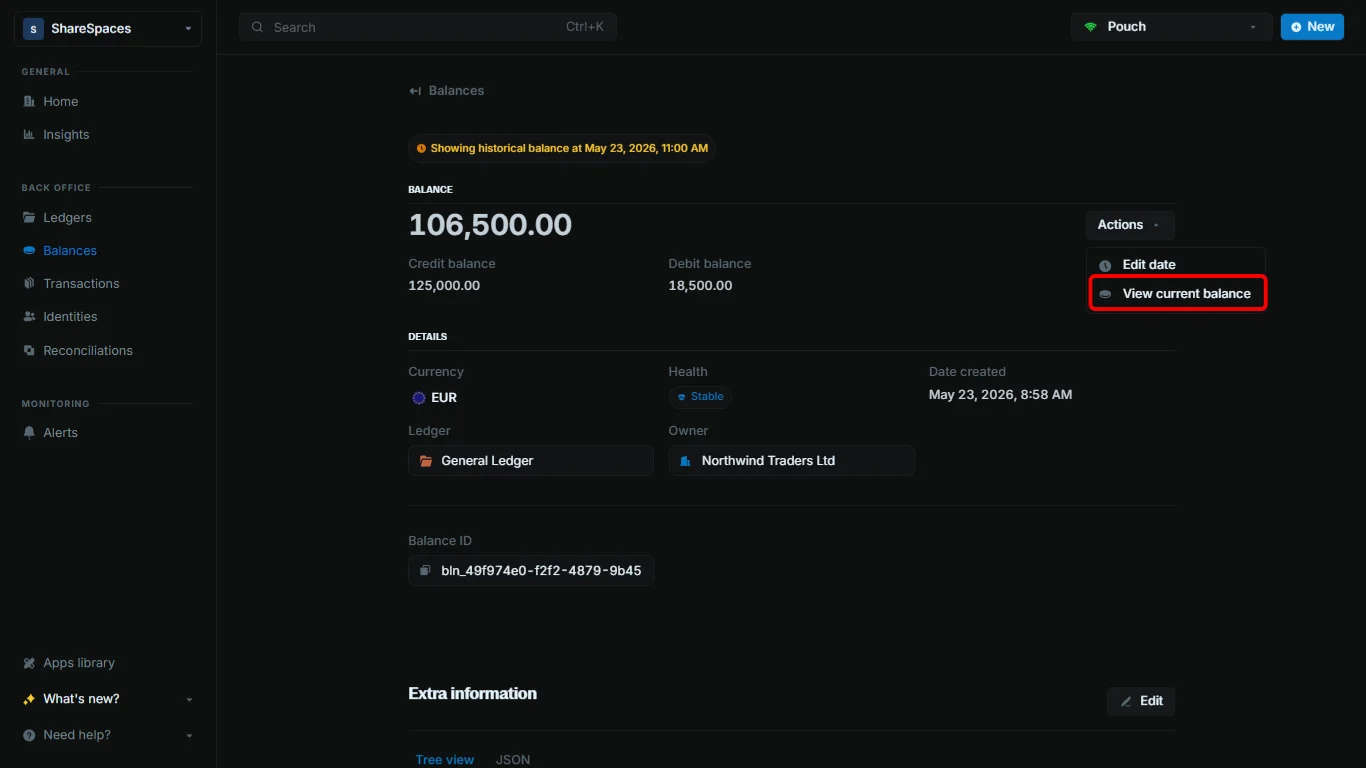
On the same balance details page, click `Actions` in the top-right corner. While you are viewing a historical balance, the menu shows `View current balance` instead of `View historical balance`.
Choose `View current balance` from the menu. The page shows live amounts again.
***
## Share historical balance
You can copy the link and share it with other teammates so they can also view the balance at that same point in time. This is helpful for collaborative analysis or when you need to show specific balance states to colleagues.
***
## Return to current balance
After you view a historical balance, you are still on the balance details page (with past amounts shown). To switch back to live amounts:
On the same balance details page, click `Actions` in the top-right corner. While you are viewing a historical balance, the menu shows `View current balance` instead of `View historical balance`.
Choose `View current balance` from the menu. The page shows live amounts again.
 ***
## Need help?
We are very happy to help you make the most of Blnk, regardless of whether it is your first time or you are switching from another tool.
To ask questions or discuss issues, please [contact us](mailto:support@blnkfinance.com) or [join our Discord community](https://discord.gg/7WNv94zPpx).
Get dedicated support for architecture reviews, integration planning, ledger workflows, and production deployment.
***
## Need help?
We are very happy to help you make the most of Blnk, regardless of whether it is your first time or you are switching from another tool.
To ask questions or discuss issues, please [contact us](mailto:support@blnkfinance.com) or [join our Discord community](https://discord.gg/7WNv94zPpx).
Get dedicated support for architecture reviews, integration planning, ledger workflows, and production deployment.