> ## Documentation Index
> Fetch the complete documentation index at: https://docs.blnkfinance.com/llms.txt
> Use this file to discover all available pages before exploring further.
# Flag Balance
> Flag balances for investigation and track alerts in Blnk Cloud.
export const CtaCallout = props => {
const {title, buttonLabel, href, trackingEvent, buttonTarget, rel = "noopener noreferrer", children} = props;
const handleCtaClick = () => {
if (typeof window === "undefined" || !trackingEvent) {
return;
}
try {
window.dispatchEvent(new CustomEvent("blnk:docs-cta", {
detail: {
name: trackingEvent,
href
}
}));
} catch {}
try {
window.posthog?.capture?.(trackingEvent, {
href
});
} catch {}
const gaPayload = {
cta_href: href
};
try {
window.gtag?.("event", trackingEvent, gaPayload);
} catch {}
try {
window.dataLayer = window.dataLayer || [];
window.dataLayer.push({
event: trackingEvent,
...gaPayload
});
} catch {}
};
const isExternal = typeof href === "string" && (/^https?:\/\//i).test(href);
const target = buttonTarget ?? (isExternal ? "_blank" : undefined);
const linkRel = isExternal ? rel : undefined;
return ;
};
Flag balance lets you raise an alert directly from a balance when you notice unusual activity or need a review trail.
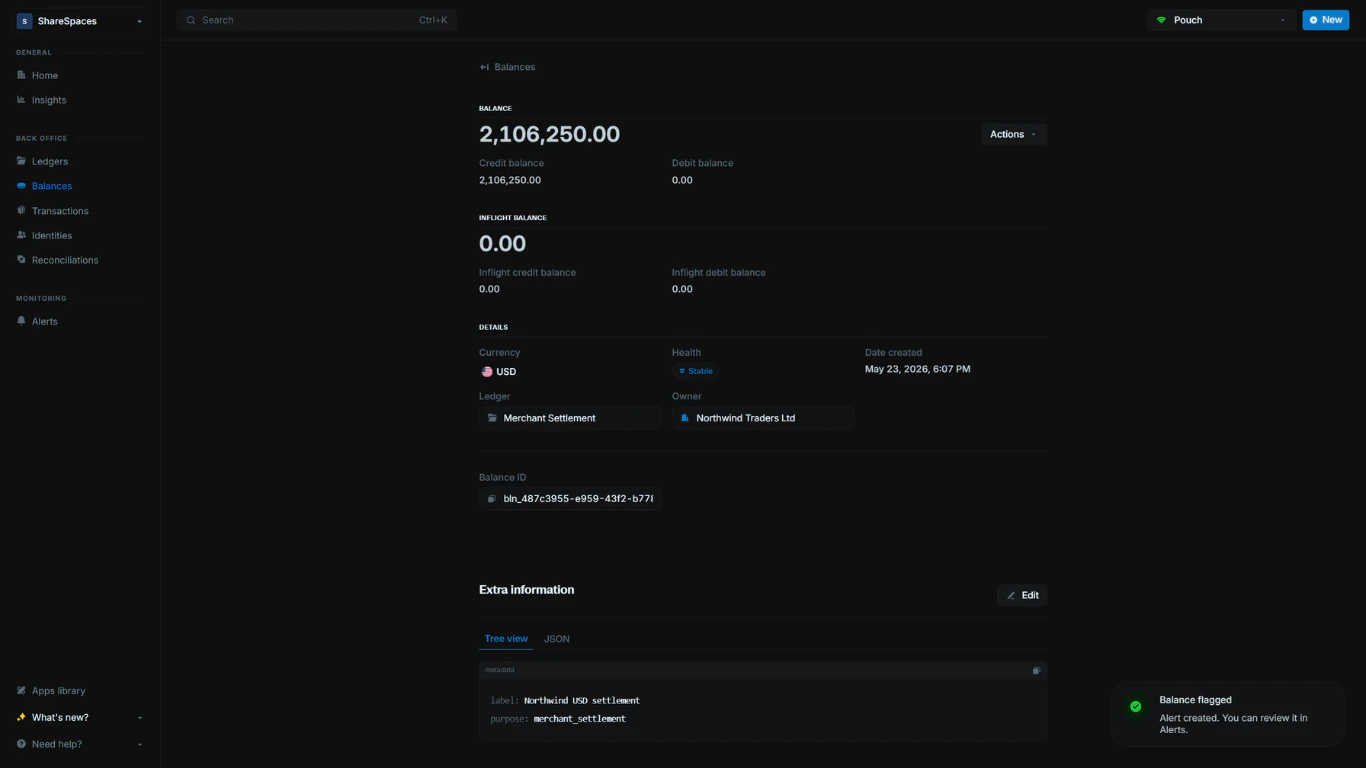
When a balance is flagged, Blnk creates a linked alert so your team can assign ownership, update status, and resolve the issue from Alerts.
This page covers how to initiate flagging from a balance. For alert handling and resolution workflows, see [Alerts overview](/cloud/alerts).
***
## Flag a balance
To flag a balance from Cloud:
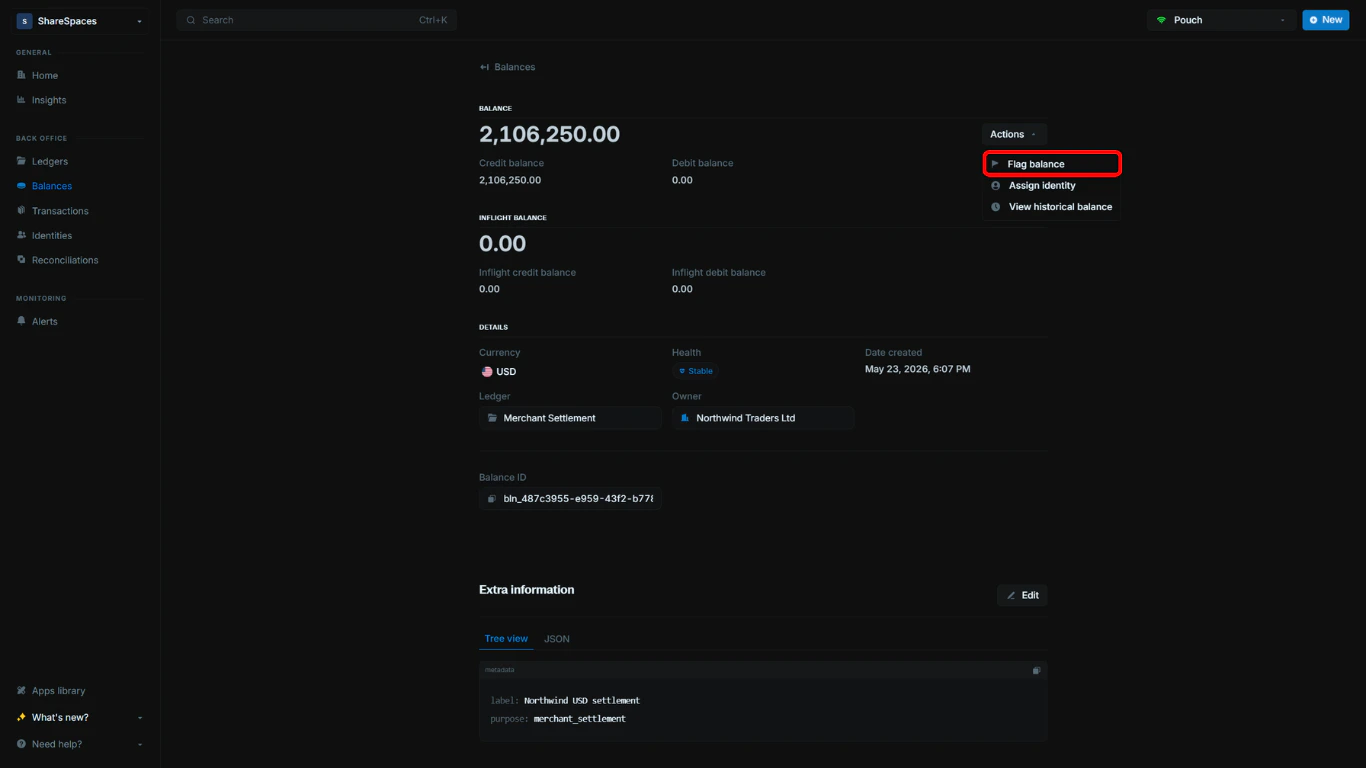
Open `Balances` and select the balance you want to review. In the details page, click `Actions`, then select `Flag balance`.
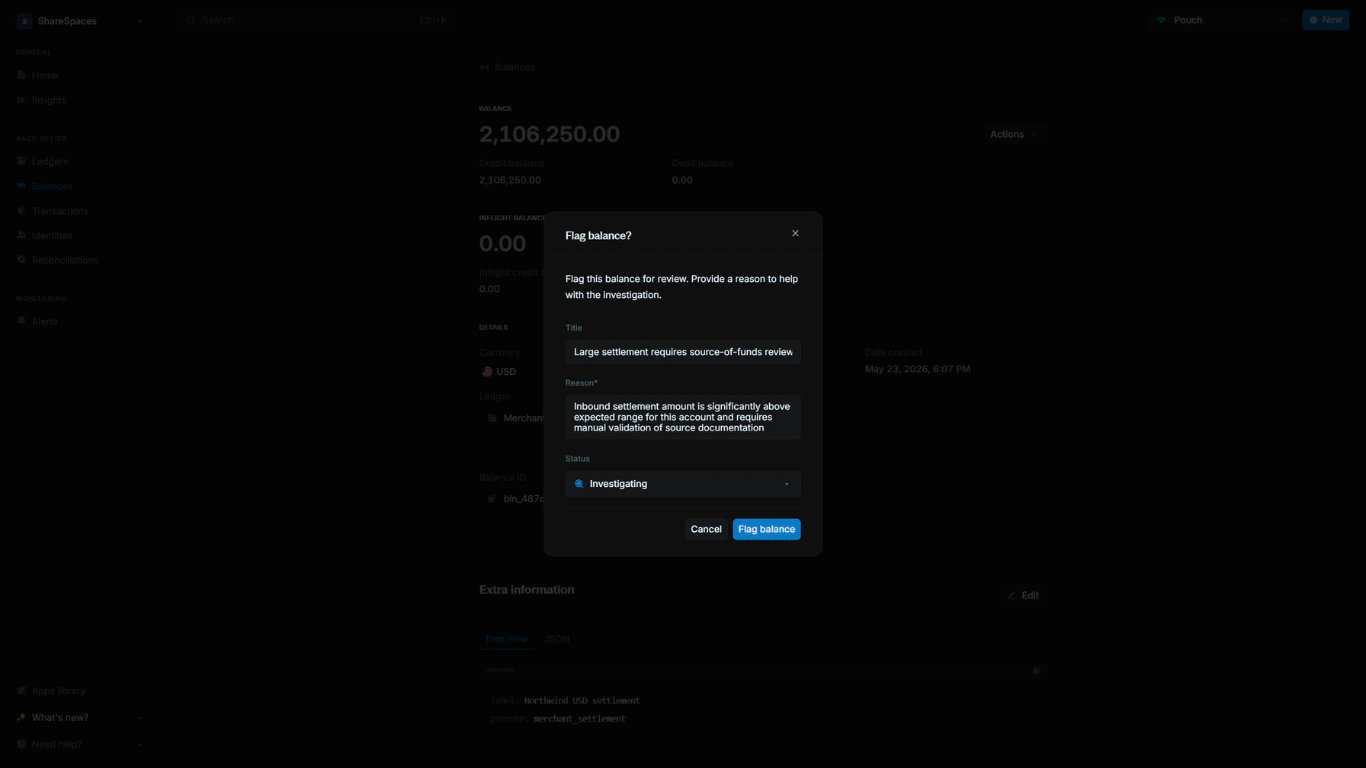
 In the modal, enter Title and Reason, then choose a Status.
 Click `Flag balance` to create the alert for this balance.
 You can create multiple alerts on the same balance when different issues need separate tracking.
### Choose or create a status
Choose an existing status in the modal (for example, `Flagged`, `Investigating`, or `Resolved`). If you need a custom status, create one from Alert statuses and then return to the flag modal to select it.
Custom alert statuses for your organization.
View, assign, and resolve alerts.
***
## Need help?
We are very happy to help you make the most of Blnk, regardless of whether it is your first time or you are switching from another tool.
To ask questions or discuss issues, please [contact us](mailto:support@blnkfinance.com) or [join our Discord community](https://discord.gg/7WNv94zPpx).
Get dedicated support for architecture reviews, integration planning, ledger workflows, and production deployment.
You can create multiple alerts on the same balance when different issues need separate tracking.
### Choose or create a status
Choose an existing status in the modal (for example, `Flagged`, `Investigating`, or `Resolved`). If you need a custom status, create one from Alert statuses and then return to the flag modal to select it.
Custom alert statuses for your organization.
View, assign, and resolve alerts.
***
## Need help?
We are very happy to help you make the most of Blnk, regardless of whether it is your first time or you are switching from another tool.
To ask questions or discuss issues, please [contact us](mailto:support@blnkfinance.com) or [join our Discord community](https://discord.gg/7WNv94zPpx).
Get dedicated support for architecture reviews, integration planning, ledger workflows, and production deployment.