> ## Documentation Index
> Fetch the complete documentation index at: https://docs.blnkfinance.com/llms.txt
> Use this file to discover all available pages before exploring further.
# Installing Custom Apps
> Learn how to install and activate custom apps in your Blnk Cloud workspace.
This feature is in private beta. If you want access, please [contact Support](mailto:support@blnkfinance.com?subject=Interested%20in%20Custom%20Apps).
This guide shows you how to install an app from the Apps library in Blnk Cloud.
When you install an app, it becomes available inside the organization and Cloud instance you selected. This means an app can be installed in one instance and unavailable in another.
Before you start, check that you are in the right organization and have selected the instance where you want the app to be available.
The Apps library can include two types of apps:
* **Official apps:** Built and managed by Blnk.
* **Private apps:** Built and managed by your organization.
If you are building your own Custom App, see [Custom Apps overview](/cloud/apps/overview). For a runnable Stripe Sync example you can clone and register in Cloud, use the [blnkfinance/apps-demo](https://github.com/blnkfinance/apps-demo) repository on GitHub.
***
## Prerequisites
If your instance is deployed on Cloud, you're set to go. For connected self-hosted instances:
* Make sure you set your `Core URL` and `Core secret key` in your [instance details](/cloud/instances/overview#edit-instances).
* Make sure your Core URL is reachable. If your Core is set up in a private network, [whitelist the Cloud IPs](/cloud/instances/overview#core-url) to ensure secure access to your Core via Cloud.
***
## Install a Custom App
To install a Custom App:
Navigate to the bottom left section of your side navigation and open the `Apps` library.
**Note:** Make sure you're in the right instance where you want the app to be available. If you're not sure, you can confirm by checking the active instance in the top right corner of your screen.
Browse the library for the app you want, and click to open its details.
Review what it does, the permissions it requires, and any other details you need. Confirm that this is the app you need, then click `Install`.
Next, review what the app is allowed to access or do inside your ledger.
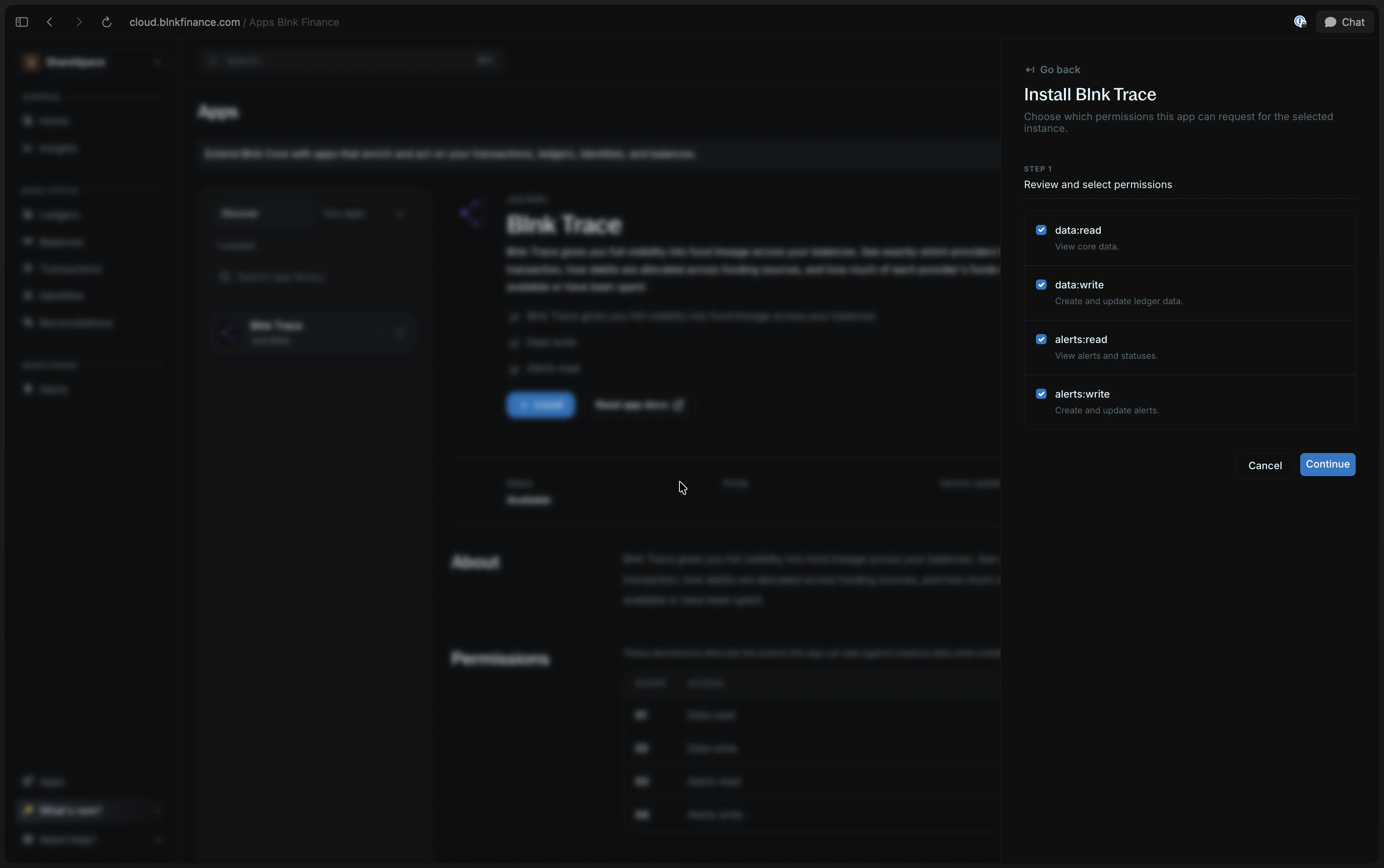 This helps protect your data and ensures the app only does what you want it to.
1. Review the requested permissions.
2. Select the permissions you want to grant.
3. Click `Continue` if you're happy with the permissions.
Finally, confirm the installation by entering your account password and 2FA code (if enabled).
This final step helps protect the workspace from unauthorized app installs.
Now you can launch the app from the app details page by clicking `Launch app` from the top right corner of the app details page. Launching is usually one click. Some apps prompt for your password and 2FA again before opening.
***
## Uninstall a Custom App
To uninstall a Custom App:
From the `Apps` library, open the app you want to uninstall.
Make sure you are viewing the same organization and instance where the app is installed.
Click `Uninstall` from the app details page.
If uninstall fails, wait a few minutes and try again.
***
## Troubleshooting
If something goes wrong during installation, here are a few things you can try:
| Issue | What to do |
| -------------------------------- | -------------------------------------------------------------------------------------------- |
| Permissions do not load | Reopen the install flow and try again. |
| Password or 2FA is incorrect | Check your password or 2FA code and try again. You may see `Authentication failed`. |
| Install fails | Return to the app details page and click `Install` again. |
| App is not visible after install | Confirm that you are viewing the same organization and instance where the app was installed. |
| Private app not loading | Check that your app is live and accessible via Cloud. |
This helps protect your data and ensures the app only does what you want it to.
1. Review the requested permissions.
2. Select the permissions you want to grant.
3. Click `Continue` if you're happy with the permissions.
Finally, confirm the installation by entering your account password and 2FA code (if enabled).
This final step helps protect the workspace from unauthorized app installs.
Now you can launch the app from the app details page by clicking `Launch app` from the top right corner of the app details page. Launching is usually one click. Some apps prompt for your password and 2FA again before opening.
***
## Uninstall a Custom App
To uninstall a Custom App:
From the `Apps` library, open the app you want to uninstall.
Make sure you are viewing the same organization and instance where the app is installed.
Click `Uninstall` from the app details page.
If uninstall fails, wait a few minutes and try again.
***
## Troubleshooting
If something goes wrong during installation, here are a few things you can try:
| Issue | What to do |
| -------------------------------- | -------------------------------------------------------------------------------------------- |
| Permissions do not load | Reopen the install flow and try again. |
| Password or 2FA is incorrect | Check your password or 2FA code and try again. You may see `Authentication failed`. |
| Install fails | Return to the app details page and click `Install` again. |
| App is not visible after install | Confirm that you are viewing the same organization and instance where the app was installed. |
| Private app not loading | Check that your app is live and accessible via Cloud. |