> ## Documentation Index
> Fetch the complete documentation index at: https://docs.blnkfinance.com/llms.txt
> Use this file to discover all available pages before exploring further.
# How Custom Apps work
> A mental model for how Custom Apps fit with Blnk Cloud - components, lifecycle, permissions, security, and auditability.
This feature is in private beta. If you want access, please [contact Support](mailto:support@blnkfinance.com?subject=Interested%20in%20Custom%20Apps).
A Custom App is a third-party app that runs inside Blnk Cloud, scoped to a single organization and Cloud instance.
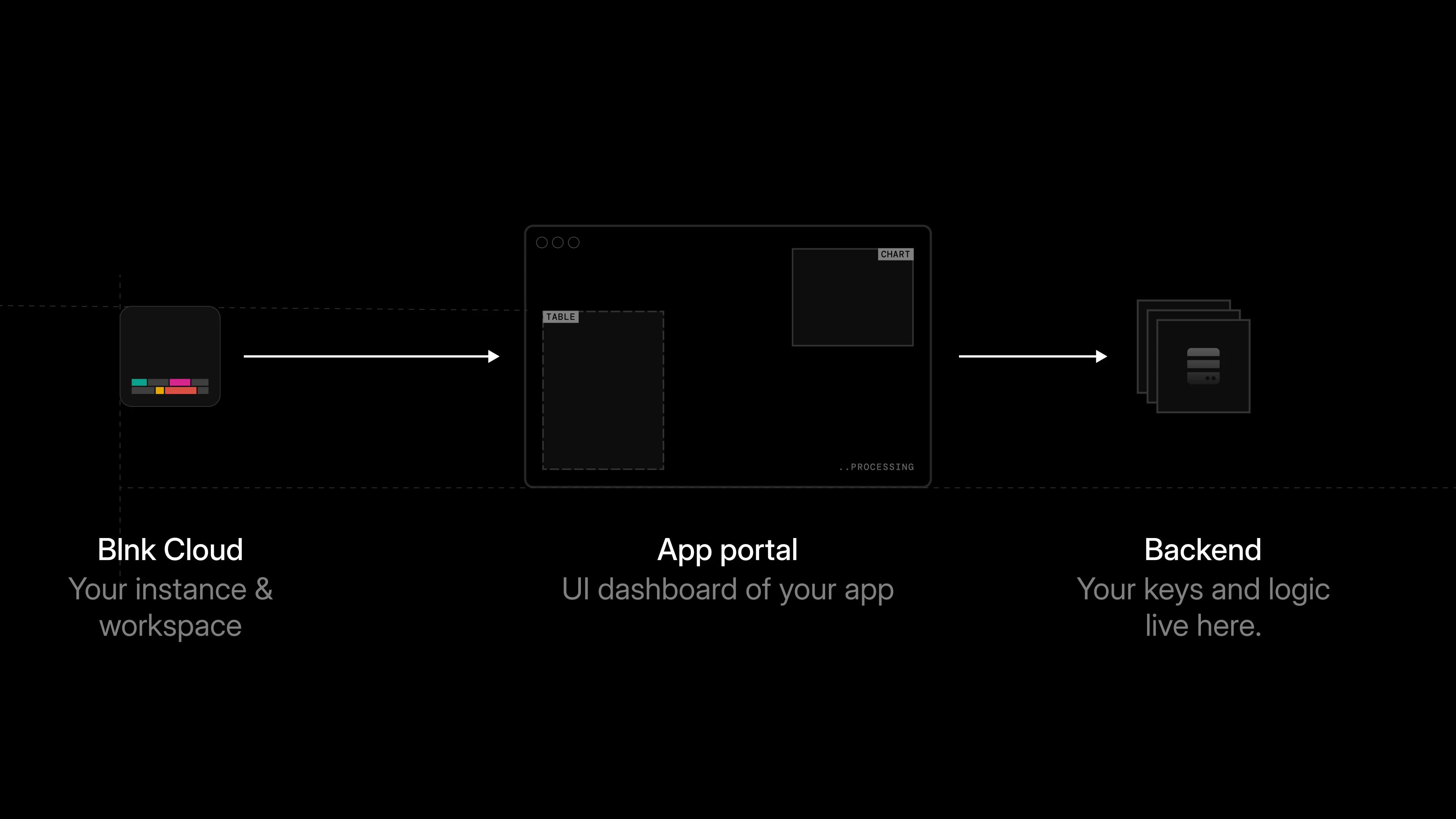
It can read ledger data, perform Core actions, talk to external systems, and surface a custom UI inside the Cloud dashboard.
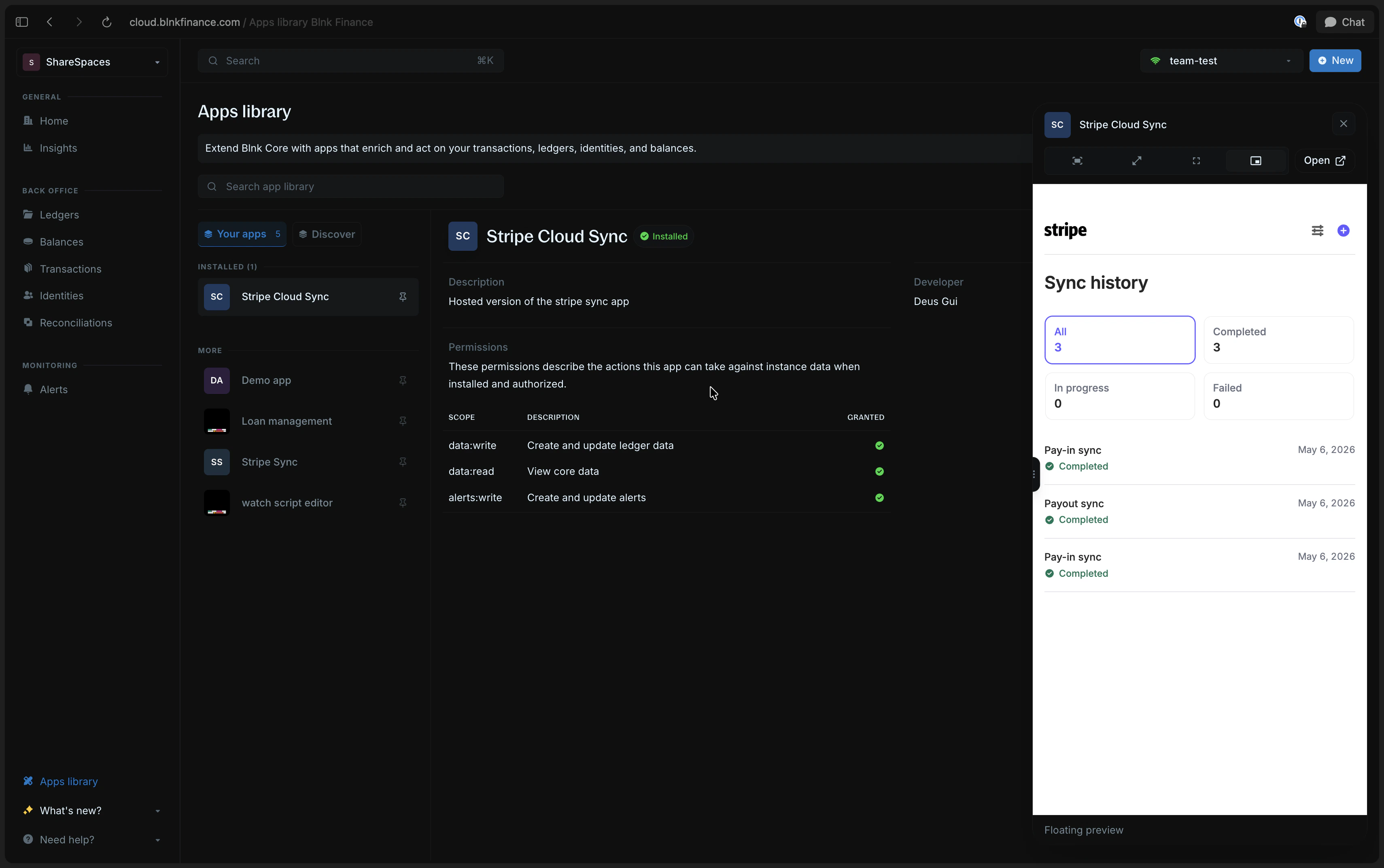 This page explains how a Custom App works with Blnk: the components it has, the lifecycle it goes through, and the security and auditability guarantees you get for free by building on Cloud.
Use it as the mental model before you [install](/cloud/apps/install-app) an app or [build your own](/cloud/apps/define-workflow). When you are ready to ship, review [Best practices](/cloud/apps/best-practices).
***
## Cloud as the trust boundary
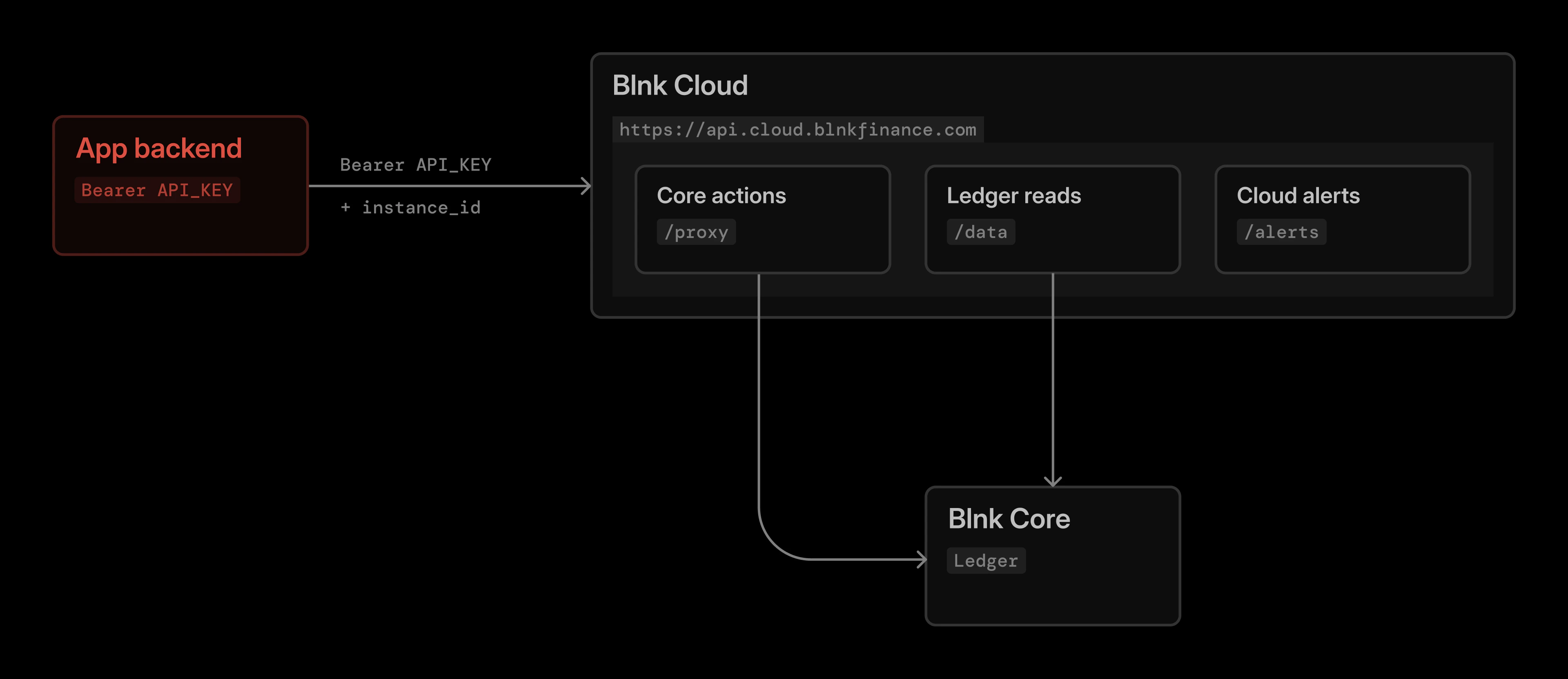
Apps do not hold direct Core credentials; plus a custom app should not call Core directly. Instead, they receive an install-specific key scoped to one organization, one instance, and approved permissions. Cloud mediates every request.
Every request flows through Blnk Cloud at `https://api.cloud.blnkfinance.com`, authenticated with the scoped API key issued at install time.
Cloud exposes three families of endpoints to your app:
| Surface | URL path | Purpose |
| ----------------- | ------------- | ---------------------------------------------------------------------- |
| Proxy API | `/proxy/...` | Perform Core actions like creating ledgers, balances, or transactions. |
| Data API | `/data/...` | Read and filter ledger data through Cloud. |
| Cloud-native APIs | `/alerts/...` | Use features that belong to Cloud itself, like alerts. |
This gateway pattern is what makes Cloud the trust boundary: your app gets a scoped key for one organization and one instance, and Cloud is responsible for routing the call, enforcing permissions and rate limits, and recording what happened.
This page explains how a Custom App works with Blnk: the components it has, the lifecycle it goes through, and the security and auditability guarantees you get for free by building on Cloud.
Use it as the mental model before you [install](/cloud/apps/install-app) an app or [build your own](/cloud/apps/define-workflow). When you are ready to ship, review [Best practices](/cloud/apps/best-practices).
***
## Cloud as the trust boundary
Apps do not hold direct Core credentials; plus a custom app should not call Core directly. Instead, they receive an install-specific key scoped to one organization, one instance, and approved permissions. Cloud mediates every request.
Every request flows through Blnk Cloud at `https://api.cloud.blnkfinance.com`, authenticated with the scoped API key issued at install time.
Cloud exposes three families of endpoints to your app:
| Surface | URL path | Purpose |
| ----------------- | ------------- | ---------------------------------------------------------------------- |
| Proxy API | `/proxy/...` | Perform Core actions like creating ledgers, balances, or transactions. |
| Data API | `/data/...` | Read and filter ledger data through Cloud. |
| Cloud-native APIs | `/alerts/...` | Use features that belong to Cloud itself, like alerts. |
This gateway pattern is what makes Cloud the trust boundary: your app gets a scoped key for one organization and one instance, and Cloud is responsible for routing the call, enforcing permissions and rate limits, and recording what happened.
 For the full surface, see:
Cloud APIs for reads, actions, and alerts.
***
## The Custom App lifecycle
A Custom App moves through three stages: registration, installation, and launch. Each stage hands the next one a small set of well-defined values.
For the full surface, see:
Cloud APIs for reads, actions, and alerts.
***
## The Custom App lifecycle
A Custom App moves through three stages: registration, installation, and launch. Each stage hands the next one a small set of well-defined values.
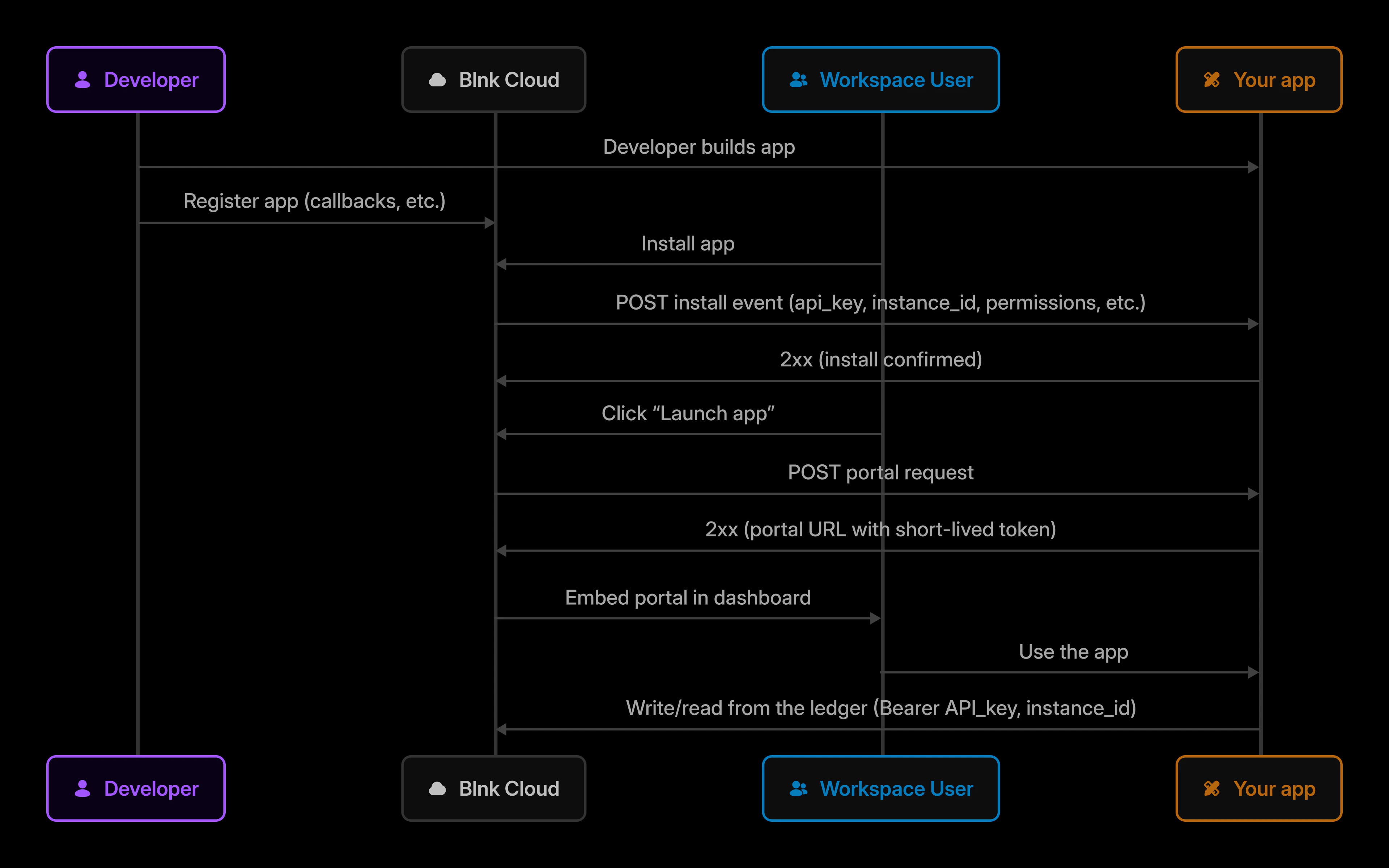 You declare your app to Cloud by submitting a manifest with the routes Cloud should call and the permissions your app needs.
1. You upload the manifest in Cloud with display name, callback URL, portal URL, and requested permissions.
2. Cloud lists your app in the Apps library for your organization only.
3. Workspace members can now find and install it on the Cloud instances they use.
Add your app to the Apps library with a manifest.
Installation is where Cloud mints credentials and your app provisions itself for that specific organization and instance.
1. The user clicks `Install` and reviews the requested permissions.
2. The user grants the permissions and confirms with their password and 2FA.
3. Cloud creates a scoped API key for this installation only.
4. Cloud sends an install event to your callback URL with the install record.
5. Your app stores the install (with the API key encrypted at rest) and returns `2xx`.
6. The install becomes active and the user can launch the app.
Handle install and uninstall events for your Custom App.
Launching is how the app's UI gets into the dashboard, with a fresh, short-lived session every time.
1. The user clicks `Launch app` in Cloud.
2. If the app requires it, the user confirms with their password and 2FA (same rules as install).
3. Cloud sends a portal request to your portal generator URL.
4. Your app validates the install and creates a short-lived portal session.
5. Your app returns a `portal_url` containing the session token.
6. Cloud embeds that URL inside the dashboard.
7. The user works in the app, while your backend talks to Cloud using the install API key.
You declare your app to Cloud by submitting a manifest with the routes Cloud should call and the permissions your app needs.
1. You upload the manifest in Cloud with display name, callback URL, portal URL, and requested permissions.
2. Cloud lists your app in the Apps library for your organization only.
3. Workspace members can now find and install it on the Cloud instances they use.
Add your app to the Apps library with a manifest.
Installation is where Cloud mints credentials and your app provisions itself for that specific organization and instance.
1. The user clicks `Install` and reviews the requested permissions.
2. The user grants the permissions and confirms with their password and 2FA.
3. Cloud creates a scoped API key for this installation only.
4. Cloud sends an install event to your callback URL with the install record.
5. Your app stores the install (with the API key encrypted at rest) and returns `2xx`.
6. The install becomes active and the user can launch the app.
Handle install and uninstall events for your Custom App.
Launching is how the app's UI gets into the dashboard, with a fresh, short-lived session every time.
1. The user clicks `Launch app` in Cloud.
2. If the app requires it, the user confirms with their password and 2FA (same rules as install).
3. Cloud sends a portal request to your portal generator URL.
4. Your app validates the install and creates a short-lived portal session.
5. Your app returns a `portal_url` containing the session token.
6. Cloud embeds that URL inside the dashboard.
7. The user works in the app, while your backend talks to Cloud using the install API key.
 Publish and launch your Custom App in Blnk Cloud.
***
## Application permissions
Custom Apps have two layers of permissions that work together:
* **What your app can access.** Your manifest declares the scopes the app needs. Cloud enforces these at the API gateway, regardless of what the signed-in user can do.
* **What the user approved.** Workspace members choose a subset of the requested scopes during installation. Those granted scopes cannot be changed after install.
The supported scopes are:
| Scope | What it allows |
| -------------- | ----------------------------------------------------------------- |
| `data:read` | Allows apps to retrieve ledger data through Cloud. |
| `data:write` | Allows apps to perform write operations through Cloud APIs. |
| `alerts:read` | Read alerts available to the installed organization and instance. |
| `alerts:write` | Create and update alerts through Cloud APIs. |
Apps do not bypass Cloud or connect directly to Blnk Core. Even with write permissions, app actions are scoped to the installed organization and instance, routed through Cloud, and recorded in the audit trail.
For access to granular permission scopes, please [contact us](mailto:support@blnkfinance.com?subject=Interested%20in%Production%20License) for a production license.
At runtime, `granted_permissions` from the install payload is the source of truth. Always check it before performing an action " even if your manifest requested more, the user may have granted less.
Apps never inherit a user's permissions. If your manifest does not request a scope, the app cannot use it, even if the user installing it has full access.
***
## Auditability
Because Cloud is the gateway for every app action, you get a clear audit trail without building your own:
* **Every Core action is mediated.** Calls flow through `/proxy` and `/data`, so Cloud captures who acted, on what instance, with which key.
* **Actions are attributable to a specific install.** Each install has its own `installed_app_id` and `api_key_prefix`, so activity can be traced back to a specific app installation, not a generic key.
* **Permission grants are recorded at install time.** What the user approved is captured in `granted_permissions` and visible to the workspace.
* **Install and uninstall events are idempotent.** Each event carries an `idempotency_key`. Your handler should treat duplicate keys as already processed.
* **Uninstall is a clean break.** When a user uninstalls, Cloud sends an uninstall event to your callback URL. If your app returns `2xx`, Cloud marks the install uninstalled and revokes the API key.
You can review app activity alongside other workspace activity in the [audit logs](/cloud/organization/audit-logs).
***
## Limitations and constraints
A few things to keep in mind as you plan your app:
* **Apps are private by default.** Apps you register appear in your organization's Apps library. Installing an app is separate: each Cloud instance has its own install state.
* **One install per organization + instance.** Installing an app in one instance does not make it available in another. Each install has its own scoped key.
* **Self-hosted Core needs to be reachable.** If your instance is connected and self-hosted, set the Core URL and key, and [whitelist Cloud IPs](/cloud/instances/overview#core-url) so Cloud can reach it.
* **Apps cannot exceed requested permissions.** Even if the signed-in user has broader access, the app is bounded by the scopes in its manifest and what the user granted.
* **Portal sessions are short-lived by design.** If a session expires, the user re-launches the app from Cloud.
Publish and launch your Custom App in Blnk Cloud.
***
## Application permissions
Custom Apps have two layers of permissions that work together:
* **What your app can access.** Your manifest declares the scopes the app needs. Cloud enforces these at the API gateway, regardless of what the signed-in user can do.
* **What the user approved.** Workspace members choose a subset of the requested scopes during installation. Those granted scopes cannot be changed after install.
The supported scopes are:
| Scope | What it allows |
| -------------- | ----------------------------------------------------------------- |
| `data:read` | Allows apps to retrieve ledger data through Cloud. |
| `data:write` | Allows apps to perform write operations through Cloud APIs. |
| `alerts:read` | Read alerts available to the installed organization and instance. |
| `alerts:write` | Create and update alerts through Cloud APIs. |
Apps do not bypass Cloud or connect directly to Blnk Core. Even with write permissions, app actions are scoped to the installed organization and instance, routed through Cloud, and recorded in the audit trail.
For access to granular permission scopes, please [contact us](mailto:support@blnkfinance.com?subject=Interested%20in%Production%20License) for a production license.
At runtime, `granted_permissions` from the install payload is the source of truth. Always check it before performing an action " even if your manifest requested more, the user may have granted less.
Apps never inherit a user's permissions. If your manifest does not request a scope, the app cannot use it, even if the user installing it has full access.
***
## Auditability
Because Cloud is the gateway for every app action, you get a clear audit trail without building your own:
* **Every Core action is mediated.** Calls flow through `/proxy` and `/data`, so Cloud captures who acted, on what instance, with which key.
* **Actions are attributable to a specific install.** Each install has its own `installed_app_id` and `api_key_prefix`, so activity can be traced back to a specific app installation, not a generic key.
* **Permission grants are recorded at install time.** What the user approved is captured in `granted_permissions` and visible to the workspace.
* **Install and uninstall events are idempotent.** Each event carries an `idempotency_key`. Your handler should treat duplicate keys as already processed.
* **Uninstall is a clean break.** When a user uninstalls, Cloud sends an uninstall event to your callback URL. If your app returns `2xx`, Cloud marks the install uninstalled and revokes the API key.
You can review app activity alongside other workspace activity in the [audit logs](/cloud/organization/audit-logs).
***
## Limitations and constraints
A few things to keep in mind as you plan your app:
* **Apps are private by default.** Apps you register appear in your organization's Apps library. Installing an app is separate: each Cloud instance has its own install state.
* **One install per organization + instance.** Installing an app in one instance does not make it available in another. Each install has its own scoped key.
* **Self-hosted Core needs to be reachable.** If your instance is connected and self-hosted, set the Core URL and key, and [whitelist Cloud IPs](/cloud/instances/overview#core-url) so Cloud can reach it.
* **Apps cannot exceed requested permissions.** Even if the signed-in user has broader access, the app is bounded by the scopes in its manifest and what the user granted.
* **Portal sessions are short-lived by design.** If a session expires, the user re-launches the app from Cloud.