> ## Documentation Index
> Fetch the complete documentation index at: https://docs.blnkfinance.com/llms.txt
> Use this file to discover all available pages before exploring further.
# Alerts
> Learn how to create and manage alerts in Blnk.
export const CtaCallout = props => {
const {title, buttonLabel, href, trackingEvent, buttonTarget, rel = "noopener noreferrer", children} = props;
const handleCtaClick = () => {
if (typeof window === "undefined" || !trackingEvent) {
return;
}
try {
window.dispatchEvent(new CustomEvent("blnk:docs-cta", {
detail: {
name: trackingEvent,
href
}
}));
} catch {}
try {
window.posthog?.capture?.(trackingEvent, {
href
});
} catch {}
const gaPayload = {
cta_href: href
};
try {
window.gtag?.("event", trackingEvent, gaPayload);
} catch {}
try {
window.dataLayer = window.dataLayer || [];
window.dataLayer.push({
event: trackingEvent,
...gaPayload
});
} catch {}
};
const isExternal = typeof href === "string" && (/^https?:\/\//i).test(href);
const target = buttonTarget ?? (isExternal ? "_blank" : undefined);
const linkRel = isExternal ? rel : undefined;
return ;
};
Alerts let you track and get notified about important events and conditions in your Blnk Core.
You can create alerts manually on any record from the dashboard, or trigger them automatically via [the Alerts API](/cloud/reference/create-alert).
***
## Manual flagging
You can manually flag records from their details page using `Actions` > `Flag balance`.
For balance-specific steps (including status selection and custom status creation), see [Flag balance](/cloud/balances/flag-balance).
After you flag a balance, use `Alerts` to update the alert status as needed (for example, `Flagged`, `Investigating`, or `Resolved`).
***
## Working with alerts
All alerts in your workspace are displayed in the `Alerts` table, where you can view, filter, and manage them.
### Alerts table
The **Alerts** table shows a list of all alerts in your workspace. You can filter alerts by:
* `All:` View all alerts in your workspace.
* `Assigned to you:` View only alerts assigned to you.
You can also filter further by status:
* `All:` View all alerts regardless of status.
* **Investigating:** Alerts currently under investigation.
* `Flagged:` Alerts that have been flagged for review.
* **Resolved:** Alerts that have been resolved.
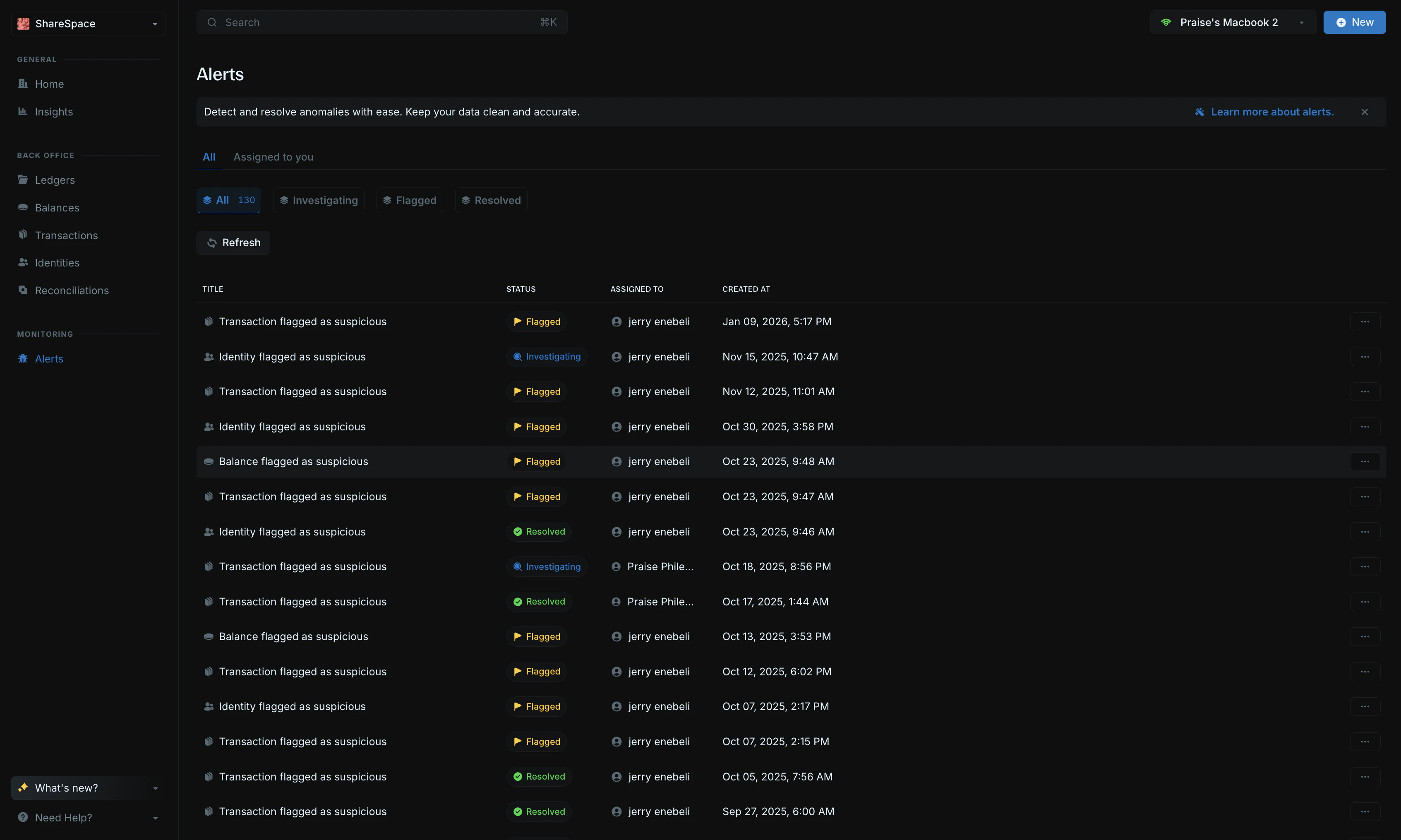 For each alert, you can see:
* **Title:** The title describing the nature of the alert (e.g., "Transaction flagged as suspicious," "Identity flagged as suspicious").
* **Status:** The current status of the alert - flagged, investigating, or resolved.
* **Assigned to:** The user responsible for handling the alert.
* `Created at:` The date and time the alert was created.
### View alert details
Click an alert from the table to open its details panel on the right side of your screen.
For each alert, you can see:
* **Title:** The title describing the nature of the alert (e.g., "Transaction flagged as suspicious," "Identity flagged as suspicious").
* **Status:** The current status of the alert - flagged, investigating, or resolved.
* **Assigned to:** The user responsible for handling the alert.
* `Created at:` The date and time the alert was created.
### View alert details
Click an alert from the table to open its details panel on the right side of your screen.
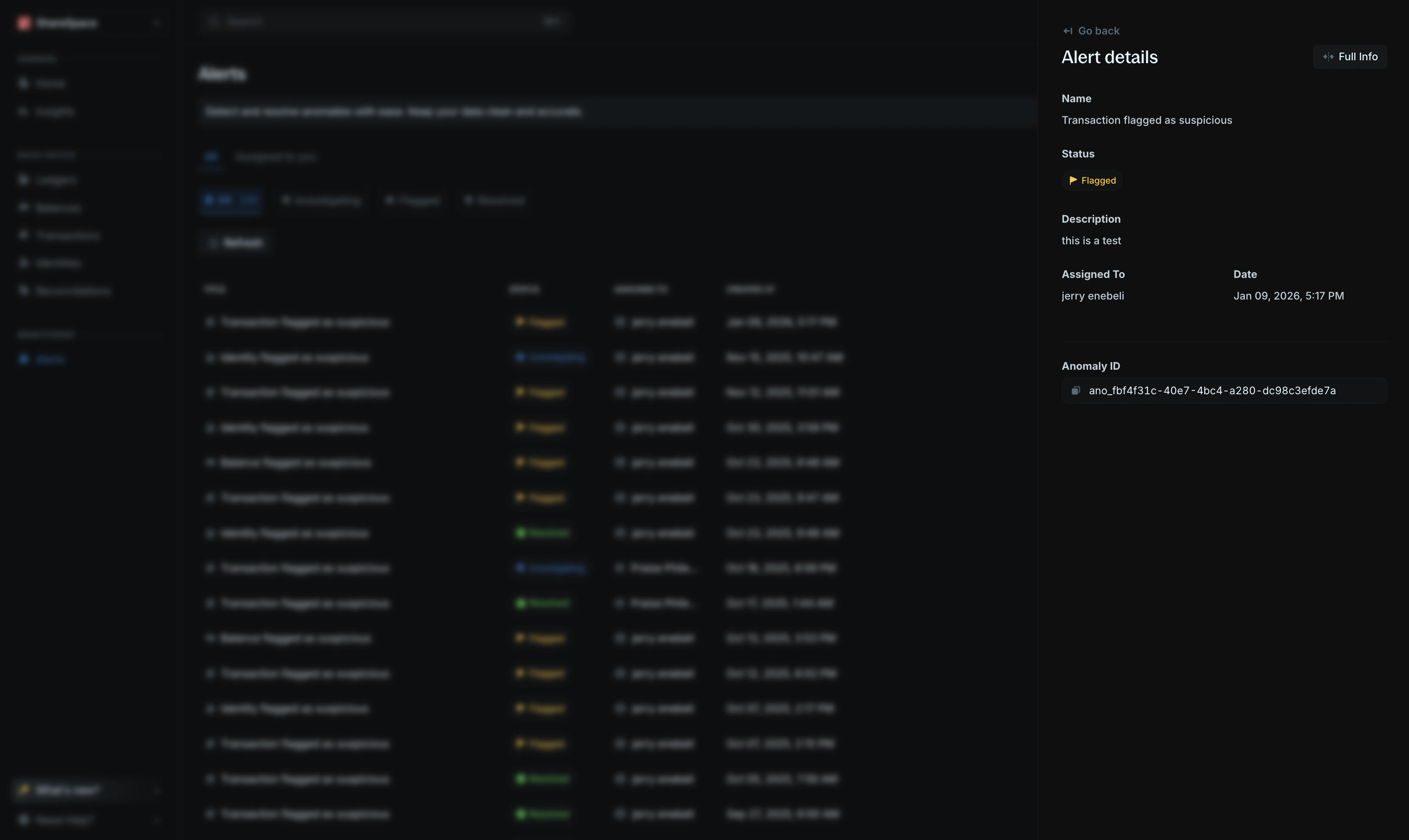 The alert details panel shows:
* **Name:** The title of the alert (e.g., "Transaction flagged as suspicious").
* **Status:** The current status displayed as a colored tag with an icon - flagged (yellow), investigating (blue), or resolved (green).
* **Description:** The description or reason for the alert.
* **Assigned to:** The user responsible for handling the alert.
* `Date:` The date and time the alert was created.
* `Alert ID:` The unique identifier for the alert. Click the copy icon to copy the ID.
For a complete view, select `Full info` in the top-right corner of the details panel or press `E` to expand the details.
The alert details panel shows:
* **Name:** The title of the alert (e.g., "Transaction flagged as suspicious").
* **Status:** The current status displayed as a colored tag with an icon - flagged (yellow), investigating (blue), or resolved (green).
* **Description:** The description or reason for the alert.
* **Assigned to:** The user responsible for handling the alert.
* `Date:` The date and time the alert was created.
* `Alert ID:` The unique identifier for the alert. Click the copy icon to copy the ID.
For a complete view, select `Full info` in the top-right corner of the details panel or press `E` to expand the details.
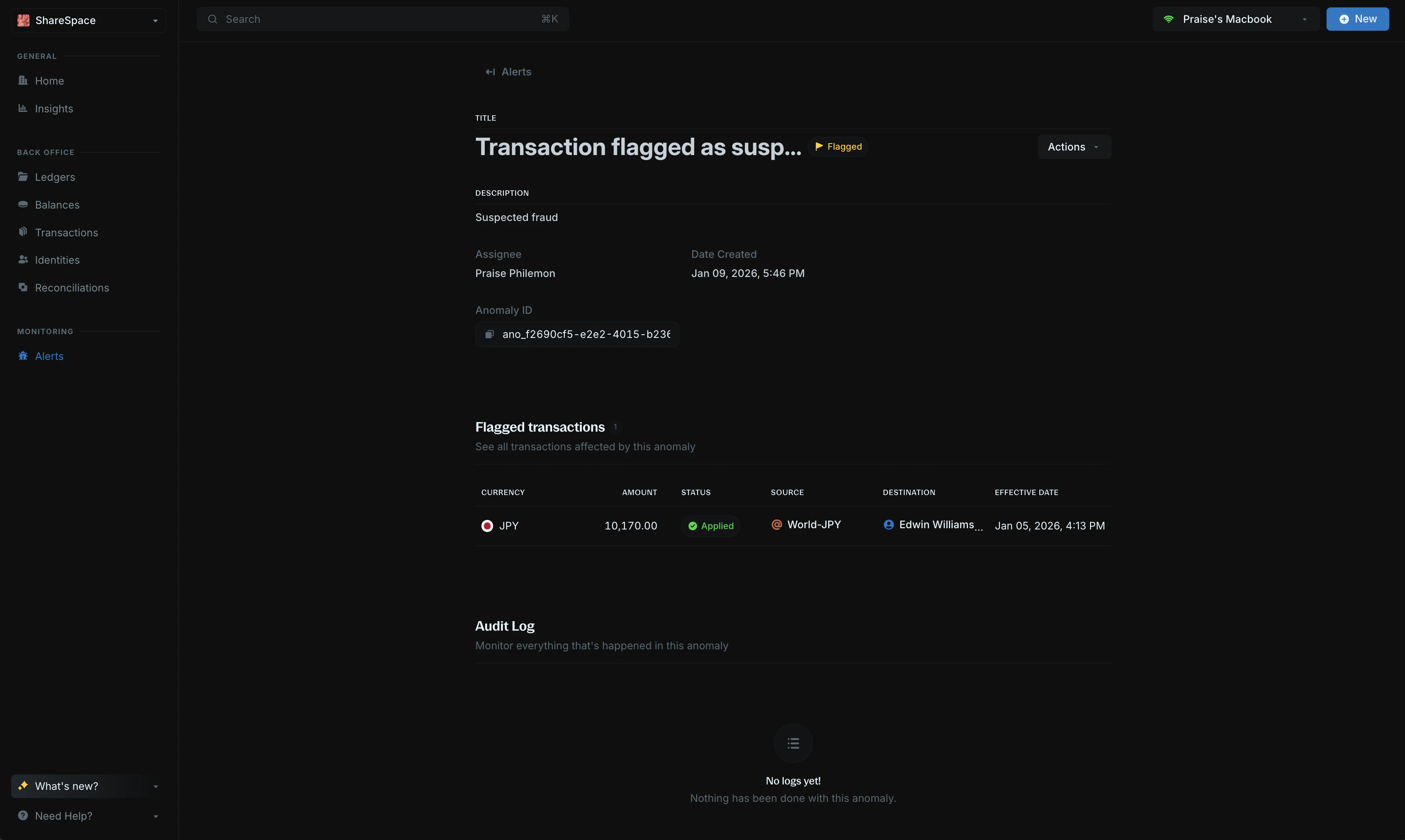 In the full details page, you can see:
* **Flagged records:** A section showing all records (transactions, balances, or identities) affected by the alert. The table displays key information about each record, including currency, amount, status, source, destination, and effective date.
* `View record:` Click on any record in the flagged records table to view its full details page.
* **Audit log:** A section that tracks all actions and changes made to the alert, allowing you to monitor the alert's history.
***
## Need help?
We are very happy to help you make the most of Blnk, regardless of whether it is your first time or you are switching from another tool.
To ask questions or discuss issues, please [contact us](mailto:support@blnkfinance.com) or [join our Discord community](https://discord.gg/7WNv94zPpx).
Get dedicated support for architecture reviews, integration planning, ledger workflows, and production deployment.
In the full details page, you can see:
* **Flagged records:** A section showing all records (transactions, balances, or identities) affected by the alert. The table displays key information about each record, including currency, amount, status, source, destination, and effective date.
* `View record:` Click on any record in the flagged records table to view its full details page.
* **Audit log:** A section that tracks all actions and changes made to the alert, allowing you to monitor the alert's history.
***
## Need help?
We are very happy to help you make the most of Blnk, regardless of whether it is your first time or you are switching from another tool.
To ask questions or discuss issues, please [contact us](mailto:support@blnkfinance.com) or [join our Discord community](https://discord.gg/7WNv94zPpx).
Get dedicated support for architecture reviews, integration planning, ledger workflows, and production deployment.